1
System Remote Control (SR-250) Buttons
The list below show the buttons
to use with your Control4 system.
System Remote Control
SR-250
User Guide
Introduction
Before you start to use the Control4® SR-250 (models
C4-SR250-Z-B and C4-SR250B-Z-B), ensure that the devices
in your Control4 system are added and configured. Note: The
SR-250B runs on OS 2.0 and later.
Uses and Features
The System Remote Control SR-250 (or SR-250) is intended
to be used with a Control4 system. Use this guide along with
the Control4 System Quick Start Guide and Control4 System
User Guide online help for best results. These are located in
my.control4.com.
Use the System Remote Control to:
• Navigate system menus and access media on a TV monitor
using the On-Screen Navigator.
• Navigate system menus and access media using the System
Remote Control’s List Navigator.
This System Remote Control extends the capabilities of a ‘universal’ remote that simply learns the IR codes from TVs, VCRs, and
CD/DVD players.
Features:
• Bi-directional communication with system components.
• Backlit display that converts the Control4 Navigator into a
text format.
• 47 buttons total: 2 for quick access, 4 programmable, 8
transport control, plus alphanumeric keys.
• ZigBee wireless.
• Wake up when picked up or moved.
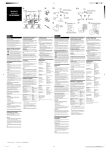
Room Off: Turns off the devices in the room.
Room and List Navigator: Lists room, options, current time.
List: Displays system list in window. Use with
arrow and Select buttons.
Ambient Light Sensor: Enables backlight on
buttons when the room is dim.
Watch/Listen: Watch movies, TV. Listen to the
radio, CDs, etc.
4: Press to turn on TV and the On-Screen
Navigator.
Programmable Buttons: Have your
Installer program these buttons for shortcuts. See
“Programmable Buttons” below
to identify and write down the functions.
Guide: Displays the channel guide (program lists)
for the device’s channels On-Screen. Also used to
toggle List or Grid views.
Prev: Goes to the previous screen.
PG Up/PG Dn: Pages up or down for the
device’s menus.
Vol +/ Vol -: Increase or decrease the volume.
Left/Right, Up/Down Arrows: Moves
through the List Navigator or On-Screen.
Select: Selects an option on the
On-Screen or List Navigator.
Ch +/ Ch -: Move up or down channels.
MUTE: Mutes the audio.
INFO: Displays current channel/program info for
the device.
MENU: Displays the menu for devices.
CNCL: Cancel last action for the device.
Play: Plays a movie or video.
Skip Forward/Skip Back: Skips through
a movie or video.
Pause: Pauses the movie or video.
Press Play to start.
Fast Forward/Rewind: Advances or rewinds
the movie or video.
DVR: Plays the DVR (digital video recorder) or
device.
Stop: Stops the movie or video. Press Play to
start.
Record: Activates the current device’s record
function.
Alphanumeric Keypad: Use to type letters or
numbers if you have an on-screen keyboard, or to
change channels, set light levels, or enter text.
Battery Maintenance
Programmable Buttons
Refer to the System Remote Control SR-250 Setup Guide for
instructions about how to install and maintain the batteries.
If your Installer programs the colored buttons, note here what
they represent:
This device requires four (4) AAA batteries.
•
•
•
•
For battery safety information, see the System Remote Control
SR-250 Setup Guide.
Red: __________________________________________
Green: ________________________________________
Yellow: ________________________________________
Blue: __________________________________________
Quick Access Buttons
About this Document
Use the Quick Access buttons (Watch and Listen) on the SR-250
to watch the TV or movies or listen to music by List or the last
three (3) devices used. Can be configured by your Dealer.
©2010 Control4. All rights reserved. Control4, the Control4 logo and InfinityEdge are
registered trademarks or trademarks of Control4 Corporation in the United States
and/or other countries. All other names or brands may be claimed as property by
their respective owners. Pricing and specifications subject to change without notice.
Part Number: 200-00152 Rev A, 8/23/2010
SR-250 and the On-Screen Navigator
To control devices from the SR-250 using the On-Screen
Navigator:
1. On the SR-250, press the red 4 button to access the TV’s
On-Screen Navigator.
2. To navigate through the On-Screen Navigator and the
Control4 system, press the arrow buttons, and then press
the Select button to make your selection.
3. See the Control4 System Quick Start Guide and the Control4
System User Guide to learn how to navigate through the system and discover all of the cool features of the Navigators.
SR-250 List Navigator
To control devices from the SR-250 OLED window:
1. On the SR-250, press the List button to access the SR-250’s
List Navigator. House, Lights, Music, Videos, and other options appear.
2. To navigate through the List Navigator and the Control4 system, press the arrow buttons to scroll through the list.
3. Keep pressing the arrow buttons until you get to your desired
location.
4. Press the Select button to make your selection.
5. See the Control4 System Quick Start Guide and the Control4
System User Guide online help to learn how to navigate
through the system and discover all of the cool features of
the Navigator.
Preferences
To set the preferences:
1. Press the List button on the System Remote Control.
2. Use the arrow keys to scroll down the list. Press Select to
select Info. Scroll down to Config, and then press Select to
set the LCD display preferences or to view the battery level:
• Display Brightness (SR-250)—Use the Right or Left
arrow keys to move the slider bar to brighten or dim
display.
• Keypad Brightness (SR-250)—Use the Right or Left
arrow keys to move the slider bar to brighten or dim
the keypad display.
• Motion Detect (SR-250)—Use the Up or Down arrow
buttons for Off (High, Medium, and Low intensity). Press
Select.
• Battery Level (SR-250)—View the battery level in
percent.
• About—Lists the software version, date and time.
• Set Contrast—Use the arrow buttons to move slider bar
to increase or decrease contrast. Press Select.
• Language (OS 2.0 and later)— Use the Up or Down
arrow buttons to locate the language. Press Select.
Disclaimer
Control4 makes no representations or warranties with respect to this publication,
and specifically disclaims any express or implied warranties of merchantability or
fitness for any particular purpose. Control4 reserves the right to make changes
to any and all parts of this publication at any time, without any obligation to notify
any person or entity of such changes.
Trademarks
Control4 and the Control4 logo are registered trademarks of Control4 Corporation. Other product and company names mentioned in this document may be the
trademarks or registered trademarks of their respective owners.
Copyright
© 2010 Control4. All rights reserved. Control4, Control4 logo and InfinityEdge
are registered trademarks or trademarks of Control4 Corporation in the United
States and/or other countries. All other brands or names may be claimed as
property by their respective owners. Pricing and specifications subject to change
without notice.
No part of this publication may be reproduced, photocopied, stored on a retrieval
system, or transmitted without the express written consent of the publisher.
Contact Information
Control4 Corporation
11734 S. Election Road
Salt Lake City, UT 84020 USA
http://www.control4.com
Part Number: 200-00152