1
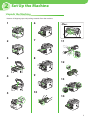
5 Set Up Computers and Software
4
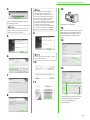
Select the same language as your
operating system.
If you selected a language that is not
same as your operating system, the
characters may be garbled.
5
12
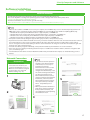
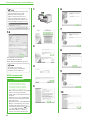
If an error message is displayed
indicating that registration of
ScanGear Tool or a UDP port as an
exception in Windows Firewall has
failed, manually register ScanGear
Tool and/or the UDP port as an
exception in Windows Firewall after
installation has finished. For details
on how to manually register
ScanGear Tool and/or the UDP port,
see “Network ScanGear Installation
Guide,” in user Software CD-ROM.
9
Installation is complete.
13
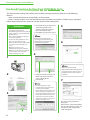
On the [Start] or [start] menu, point
to [Programs] or [All Programs] →
[Color Network ScanGear] → click
[ScanGear Tool]. ScanGear Tool
starts.
14
6
The Readme file opens. After reading
it, close the window.
10
15
7
11
8
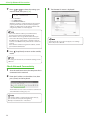
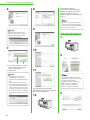
① Select your machine on the list.
Make sure that the machine
name is highlighted.
② Click [Select].
19