1
10
11
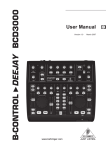
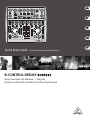
B-CONTROL DEEJAY BCD3000
Quick Start Guide
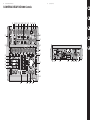
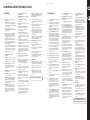
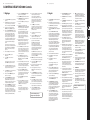
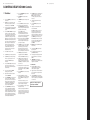
B-CONTROL DEEJAY BCD3000 Controls
(EN) Controls
(1)
Set the volume of the microphone signal with the
MIC LEVEL control.
(2)
The CLIP LED illuminates as soon as the microphone
signal level is too high and could possibly cause audible
distortion. If this happens, slightly turn the MIC LEVEL
control counter-clockwise.
(18)
Set the volume of the MASTER output with the
MASTER OUTPUT control.
(19)
The POWER ON-LED lights up when the BCD3000 is
switched on.
(20)
The CROSSFADER is used to fade between
deck A and deck B.
(21)
The GAIN control allows you to adjust the deck signal to
a nominal level.
(22)
Each deck features a 3-band equalizer (HI, MID and
LOW) with kill feature. Thus, the signal can be
attenuated to a much greater extent (-24 dB) than it
can be raised (+12 dB).
(3)
The microphone input section has a 2-band
equalizer (EQ HIGH for high frequencies and EQ LOW
for low frequencies).
(4)
Select the input source with the buttons EXT IN A /
EXT IN B. If the buttons are not pressed (LEDs are off),
the Deck A and B signals in the TRAKTOR 3 LE software
are played back. If you press one of the buttons
(LEDs light up), the analog input signal of the
BCD3000 is passed on to the corresponding deck in the
TRAKTOR software. On Deck A, the Phono input A (36)
or microphone signal is played back. On Deck B, you hear
the input B signal (Phono or CD).
The KILL buttons, which are found below the EQ
controllers, allow you to cut out the relevant frequency
range at the push of a button. This way you can achieve
interesting filter effects. The function is also required for
beat juggling.
You can either specify the input source for Deck A in the
Control Panel (Windows only) or with MIDI commands
(see Chapter 6.3). For Deck B, select the input source on
the rear panel of the device (Phono/Line switch (38)).
(24)
(9)
(10)
The ON button activates the effects section.
The FX ▼ button switches to the preceding
available effect.
(11)
The FX ▲ button switches to the next available effect.
The assignment of the four controls (5) – (8) and the
ACTION button (12) depends on the selected effect.
(13)
The CUE A and CUE B buttons allow you to listen
in on Deck A or B. Keep the respective button
pressed to feed the signal of Deck A or Deck B to the
Headphone output (14).
(14)
(15)
(16)
(17)
(23)
(25)
(26)
(27)
The SET CUE button sets a cue point at the current
position of the track being played. This happens without
interrupting playback. You can find information on the
CUE function in Chapter 5.2.
SET LOOP allows you to set the start and end points of a
four-beat sequence that is to be played back repeatedly
(loop). The first time this button is pressed, the start
point of the loop is set and the following four beats are
repeated as often as you like. Press the button a second
time to stop the loop.
RELOOP is used to play a loop that you specified
with SET LOOP (24) beforehand. Press SET LOOP (24)
once again to stop the loop.
SYNC allows you to synchronize two tracks, which are
running on Deck A and B, by matching their speeds.
The deck, which has its SYNC button pressed,
synchronizes itself automatically with the speed of the
second deck.
The Scratch Wheel (34) allows you to scratch while the
deck is playing or paused. Please press the SCRATCH
button (LED lights up) in order to scratch.
The PHONES output (¼" stereo connector) is used for
connecting headphones.
(28)
The PHONES VOL control lets you adjust the volume
level of the Headphone output (14).
The VOLUME fader is used to adjust the volume level of
the particular deck.
(29)
Press the PLAY button to begin playback. Press this
button a second time to stop playback. By pressing
PLAY again, playback continues from the point at which
it was stopped.
The PHONES MIX control is used to adjust the relation
between the stereo MASTER OUT and MONITOR OUT
signal. When the control is turned fully left, you hear
the MONITOR OUT signal, and when turned fully right,
you hear the MASTER OUT signal.
The KEY DECK A+B button is used to activate the
“Key Lock” function of the TRAKTOR 3 LE software.
The “pitching” of a track usually changes both the
music’s speed (tempo) and pitch/key. The “Key Lock”
function (or Master Tempo) makes sure the pitch is
retained. Find more on this topic in the PDF manual
of TRAKTOR 3 LE.
(31)
BEND buttons: Press the UP button (+) to increase the
playback speed. Press the DOWN button (–) to decrease
the playback speed. This function lets you match the
beats of two playing tracks.
(ES) Controles
Press the CUE button to stop playback and return to the
last set cue point.
By keeping the CUE button pressed, the music begins
at the cue point and continues until you let go of the
button. Then, the deck jumps back to the cue point.
You can find information on the CUE function in
Chapter 5.2.
Con el control MASTER OUTPUT puedes regular el
volumen de la salida principal.
(30)
Con el pulsador CUE finalizas la reproducción
y retrocedes al último punto de localización
Cue establecido.
(19)
El LED POWER ON se ilumina al encender la BCD3000.
El CROSSFADER te permite balancear la relación entre
las secciones A y B.
Oprimiendo prolongadamente sobre el pulsador CUE
se inicia la música a artir del punto de localización Cue
y continua reproduciendo hasta que sueltes de nuevo
el pulsador. A continuación la sección salta de nuevo al
punto de localización Cue Comentarios sobre la función
CUE la encontrarás en el capítulo 5.2.
(31)
Pulsador BEND. Al oprimir el pulsador UP (+)
se incrementa la velocidad de reproducción. Si oprimes
el pulsador DOWN (–), la reproducción se ralentiza.
Esta función te permite sincronizar fácilmente los
compases de dos canciones distintas.
(32)
El fader de tono (pitch) regula la velocidad de
reproducción de manera continua.
(33)
El pulsador SEARCH te permite avanzar y rebobinar en
una canción.
(34)
La función de las ruedas de “scratch” depende de si
la sección está en modo de reproducción (PLAY) o en
pausa (PAUSE):
En modo PLAY puedes compenetrarte con la
aceleración (girar la rueda hacia la derecha) o el
frenado (rueda hacia la izquierda) de un plato
giradiscos. De esta manera puedes adaptar de forma
sumamente sencilla el tempo de la sección actual
al tempo de la sección en reproducción. Si activas
el pulsador SCRATCH, puedes hacer “scratching”
con la rueda.
En el modo PAUSA puedes bobinar con la rueda con
suma precisión la canción hacia delante y hacia atrás.
También aquí puesdes hacer “schtching” con la rueda,
si oprimes el pulsador SCRATCH.
(35)
MIC INPUT. Entrada XLR balanceada para
micrófono dinámico.
(36)
La entrada analógica A (PHONO) te permite conectar
un tocadiscos a la BCD3000.
(37)
Conecta el cable de tierra de tu tocadiscos al tornillo
GND de tu BCD3000.
(38)
Entrada analógica B. Si deseas conectar un reproductor
de CD o de cinta debes conmutar el selector de entrada
a nivel de línea (LINE).
También puedes hacer “scratching” con la
“scratch-weel” (34) tanto al reproducir, como también
cuando la sección está en pausa. Para poder hacer
scratching, pulsa por favor sobre el pulsador SCRATCH
(LED encendido).
(39)
En la salida MASTEROUTPUT puedes conectar un
amplificador. En esta toma dispones de la señal de
salida principal, cuyo nivel puedes controlar con el
control MASTER.
(40)
NÚMERO DE SERIE.
(28)
Con el fader VOLUME determinas el volumen de la
sección correspondiente.
(41)
(29)
Al oprimir el pulsador PLAY se inicia la reproducción.
Oprimiendo por segunda vez sobre este pulsador la
reproducción se detiene. Pulsando nuevamente en
PLAY se inicia la reproducción en este punto.
El conector USB te permite establecer la conexión
entre la B-CONTROL y tu ordenador. La BCD3000 recibe
los datos de audio y control vía USB.
(42)
La conexión a la red eléctrica se realiza mediante
una toma bipolar. El suministro incluye un cable de
red adecuado.
(43)
Con el interruptor POWER se enciende la B-CONTROL.
La interfaz debe estar apagada al conectarla a la
red eléctrica.
(32)
The Pitch fader adjusts the playback speed seamlessly.
(1)
(33)
Use the SEARCH buttons to move forward or backward
in a song.
Con el control MIC LEVEL puedes regular el volumen de
la señal de micrófono.
(20)
(2)
El LED CLIP se enciende cuando el nivel del micrófono es
muy alto y pueden empezar a producirse distorsiones.
En este caso, debes reducir el volumen mediante el
control MIC LEVEL.
(21)
Con el control GAIN tu estableces la señal de sección.
(22)
Ambas secciones disponen de un ecualizador tipo
“kill” de 3 bandas (HIGH, MID y LOW), que te permite
reducir el nivel de la señal hasta 24 dB pero aumentarlo
sólo 12 dB. Al presionar el pulsador CUT debajo de cada
control, activas la reducción máxima más rápidamente.
Esto te permite suprimir prácticamente un rango
determinado de frecuen-cias para lograr interesantes
efectos de filtro y también es imprescindible para
hacer “beat juggling”.
(34)
The function performed by the scratch wheel depends on
whether the deck is in PLAY or PAUSE mode.
In PLAY mode, re-create the analog feel by using the
wheel to nudge (turn wheel to the right) or slow down
(turn wheel to the left), allowing you to easily match the
speed of the current deck to the speed of the other deck
playing. Press the SCRATCH button in order for you to
scratch with the wheel.
(3)
Ecualizador de 2 bandas de la sección de micrófono
(EQ HIGH para los agudos y EQ LOW para los graves).
(4)
Con las teclas EXT IN A / EXT IN B tu eliges la fuente
de entrada. Si los pulsadores no han sido oprimidos
(LEDs apagados), las señales de reproducen de la pletina
A o bien B del software TRAKTOR 3 LE. Al presionar uno
de los pulsadores (LEDs encendidos), la señal analógica
de entrada correspondiente de la BCD3000 será integra
en la pletina respectiva en el software TRAKTOR.
La sección A puede ser devuelta a la entrada phono A
(36) o a la señal de micrófono. En la sección B se torna
audible la señal presente en la entrada B (phono o CD).
In PAUSE mode, you can use the wheel to move back and
forth through the song. You can also scratch with the
wheel by pressing the SCRATCH button.
(35)
MIC INPUT. The MIC IN connector is the balanced XLR
input for your dynamic microphone.
(36)
The analog input A (PHONO) is used for connecting
a turntable.
(37)
Connect the ground cable on your turntable to the GND
screw on the BCD3000 housing.
(38)
Analog input B. To connect a CD player or tape deck to
this input, set the switch to LINE.
(39)
Connect the MASTER OUTPUT to your power amplifier.
It provides the main output signal, which can be
adjusted with the MASTER control.
(40)
SERIAL NUMBER.
(41)
The USB connector is used for connecting to a computer
with a compatible USB port. The BCD3000 uses the USB
connector to send and receive audio and control data.
(42)
(43)
A standard power socket is provided for connection to
the mains. A matching power cable is included with
the unit.
The POWER switch turns your BCD3000 on and off.
It should always be in the OFF position (out) when
connecting the unit to or disconnecting the unit from
the mains.
Check Out behringer.com for Full Manual
La fuente de entrada para la sección A puedes ponerla
ya sea en el panel de control (sólo Windows) o a
través de ordenes MIDI. Para la sección B tu eliges la
fuente de entrada en el lado posterior del aparato
(interruptor phomo/line (38)).
(9)
Con el pulsador ON tu acivas la sección de efectos.
(10)
El pulsador FX ▼ cambia al efecto anterior disponible.
(11)
El pulsador FX ▲ cambia al efecto siguiente disponible.
En este caso la ocupación de los cuatro reguladores
(5) – (8) así como del botón ACTION (12) depende del
efecto configurado.
(13)
Con los pulsadores CUE A y CUE B puedes oír la sección
A o B: Con el pulsador oprimido la señal existente en
la sección A o bien sección B se arrastra a la salida de
auriculares (14).
(14)
Conecta tus auriculares a la salida PHONES (jack estéreo
de 6,3 mm).
(15)
Ajusta el volumen de la salida de auriculares (14) con el
regulador PHONES VOL.
(16)
El control PFL MIX te permite regular el balance de
nivel entre las secciones A y B en los auriculares.
Ambas señales son audibles en estéreo mezcladas
en ambos cascos de auriculares. Este control te
permite, cambiar entre la señal MASTER OUT y la señal
MONITOR. En la posición de tope izquierda escuchas
la señal MONITOR OUT, en la posición de tope derecha
MASTER OUT.
Every time playback is stopped, the cue point is placed
at the current song position. You can find information on
the CUE function in Chapter 5.2.
(30)
(18)
(17)
Con el pulsador KEY DECK A+B puedes activar la función
“Key Lock” del software TRAKTOR 3 LE: Normalmente el
“pitch” de una pista provoca que la velocidad de
reproducción (tempo) y la altura de sonido (Key o Pitch)
se modifican simultaneamente. La función “Kay Lock”
(o también Master-Tempo) cuida que se mantenga la
altura de sonido. Encontrarás más detalles en el manual
PDF sobre TRAKTOR 3 LE.
Con los pulsadores KILL debajo del control EQ
pulsando un botón, desactivas completamente
la gama de frecuencia afectada. De esta manera
puedes lograr interesantes efectos de filtro.
También para “beat-juggling” esta función es
imprescindiblemente necesaria.
(23)
La tecla SET CUE coloca durante la reproducción de
una pista el punto de localización Cue en la posición
actual de la canción. En este caso la reproducción no
se interrumpe. Comentarios sobre la función CUE la
encontrarás en el capítulo 5.2.
(24)
El pulsador LOOP IN/END te permite establecer
los puntos de comienzo y final de una secuencia
de 4 golpes que deba ser repetido a manera de
bucle (Loop). Pulsando pro primera vez sobre esta
tecla se establece el punto inicial del bucle, y los
siguientes 4 cpompases se repiten indefinidamente.
Oprimiendo por segunda vez este pulsador el bucle
se finaliza.
(25)
(26)
(27)
Con RELOOP puedes reproducir nuevamente
un bucle antes guardado con SET LOOP (24).
Pulsando nuevamente sobre SET LOOP (24)
finaliza el bucle.
Con SYNC tu puedes sincronizar entre sí dos pistas
en marcha en la sección A y, esto es adaptar sus
velocidades entre sí. La sección, cuyo pulsador SYNC
sea presionado, se ajusta automáticamente al tempo
de la otra sección en reproducción.
Cada vez que detengas la reproducción, el punto de
localización Cue se establece en la posición actual
de la canción. Comentarios sobre la función CUE la
encontrarás en el capítulo 5.2.
Si quiere acceder al manual de instrucciones
completo, vaya a la página web behringer.com