1
Telephone feature keys
(handsfree) and alerting volume
(phone ringing).
Login
To login for a period of time, press the Timed key, enter
the duration of your login, and press the Next soft key.
Logout
Avaya 1230E IP Deskphone
with SIP Software Quick
Reference Guide
1. Press the Services hard key and then select Logout.
2. Enter your password when prompted.
3. Press the Logout soft key.
Making a call
Mute
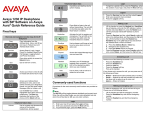
Fixed keys
Handsfree
Short-cut and navigation function keys for the IP
Deskphone
Copy
Services
Press Mute to listen to the call
without transmitting. The red LED
on the Mute key lights when the
Mute feature is enabled.
Activates the built in speaker and
microphone. The red LED on the
Handsfree key lights when the
Handsfree feature is enabled.
Perform one of the following to make a call:
•
•
Copy information from the
Address Book, Inbox, and IM log,
and copy to Feature keys and
Address Book entries.
Goodbye
Access Search, Login, Logout,
Check For Updates, Reset Phone,
File Manager, Logging System,
and Phone Information.
Expand
Access the Instant Message log to
view and send IMs
•
Headset
Activates your IP Deskphone
headset when connected. The red
LED of the Headset key lights
when you use a headset.
Perform one of the following to answer a call:
Use to release a call (hang up) and
to exit a menu when not on an
active call.
Press twice quickly to access the
Network menu.
Quit
Inbox
Directory
Enter
Quit or exit from a menu.
Access your Inbox to view all calls
or missed calls and to return a call.
Access your Address Book
(Directory) to view, add or edit
entries including your designated
friends You can also send Instant
Messages (IMs) or initiate a call.
Use the Enter key to select
highlighted menu items and to set
preferences. The Enter key
duplicates the function of the
phone and the Select soft key.
Telephone feature keys
Volume
Lift the handset or press the Headset key, Handsfree
key or the Line key and enter the SIP address or phone
number and press Send. Or, press the Redial soft key
to call the previously-entered SIP address or phone
number.
Press the Services hard key, select Search, select an
entry in the Address Book, and then press the Call soft
key. Lift the handset or press the Headset key,
Handsfree key or the Line feature key and dial from
the Address Book or Inbox as follows:
Use to increase and decrease the
volume of the handset,
headphones, phone speaker
a. Press the Address Book or Inbox key.
b. Navigate to the required entry.
c. Press the Select soft key to connect.
Press the Directory hard key, select Friends, select an
entry, press Status, and then press the Call soft key.
Answering a call
Hold
Use to place a call on hold or to
retrieve a call on hold.
•
•
•
•
•
If you choose not to answer the call, you can press one of
the following keys:
•
•
Commonly used functions
Procedures for the most commonly used functions are provided as
follows.
Note:
The abc/123 soft key toggles between alphabetic and numeric input.
When the soft key label is abc, you can enter alphabetic text and
when the soft ley label is 123, you can enter numbers.
Login
1. Enter your User ID and press the Login key.
2. Enter your password and press the Next soft key.
3. To permanently login, press the Next soft key.
Press the Handsfree key
Press the Headset key
Press the Line key
Press the Answer soft key
Pick up the handset.
•
Redrct — Redirects the call to another party or number.
Declin — Rejects the call and provides the caller with
fast busy and no option to go to voice mail. You can
provide a reason for declining the call.
Ignore — Stops call ringing
Making an emergency call
To make an emergency call, logging on is not required.
Choose one of the following options:
•
•
•
Lift the handset and dial the emergency number.
Press the Handsfree key and dial the emergency
number.
Press the Headset key and dial the emergency
number.
Msgs
Initiating a conference call
1. During a call, press the Conf soft key.
2. Enter the SIP address or phone number or select an
entry from the Address Book or Inbox and complete the
call.
3. Press the Join soft key, select Conference and press
the OK soft key to create a conference call. You can
continue to add more callers to the conference call by
repeating the previous steps.
Display the Messages menu.
1. Voice Mail—Use to access your Voice Mail. The IP
Deskphone connects to the server to retrieve your
Voice Mail.
2. Instant Messaging—Use to access your IM box. From
the IM box you can:
•
•
•
view received Instant Messages
delete Instant Messages
send Instant Messages.
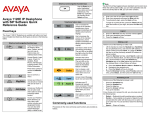
Context-sensitive soft keys
This section describes the context-sensitive soft keys for the idle IP
Deskphone display and for the active call display.
When the More.. soft key is pressed, the following soft keys are
displayed.
When the More.. soft key is pressed, the following soft keys are
displayed.
CallFw
Forward all calls to a specified address.
Idle IP Deskphone display
DND
When you press the More.. context-sensitive soft key for the third
time, you return to the first soft key display.
The following describes the context-sensitive soft keys available
when the IP Deskphone is on an active call.
Block all calls.
Retrve
When the More.. soft key is pressed, the following soft keys are
displayed.
Retrieve parked calls (local and server parked calls only).
ScrnSv
Conf
Obtain a dial tone to place another call during an active call.
•
•
Activate the screensaver (only if the screensaver feature is
enabled).
When the More.. soft key is pressed, the following soft keys are
displayed.
Presnc
Display the Preferences menu.
1. Display — Adjust screen display settings.
When you press the More.. context-sensitive soft key for the third
time, you return to the first soft key display.
The following describes the context-sensitive soft keys available
when the IP Deskphone is idle
Redial or NewCal
3. Feature Options — Program feature keys, call decline
reasons, call ignore actions, and call subjects, call fwd
notification.
4. Language — Change language.
Redial the last dialed number.
If there is no stored redial number, NewCal appears and
has the same effect as pressing the primary user line key
(dial prompt).
6. Network — Access Server Settings, Device Settings,
Diagnostics and Lock.
7. User Settings — Modify call settings, IM settings, voice
mail setting, and remembering settings.
abc or 123
More..
Toggle between alpha and numeric input modes.
To type letters, abc must be displayed.
To type numbers, press the abc soft key to display 123
on the menu list.
Audio
1. Change audio codec — Use to change the audio
settings based on the available bandwidth.
2. Monitor audio quality — Diagnostic tool to monitor the
audio quality.
2. Audio — Adjust tones and volume settings.
5. Misc Options — Set alpha dialing, search method,
privacy settings, # Ends dialing, location, and time.
•
•
Trnsfr
Transfer the current call to another location or contact.
Configure the presence status for your IP Deskphone.
Prefs
Use to make a conference call.
Behaves like the NewCal context-sensitive soft key.
Select a new menu list.
Active call IP Deskphone display
NewCal
Obtain a dial tone to place another call during an active call.
•
•
Use to make a conference call.
Behaves like the Conf context-sensitive soft key.
Park
Park the current call to the server or another user (not
available for all call servers).
Retrve
Retrieve parked calls (local and server parked calls only).
Prefs
Access Display, Audio, Feature Options, Language,
Misc Options, Network, USB Locks, and User Settings.
Inbox
More..
Icon
Incoming Call Answered
Select a new menu list.
Display screen icons
Incoming Call, Missed, New
The following table lists the screen display icons for:
•
•
•
•
Call state — Icons to indicate the call state of your phone.
Instant Messaging — Icons displayed when you view your
instant message log. The icon appears beside each IM to
indicate the status.
Inbox — Icons to indicate the status of each incoming calls in
your Inbox.
Presence — Icons to indicate the presence state of those
address book entries you designate as Friend.
Call state
Icon
On hook
Incoming Call, Missed, Reviewed
Presence
Icon
Terminated
Connected Inactive (only available if
audio presence is activated)
Unavailable Busy, or Offline
On the phone
Active Available (only available if audio
presence is activated)
On hold
On the Phone (only available if audio
presence is activated)
Call Forward
Unknown
Do Not Disturb
November 2013
Outgoing call, Incoming call (ringing)
Missed call
Instant messaging
New, unread
Read
Replied to
Sent/forwarded
Icon