1
E
WN
OLLER
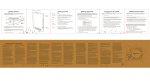
getting around
getting registered
BUTTON
ACTION
POWER SWITCH
Powers on, sleeps, or wakes the device
when slid and quickly released. Turns off
the device when slid and held for
4 seconds.
5-WAY
CONTROLLER
Moves the on-screen cursor up and down
or side to side. Selects an item or action
when pressed.
HOME
Shows content stored on your Kindle
as well as content archived at Amazon.
MENU
Accesses the Kindle Store as well as
actions such as turning the wireless on/off
or adding a highlight within a book.
NEXT PAGE
Turns the page in your reading material.
PREVIOUS PAGE
Goes back one page in your reading
material.
BACK
Retraces your steps on your Kindle.
TEXT KEY (AA)
Adjusts the font size and number
of words per line to suit your reading
preference. Also allows you to turn
on/off Text-to-Speech and to change
the screen orientation.
If your Kindle was a gift or is not preregistered, you will
need to register your device to make purchases on the Kindle
Store and take advantage of other Amazon services such as
e-mailing personal documents to your Kindle. To register your
Kindle, you will need an account with Amazon. If you do not
have an Amazon account then you can create one at:
www.amazon.com/sign-in. If you purchased this Kindle for
yourself, it is already registered and you may skip this section.
T
ne
o
ba
fo
w
To
1 Press the Home button and then press the Menu button.
1
2 Navigate down to “Settings” by moving the 5-way
2
controller down, then press the 5-way controller.
3 Select “register” using the 5-way controller to show the
3
Register Your Kindle screen:
4
5
4 Enter the e-mail address and password associated with
your Amazon account.
6
5 Move the 5-way controller down to highlight “submit,”
then press the 5-way controller to complete your
registration. Once completed, your registration
information will appear on your Kindle.
6 Press the Home button to exit this page.
Page 3
Page 4