1
20
Part I: Before You Begin
To change the view without taking your hands off the keyboard, press
Option+Ô+5 or Ctrl+Alt+5, enter a new zoom value, and press Return or
Enter. Or press Ô+= or Ctrl+= to zoom in, or Ô+– or Ctrl+– to zoom out.
Page controls
If you feel like flipping through pages of the document you are creating,
InDesign makes it easy with page-turning buttons and the Page field and popup menu. Controls for entering prefixes for the page numbers of sections, and
for indicating absolute page numbers in a document that contains multiple
sections, are also handy. (An absolute page number indicates a page’s position in the document, such as +1 for the first page, +2 for the second page,
and so on.)
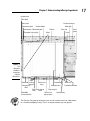
Next to the Zoom pop-up menu is a combined page-number field and pop-up
menu encased by two sets of arrows. These arrows are page-turning buttons
that take you to, from left to right, the first page, the previous page, the next
page, and the last page. Just click an arrow to get where you want to go.
You can also jump directly to a specific page or master page. To jump to a specific page, highlight the current number in the page number field (by selecting
it with your cursor, or by pressing Ô+J or Ctrl+J), enter a new page number,
and press Return or Enter. (To jump to a master page, select the Page Number
field and enter the first few characters of the master page’s name.)
Opening Multiple Document Windows
If you like to work on more than one project at once, you’ve come to the right
program. InDesign lets you open several documents at once. It also lets you
open multiple windows simultaneously for individual documents. A large
monitor (or having multiple monitors connected) makes this multi-window
feature even more useful. By opening multiple windows, you can
Display two (or more) different pages or spreads at once. You still have
to work on the documents one at a time, but no navigation is required —
you have only to click within the appropriate window.
Display multiple magnifications of the same page. For example, you
can work on a detail at high magnification in one window and display the
entire page — and see the results of your detail work — at actual size in
another window.
Display a master page in one window and a document page based on
that master page in another window. When you change the master
page, the change is reflected in the window in which the associated document page is displayed.