1
d. Insert the Fellowes Driver and Utilities disk into your
3.5" diskette drive (Drive A or B).
e. Choose the “Start” menu (Ctrl & Esc) and
select “Run”
f. Type A:SETUP (or B:SETUP) in the command
line box and press Enter to select OK.
g. Follow the on screen prompts to complete
installation.
h.The Setup program will install the driver and
add the icons automatically.
i. When the installation is complete, restart
your computer.
GETTING STARTED:
Your Opti-Scroll optical mouse software includes features
for making button assignments, controlling cursor
movements, and setting up the mouse for Windows. To
access the Opti-Scroll software, double click the mouse icon
on the Windows Taskbar, or start the software from the
computer Control Panel.
Mouse icon as it appears in the
Windows Taskbar
The Hat Switch mouse properties options are arranged in a
series of tabs. Point and select the desired tab to configure
your mouse.
Buttons Tab:
The Buttons tab allows you to choose functions for each
button on the Opti-Scroll, along with setting the mouse for
right or left handed usage. The Button tab also allows the
user to set the double-click speed.
Factory Button Settings:
Left Button ..............................................Normal Select
Normal Drag
Right Button ..............................................Context Menu
Special Drag
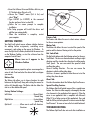
Opti-Scroll ................Allows user to scroll in 8 directions
Directions:
Hat Switch
Right Button
Left Button
Pointers Tab:
The Pointers tab allows the user to select various schemes
for the on screen pointers.
Motion Tab:
The Motion tab allows the user to control the speed of the
pointer and the choice of having a tail on the pointer.
Hat Switch Tab:
The Hat Switch tab provides the following options for the user:
Scroll Mode - The user can choice between scrolling in eight
directions and the standard two directional scrolling mode.
Scroll Speed - The user can control the speed at which
scrolling takes place.
Reverse Scrolling Direction - The user can reverse the
direction in which scrolling takes place.
Test Area - An area is provided to allow the user to test the
settings they have chosen.
About Tab:
Provides information about the Fellowes Opti-Scroll mouse.
Special Scrolling Feature:
The Fellowes Opti-Scroll optical mouse offers a special zoom
feature. Use Zoom to either magnify or demagnify the view
of a document in the application that supports it. Place the
cursor in an application that is compliant with Microsoft
Office 97 (or a higher version of this application). Press and
hold the Ctrl key on the keyboard. To zoom in move the OptiScroll forward. To zoom out move the hat switch backward.
TROUBLESHOOTING:
The Fellowes Opti-Scroll does not work after installation or