1
Car Video Recorder
RoadRunner 560 / RoadRunner 560GPS
User Manual
Version 1.0
www.prestigio.com
About this user manual
This user manual is specially designed to detail the device’s functions and features.
-- Please read this manual before using the device to ensure safe and proper use.
-- Descriptions are based on the device’s default settings.
-- Prestigio continuously strives to improve its products. Due to software upgrading, some
contents in this user manual may be different from your product. Prestigio reserves the rights
to revise this user manual or withdraw it at any time without prior notice. Please take your
product as standard.
Conventions used in this manual
In this user manual, we use the following symbols to indicate useful and important information:
Caution: provides safety precaution and important information.
Note: gives additional information.
Tips: usage tips.
>
The order of options or menus you must select to perform a step.
Note:
The italicized text in this manual is only for RoadRunner 560GPS.
© Copyright 2015 Prestigio. All rights reserved.
Contents
1.Unboxing������������������������������������������������������������������������������������������������������������������������� 1
Inside your package����������������������������������������������������������������������������������������������������������������1
Device overview����������������������������������������������������������������������������������������������������������������������1
2. Getting started����������������������������������������������������������������������������������������������������������������� 2
Insert a microSD card��������������������������������������������������������������������������������������������������������������2
Install the suction mount��������������������������������������������������������������������������������������������������������2
Charge the battery������������������������������������������������������������������������������������������������������������������2
Main screen�����������������������������������������������������������������������������������������������������������������������������3
3.Settings���������������������������������������������������������������������������������������������������������������������������� 4
Settings menu�������������������������������������������������������������������������������������������������������������������������4
4.Recording������������������������������������������������������������������������������������������������������������������������� 5
Record a video������������������������������������������������������������������������������������������������������������������������5
Take a picture��������������������������������������������������������������������������������������������������������������������������5
5. File management������������������������������������������������������������������������������������������������������������� 5
Browse files�����������������������������������������������������������������������������������������������������������������������������5
Choose a file����������������������������������������������������������������������������������������������������������������������������5
Delete a file�����������������������������������������������������������������������������������������������������������������������������5
Lock and unlock a file��������������������������������������������������������������������������������������������������������������5
6.Playback��������������������������������������������������������������������������������������������������������������������������� 6
Play video on DVR�������������������������������������������������������������������������������������������������������������������6
Playback on your TV/Monitor�������������������������������������������������������������������������������������������������6
Playback on GPS video player�������������������������������������������������������������������������������������������������6
7.Specifications������������������������������������������������������������������������������������������������������������������� 7
1. Unboxing
1
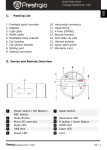
Inside your package
RoadRunner 560
RoadRunner 560GPS
CD-ROM
•Car video recorder
•Mini USB cable
•CD
•Warranty card
•Car charger
•Suction mount
•Quick start guide
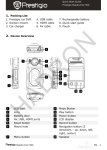
Device overview
1 AV out
4
MODE
REC
2
3
6
5
8 9 10
HDMI
HDMI
Reset
USB
7
11
RESET
12
13
1
2
3
4
5
6
7
AV out
Record/Playback/OK button
Power/Menu button
Mode button
SD card slot
Up button
Down button
User Manual
8
9
10
11
12
13
HDMI port
Mini USB port
Reset button
Microphone
Infrared light
Speaker
RoadRunner 560 / RoadRunner 560GPS
1
2. Getting started
Insert a microSD card
Before starting video recording, please insert a microSD card (not included) into
the slot until it locks in place.
2
The device will automatically recognize it as default storage and all the data will be saved
on this card.
Install the suction mount
1. Match the mounting slots of the device and the suction mount, and press the suction mount
until it locks in place.
2. Remove the protection plastic film from the suction cup, and position the device on the clean
windshield or dashboard.
3. Hold firmly against the surface and rotate the lock knob. The mount will suction and stick firmly
onto the surface.
To unmount, press the buckle and pull out the suction mount.
Charge the battery
Before using the device for the first time, please fully charge the Li-ion battery. The battery will be
completely charged in 2-3 hours.
•Using the car charger: charge the device through cigarette lighter. The device will start charging
after the car engine is turned on.
The GPS receiver is built in the suction mount. Please connect the car charger to the mini
USB port on the mount.
•Using the included mini USB cable: connect the device to AC 5V adapter or the USB port of a
computer/laptop.
User Manual
RoadRunner 560 / RoadRunner 560GPS
2
Main screen
Press power button to turn on device, you will enter preview mode, and get below screen:
1
2
3
4
5
6
7
Resolution
Recording icon
Recording time
Infrared light
Battery
Motion detect
GPS
8
9
10
11
12
13
Loop recording
Microphone
Memory card
Speed and GPS location
Plate number and LOGO stamp
Date and time
When the device is connected to the GPS signal, the icon
User Manual
will be green.
RoadRunner 560 / RoadRunner 560GPS
3
3. Settings
Before recording, you can set up the device according to your requirements.
-- In preview mode, press [
] to enter settings, press it again to exit. Use [
]/[ ] to navigate the menu.
3
Settings menu
•Resolution: Select the resolution of recorded video: 1920x1080(30 fps) HDR , 1920x1080(30 fps),
1280x720(60 fps), 1280x720(30 fps).
•Video quality: Set the video quality to super fine, fine, or normal.
•Record overwrite: Set the video duration ( 1, 3, 5, or 10 minutes) for loop recording. When the
microSD card is full, the device will delete the oldest unlocked video file automatically.
•Motion detection: Turn on or off motion detection. If there is any motion detected while the car
engine is stopped, your car DVR will start recording automatically.
•Power on record: Set DVR to start recording when power on.
•Power off delay: Select a time span for DVR to power off when the car engine stops.
•Power on delay: Select a time span for DVR to power on when the car engine starts.
•MIC: Set to turn the microphone on or off.
•Time lapse: Set the time interval to record the same scene or the same object automatically for
a long time, but show it quickly, so that a slow action appears to happen quickly.
•Language: Choose your language.
•Car number set: Set the car plate number if necessary.
•TV type: Choose your TV type from NTSC, and PAL.
•Auto power off: Set automatic power off when the device is not in use.
•Format: Format the memory card.
Formatting will erase all your stored data. Back up your data before proceeding.
•Time setup: Set time on DVR.
•Stamp: Add information stamp onto videos/photos.
•Auto LCD off: Set automatic LCD off when the device is not in use, press any button to wake up.
•Default setting: Restore to default setting.
•Beep sound: Adjust volume of beep sound.
•Flicker: For a given luminance, the frequency of light fluctuation that evokes a sensation of
flicker. Set a right flickering frequency to avoid horizontal stripe interference.
•Contrast: Adjust the contrast.
•Sharpness: Adjust the sharpness.
•White balance: Select an appropriate white balance, so images have a true-to-life color range. It
is for specific lighting situations.
•EV setting: Set exposure value to determine how much light the camera’s sensor receives. For
lowlight situations, use a higher exposure.
•G-sensor set: Select the sensitivity of the G-sensor. The smaller the number is, the higher the
sensitivity is. When reaching the sensitive value (such as collision), the recording file will be
automatically protected.
•GPS auto update time: Set the GPS to update the date/time automatically.
•GMT setup: Select the local GMT (Greenwich Mean Time).
•GPS set up: Turn on or off GPS.
•WDR: Turn on or off WDR (Wide Dynamic Range). WDR can enhance the brightness in dark, and
adjust the brightness in backlighting.
•Active slot setup: Set the file storage position.
•E-dog setup: Turn on to detect if there is road camera ahead.
•Firmware Version: Display the current system version.
User Manual
RoadRunner 560 / RoadRunner 560GPS
4
4. Recording
4
Record a video
Auto video recording
Connect the device to car charger, when the car engine launches, the device will
automatically turn on and start loop video recording. When shut off the car engine, the device will
save the last file and turn off.
You can cancel it by turning off POWER ON RECORD in settings.
Manual video recording
In preview mode, press [REC ] button to start and stop video recording.
Zoom in or out
In preview mode or recording mode, press [ ]/[ ] to zoom in or zoom out.
Record the sound
In preview mode or recording mode, press [ ] to turn on or off microphone.
Turn on infrared light
During recording, press [
] to turn on infrared light to get more light in dark.
Lock a recording video
During recording, press [Mode] to lock the video.
Take a picture
•Press [Mode] to select the picture mode, and then press [REC ] to take photos.
5. File management
5
You can manage your videos and pictures in playback mode.
Browse files
1. In preview mode, press [M] two times to enter the playback mode.
2. Press [ ]/[ ] to scroll through the file categories: all files, videos, photos.
Choose a file
Press [REC ] to start file choosing, and press [ ]/[ ] to select your desired one.
Delete a file
Press and hold [REC ] to delete one file or all the files, and press it to confirm the deletion.
Lock and unlock a file
Press [
] to protect or unprotect the selected file.
User Manual
RoadRunner 560 / RoadRunner 560GPS
5
6. Playback
Play video on DVR
1. In playback mode, press [REC ] and [ ]/[ ] to select your desired video.
2. Press [REC ] to open the file, and press it again to start playing.
3. Press [ ]/[ ] to slow down or speed up playing.
4. Press [Mode] to exit playback mode.
6
Trim a video
1. Press [REC ] to open the file, press and hold it to enter video trimming mode.
2. During playing, press [
] to start or stop video trimming.
3. Press [REC ] to confirm and save the trimmed video, or press [Mode] to exit video trimming.
Playback on your TV/Monitor
1. Connect the car DVR to a TV/Monitor with a HDMI cable (not included).
2. Turn on the car DVR. Follow the instructions on the TV screen or refer to your TV user manual.
Playback on GPS video player
1. Install the “Player.exe” stored on the CD-ROM included to your PC.
2. Connect the car DVR to the PC by the included mini USB cable.
3. Open the player, select the file and start playback.
4. It will show your video and tracks.
User Manual
RoadRunner 560 / RoadRunner 560GPS
6
7. Specifications
7
Display
Processor
Image sensor
View angle
3", 960 x 240 pixels
Amarella A7LA30
4.0 MP CMOS 1/2.5"
170°
1920x1080 (30 fps) HDR , 1920x1080 (30 fps), 1280x720 (60 fps),
Video resolution
1280x720 (30 fps)
Video codec
MP4 (H.264)
Picture format
JPEG
Memory
up to 64GB (microSD Class 6 or above, SDHC/SDXC)
Microphone
Built-in
Motion Detection
Yes
Power source
Built-in battery, car charger
Interfaces
AV out, HDMI, mini USB
Operating temperature 0 °C ~ 45°C
Dimension
52.8 x 96.2 x 26.5 mm (H x W x D)
Weight
72 g
User Manual
RoadRunner 560 / RoadRunner 560GPS
7