1
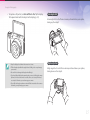
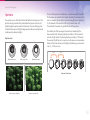
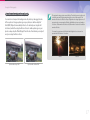
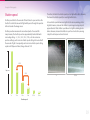
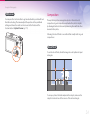
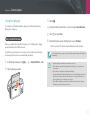
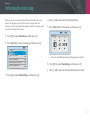
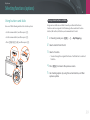
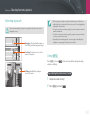
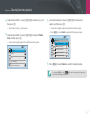
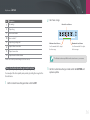
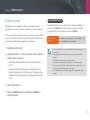
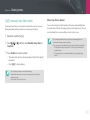
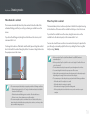
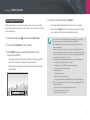
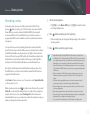
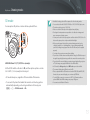
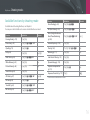
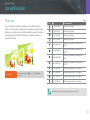
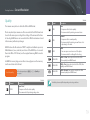
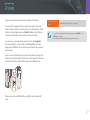
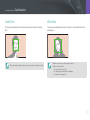
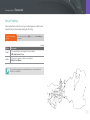
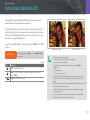
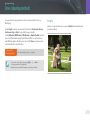
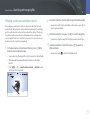
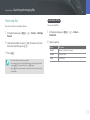
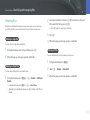
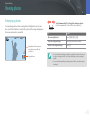
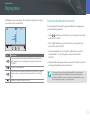
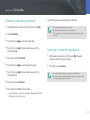
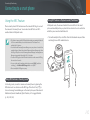
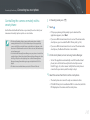
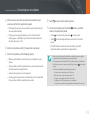
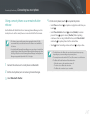
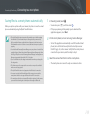
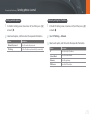
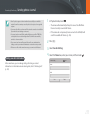
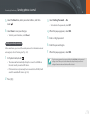
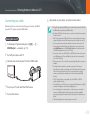
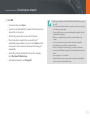
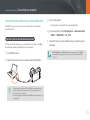
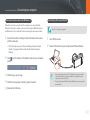
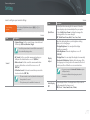
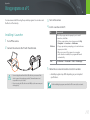
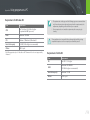
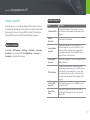
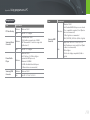
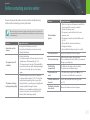
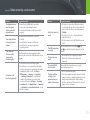
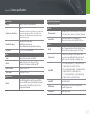
Connecting & Transferring > 1 Connecting to a smart phone In Shooting mode, press [R]. 4 You can also press and hold [R] to launch the MobileLink feature The smart phone can connect to only one camera at a time. directly. 2 Touch If the Wi-Fi Privacy lock is enabled and Wi-Fi is connected, enter the PIN displayed on the camera into the smart phone. . If the pop-up message that prompts you to download the 5 application appears, select Next. If you use a Wi-Fi manual connection to connect the camera and a On the camera, allow the smart phone to connect to your camera or confirm the registration request. If the smart phone has been connected to your camera before, it is smart phone, you can enable the Wi-Fi Privacy lock. (p. 180) connected automatically. If you use a Wi-Fi manual connection to connect the camera and a If the pop-up message that prompts you to set the auto time smart phone, the Bluetooth feature is not available. 3 Select the camera from the list on the smart phone. setting appears, select Yes to sync the camera’s date and time to the smart phone’s. (p. 180) On the smart phone, turn on Samsung Camera Manager. To start the application automatically on an NFC-enabled smart phone, turn on the function and place the smart phone near the NFC tag (p. 32) on the camera. Verify that the smart phone is connected to your camera, and then skip to step 6. 6 Select files to transfer. 7 On the smart phone, touch . The camera will send the files to the smart phone. 144