1
Wireless network setup
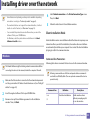
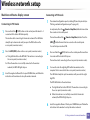
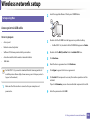
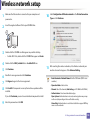
Connecting Failure - Invalid Security
•
Security is not configured correctly. Check the configured security on your
access point and machine.
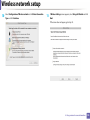
Connecting Failure - General Connection Error
•
Your computer is not receiving a signal from your machine. Check the USB
cable and your machine’s power.
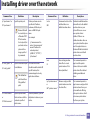
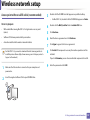
Connecting Failure - Connected Wired Network
•
If the printing job is not working in DHCP mode, the problem may be caused
by the automatically changed IP address. Compare the IP address between
the product's IP address and the printer port's IP address.
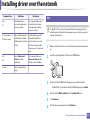
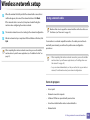
How to compare:
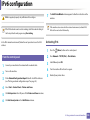
1 Print the network information report of your printer, and then check the
IP address (see "Printing a network configuration report" on page 96).
2 Check the printer port's IP address from your computer.
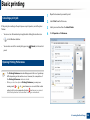
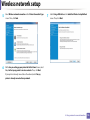
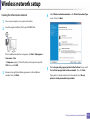
a Click the Windows Start menu.
b For Windows XP/Server 2003, select Printer and Faxes.
• For Windows Server 2008/Vista, select Control Panel > Hardware
and Sound > Printers.
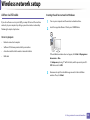
Your machine is connected with a wired network cable. Remove the wired
network cable from your machine.
• For Windows 7, select Control Panel > Devices and Printers.
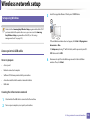
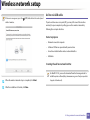
Connecting Failure - Assigning the IP address
•
Cycle the power for the access point (or wireless router) and machine.
c
d
PC Connection Error
•
The configured network address is unable to connect between your
computer and machine.
-
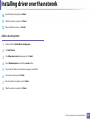
For a DHCP network environment
e
f
• For Windows Server 2008 R2, select Control Panel > Hardware >
Devices and Printers.
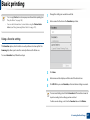
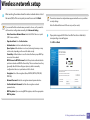
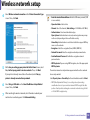
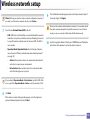
Right-click your machine.
For Windows XP/2003/2008/Vista, press Properties.
For Windows 7 and Windows Server 2008 R2, from context menus,
select the Printer properties.
If Printer properties item has ► mark, you can select other printer
drivers connected with selected printer.
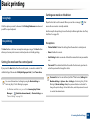
Click Port tab.
Click Configure Port.. button.
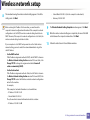
The receives the IP address automatically (DHCP) when computer is
configured to DHCP.
2. Using a network-connected machine
138