1
IB-MP401Air
IB-MP401Air
MusicStreamingReceiver
Quick installation guide
Package content
1x IB-MP401Air, 1x wall power supply, 1x AUX cable,
1x MicroUSB cable, 1x quick installation guide
APP Support iOS
No app is needed; you can stream music directly by AirPlay on the menu or some
other online music APP with AirPlay function.
Product Overview
APP Support Android
For Android device, you have to install App’s to do the work. Some App’s with DLNA
Function can do it well, such like: Air Buddy, All Cast, BubbleUPnP, ShareOn, UPnPlay,
iMediaShare, N7 Player, Air Music etc.
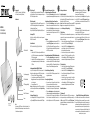
Front view
Support PC/MAC
Support iTunes, Windows Media Player and other programs with DLNA Functions
Supported protocols
IB-MP401Air supports the AirPlay, DLNA, QPlay and UPnP protocol.
LED for power and WiFi
Back view
3.5 mm audio jack (analogue)
USB 2.0 Host interface
S/PDIF (optical digital)
Reset
MicroUSB 5 V power jack
Antenna
Reset
You can reset the IB-MP401Air to the factory settings by pressing the Reset button.
Please use a paper clip or similar.
Start Up
1.
Connect the IB-MP401Air to the 5 V DC power supply via the MicroUSB cable
and plug in the power supply to the power outlet. The IB-MP401Air will start
up automatically.
2.
Connect the IB-MP401Air to a stereo system, speaker or any other sound equipment by an analogue 3.5 mm audio cable or optical S/PDIF cable.
Connection between mobile device and IB-MP401Air (iOS & Android)
In order to get access from your mobile device to the settings of IB-MP401Air,
connect your mobile device via wireless LAN to the ICY BOX IB-MP401Air as follows:
•
Go to “Wireless LAN settings of your mobile device.
•
Search for the default SSID of IB-MP401Air: “WiFi Music_xxxx”, where
xxxx is a four digit/letter code and connect.
•
The default wireless LAN password is blank.
Attention: Please alter this wireless LAN SSID and password as soon as possible for
security reasons to a personal value (see Configuration Page).
Configuration Page
To enter the configuration page of the IB-MP401Air open a browser app and type in
http://10.1.1.1 to the address field and press ENTER.
File Management – Play audio files from connected USB device.
•
Open File Management to play audio files directly from a connected USB device.
Basic Settings - Change name and Password
•
Open Basic Settings and set your personal device name and security mode
with password. Choose Done button for saving and restart the device. Reconnect as described as above.
Music Service
•
Open Music Service to set the “server name” of the
IB-MP401Air (default WiFi_Music_Streamer). It will be displayed inside
AirPlay, DLNA and UPnP compatible App’s (renderer) and software like iTunes
and Windows Mediaplayer. Re-connect as described as above.
Internet Connection – Connect IB-MP401Air to your router.
•
Open Internet Connection, find your router that is able to get access to
Internet, choose the router and enter password, then the IB-MP401Air will be
able to get access to Internet and Ethernet for using together with AirPlay,
DLNA and UPnP compatible App’s (renderer) and software like iTunes and
Windows Mediaplayer.
Advanced Settings
•
Setup SAMBA and DMS settings to your network demands.
Upgrade Firmware
•
If a new firmware will be available, please download from our support area:
www.raidsonic.de
•
The downloaded upgrade file need to be uploaded from the computer to your
mobile device before implementing the upgrade.
•
Open Upgrade Firmware and browse for the upgrade file.
•
Follow the instructions and await the end of the upgrade process.
•
If 100% will be shown, re-connect as described as above.
Network connection mode
Connection (basic setting)
The AP (Access Point) mode is the easiest and most rapid way to playback music from
your smart device via the IB-MP401AIR. This function directly connects your smart
device to the IB-MP401Air. A password is not required. In this way any device can be
used and accessed fast and easily.
Note: You have the possibility to set a different SSID name and protect the access
with a password (see Configuration Page).
[1] Direct connection
The IB-MP401Air can be firmly integrated into an existing network. Thus it is no
longer necessary to change over between the different WLAN networks and devices.
•
Search with your smart device for available SSID signals and connect to “IBMP401AIR” (default „WiFi Music_xxxx”).
•
Connect the IB-MP401Air to your router via configuration page, allows devices
which are connected to IB-MP401Air to use the routers internet connection.
•
Now, you can access the IB-MP401Air as playback source (renderer) from
different computer (e.g. MAC or PC)) with software like iTunes and Windows
Mediaplayer, which are connected via network cables to your network environment and stream music with your smart device by compatible APP’s.
[2] By router relay
•
Search with your smart device for available SSID signals and
connect to “IB-MP401Air” (default „WiFi Music_xxxx”).
•
Connect the IB-MP401Air to your router via configuration page.
•
Disconnect your smart device from the IB-MP401Air and connect your smart
device to your router too.
•
Now, you also can access the IB-MP401Air as playback source (renderer) from
different computer (e.g. MAC or PC)) with software like iTunes and Windows
Mediaplayer, which are connected via network cables to your network environment and stream music with your smart device by compatible APP’s.
How to stream music by smart device
[1] iOS Streaming Music
iOS7: Please refer to the previous connection steps, connect IB-MP401Air correctly,
sliding your finger up from the bottom of the display. Type AirPlay and choose “IBMP401Air” (default „WiFi Music_streamer”) as audio output device, all music of the
iOS device can be outputted from IB-MP401Air.
iOS6: Please refer to the previous connection steps, connect IB-MP401Air correctly,
press “Home” button twice quickly to activate the taskbar, slip to the left, you can see
“AirPlay”, type and choose choose “IB-MP401Air” (default „WiFi Music_streamer”)
as audio output device, all supported music of the iOS device can be outputted from
IB-MP401Air.
[2] Android Streaming Music
Any app which supports DLNA, UPnP or QPlay protocol can stream music via IBMP401Air. Please refer to the previous connection steps, open or download any
supported APP from Google Play store, choose the IB-MP401Air (default „WiFi Music_streamer”) as your “Renderer” and start any music.
© Copyright 2015 by RaidSonic Technology GmbH. All Rights Reserved
The information contained in this manual is believed to be accurate and reliable.
RaidSonic Technology GmbH assumes no responsibility for any errors contained in
this manual. RaidSonic Technology GmbH reserves the right to make changes in the
specifications and/or design of the above mentioned product without prior notice. The
diagrams contained in this manual may also not fully represent the product that you
are using and are there for illustration purposes only. RaidSonic Technology GmbH
assumes no responsibility for any differences between the product mentioned in this
manual and the product you may have.