1
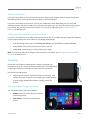
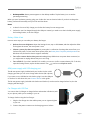
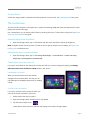
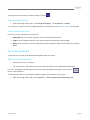
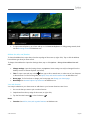
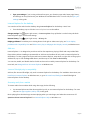
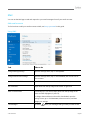
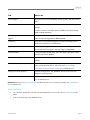
Other sign in options Two more sign-in options are available to you: PIN and picture password. (These sign-in options may not be available if you’ve added a work email account or joined a network domain.) Create a PIN Instead of typing a password, you can sign in quickly with a four-digit PIN. Here’s how: 1. Open the Settings charm, tap or click Change PC settings > Accounts > Sign-in options. 2. Under PIN, tap or click Add. 3. Type your current password and choose OK. 4. Type 4 numbers for your PIN. Now you can quickly sign in using your four-digit PIN. Create a picture password To find out how to create a picture password, see Personalize your PC on Windows.com. Sign out or lock Your account is automatically locked if you close the Cover or don’t use Surface for a while. Here’s how to manually lock or sign out: 1. From the Start screen, tap or click your account picture (upper-right corner). 2. Choose Sign out or Lock. (You can also press Ctrl+Alt+Del and then choose Lock or Sign out.) Sign out or lock. What’s the difference? Sign out closes all the apps you were using. Locking protects your account from use, but lets someone else sign in with their account. The apps you’re using are not closed. Change your password Here’s how to change your password: 1. Open the Settings charm, tap or click Change PC settings > Accounts > Sign-in options. 2. Under Password, tap or click Change and follow the on-screen instructions. © 2014 Microsoft Page 42