1
Personalising
Managing the Home and Apps screens
Managing the Classic Home screen
Adding items
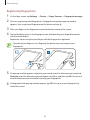
Tap and hold an app or a folder from the Apps screen, and then drag it to the Classic Home
screen.
To add widgets, open the Classic Home screen, tap and hold an empty area, tap Widgets, tap
and hold a widget, and then drag it to the Classic Home screen.
Moving and removing an item
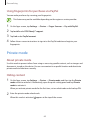
Tap and hold an item on the Classic Home screen, and then drag it to a new location.
To move the item to another panel, drag it to the side of the screen.
You can also move frequently-used apps to the shortcuts area at the bottom of the Classic
Home screen.
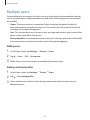
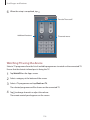
To remove an item, tap and hold the item. Then, drag it to Remove that appears at the top of
the screen.
Creating a folder
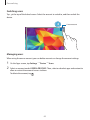
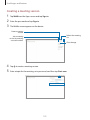
1 On the Classic Home screen, tap and hold an app, and then drag it to Create folder that
appears at the top of the screen.
2 Enter a folder name.
3 Tap , select the apps to move to the folder, and then tap Done.
50