1
Basic copying
17
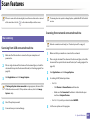
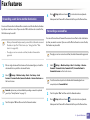
ID card copying
4
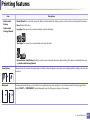
Touch Start on the touch screen or press
panel.
(Start) on the control
Your machine begins scanning the front side.
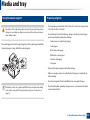
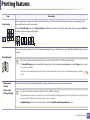
Your machine can print 2-sided originals on one sheet.
The machine prints one side of the original on the upper half of the paper and
the other side on the lower half without reducing the size of the original. This
feature is helpful for copying a small-sized item such as business card.
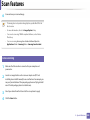
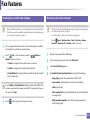
5
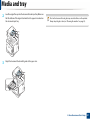
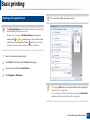
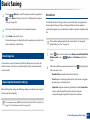
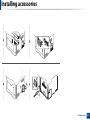
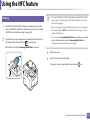
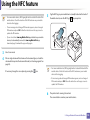
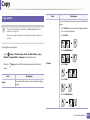
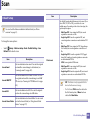
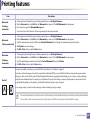
Turn the original over and place it on the scanner glass where arrows
indicate as shown. Then, close the scanner lid.
6
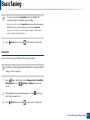
Touch Start on the touch screen or press
panel.
• The original must be placed on the scanner glass to use this feature.
• If the machine set to Eco mode, this feature is not available.
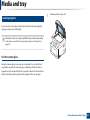
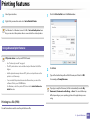
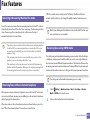
1
2
Select
(Copy) > ID Copy on the touch screen.
3
Touch Next on the touch screen.
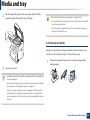
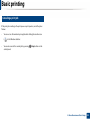
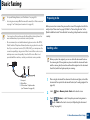
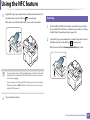
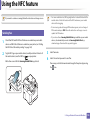
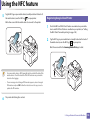
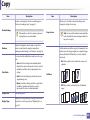
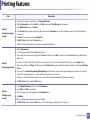
Place the front side of an original facing down on the scanner glass
where arrows indicate as shown. Then, close the scanner lid.
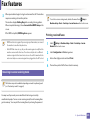
(Start) on the control
Your machine begins scanning the back side.
If the original is larger than the printable area, some portions may not be
printed.
2. Menu Overview and Basic Setup
61