1
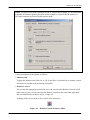
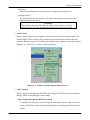
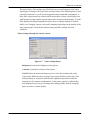
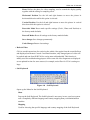
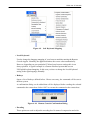
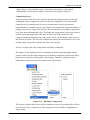
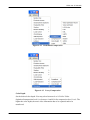
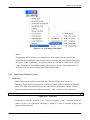
.90RYHU,30RGXOH
,3
08;,3
08;,3
8VHU0DQXDO
KVM over IP Module
Copyright
This document contains proprietary information that is protected by copyright. All rights reserved.
No part of this document may be photocopied, reproduced, or translated into another language
without express prior written consent of the originator. The software described in this manual is
furnished under a license agreement and may be used only in accordance with the terms of that
agreement.
Disclaimer
Information in this document is subject to change without notice and does not represent a
commitment on the part of the originator.
We provide this document “as is,” without warranty of any kind, either expressed or implied,
including, but not limited to, its particular purpose. We reserve the right to make improvements
and/or changes to this manual, or to the products and/or the programs described in this manual, at
any time.
Information provided in this manual is intended to be accurate and reliable. However, we assume no
responsibility for its use, or for any infringements on the rights of third parties that may result from
its use.
This product might include unintentional technical or typographical errors. Changes are periodically
made to the information herein to correct such errors, and these changes are incorporated into new
editions of the publication.
2 / 110
.90 RYHU ,3 0RGXOH
&RQWHQWV
3URGXFW2YHUYLHZ
,QWURGXFWLRQ
0DLQ)HDWXUH
,QVWDOODWLRQDQG6WDUWXS
3DFNDJH&KHFNOLVW
3URGXFW9LHZV
6\VWHP5HTXLUHPHQWV
+DUGZDUH,QVWDOODWLRQ
3URGXFW$SSOLFDWLRQ
,3$SSOLFDWLRQ
08;,308;,3$SSOLFDWLRQ
:KHQWKHVHUYHULVXSDQGUXQQLQJ
:KHQWKHVHUYHULVGHDG
&RQILJXUDWLRQ
,QLWLDO,3&RQILJXUDWLRQYLD1HWZRUN
&RQILJXUDWLRQ6HWXSYLD6HULDO&RQVROH
.H\ERDUG0RXVHDQG9LGHRFRQILJXUDWLRQ
,3.90NH\ERDUGVHWWLQJV
5HPRWH0RXVH6HWWLQJV
$XWRPDWLFPRXVHVSHHGDQGPRXVHV\QFKURQL]DWLRQ
+RVWV\VWHPPRXVHVHWWLQJV
6LQJOHDQG'RXEOH0RXVH0RGH
5HFRPPHQGHG0RXVH6HWWLQJV
9LGHR0RGHV
8VDJH
3UHUHTXLVLWHV
ORJLQRXWWKH,3.90
ORJLQWKH,3.90
/RJRXWIURPWKH,3.90
7KH5HPRWH&RQVROH
0DLQ:LQGRZRI5HPRWH&RQVROH
&RQWURO%DURI5HPRWH&RQVROH
6WDWXV/LQHRI5HPRWH&RQVROH
0HQX2SWLRQV
5HPRWH&RQWURO
.90&RQVROH
KVM over IP Module
5.1.2 Telnet/SSHConsole................................................................................................... 40
5.2
Virtual Media .................................................................................................................. 44
5.2.1 Drive Redirection ..................................................................................................... 45
5.2.2 Virtual Drive ............................................................................................................. 46
5.2.3 CD/DVD Image ........................................................................................................ 47
5.2.4 Floppy Disk .............................................................................................................. 52
5.2.5 Creating an Image..................................................................................................... 55
5.2.5.1 Creating Floppy Images .............................................................................. 55
5.2.5.2 Creating CD-ROM/ISO Images .................................................................. 56
5.2.6 Drive Redirection Methods ...................................................................................... 57
5.2.6.1 Driver Redirection Utility Installation ........................................................ 57
5.3
5.2.6.2 Built-in Java Drive Redirection................................................................... 62
User Management ........................................................................................................... 64
5.3.1 Change Password ..................................................................................................... 64
5.3.2 Users and Groups ..................................................................................................... 65
5.4
KVM Settings ................................................................................................................. 67
5.4.1 User Console ............................................................................................................ 67
5.4.2 Keyboard/Mouse ...................................................................................................... 71
5.4.3 Video......................................................................................................................... 72
5.5
Device Settings ............................................................................................................... 73
5.5.1 Network .................................................................................................................... 73
5.5.2 Dynamic DNS .......................................................................................................... 76
5.5.3 Security ..................................................................................................................... 79
5.5.4 Certificate ................................................................................................................. 82
5.5.5 Serial Port ................................................................................................................. 85
5.5.6 Date / Time ............................................................................................................... 87
5.5.7 Event Log ................................................................................................................. 88
5.6
Maintenance.................................................................................................................... 90
5.6.1 Device Information ................................................................................................... 91
5.6.2 Even log .................................................................................................................... 92
5.6.3 Update Firmware ...................................................................................................... 93
5.6.4 Unit Reset ................................................................................................................. 96
5.6.5 Reset to Factory Defaults ......................................................................................... 97
6.
7.
8.
9.
Technical Specifications ..................................................................................................... 99
Troubleshooting ................................................................................................................ 100
FAQ .................................................................................................................................... 102
Addendum ......................................................................................................................... 104
A. Key Codes ............................................................................................................................. 104
B. Video Modes .......................................................................................................................... 105
C. User Role Permissions ........................................................................................................... 105
4 / 110
KVM over IP Module
D. Bandwidth Consumption ....................................................................................................... 106
E. Well-Known TCP/UDP Port Numbers .................................................................................. 107
F. Protocol Glossary ................................................................................................................... 108
G. Regulation Information ..........................................................................................................110
5 / 110
.90 RYHU ,3 0RGXOH
)LJXUHV
)LJXUH ,33URGXFW9LHZ
)LJXUH 08;,33URGXFW9LHZ
)LJXUH 08;,33URGXFW9LHZ )LJXUH ,3$SSOLFDWLRQ
)LJXUH 08;,3;,3$SSOLFDWLRQ
)LJXUH 7KH,QWHUQHW([SORUHUGLVSOD\LQJWKHHQFU\SWLRQNH\OHQJWK
)LJXUH 5HPRWH&RQVROH&RQWURO%DU
)LJXUH 5HPRWH&RQVROH2SWLRQV0HQX
)LJXUH 5HPRWH&RQVROH([FOXVLYH0RGH
)LJXUH 5HPRWH&RQVROH2SWLRQV0HQX6FDOLQJ
)LJXUH 5HPRWH&RQVROH2SWLRQV0HQX&XUVRU
)LJXUH 9LGHR6HWWLQJV3DQHO
)LJXUH 6RIW.H\ERDUG
)LJXUH 6RIW.H\ERDUG0DSSLQJ
)LJXUH 5HPRWH&RQVROH&RQILUPDWLRQ'LDORJ
)LJXUH (QFRGLQJ&RPSUHVVLRQ
)LJXUH 3UHGHILQHG&RPSUHVVLRQ
)LJXUH /RVV\&RPSUHVVLRQ
)LJXUH (QFRGLQJ&RORUGHSWK
)LJXUH 6WDWXVOLQH
)LJXUH 6WDWXVOLQHWUDQVIHUUDWH
)LJXUH .90&RQVROH
)LJXUH 7HOQHW&RQVROH
)LJXUH 2SWLRQVRI'ULYH5HGLUHFWLRQ
)LJXUH 86%PDVVVWRUDJHRSWLRQ
)LJXUH 9LUWXDO0HGLD&'520,PDJH
)LJXUH ([SORUHU&RQWH[W0HQX
)LJXUH 6KDUH&RQILJXUDWLRQ'LDORJ
)LJXUH 9LUWXDO0HGLD)ORSS\'LVN
)LJXUH 5DZ:ULWHIRU:LQGRZVVHOHFWLRQGLDORJ
)LJXUH 1HURVHOHFWLRQGLDORJ
)LJXUH 'ULYH5HGLUHFWLRQ6HWXS
)LJXUH 'ULYH5HGLUHFWLRQGLDORJ
)LJXUH %XLOWLQ-DYD'ULYH5HGLUHFWLRQ
)LJXUH 6HWWLQJ3DVVZRUG
)LJXUH 8VHU&RQVROH6HWWLQJ
)LJXUH .H\ERDUGDQG0RXVH6HWWLQJV
KVM over IP Module
Figure 5-17 Video Settings ............................................................................................................ 72
Figure 5-18 Network Settings ........................................................................................................ 74
Figure 5-19 Dynamic DNS ............................................................................................................ 76
Figure 5-20 Dynamic DNS Scenario ............................................................................................. 77
Figure 5-21
Figure 5-22
Figure 5-23
Figure 5-24
Figure 5-25
Figure 5-26
Figure 5-27
Device Security .......................................................................................................... 79
Chain Rules of IP Filtering ......................................................................................... 80
IP Filter Settings ......................................................................................................... 81
Certificate Settings ..................................................................................................... 82
SSL Certificate Upload .............................................................................................. 83
CSR string .................................................................................................................. 83
Serial Port ................................................................................................................... 85
Figure 5-28 Date / Time ................................................................................................................. 87
Figure 5-29 Event Log ................................................................................................................... 88
Figure 5-30 Device Information .................................................................................................... 91
Figure 5-31 Connected Users ......................................................................................................... 92
Figure 5-32 Event Log List ............................................................................................................ 92
Figure 5-33 Update Firmware ........................................................................................................ 93
Figure 5-34 Unit Reset ................................................................................................................... 96
7 / 110
KVM over IP Module
1. Product Overview
1.1
Introduction
The KVM-over-IP (or IP-KVM for simplicity) redirects local keyboard, mouse and video data to a
remote administration console. It allows you to control one or many computers locally at the server
site or remotely via the Internet using a standard browser. You can securely gain BIOS level access
to systems for maintenance, support, or failure recovery over the Internet. Communication is secure
via SSL authentication and encryption. Use in conjunction with a KVM switch for multiple-server
access.
The IP-KVM provides convenient, remote KVM access and control via LAN or Internet. It captures,
digitizes, and compresses video signal and transmits it with keyboard and mouse signals to and
from a remote computer. IP-KVM provides a non-intrusive solution for remote access and control.
Remote access and control software runs on its embedded processors only but not on
mission-critical servers, so that there is no interference with server operation or impact on network
performance.
1.2
Main Feature
ʄ
ʄ
Manage servers around the world
Remote KVM (keyboard, video, and mouse) access over IP or analogous telephone line
(modem needed)
ʄ
ʄ
ʄ
ʄ
ʄ
ʄ
ʄ
ʄ
Full control under any OS, in BIOS level, during boot, or at Blue Screens
No additional software necessary on client console side
Remote mass storage control and redirection
Remote control over Java-enabled Browsers
SSL Secure access through certificate authentication and data encryption
SSL 256-bit encryption of all transmitted data
RSA 1024-bit encryption
Auto-optimize the frame rate and video quality according to the bandwidth availability
ʄ
ʄ
Automatically senses video resolution for best possible screen capture
High-performance mouse tracking and synchronization
ʄ
ʄ
Interwork with most of KVM switches
Firmware update via web interface
8 / 110
.90 RYHU ,3 0RGXOH
,QVWDOODWLRQDQG6WDUWXS
3DFNDJH&KHFNOLVW
7KH,3.90SDFNDJHFRQVLVWVRIWKHIROORZLQJVLWHPV
7KH,3.90PRGXOH
&'520VRIWZDUHXWLOLWLHVDQGXVHUPDQXDO
,3&FDEOHSFV
3&(FDEOHSFVRQO\IRU,3
386&(FDEOHSFVRQO\IRU08;,3
386&(FDEOHSFVRQO\IRU08;,3
3RZHUDGDSWRU
3URGXFW9LHZV
RQH,3RXWSXWDQGRQHVHUYHULQSXW
)LJXUH 3URGXFW9LHZ,3
RQH,3RXWSXWDQGHLJKWVHUYHULQSXW
RQH,3RXWSXWDQGVL[WHHQVHUYHULQSXW
)LJXUH 3URGXFW9LHZ08;,3
)LJXUH 3URGXFW9LHZ08;,3
.90 RYHU ,3 0RGXOH
6\VWHP5HTXLUHPHQWV
+DUGZDUH
,3
/RFDO+RVWVLGH
'HVFULSWLRQ
2QH&RPSXWHURU6HUYHURUWKHFRQVROHSRUWRIWKH.90VZLWFK
5HPRWH&RQVROHVLGH 2QH&RPSXWHURU0XOWLSOH&RPSXWHUVDUHOLQNHGLQWRWKHQHWZRUN
08;,3
/RFDO+RVWVLGH
'HVFULSWLRQ
(LJKW&RPSXWHURU6HUYHURUWKHFRQVROHSRUWRIWKH.90VZLWFK
5HPRWH&RQVROHVLGH 2QH&RPSXWHURU0XOWLSOH&RPSXWHUVDUHOLQNHGLQWRWKHQHWZRUN
08;,3
/RFDO+RVWVLGH
'HVFULSWLRQ
6L[WHHQ&RPSXWHURU6HUYHURUWKHFRQVROHSRUWRIWKH.90VZLWFK
5HPRWH&RQVROHVLGH 2QH&RPSXWHURU0XOWLSOH&RPSXWHUVDUHOLQNHGLQWRWKHQHWZRUN
6RIWZDUH
,WHP
/RFDO+RVWVLGH
'HVFULSWLRQ
1RDGGLWLRQDOVRIWZDUHQHFHVVDU\!
5HPRWH&RQVROHVLGH -DYD5XQWLPH(QYLURQPHQWYHUVLRQRUDERYH
%URZVHU0LFURVRIW,QWHUQHW([SORUHUYHUVLRQRUDERYHRU
1HWVFDSHRU0R]LOODRU6DIDUL
+DUGZDUH,QVWDOODWLRQ
3OHDVHIROORZWKHIROORZLQJVWHSVWRLQVWDOO,3LQWR\RXU.90PDLQEDVHERDUG
3RZHUGRZQ\RXU.90VZLWFKXQFRYHUWKHHQFORVXUHFDVHRI\RXU.90VZLWFK
&RQQHFWWKH,3PRGXOHZLWKWKH.90VZLWF KE\SOXJWKHSLQKHDGHUFRQQHFWRUVRIEDVH
ERDUGLQWRWKHKHDGHUVRIWKHPDLQERDUGRI\RXU.90VZLWFK
5HFRYHUWKHHQFORVXUHFDVHRI\RXU.90VZLWFK
.90 RYHU ,3 0RGXOH
3URGXFW$SSOLFDWLRQ
/('VRQWKH(WKHUQHW&RQQHFWRU
2UDQJH/('%DVH7(WKHUQHWFRQQHFWLRQHVWDEOLVKHG
*UHHQ/('%DVH7(WKHUQHWFRQQHFWLRQHVWDEOLVKHG
%OLQNLQJGDWDLQDFWLYLW\
21QRGDWDLQDFWLYLW\DQGOLQNFRQQHFWHG
,3$SSOLFDWLRQ
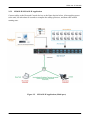
7KH,3PRGXOHFDQEHXVHGLQVLQJOHSRUW ,3.90RUHPEHGGHGLQPXOWLSRUW.90VZLWFK
&RQQHFWFDEOHVWRWKH+RVWDQG&RQVROHGHYLFHVDVWKHILJXUHGHSLFWVEHORZ$IWHUDSSO\LQJSRZHU
WRWKHXQLWLW¶GWDNHDERXWVHFRQGVWRFRPSOHWHWKHVWDUWXSSURFHVVHVDQGWKHQHQWHUQRUPDO
UXQQLQJVWDWH
)LJXUH ,3$SSOLFDWLRQ(PEHGGHGLQ6LQJOHSRUW.906ZLWFK
.90 RYHU ,3 0RGXOH
08;,308;,3$SSOLFDWLRQ
&RQQHFWFDEOHVWRWKH+RVWDQG&RQVROHGHYLFHVDVWKHILJXUHGHSLFWVEHORZ$IWHUDSSO\LQJSRZHU
WRWKHXQLWLW¶GWDNHDERXWVHFRQGVWRFRPSOHWHWKHVWDUWXSSURFHVVHVDQGWKHQHQWHUQRUPDO
UXQQLQJVWDWH
)LJXUH 08;,3$SSOLFDWLRQ0XOWLSRUW
KVM over IP Module
2.6
When the server is up and running
The IP-KVM gives you a full control over the remote server. The Management Console allows you
to access the remote server’s graphics, keyboard and mouse and to send special commands to the
server. You can also perform periodic maintenance of the server. Using the Console Redirection
Service, you are able to do the following:
I.
II.
III.
IV.
2.7
Reboot the system
Watch the boot process.
Boot the system from a separate partition to load the diagnostic environment.
Run special diagnostic programs
When the server is dead
Obviously, fixing hardware defects is not possible through a remote management device.
Nevertheless IP-KVM gives the administrator valuable information about the type of a hardware
failure. Serious hardware failures can be categorized into five different categories with different
chances to happen:
I. Hard disk failure 50%
II. Power cable detached, power supply failure 28%
III. CPU, Controller, main board failure 10%
IV. CPU fan failure 8%
V. RAM failure 4%
Using IP-KVM, administrators can determine which kind of serious hardware failure has occurred
Type of failure
Hard disk failure
Power cable detached, power supply
failure
CPU Controller, main board failure.
CPU fan failure
RAM failure
Detected by
Console screen, CMOS set-up information
Server remains in power off state after power on
command has been given.
Power supply is on, but there is no video output.
By server specific management software
Boot-Sequence on boot console
13 / 110
KVM over IP Module
3. Configuration
3.1
Initial IP Configuration via Network
The Factory default settings for the IP-KVM unit are as below:
DHCP: Disable
Default IP address: 192.168.0.70
Default Net Mask: 255.255.255.0
If DHCP mode is enabled (IP auto configuration = DHCP), the IP-KVM will try to contact a DHCP
server in the subnet to which it is physically connected. If a DHCP server is found, it may provide a
valid IP address, gateway address and net mask. Before you connect the device to your local subnet,
be sure to complete the corresponding configuration of your DHCP server. It is recommended to
configure a fixed IP assignment to the MAC address of the IP-KVM. You can find the MAC address
labeled on the bottom side of the metal housing.
There is a Network Setup Software tool (PSetup) for setting up the network configuration (IP
address, Subnet mask, DHCP, etc). It is useful when you want to change the network settings or you
will not be able access to the unit due to not knowing the network settings of the unit. In this case,
you can view or change the settings via this utility.
IP-KVM Setup Tool
If this initial configuration does not meet your local requirements, use the setup tool to change the
configurations to your needs. The setup tool PSetup can be found on the CD-ROM delivered with
this package. You can follow the procedures described below.
DHCP
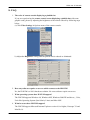
If you have installed the IP-KVM on a network that enables DHCP, you can use the PSetup to find
out the IP-KVM’s IP.
(1) Plug Ethernet cable to IP-KVM. IP-KVM will get an IP via DHCP.
(2) Using PSetup to look for IP-KVM.
a. Click Refresh Devices button to detect connected devices
b. Select MAC address of the IP-KVM in “Device MAC address” box. You can find the MAC
address labeled on the bottom side of the IP-KVM module. MAC address is detected as
connection from computer and IP-KVM is valid through USB or network.
c. Click Query Device to find the IP configuration on the right pane.
14 / 110
KVM over IP Module
Notes:
BOOTP, a static configuration protocol, uses a table that maps IP addresses to
physical addresses.
DHCP, an extension to BOOTP that dynamically assigns configuration
information. DHCP is backward compatible with BOOTP.
Set up a fixed IP
a. Setup “IP auto configuration” as “None” ; setup IP address and Subnet mask
b. Enter Super user login and password for Authentication (default : super/pass)
c. Click Setup Device. If super login was authenticated, it’ll show “Successfully
configured device”. Otherwise it’ll show “Permission Denied”.
15 / 110
KVM over IP Module
Authentication
To adjust the authentication settings, enter your login as a super user, and change your
password.
Super user login
Enter the login name of the super user. The initial value is “super”. All characters are in
lower case.
Super user password
Enter the current password for the super user. This initial value is “pass”. All characters
are in lower case.
New super user password
Enter the new password for the super user.
New password (confirm)
Re-type the new password for the super user for confirmation.
To close the window and accept the changes, press the “OK” button; otherwise press the
“Cancel” button.
16 / 110
KVM over IP Module
3.2
Configuration Setup via Serial Console
For using serial terminal, the IP-KVM has a serial line interface (host side). This connector is
compliant with the RS-232 serial line standard. The serial line has to be configured with the
parameters given in Table below.
Parameter
Bits/second
Data bits
Parity
Stop bits
Flow Control
Value
115200
8
No
1
None
When configuring with a serial terminal, e.g., Hyper Terminal, reset the IP-KVM and
immediately press the “ESC” key. You will see some device information, and a “=>” prompt.
Enter “config”, press “Enter” key and wait for a few seconds for the configuration questions
to appear.
As you proceed, the following questions will appear on the screen. To accept the default
values shown in square brackets below, press “Enter” key.
IP auto configuration: None
IP address: [192.168.0.70]
Net mask: [255.255.255.0]
Gateway: [0.0.0.0] -- (0.0.0.0 for none)
IP auto-configuration
With this option, you can specify whether the IP-KVM should get its network settings from
a DHCP or BOOTP server. For DHCP, enter “dhcp”, and for BOOTP enter “bootp”. If you
do not specify any of these, the IP auto-configuration is disabled and subsequently you will
be asked for the following network settings.
IP address
The IP address the IP-KVM. This option is only available if IP auto-configuration is
disabled.
Net mask
The net mask of the connected IP subnet. This option is only available if IP
auto-configuration is disabled.
Gateway address
The IP address of the default router for the connected IP subnet. If you do not have a
default router, enter 0.0.0.0. This option is only available if IP auto-configuration is
disabled.
17 / 110
KVM over IP Module
3.3
Keyboard, Mouse, and Video configuration
Between the IP-KVM and the host, there are two interfaces available for transmitting
keyboard and mouse data: USB and PS/2. The correct operation of the remote mouse depends
on several settings which will be discussed in the following subsections.
3.3.1 IP-KVM keyboard settings
The IP-KVM settings for the host's keyboard type have to be corrected in order to make the
remote keyboard work properly. Check the settings in the IP-KVM Web front-end for details.
3.3.2 Remote Mouse Settings
A common seen problem with KVM devices is the synchronization between the local and
remote mouse cursors. The IP-KVM addresses this situation with an intelligent
synchronization algorithm. There are two mouse modes available on the IP-KVM:
Auto mouse speed
The automatic mouse speed mode tries to detect the speed and acceleration settings of
the host system automatically. See the section below for a more detailed explanation.
Fixed mouse speed
This mode just translates the mouse movements from the Remote Console in a way that
one pixel move will result in n-pixel moves on the remote system. This parameter n is
adjustable with the scaling. Please note that this works only when mouse acceleration is
turned off on the remote system.
3.3.3
Automatic mouse speed and mouse synchronization
The automatic mouse speed mode performs the speed detection during mouse synchronization.
Whenever the local and remote mouse cursors move synchronously or not, there are two ways
for re-synchronizing local and remote mouse cursors:
Fast Sync
The fast synchronization is used to correct a temporary, but fixed skew. Choose the
option using the Remote Console options menu or press the mouse synchronization
hotkey sequence in case you defined one.
Intelligent Sync
If the fast sync does not work or the mouse settings have been changed on the host
system, use the intelligent resynchronization. This method takes more time than the fast
one and can be accessed with the appropriate item in the Remote Console option menu.
The intelligent synchronization requires a correctly adjusted picture. Use the auto
adjustment function to setup the picture, and make sure that there are no window at the
top left corner of the remote desktop that are able to change the mouse cursor shape from
18 / 110
KVM over IP Module
the normal state. The Sync mouse button on top of the Remote Console can behave
differently, depending on the current state of mouse synchronization. Usually pressing
this button leads to a fast sync, except in situations where the KVM port or the video
mode changed recently.
Note: At first start, if the local mouse pointer is not synchronized with
the remote mouse pointer, press the Auto Adjust Button once.
3.3.4
Host system mouse settings
The host's operating system knows various settings from the mouse driver.
Note: The following limitations do not apply in case of USB and Mouse Type
“Windows >= 2000, MacOSX”.
While the IP-KVM works with accelerated mice and is able to synchronize the local with the
remote mouse pointer, there are the following limitations, which may prevent this
synchronization from working properly:
Special Mouse Driver
There are mouse drivers that influence the synchronization process and lead to
desynchronized mouse pointers. If this happens, make sure you do not use a special
vendor-specific mouse driver on your host system.
Windows XP Mouse Settings
Windows XP knows a setting named “improve mouse acceleration”, which has to be
deactivated.
Active Desktop
If the Active Desktop feature of Microsoft Windows is enabled do not use a plain
background. Instead, use some kind of wallpaper. As an alternative, you could also
disable the Active Desktop completely.
Navigate your mouse pointer into the upper left corner of the applet screen and move it
slightly forth and back. Thus the mouse will be resynchronized. If re-synchronizing fails,
disable the mouse acceleration and repeat the procedure.
3.3.5
Single and Double Mouse Mode
The information above applies to the Double Mouse Mode, where remote and local mouse
pointers are visible and need to be synchronized. The IP-KVM also features another mode,
the Single Mouse Mode, where only the remote mouse pointer is visible. Activate this mode
in the open Remote Console and click into the window area. The local mouse pointer will be
hidden and the remote one can be controlled directly. To leave this mode, it is necessary to
19 / 110
KVM over IP Module
define a mouse hotkey in the Remote Console Settings Panel. Press this key to free the
captured local mouse pointer.
3.3.6 Recommended Mouse Settings
For the different operating systems we give the following advices:
MS Windows
In general, we recommend the usage of a mouse via USB. Choose USB without Mouse Sync.
For a PS/2 mouse choose Auto Mouse Speed. For XP disable the option “enhance pointer
precision” in the Control Panel.
SUN Solaris
Adjust the mouse settings either via xset m 1 or use the CDE Control Panel to set the mouse to
“1:1, no acceleration”. As an alternative you may also use the Single Mouse Mode.
MAC OS X
We recommend using the Single Mouse Mode.
3.3.7 Video Modes
The IP-KVM recognizes a limited number of common video modes. When running X11 on the
host system, please do not use any custom mode lines with special video modes. If you do, the
IP-KVM may not be able to detect them. We recommend using any of the standard VESA
video modes, instead.
20 / 110
KVM over IP Module
4. Usage
4.1
Prerequisites
The IP-KVM features an embedded operating system and applications offering a variety of
standardized interfaces. This chapter will describe both these interfaces, and the way to use them in
a more detailed manner. The interfaces are accessed using the TCP/IP protocol family, thus they can
be accessed using the LAN port of the device.
The following interfaces are supported:
ʄ
ʄ
HTTP/HTTPS
Full access is provided by the embedded web server. The IP-KVM environment can be
entirely managed using a standard web browser. You can access the IP-KVM using the
insecure HTTP protocol, or using the encrypted HTTPS protocol. Whenever possible, use
HTTPS.
Telnet
A standard Telnet client can be used to access an arbitrary device connected to the IP-KVM's
serial port via a terminal mode.
The primary interface of the IP-KVM is the HTTP interface. This is covered extensively in this
chapter. Other interfaces are addressed in subtopics.
In order to use the Remote Console window of your managed host system, the browser has to come
with a Java Runtime Environment version 1.4.2 or above. If the browser has no Java support (such
as on a small handheld device), you are still able to maintain your IP-KVM using the administration
forms displayed by the browser itself.
For secure connection to the IP-KVM, we recommend the following browsers versions:
ʄ Microsoft Internet Explorer version 6.0 or higher
ʄ Netscape Navigator 7.0 or Mozilla 1.6 or higher
In order to access the remote host system using a securely encrypted connection, you need a
browser that supports the HTTPS protocol. Strong security is only assured by using a key length of
128 Bit. Some of the old browsers do not have a strong 128 Bit encryption algorithm.
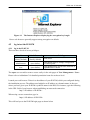
Using the Internet Explorer, open the menu entry “?” and “Info” to read about the key length that is
currently activated. The dialog box contains a link that leads you to information on how to upgrade
your browser to a state of the art encryption scheme. Figure below shows the dialog box presented
by the Internet Explorer 6.0.
21 / 110
KVM over IP Module
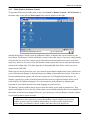
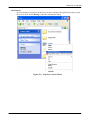
Figure 4-1
The Internet Explorer displaying the encryption key length
Newer web browsers generally support strong encryption on default.
4.2
log in/out the IP-KVM
4.2.1 log in the IP-KVM
There are three levels of access privileges:
User Name
Default Password
super
pass
(factory default) (factory default)
administrator
(user define)
user
(user define)
Access Privileges
Full access
Has partial rights to change configuration
of critical parts
Has permission to access basic function of
open Remote Console
The super user can add or remove a user easily via the web pages of User Management > Users.
Please refer to Addendum C for detailed permission items for each user level.
Launch your web browser. Direct it to the address of your IP-KVM, which you configured during
the installation process. The address used might be an IP address or a domain name, in the case
where you have given your IP-KVM a symbolic name in the DNS. For instance, type the following
in the URL field of your browser when establishing an unsecured connection:
http://<IP address of IP-KVM>
When using a secure connection, type in:
https://<IP address of IP-KVM>
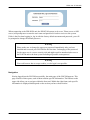
This will lead you to the IP-KVM login page as shown below
22 / 110
KVM over IP Module
When connecting to the IPK-KVM unit, the IPK-KVM system (web server, Telnet server or SSH
server) will prompt user to enter the user name and password in order to access to the system.
If this is the first time logging in, log in with the factory default username and password, you will
be prompted to change the default password.
Warning
Please make sure to change the super user password immediately after you have
installed and accessed your IP-KVM for the first time. Unchanging of the password
for the super user is a severe security risk and might result in unauthorized access to
the IP-KVM and to the host system including all possible consequences!
Warning
Your web browser has to accept cookies, or else login is not possible.
Navigation
Having logged into the IP-KVM successfully, the main page of the IP-KVM appears. This
page consists of three parts; each of them contains specific information. The buttons on the
upper side allow you to navigate within the front end. Within the right frame, task-specific
information is displayed that depends on the section you have chosen before.
23 / 110
KVM over IP Module
The Buttons of the front end:
Return to main page of IP-KVM access page
Open the IP-KVM remote console
Exit from the IP-KVM front end.
Warning
If there is no activity for 30 minutes, the IP-KVM will log you out, automatically.
A click on one of the links will bring you back to the login screen.
Remote Console Preview
Click on Click to open to start the remote console redirection
Click on Refresh to refresh the picture.
24 / 110
KVM over IP Module
4.2.2
Log out from the IP-KVM
This link logs out the current user and presents a new login screen. Please note that an automatic
logout will be performed in case there is no activity for 30 minutes.
4.3
The Remote Console
The Remote Console is the redirected screen, keyboard and mouse of the remote host system that
IP-KVM controls.
The Remote Console window is a Java Applet that tries to establish its own TCP connection to the
IP-KVM. The protocol that is running over this connection is neither HTTP nor HTTPS, but RFB
(Remote Frame Buffer Protocol). As default, RFB tries to establish a connection to TCP port
number 443. Your local network environment has to allow this connection to be made, i.e. your
firewall and, in case you have a private internal network, your NAT (Network Address Translation)
settings have to be configured accordingly.
In case the IP-KVM is connected to your local network environment and your connection to the
Internet is available using a proxy server only without NAT being configured, the Remote Console
is very unlikely to be able to establish the desired connection. This is because today's web proxies
are not capable of relaying the RFB protocol.
In case of problems, please consult your network administrator in order to provide an appropriate
networking environment.
25 / 110
KVM over IP Module
4.3.1
Main Window of Remote Console
To open the KVM console either click on the icon Console or Remote Control > KVM Console of
the menu entry on the left or Click to open of the console picture on the right.
Starting the Remote Console opens an additional window. It displays the screen content of your
host system. The Remote Console will behave exactly in the same way as if you were sitting locally
in front of the screen of your remote system. That means keyboard and mouse can be used in the
usual way. However, be aware of the fact that the remote system will react to keyboard and mouse
actions with a slight delay. The delay depends on the bandwidth of the link to which you use to
connect to the IP-KVM.
With respect to the keyboard, the very exact remote representation might lead to some confusion as
your local keyboard changes its keyboard layout according to the remote host system. If you use a
German administration system, and your host system uses a US English keyboard layout, for
instance, special keys on the German keyboard will not work as expected. Instead, the keys will
result in their US English counterpart. You can circumvent such problems by adjusting the
keyboard of your remote system to the same mapping as your local one.
The Remote Console window always tries to show the remote screen with its optimal size. That
means it will adapt its size to the size of the remote screen initially and after the screen resolution of
the remote screen has been changed. However, you can always resize the Remote Console window
in your local window system as usual.
Warning
In difference to the remote host system, the Remote Console window on your local
window system is just one window among others. In order to make keyboard and
mouse work, your Remote Console window must have the local input focus.
26 / 110
KVM over IP Module
4.3.2
Control Bar of Remote Console
The upper part of the Remote Console window contains a control bar. Using its elements you can
see the state of the Remote Console and adjust the local Remote Console settings. A description for
each control follows.
Figure 4-2 Remote Console Control Bar
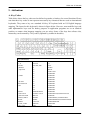
Ctrl+Alt+Delete
Special button key to send the “Control Alt Delete” key combination to the remote system
(see also section 6.4.1 for defining new button keys).
Auto Adjust button
If the video display is of bad quality or distorted in some way, press this button and wait a
few seconds while the IP-KVM tries to detect the video mode of VGA port to the
controlled host and adjust itself for the best possible video quality.
Sync mouse
Activates the mouse synchronization process. Choose this option in order to synchronize
the local with the remote mouse cursor. This is especially necessary when using
accelerated mouse settings on the host system. In general, there is no need to change
mouse settings on the host.
Single/Double mouse mode
Switches between the Single Mouse Mode (where only the remote mouse pointer is visible)
and the Double Mouse Mode (where remote and local mouse pointers are visible and need
to be synchronized). Single mouse mode is only available if using SUN JVM 1.4.2 or
higher.
Options
To open the Options menu, click on the button “Options”.
27 / 110
KVM over IP Module
Figure 4-3
Remote Console Options Menu
28 / 110
KVM over IP Module
Notice: In order to keep mouse pointers in sync in Double mouse mode, it is recommended
to disable the Enhance pointer precision in host computer if your IP-KVM connects to
PS/2 host computer and select Double mouse mode.
A short description of the options as follows.
• Monitor Only
Toggles the Monitor only filter on or off. If the filter is switched on no remote console
interaction is possible, and monitoring is possible.
• Exclusive Access
If a user has the appropriate permission, he or she can force the Remote Consoles of all
other users to close. No one can open the Remote Console at the same time again until
this user disables the exclusive access, or logs off.
A change in the access mode is also visible in the status line.
Figure 4-4
Remote Console Exclusive Mode
29 / 110
KVM over IP Module
• Scaling
Allow you to scale down the Remote Console. You can still use both mouse and
keyboard, however the scaling algorithm will not preserve all display details.
When you designate 25%, 50%, or100% scaling, the size of Remote Console window is
calculated according to the remote host video setting with scaling algorithm execution.
When you designate “Scale to fit”, the remote video displaying is scaled to fit the size of
Remote Console window.
Figure 4-5
Remote Console Options Menu:Scaling
• Mouse Handling
The submenu for mouse handling offers two options for synchronizing the local and the
remote mouse cursors.
30 / 110
KVM over IP Module
Fast Sync -The fast synchronization is used to correct a temporary, but fixed skew.
Intelligent Sync -Use this option if the fast sync does not work or the mouse settings have been
changed on the host system.
Warning
This method takes more time than the fast one and requires a correctly
adjusted picture. Use the auto adjustment function to setup the picture.
• Local Cursor
Offers a list of different cursor shapes to choose from for the local mouse pointer. The
selected shape will be saved for the current user and activated the next time this user
opens the Remote Console. The number of available shapes depends on the Java Virtual
Machine; a version of 1.4.2 or above offers the full list.
Figure 4-6
Remote Console Options Menu:Cursor
• Video Settings
Opens a panel for changing the IP-KVM video settings. IP-KVM features two different
dialogs, which for adjusting the video settings.
Video Settings through the HTML-Frontend
To enable local video port, select this option. This option decides if the local video
output of IP-KVM is active and passing through the incoming signal from the host
system.
31 / 110
KVM over IP Module
The option Noise Filter defines how IP-KVM reacts to small changes in the video
input signal. Turning on the noise filter can help reduce video flickering that is often
caused by distortions, as well as lowering unnecessary bandwidth consumption. A
large filter setting needs less network traffic and leads to a faster video display, but
small changes in some display regions may not be recognized immediately. A small
filter displays all changes instantly but may lead to a constant amount of network
traffic even if display content is not really changing (depending on the quality of the
video input signal). All in all the default setting should be suitable for most
situations.
Video Settings through the remote console
Figure 4-7
Video Settings Panel
Brightness Controls the brightness of the picture
Contrast Controls the contrast of the picture
Clock Defines the horizontal frequency for a video line and depends on the
video mode. Different video card types may require different values here. The
default settings in conjuction with the auto adjustment procedure should be
adequate for all common configurations. If the picture quality is still bad after
auto adjustment you may try to change this setting together with the sampling
phase to achieve a better quality.
32 / 110
KVM over IP Module
Phase Defines the phase for video sampling, used to control the display quality
together with the setting for sampling clock.
Horizontal Position Use the left and right buttons to move the picture in
horizontal direction while this option is selected.
Vertical Position Use the left and right buttons to move the picture in vertical
direction while this option is selected.
Reset this Mode Reset mode specific settings (Clock , Phase and Position) to
the factory-made defaults.
Reset all Modes Reset all settings to the factory-made defaults.
Save changes Save changes permanently
Undo Changes Restore last settings
• Refresh Video
Click to run this menu item for retrieving the whole video again from the controlled host
and displayed on Remote Console. In normal situation, only changed parts of video will
be packed and sent from IP-KVM, for saving network bandwidth. This function is
mainly used for troubleshooting purpose where some old video fragments are displayed
as not updated in time for some reason; for example, noise filter for VGA is setting too
large.
• Soft Keyboard
Figure 4-8
Soft Keyboard
Opens up the Menu for the Soft-Keyboard.
Show
Pops up the Soft-Keyboard. The Soft-Keyboard is necessary in case your host system
runs a completely different language and country mapping than your administration
machine.
Mapping
Used for choosing the specific language and country mapping of the Soft-Keyboard.
33 / 110
KVM over IP Module
Figure 4-9
Soft Keyboard Mapping
• Local Keyboard
Used to change the language mapping of your browser machine running the Remote
Console Applet. Normally, the applet determines the correct value automatically.
However, depending on your particular JVM and your browser settings this is not
always possible. A typical example is a German localized system that uses an
US-English keyboard mapping. In this case you have to change the Local Keyboard
setting to the right language, manually.
• Hotkeys
Opens a list of hotkeys defined before. Choose one entry, the command will be sent to
the host system.
A confirmation dialog can be added that will be displayed before sending the selected
command to the remote host. Select “OK” to execute the command on the remote host.
Figure 4-10
Remote Console Confirmation Dialog
• Encoding
These options are used to adjust the encoding level in terms of compression and color
34 / 110
KVM over IP Module
depth. They are only available unless "Transmission Encoding" is determined
automatically (see the Section called Transmission Encoding in Chapter 6).
Compression Level
You may select a value between 1 and 9 for the desired compression level with level 1
enabling the fastest compression and level 9 the best compression. The most suitable
compression level should always be seen as a compromise between the network
bandwidth that is available, on your video picture to be transferred, and on the number of
changes between two single video pictures. We recommend to use a higher compression
level if the network bandwidth is low. The higher the compression level the more time is
needed to pack and unpack the video data on either side of the connection. The
compression quality depends on the video picture itself, e.g. the number of the colors or
the diversity of pixels. The lower the compression quality, the more data have to be sent
and the longer it may take to transfer the whole video picture.
If level 0 is chosen the video compression is disabled, completely.
The option "Video Optimized" has its advantages if transferring high-quality motion
pictures. In this case the video compression is disabled, completely and all video data is
transferred via network as full-quality video snippets. Therefore, a high amount of
bandwidth is required to ensure the quality of the video picture.
Figure 4-11 Encoding Compression
The next two options allow you to set the compression level to a predefined level OR to
set a level for "lossy" compression. This compresses well, but leads to degradation in
image quality.
35 / 110
KVM over IP Module
Figure 4-12
Predefined Compression
Figure 4-13
Lossy Compression
Color Depth
Set the desired color depth. You may select between 8 or 16 bit for Video
Optimized/compression level 0, or between 1 and 8 bit for compression level 1 to 9. The
higher the color depth, the more video information has to be captured and to be
transferred.
36 / 110
KVM over IP Module
Figure 4-14
Encoding Color depth
Note:
If displaying motion pictures on a connection with low speed you may achieve an
improvement regarding the video transfer rate by lowering the color depth and disabling
the option "Video Optimized". As a general result, the data rate is reduced (less bits per
color). Furthermore, the OPMA module will not have to do any video compression. In
total, this will lead to less transfer time of the motion picture.
4.3.3
Status Line of Remote Console
Status line
Shows both console and the connection state. The size of the remote screen is
displayed. Figure belowwas taken from a Remote Console with a resolution of 800x600
pixels. The value in brackets describes the connection to the Remote Console. “Norm”
means a standard connection without encryption, “SSL” means a secure connection.
Figure 4-15 Status line
Furthermore, both the incoming (“In:”) and the outgoing (“Out:”) network traffic are
visible (in kb/s). If compressed encoding is enabled, a value in brackets displays the
compressed transfer rate.
37 / 110
KVM over IP Module
Figure 4-16
Status line transfer rate
For more information about Monitor Only and Exclusive Access settings, see related sections
38 / 110
KVM over IP Module
5. Menu Options
5.1
Remote Control
The Remote Console is the redirected screen, keyboard and mouse of the remote host system that
IP-KVM controls. The Remote Console window is a Java Applet that tries to establish its own TCP
connection to the IP-KVM.
Starting the Remote Console opens a new window displays screen movement of host system, with
its size automatically adjusted to optimum. Keyboard and mouse are redirected to control the host
system simultaneously. A slight delay may present depending on the bandwidth of network.
39 / 110
KVM over IP Module
5.1.1
KVM Console
Figure 5-1
KVM Console
To open the KVM console either click on the icon Console or Remote Control > KVM
Console of the menu entry on the left or Click to open of the console picture on the right.
5.1.2
Telnet/SSHConsole
In general, the Telnet or SSH interface supports two operation modes: the command line mode and
the terminal mode. The command line mode is used to control or display some parameters. In
terminal mode the pass-through access to serial port is activated (if the serial settings were
configured accordingly). All inputs are redirected to the device on serial port and its answers are
displayed on the Telnet interface.
In order to log in with Telnet or SSH, you have to enable the access settings from
Device Settings > Network.
40 / 110
KVM over IP Module
Telnet Console
The IP-KVM firmware features a Telnet server that enables a user to connect via a standard
Telnet client. In case the Telnet program is using a VT 100, VT 102 or VT 220 terminal or an
according emulation, it is even possible to perform a console redirection as long as the
IP-KVM host machine is using a text mode screen resolution.
To log in Telnet Console by one of the following way:
1.
clicking Remote Control > telnet Console
41 / 110
KVM over IP Module
2.
or telnet command as required by the Telnet client, for instance in a UNIX shell:
telnet 192.168.0.70
3.
or run the SSH-supported terminal emulation program (such as PuTTY).
Replace the IP address by the one that is actually assigned to the IP-KVM. This will prompt
for username and password in order to log into the device. The credentials that need to be
entered for authentication are identical to those of the web interface. That means, the user
management of the Telnet interface is entirely controlled with the according functions of the
web interface.
Once you have successfully logged into the IP-KVM a command line will be presented and
you can enter according management commands.
Figure 5-2
Telnet Console
Key in help to list all available commands.
The following list shows the according command mode command syntax and their usage.
help
Displays the list of possible commands
cls
Clears the screen
quit
Exits the current session and disconnects from the client
42 / 110
KVM over IP Module
version
Displays the release information
terminal
Starts the terminal passthrough mode for RS-232 serial port. This mode provides Serial
over IP functin. The key sequence ESC + exit switches back to the command mode.
vscaa
Auto adjustment of the Remote Console.
vscreset [modes/allmodes/all]
Reset the video modes like in the remote console under option “Video Settings”. vscreset
modes: reset settings for the current video mode vscreset allmodes: reset settings for all
video modes vscreset all: reset all video modes and global settings (Brightness and
Contrast)
SSH Console
The IP-KVM supports SSH security protocol. The SSHv2 will encryption the transferred data
so as to keep the data communication secured. Basically, the SSH’s configuration interface is
the same as Telnet console’s, except that SSH is data encrypted and secured.
Please run the SSH-supported terminal emulation program (such as PuTTY).
43 / 110
KVM over IP Module
5.2
Virtual Media
The IP-KVM provides a powerful capability called Virtual Media (or Virtual Disk). Using the USB
port, the IP-KVM can present either a local floppy disk image or a redirected remote
CD/DVD-ROM image to the target computer. This can allow system recovery in conditions as bad
as having local disks down and no primary network connection. With Floppy Disk Image, the user
can upload an image to the IP-KVM’s memory, which then emulates a locally attached floppy drive.
With CD/DVD-ROM Image, a Windows or other SAMBA share can emulate a locally attached
CD/DVD-ROM, for instance to update software.
Drive Redirection allows you to share (redirect) your local drive (floppy drives, hard disks, CD
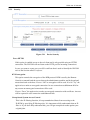
ROMs and other removable devices like USB sticks) with the remote system over a TCP network
connection. Thus, with Drive Redirection, you can use a virtual disk drive on the remote computer
instead of an image file. It is also possible to enable a remote machine to write data to your local
disc.
Before go ahead with this setup, both remote user computer and local computer (the one connected
with the IP-KVM unit) would have to have Operating System Win2000, XP or above. This function
would not work on other platforms at this moment.
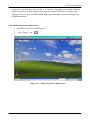
Before using Virtual Media, please connect the USB cable from IP-KVM to host computer. After
connecting the USB cable, you can see a “Removable Disk” on the host computer. Below is the host
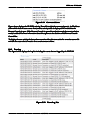
computer screen (the computer which connected with IPKVM).
44 / 110
KVM over IP Module
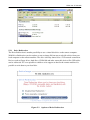
5.2.1 Drive Redirection
The Drive Redirection is another possibility to use a virtual disc drive on the remote computer.
With Drive Redirection you do not have to use an image file but may work with a drive from your
local computer on the remote machine. The drive is hereby shared over a TCP network connection.
Devices such as floppy drives, hard discs, CD-ROMs and other removable devices like USB sticks
can be redirected. It is even possible to enable a write support so that for the remote machine it is
possible to write data to your local disc.
Figure 5-3
Options of Drive Redirection
45 / 110
KVM over IP Module
Please note that Drive Redirection works on a level which is far below the operating system. That
means that neither the local nor the remote operating system is aware that the drive is currently
redirected, actually. This may lead to inconsistent data as soon as one of the operating systems
(either from the local machine, or from the remote host) is writing data on the device. If write
support is enabled the remote computer might damage the data and the file system on the redirected
device. On the other hand, if the local operating system writes data to the redirected device the drive
cache of the operating system of the remote host might contain older data. This may confuse the
remote host’s operating system. We recommend to use the Drive Redirection with care, especially
the write support.
Disable Drive Redirection
If enabled the Drive Redirection is switched off.
Force read-only connections
If enabled the Write Support for the Drive Redirection is switched off. It is not possible to
write on a redirected device.
Click Apply to submit your changes.
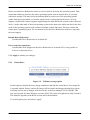
5.2.2
Virtual Drive
Figure 5-4 USB mass storage option
Set this option to disable the mass storage emulation (and hide the virtual drive) if no image file
is currently loaded. If unset, and no file image will be found it may happen that the host system
will hang on boot due to changes in the boot order, or the boot manager (LILO, GRUB). This
case was reported for some Windows versions (2000, XP), other OS might not be fully excluded.
This behavior depends on the BIOS version used in that machine.
To set this option, press the button “Apply”.
46 / 110
KVM over IP Module
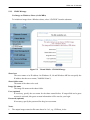
5.2.3
CD/DVD Image
Use Image on Windows Share (via SAMBA)
To include an image from a Windows share, select “CD/DVD” from the submenu.
Figure 5-5
Virtual Media - CD-ROM Image
Share host
The server name or its IP address. On Windows 95, 98 and Windows ME do not specify the
IP address but the server name ("NetBIOS Name").
Share folder name
The name of the share to be used.
Image file name
The image file name on the share folder.
User (optional)
If necessary, specify the user name for the share named before. If unspecified and a guest
account is activated, this guest account information will be used as your login.
Password (optional)
If necessary, specify the password for the given user name.
Notes:
1. The output image extension file name has to be ‘iso’, e.g. CD-Rom_vir.iso.
47 / 110
KVM over IP Module
2.
You may create an ISO image size up to 650Mb (for CD-ROM). This drive would be in
read-only mode and would not allow you to write any information on this drive but copying
only. This drive would be bootable under DOS mode if the motherboard/BIOS on the host
computer supports USB BOOTABLE function. For emulating DVD Drive, please use Drive
3.
4.
Redirection function.
The above information has to be given from the point of view of IP-KVM with correct IP
address and device name. Administrative permission is required as regular user may not have
the right to access. Please login as a system administrator (or as “root” on UNIX systems).
The specified image file is supposed to be accessible from the IP-KVM. The information
above has to be given from the point of view of the IP-KVM. It is important to specify correct
IP addresses, and device names. Otherwise, IP-KVM may not be able to access the referenced
image file properly, leave the given file unmounted and will display an according error
message, instead. So, we recommend to state correct values and repeat this step if necessary.
5.
Furthermore, the specified share has to be configured correctly. Therefore, administrative
permissions are required. As a regular user you may not have these permissions. You should
either login as a system administrator (or as “root” on UNIX systems), or ask your system
administrator for help to complete this task.
Operation Procedures:
1. Please run Nero or any CD imaging tool to create CD-ROM ISO image.
2. Please create a folder and share this folder. (Please make sure password has to be setup with the
authorized user during Sharing => Permission settings)
3. Copy the CD-ROM ISO image file to this sharing folder.
4. Fill in the sharing information on Image on Windows Share, click on the Set button.
48 / 110
KVM over IP Module
MS Windows
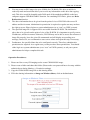
Open the Explorer, navigate to the directory (or share) and press the right mouse button to open
the context menu. Select Sharing to open the configuration dialog
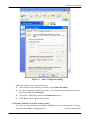
Figure 5-6
Explorer Context Menu
49 / 110
KVM over IP Module
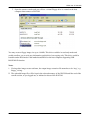
Figure 5-7
Share Configuration Dialog
Adjust the settings for the selected directory.
ʄ
ʄ
Activate the selected directory as a share. Select Share this folder.
Choose an appropriate name for the share. You may also add a short description for
this folder (input field Comment).
ʄ
ʄ
If necessary, adjust the permissions (Permissions button).
Click OK to set the options for this share.
UNIX and UNIX-like OS (UNIX, Solaris, Linux)
If you like to access the share via SAMBA, SAMBA has to be set up properly. You may
either edit the SAMBA configuration file
or use the Samba Web
50 / 110
KVM over IP Module
Administration Tool (SWAT) or WebMin to set the correct parameters.
Also looking at the man-entry of smb.conf is very helpful.
5. If the Image file set successfully.
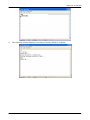
6. Open the remote console and you can see the virtual CD as below picture.
51 / 110
KVM over IP Module
5.2.4
Floppy Disk
Figure 5-8
Virtual Media - Floppy Disk
The maximum image size is limited to 1.44MB. To use a larger image mount this image via Windows
Share (or SAMBA) (see the Section called Use Image on Windows Share (via SAMBA) for details).
Operation Procedures:
1. You need to create the floppy image file first. For this example, we use RawWrite software
(or any other image-creator software) to create floppy image. Please use licensed software
for this purpose.
52 / 110
KVM over IP Module
2. You can find an image file saved at desire destination after you created it with RawWrite.
3. Open the browser to log into the IP-KVM. Click Virtual Media > Floppy Disk. Click the
Browse button to choose the image file.
Click on the button Upload to initiate the transfer of the chosen image file into the IP-KVM
module’s on-board memory.
4.
After you uploading the image file, you will see the information below.
53 / 110
KVM over IP Module
5. Open the remote console and you will see a virtual Floppy drive is created on the host
computer that connect to IP-KVM
You may create a floppy image size up to 1.44Mb. This drive would be in read-only mode and
would not allow you to write any information on this drive but copying only. This drive would be
bootable under DOS mode if the motherboard/BIOS on the host computer supporting USB
BOOTABLE function.
Notes:
1. If using other image-creator software, the output image extension file name has to be ‘img’, e.g.
floppy_vir.img.
2. The uploaded image file will be kept in the onboard memory of the IP-KVM until the end of the
current session, as you logged out, or initiated a reboot of the IP-KVM.
54 / 110
KVM over IP Module
5.2.5 Creating an Image
5.2.5.1 Creating Floppy Images
UNIX and UNIX-like OS
To create an image file, make use of “dd”. This is one of the original UNIX utilities and is
included in every UNIX-like OS (UNIX, Sun Solaris, and Linux).
To create a floppy image file, copy the contents of a floppy to a file. You can use the following
command:
dd [ if=/dev/fd0 ] [ of=/tmp/floppy.image ]
dd reads the entire disc from the device /dev/fd0, and saves the output in the specified output
file /tmp/floppy.image. Adjust both parameters exactly to your needs (input device etc.)
MS Windows
You can use the tool “Raw Write for Windows”. It is included on the CD-ROM shipped with
IP-KVM.
Figure 5-9
RawWrite for Windows selection dialog
From the menu, select the tab “Read”. Enter (or choose) the name of the file in which you
would like to save the floppy content. Click on the button “Copy” to initiate the image creation
process.
For related tools you may have a look at www.fdos.org
55 / 110
KVM over IP Module
5.2.5.2 Creating CD-ROM/ISO Images
UNIX and UNIX-like OS
To create an image file, make use of “dd”. This is one of the original UNIX utilities and is
included in every UNIX-like OS (UNIX, Sun Solaris, and Linux).
To create a CD-ROM image file, copy the contents of the CD-ROM to a file. You can use the
following command:
dd [ if=/dev/cdrom ] [ of=/tmp/cdrom.image ]
dd reads the entire disc from the device /dev/cdrom, and saves the output in the specified
output file /tmp/cdrom.image. Adjust both parameters exactly to your needs (input device etc.).
MS Windows
To create the image file, use your favorite CD imaging tool. Copy the whole contents of the
disc into one single image file on your hard disk.
For example, with “Nero” you choose “Copy and Backup”. Then, navigate to the “Copy Disc”
section. Select the CD-ROM or DVD drive you would like to create an image from. Specify
the filename of the image, and save the CD-ROM content in that file.
Figure 5-10
Nero selection dialog
56 / 110
KVM over IP Module
5.2.6 Drive Redirection Methods
There are two methods of Drive Redirections:
1. External Drive Redirection Utility
2. Built-in Java Drive Redirection function in Remote Console
5.2.6.1 Driver Redirection Utility Installation
Please follow the Drive Redirection Setup Wizard step by step to install the driver from the
attached CD-ROM.
Figure 5-11 Drive Redirection Setup
57 / 110
KVM over IP Module
Drive Redirection Settings
Figure 5-12
Drive Redirection dialog
Drive Redirection Utility:
Device
This is the address (either the DNS name or the IP address) of the IP-KVM you would like to
connect to.
Drive
The local drive you want to share with the remote computer, which could be Floppy disc,
CD-ROMs, USB-Sticks and hard drives.
Port
This is the network port. By default, IP-KVM uses the remote console port (#443) here. You
may change this value if you have changed the remote console port in your IP-KVM’s network
settings.
Secure Connection
Enable this box to establish a secure connection via SSL. This will maximize the security but
58 / 110
KVM over IP Module
may reduce the connection speed.
Select the drive you would like to redirect. All available devices (drive letters) are shown here.
Please note that the whole drive is shared with the remote computer, not only one partition. If you
have a hard disc with more than one partition all drive letters that belong to this disc will be
redirected. The Refresh button may be used to regenerate the list of drive letters, especially for an
USB stick.
Warning
Please be cautious that if “Allow Write Support” is
selected, all data on the shred media might be destroyed.
Write Support
This feature may be enabled here. Write support means that the remote computer is allowed to write
on your local drive. As you can imagine, this is very dangerous. If both the remote and the local
system try to write data on the same device, this will certainly destroy the file system on the drive.
Please use this only when you exactly know what you are doing.
Device Authentication
The factory default Username is “super” and the default Password is “pass”.
Click Connect to redirect drive
Warning
1. Drive Redirection is only possible with Windows 2000 or later versions.
2. The Drive Redirection works on a low SCSI level and the SCSI protocol cannot recognize
partitions; therefore the whole drive selected will be shared instead of any particular
partition.
3. While connecting to a legacy KVM switch, please select PS/2 mouse for Keyboard/Mouse
setting from webpage. Otherwise you will not be able to use Hot-key.
Navigation Buttons:
Connect/Disconnect
To establish the drive redirection, please press the Connect button once. If all the settings are
correct, the status bar displays that the connection has been established, the Connect button is
disabled and the Disconnect button is enabled.
On an error, the status line shows the error message. The drive redirection software tries to
lock the local drive before it is redirected. That means that it tries to prevent the local operating
59 / 110
KVM over IP Module
system from accessing the drive as long as it is redirected. This may also fail, especially if a
file on the drive is currently open. In the case of a locking failure, you will be prompted if you
want to establish the connection anyhow. This should not be a serious problem when the note
above is respected. If the write support is enabled, a drive which is not locked might be
damaged by the Drive Redirection.
With the Disconnect button, a connection via Drive Redirection connection is stopped.
Exit/Hide
If the Exit button is pressed, the Drive Redirection software is closed. If a Drive Redirection
connection is active, the connection will be closed before the application terminates.
Using the Hide to Tray button the application is hidden, but not terminated completely. That
means that an active connection will be kept active until it is closed explicitly. You can access
the software by its tray icon. The tray icon also shows whether a connection is established or
not. A double click on the icon shows the application window, or with a right click you may
access a small menu
Operation Procedures:
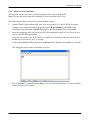
1. Please install Drive Redirection Software on remote computer first then run Drive
Redirection application and fill in information accordingly:
60 / 110
KVM over IP Module
1. Type the IP
address of IP-KVM
2. Choose the
hard drive you
intend to share
3. Type the username
and password of
‘IP-KVM’
4. Click ‘Connect’ to create virtual drive on host computer
2. Open the remote and you can see the virtual hard drive as below picture.
Virtual Drive
has been
created
Please note that Virtual Drive creation is by Device manner not by Partition. Which means it
looks for I/O in BIOS and sends the corresponding signal to host computer. This way, you are
61 / 110
KVM over IP Module
sending the entire hard drive (may consist of ‘X’ numbers of partitions) and emulate whatever
number of partitions on host computer. You may also emulate a DVD-Drive with the same
procedure. However, this DVD-Drive Does NOT support Bootable function like Floppy and
CD-ROM emulation.
5.2.6.2 Built-in Java Drive Redirection
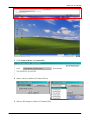
1. Run Remote Control > KVM Console.
2.
Click “Floppy” icon
Figure 5-13 Built-in Java Drive Redirection
62 / 110
KVM over IP Module
3. Click Connect Drive or Connect ISO
4. Select a drive to redirect (if Connect Drive)
5. Select a ISO image to redirect (if Connect ISO)
63 / 110
KVM over IP Module
5.3
User Management
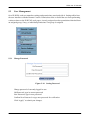
On a IP-KVM, each user name has settings and permissions associated with it. Settings affect how
the user interfaces with the Remote Console. Permissions allow or forbid the user from performing
various actions on the IP-KVM’s web pages. A newly assigned user has permissions inherited from
an assigned group, if any, or individual permissions if no group is assigned.
5.3.1
Change Password
Figure 5-14
Setting Password
Change password of currently logged in user:
Old Password: type in current password
New Password: type in new password
Confirm New Password: re-type new password for verification
Click “Apply” to submit your changes.
64 / 110
KVM over IP Module
5.3.2
Users and Groups
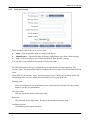
There are three kinds of levels of user accounts:
ʄ
ʄ
ʄ
Super -- Has all possible rights to configure the device
Administrator -- Has partial rights to change configuration apart from critical settings
User -- Has permission to access basic function of open Remote Console
You can choose the desired level from the selection box role.
The IP-KVM comes with 1 pre-configured user account that has fixed permissions. The
account “super” has all possible rights to configure the device and to use all functions IP-KVM
offers.
Upon delivery, the account “super” has the password “pass”. Make sure to change password
immediately after you have installed and on initial access of your IP-KVM.
Existing users
Select an existing user for modification. Once a user has been selected, click the lookup
button to see the user information.
New User name
The new user name for the selected account.
Password
The password for the login name. It must be at least three characters long.
Confirm password
Confirmation of the password above.
65 / 110
KVM over IP Module
Email address
This is optional.
Mobile number
This information may be optionally provided.
Role
Each user can be a member of a group (named a “role” ) – there kinds can be shose from:
super, administrator, or an regular user.
To create an user press the button Create. The Modify button changes the displayed user
settings. To delete an user press the button Delete.
Note:The IP-KVM is equipped with an host-independent processor and memory unit which
both have a limitation in terms of the processing instructions and memory space. To guarantee
an acceptable response time we recommend not to exceed the number of 15 users connected to
the IP-KVM at the same time. The memory space that is available onto the IP-KVM mainly
depends on the configuration and the usage of the IP-KVM (log file entries etc.). That’s why
we recommend not to store more than 150 user profiles.
66 / 110
KVM over IP Module
5.4
KVM Settings
5.4.1
User Console
The following settings are user specific. That means, the super user can customize these
settings for every users separately. Changing the settings for one user does not affect the
settings for the other users.
67 / 110
KVM over IP Module
Figure 5-15
User Console Setting
68 / 110
KVM over IP Module
User select box
This selection box displays the user ID for which the values are shown and for which the
changes will take effect. You may change the settings of other users if you have the
required privileges.
Transmission Encoding
The Transmission Encoding setting allows changing the image-encoding algorithm that is
used to transmit the video data to the Remote Console window. It is possible to optimize
the speed of the remote screen processing depending on the number of users working at
the same time and the network bandwidth of the connection line (Modem, ISDN, DSL,
LAN, etc.).
Automatic detection
The encoding and the compression level is determined automatically from the
available bandwidth and the current content of the video image.
Pre-configured
The pre-configured settings deliver the best result because of optimized adjustment of
compression and colour depth for the indicated network speed.
Manually
Allows to adjust both compression rate and the colour depth individually. Depending
on the selected compression rate the data stream between the IP-KVM and the Remote
Console will be compressed in order to save bandwidth. Since high compression rates
consum more computing power of IP-KVM, they should not be used while several
users are accessing the IP-KVM simultaneously.
The standard color depth is 16 Bit (65536 colors). The other color depths are intended
for slower network connections in order to allow a faster transmission of data.
Therefore compression level 0 (no compression) uses only 16 Bit color depth. At
lower bandwidths only 4 Bit (16 colors) and 2 Bit (4 gray scales) are recommended for
typical desktop interfaces. Photo-like pictures have best results with 4 Bit (16 gray
scales). 1 Bit color depth (black/white) should only be used for extremely slow
network connections.
Remote Console Type
Specifies, which Remote Console Viewer to use.
Default Java-VM
Uses the default Java Virtual Machine of your Browser. This may be the Microsoft
JVM for the Internet Explorer, or the Sun JVM if it is configured this way. Use of the
Sun JVM may also be forced (see below).
69 / 110
KVM over IP Module
Sun Microsystems Java Browser Plugin
Instructs the web browser of your administration system to use the JVM of Sun
Microsystems. The JVM in the browser is used to run the code for the Remote
Console window, which is actually a Java Applet. If you check this box for the first
time on your administration system and the appropriate Java plug-in is not already
installed on your system, it will be downloaded and installed automatically. However,
in order to make the installation possible, you still need to answer the according
dialogs with “yes” . The download volume is around 11 Mbytes. The advantage of
downloading Sun's JVM lays in providing a stable and identical Java Virtual Machine
across different platforms. The Remote Console software is optimized for this JVM
versions and offers wider range of functionality when run in SUN's JVM. Please make
sure that you are installing Sun JVM 1.4.2 or above to your client system.
Miscellaneous Remote Console Settings
Start in Monitor Mode
Sets the initial value for the monitor mode. By default the monitor mode is off. In case
you switch it on, the Remote Console window will be started in a read only mode.
Start in Exclusive Access Mode
Enables the exclusive access mode immediately at Remote Console startup. This
forces the Remote Consoles of all other users to close. No one can open the Remote
Console at the same time again until this user disables the exclusive access or logs off.
Mouse hotkey
Allows to specify a hotkey combination which starts either the mouse synchronization
process if pressed in the Remote Console, or is used to leave the single mouse mode.
Remote Console Button Keys
Button Keys allow simulating keystrokes on the remote system that cannot be generated
locally. The reason for this might be a missing key or the fact, that the local operating
system of the Remote Console is unconditionally catching this keystroke already. Typical
examples are “Control+Alt+Delete” on Windows and DOS, what is always caught, or
“Control+Backspace” on Unix or Unix-like OS for terminating the X-Server. The syntax
to define a new Button Key is as follows:
[confirm] <keycode>[+|-[*]<keycode>]*
“confirm” requests confirmation by a dialog box before the key strokes will be sent to the
remote host.
“keycode” is the key to be sent. Multiple key codes can be concatenated with a plus, or a
minus sign. The plus sign builds key combinations, all keys will be pressed until a minus
sign or the end of the combination is encountered. In this case all pressed keys should be
70 / 110
KVM over IP Module
released in reversed sequence. The minus sign builds single, separate key presses and
releases. The star inserts a pause with duration of 100 milliseconds.
5.4.2
Keyboard/Mouse
Figure 5-16 Keyboard and Mouse Settings
PS/2 Keyboard Model
Enables a certain keyboard layout. You can choose between “Generic 101-Key PC” for a
standard keyboard layout, “Generic 104-Key PC” for a standard keyboard layout
extendend by three additional windows keys, “Generic 106-Key PC” for a japanese
keyboard, and “Apple Macintosh” for the Apple Macintosh.
Keyboard timeout
Recommanded as “enable” for keyboard timeout when host is UNIX or UNIX-like OS.
Mouse Speed
• Auto mouse speed
Use this option if the mouse settings on host use an additional acceleration setting. The
IP-KVM tries to detect the acceleration and speed of the mouse during the mouse sync
process.
• Fixed mouse speed
Use a direct translation of mouse movements between the local and the remote pointer.
71 / 110
KVM over IP Module
You may also set a fixed scaling which determines the pixel-amount of the remote
mouse pointer movement when the local mouse pointer is moved by one pixel. This
option is used to manually control the remote mouse speed and only works when the
mouse settings on the host are linear. This means mouse acceleration of OS should be
disabled, and the intelligent mouse synchronization of IP-KVM is not functioning under
this setting.
• Absolute mouse scaling for MAC server
Use this option for MAC server.
To set the options, click on the button Apply.
5.4.3
Video
Figure 5-17
Video Settings
Miscellaneous Video Settings
• Noise filter
This option defines how the IP-KVM reacts to small changes in the video input signal.
Turning on the noise filter can help reduce video flickering that is often caused by
distortions, as well as lowering unnecessary bandwidth consumption. A large filter
setting needs less network traffic and leads to a faster video display, but small changes in
some display regions may not be recognized immediately. A small filter displays all
changes instantly but may lead to a constant amount of network traffic even if the
display content is not really changing (depending on the quality of the video input
signal). All in all the default setting should be suitable for most situations.
• Force Composite Sync (Required for Sun Computers)
When connecting the device directly to legacy Sun computer (with composite sync as
the video output, it may be possible that IP-KVM don’t recognize the composite sync
72 / 110
KVM over IP Module
automatically. To support signal transmission from a Sun machine, enable this option.
If not enabled the picture of the remote console will not be visible.
To set the options, click on the button Apply.
5.5
Device Settings
5.5.1
Network
The Network Settings panel allows changing network related parameters. Each parameter will
be explained below. Once applied the new network settings will immediately come into effect.
73 / 110
KVM over IP Module
Figure 5-18
Network Settings
Warning
Changing the network settings of the IP-KVM might result in losing connection to it.
In case you change the settings remotely make sure that all the values are correct and
you still have an option to access the IP-KVM.
74 / 110
KVM over IP Module
IP auto configuration
With this option you can control if the IP-KVM should fetch its network settings from a
DHCP or BOOTP server. For DHCP, select “dhcp” , and for BOOTP select “bootp”
accordingly. If you choose “none” then IP auto configuration is disabled.
Preferred host name
Preferred host name to request from DHCP server. Whether the DHCP server takes the
IP-KVM suggestion into account or not depends on the server configuration.
IP address
IP address in the usual dot notation.
Subnet Mask
The net mask of the local network.
Gateway IP address
In case the IP-KVM should be accessible from networks other than the local one, this IP
address must be set to the local network router's IP address.
Primary DNS Server IP Address
IP address of the primary Domain Name Server in dot notation. This option may be left
empty, however the IP-KVM will not be able to perform name resolution.
Secondary DNS Server IP Address
IP address of the secondary Domain Name Server in dot notation. It will be used in case
the Primary DNS Server cannot be contacted.
Remote Console And HTTPS port
Port number at which the IP-KVM's Remote Console server and HTTPS server are
listening. If left empty the default value will be used.
HTTP port
Port number at which the IP-KVM's HTTP server is listening. If left empty the default
value will be used.
Telnet port
Port number at which the IP-KVM's Telnet server is listening. If left empty the default
value will be used.
SSH port
Port number at which the IP-KVM SSH (Secure SHell) server is listening to. If left empty the
default value (port 22) will be used.
75 / 110
KVM over IP Module
Bandwidth limitation
The maximum network traffic generated through the IP-KVM ethernet device. Value in
Kbit/s.
Enable Telnet access
This enables the Telnet function.
Enable SSH access
This enables the SSH (Secure SHell) function.
Disable Setup Protocol
Enable this option to exclude the IP-KVM from the setup protocol. Setup protocol is a
proprietary layer-2 MAC-based protocol to allow some configuration software to detect
IP-KVM devices in the network, even without IP address, and then config network related
settings to IP-KVM..
LAN Interface Settings
The “Autodetect” will set the ethernet speed to the fastest possible value supported by both
endpoints of the link. For example, if you use a 10M/half duplex HUB, this speed will be
auto-selected. If this option does not work with some network device (HUB, switches, and
routers), you can set the Ethernet interface speed of IP-KVM manually to the values as
supported by the network device.
5.5.2
Dynamic DNS
Figure 5-19 Dynamic DNS
76 / 110
KVM over IP Module
A freely available Dynamic DNS service (www.dyndns.org) can be used in the following
scenario.
Figure 5-20
Dynamic DNS Scenario
The IP-KVM is reachable via the IP address of the DSL router, which is dynamically assigned
by the provider. Since the administrator does not know the IP address assigned by the provider,
the IP-KVM connects to a special dynamic DNS server in regular intervals and registers its IP
address there. The administrator may contact this server as well and pick up the same IP
address relating to his IP-KVM unit.
The administrator has to register an IP-KVM that is supposed to take part in the service with
the Dynamic DNS Server and assign a certain hostname to it. He will get a nickname and a
password in return to the registration process. This account information together with the
hostname is needed in order to determine the IP address of the registered IP-KVM.
You have to perform the following steps in order to enable Dynamic DNS:
• Make sure that the LAN interface of the IP-KVM is properly configured.
• Enter the Dynamic DNS Settings configuration dialog as shown in Figure.
• Enable Dynamic DNS and change the settings according to your needs (see below).
Enable Dynamic DNS
This enables the Dynamic DNS service. This requires a configured DNS server IP address.
Dynamic DNS server
This is the server name where IP-KVM registers itself in regular intervals. Currently, this
is a fixed setting since only dyndns.org is supported for now.
DNS System
77 / 110
KVM over IP Module
Choose Dynamic for free DNS service. Custom for your own domain.
Hostname
This is the hostname of the IP-KVM that is provided by the Dynamic DNS Server. (use the
whole name including the domain, e.g. testserver.dyndns.org , not just the actual
hostname).
Username
You have registered this username during your manual registration with the Dynamic DNS
Server. Spaces are not allowed in the Nickname.
Password
You have used this password during your manual registration with the Dynamic DNS
Server.
Check time
The IP-KVM registers itself for initiating the IP address of IP-KVM stored in the Dynamic
DNS server at this time.
Check interval
This is the interval for reporting again to the Dynamic DNS server for updating the IP
address associated with the Domain Name of the IP-KVM.
Warning
The IP-KVM has its own independent real time clock. Make sure the time setting of
the IP-KVM is correct. (see the Section Date And Time )
78 / 110
KVM over IP Module
5.5.3
Security
Figure 5-21
Device Security
Force HTTPS
If this option is enabled access to the web front-end is only possible using an HTTPS
connection. The IP-KVM will not listen on the HTTP port for incoming connections.
In case you want to create your own SSL certificate that is used to identify the IP-KVM
refer to the Section called Certificate.
KVM encryption
This option controls the encryption of the RFB protocol. RFB is used by the Remote
Console to transmit both the screen data to the administrator machine and keyboard and
mouse data back to the host. If set to “Off” no encryption will be used. If set to ”Try” the
applet tries to make an encrypted connection. In case connection establishment fails for
any reason an unencrypted connection will be used.
If set to “Force” the applet tries to make an encrypted connection with certificate. An error
will be reported in case connection establishment fails.
Group-based System Access Control
This is the IP filtering function, it keeps unauthorized hosts from accessing to the
IP-KVM by specifying IP filtering rules. It is important to fully understand what an IP
filter is. If you don't fully understand this, you will get unexpected results against your
original plan.
79 / 110
KVM over IP Module
Chain rule
The Chain rule determines whether the access from the hosts is allowed or not. It can be
one of these two values:
ACCEPT : access allowed
DROP : access not allowed
The rule can be configured to apply to a particular Group level (All, User, Super,
Administrator).
When the IP-KVM receives a TCP packet, it will process the packet with the chain rule
depicted below. The process ordering is important; The packet will enter the chain rule 1
first, if meet the rule then take action directly, otherwise go to chain rule 2.
Figure 5-22 Chain Rules of IP Filtering
Check the “Enable Group based System Access Control” to edit the rules
Users can add a new IP filtering rule by setting the properties at adding line by Append
or Insert. User can remove a rule by Remove or Delete.
80 / 110
KVM over IP Module
Figure 5-23
IP Filter Settings
81 / 110
KVM over IP Module
5.5.4
Certificate
Figure 5-24
Certificate Settings
The IP-KVM uses the Secure Socket Layer (SSL) protocol for any encrypted network traffic
between itself and a connected client. During the connection establishment the IP-KVM has to
expose its identity to a client using a cryptographic certificate. The default certificate comes
with IP-KVM device upon delivery is for testing purpose only. System administrator should
not rely on this default certificate as the secured global access mechanism through Internet.
However, it is possible to generate and install a new base64 X.509 certificate that is unique for
a particular IP-KVM. In order to do that, the IP-KVM is able to generate a new cryptographic
key and the associated Certificate Signing Request (CSR) that needs to be certified by a
certification authority (CA). A certification authority verifies that you are the person who you
claim you are, and signs and issues a SSL certificate to you.
The following steps are necessary to create and install a SSL certificate for the IP-KVM:
• Create a SSL Certificate Signing Request using the panel shown in Figure. You need to fill
out a number of fields that are explained below. Once this is done, click on the button
“Create” which will initiate the Certificate Signing Request generation. The CSR can be
downloaded to your administration machine with the “Download CSR” button.
82 / 110
KVM over IP Module
• Send the saved CSR string to a CA for certification. You will get the new certificate from the
CA after a more or less complicated traditional authentication process (depending on the
CA).
• Upload the certificate to the IP-KVM using the “Upload” button as shown in Figure below.
Figure 5-25 SSL Certificate Upload
Figure 5-26 CSR string
After completing these three steps, the IP-KVM has its own certificate that is used for
identifying the IP-KVM to its clients.
Warning
If you destroy the CSR on the IP-KVM there is no way to get it back! In case you
deleted it by mistake, you have to repeat the three steps as described above.
83 / 110
KVM over IP Module
Common name
This is the network name of the IP-KVM once it is installed in the user's network (usually
the fully qualified domain name). It is identical to the name that is used to access the
IP-KVM with a web browser (without the “http://” prefix). In case the name given here
and the actual network name differ, the browser will pop up a security warning when the
IP-KVM is accessed using HTTPS.
Organizational unit
This field is used for specifying to which department within an organization the IP-KVM
belongs.
Organization
The name of the organization to which the IP-KVM belongs.
Locality/City
The city where the organization is located.
State/Province
The state or province where the organization is located.
Country (ISO code)
The country where the organization is located. This is the two-letter ISO code, e.g. DE for
Germany, or US for the USA. (Note: the country code has to be entered in CAPITAL
LETTERS.)
Challenge Password
Some certification authorities require a challenge password to authorize later changes on
the certificate (e.g. revocation of the certificate). The minimal length of this password is 4
characters.
Confirm Challenge Password
Confirmation of the Challenge Password
Email
The email address of a contact person that is responsible for the IP-KVM and its security.
Key length
This is the length of the generated key in bits. 1024 Bits are supposed to be sufficient for
most cases. Longer keys may result in slower response time of the IP-KVM during
connection establishment.
84 / 110
KVM over IP Module
5.5.5
Serial Port
Figure 5-27
Serial Port
The IP-KVM Serial Settings allows you to specify what device is connected to the serial port
and how to use it.
Configuration or console login
Do not use the serial port for any special function, use it only for the initial configuration.
Modem
The IP-KVM offers remote access using a telephone line in addition to the standard access
over the built-in Ethernet adapter. The modem needs to be connected to the serial interface
of the IP-KVM .
Logically, connecting to the IP-KVM using a telephone line means nothing else than
building up a dedicated point-to-point connection from your console computer to the
IP-KVM. In other words, the IP-KVM acts as an Internet Service Provider (ISP) to which
you can dial in. The connection is established using the Point-to-Point Protocol (PPP).
Before you connect to the IP-KVM, make sure to configure your console computer
accordingly. For instance, on Windows based operating systems you can configure a
dial-up network connection, which defaults to the right settings like PPP.
The Modem Settings panel allows you to configure the remote access to the IP-KVM
using a modem. The meaning of each parameter will be described below. The modem
settings are part of the serial settings panel.
85 / 110
KVM over IP Module
Serial line speed
The speed the IP-KVM is communicating with the modem. Most of all modems
available today will support the default value of 115200 bps. In case you are using an
old modem and discovering problems try to lower this speed.
Modem Init String
The initialization string used by the IP-KVM to initialize the modem. The default
value will work with all modern standard modems directly connected to a telephone
line. In case you have a special modem or the modem is connected to a local telephone
switch that requires a special dial sequence in order to establish a connection to the
public telephone network, you can change this setting by giving a new string. Refer to
the modem's manual about the AT command syntax.
Modem server IP address
This IP address will be assigned to the IP-KVM itself during the PPP handshake.
Since it is a point-to-point IP connection virtually every IP address is possible but you
must make sure, it is not interfering with the IP settings of the IP-KVM and your
console computer. The default value will work in most cases.
Modem client IP address
This IP address will be assigned to your console computer during the PPP handshake.
Since it is a point-to-point IP connection virtually every IP address is possible but you
must make sure, it is not interfering with the IP settings of the IP-KVM and your
console computer. The default value will work in most cases.
Passthrough access to serial port via Telnet
Using this option, it is possible to connect an arbitrary device to the serial port and access
it (assuming it provides terminal support) via Telnet. Select the appropriate options for the
serial port and use the Telnet Console, or a standard Telnet client to connect to the
IP-KVM.
86 / 110
KVM over IP Module
5.5.6
Date / Time
Figure 5-28
Date / Time
This link refers to a page, where the internal real-time clock of the IP-KVM can be set up. You
have the possibility to adjust the clock manually, or to use a NTP timeserver. Without a
timeserver, your time setting will not be persistent, so you have to adjust it again, after
IP-KVM loses power for more than a few minutes. To avoid this, you can use a NTP
timeserver, which sets up the internal clock automatically to the current UTC time. Because
NTP server time is always UTC, there is a setting that allows you to set up a static offset to get
your local time.
Warning
There is currently no way to adjust the daylight saving time automatically. So you
have to set up the UTC offset twice a year properly to the local rules of your country.
87 / 110
KVM over IP Module
5.5.7
Event Log
Figure 5-29
Event Log
Important events like a login failure or a firmware update are logged to a selection of logging
destinations. Each of those events belongs to an event group, which can be activated
separately.
The common way to log events is to use the internal log list of the IP-KVM. To show the log
list, click on “Event Log” on the “Maintenance” page. In the Event Log Settings you can
88 / 110
KVM over IP Module
choose how many log entries are shown on each page. Furthermore, you can clear the log file
here.
List logging enabled
The common way to log events is to use the internal log list of the IP-KVM . To show the
log list, click on “Event Log” on the “Maintenance” page.
Since the IP-KVM's system memory is used to save all the information, the maximum
number of possible log list entries is restricted to 1.000 events. Every entry that exceeds
this limit overrides the oldest one, automatically.
Warning
If the reset button on the HTML frontend is used to restart the IP-KVM, all
logging information is saved permanently and is available after the IP-KVM has
been started. If the IP-KVM loses power or a hard reset is performed, all logging
data will be lost. To avoid this, use one of the following log methods.
NFS Logging enabled
Define a NFS server, where a directory or a static link have to be exported, to write all
logging data to a file that is located there. To write logging data from more than one
IP-KVM devices to only one NFS share, you have to define a file name that is unique for
each device. When you change the NFS settings and press the button “Apply” , the NFS
share will be mounted immediately. That means, the NFS share and the NFS server must
be filled with valid sources or you will get an error message.
SMTP Logging enabled
With this option, the IP-KVM is able to send Emails to an address given by the Email
address text field in the Event Log Settings. These mails contain the same description
strings as the internal log file and the mail subject is filled with the event group of the
occurred log event. In order to use this log destination you have to specify a SMTP server,
that has to be reachable from the IP-KVM device and that needs no authentication at all
(<serverip>:<port>).
SNMP Logging enabled
If this is activated, the IP-KVM sends a SNMP trap to a specified destination IP address,
every time a log event occurs. If the receiver requires a community string, you can set it in
the appropriate text field. Most of the event traps only contain one descriptive string with
all information about the log event. Only authentication and host power events have an
own trap class that consists of several fields with detailed information about the occurred
event. To receive this SNMP traps, any SNMP trap listener may be used.
Here is a example of all gerenated event and its event group.
89 / 110
KVM over IP Module
Device succesfully started
device
Board Reset performed by user...
device
Firmware upload failed.
device
No firmware file uploaded.
device
Uploaded firmware file discarded.
device
Firmware validation failed.
device
Firmware file uploaded by user...
device
Firmware updated by user...
device
Internal log file cleared by user...
device
Security Violation
security
Host Power
host
Host Reset
host
Connection to Remote Console failed: reason.
console (several)
Connection to client ... established.
console
Connection to client ... closed.
console
Login failed.
auth
Login succeed.
auth
Warning
In contrast to the internal log file on the IP-KVM, the size of the NFS log file is not
limited. Every log event will be appended to the end of the file so it grows
continuously and you may have to delete it or move it away from time to time.
5.6
Maintenance
The administrator performs various maintenance activities on the IP-KVM. These include viewing
its status, update firmware, view the event log and reset the unit.
90 / 110
KVM over IP Module
5.6.1 Device Information
The Device Status page contains a table with information about the IP-KVM’s hardware and
firmware. This information is useful if technical support is required.
Figure 5-30
Device Information
The Data file for support allows you to download the IP-KVM data file with specific support
information. This is an XML file with certain customized support information like the serial number
etc. You may send us this information together with a support request. It will help us to locate and
solve your reported problem.
91 / 110
KVM over IP Module
Figure 5-31 Connected Users
Figure above displays the IP-KVM activity. From left to right the connected user(s), its IP address
(from which host the user comes from) and its activity status is displayed. RC means that the
Remote Console is open. If the Remote Console is opened in exclusive mode the term (exclusive
mode) is added. For more information about this option see the Section called Remote Console
Control Bar.
To display the user activity the last column contains either the term active for an active user or 30
min idle for a user who is inactive for a certain amount of time.
5.6.2 Even log
The figure below displays the log list including the events that are logged by the IP-KVM
Figure 5-32
Event Log List
92 / 110
KVM over IP Module
5.6.3 Update Firmware
Firmware can be easily upgraded via web page. This section describes the upgrade procedures.
Figure 5-33
Update Firmware
The IP-KVM is a complete standalone computer. The software it runs is called firmware. The
firmware of the IP-KVM can be updated remotely in order to install new functionality or special
features.
A new firmware update is a binary file which will be sent to you by email or which you can
download from the supplier web site. If the firmware file is compressed (file suffix .zip) then you
must unzip it before you can proceed. Under the Windows operating system you may use WinZip
from http://www.winzip.com/ for decompression. Other operating systems might provide a program
called unzip.
Before you can start updating the firmware of your IP-KVM the new uncompressed firmware file
has to be accessible on the system that you use for connecting to the IP-KVM.
Warning !!!
This process is not reversible and might take few minutes. During this
upgrading process, we should not disconnect the power or the Ethernet
cable, since it may causes upgrade failure and destroy the image in Flash
memory.
93 / 110
KVM over IP Module
The IP-KVM will automatically initiate a self-reboot upon completion of upgrade process to make
newly upgraded firmware effective. At the end of countdown counter expires, the browser will
redirect user to the login homepage. Users shall refer to Maintenance > Device Information page
to check the firmware version and confirm the operation.
Warning !!!
IP-KVM will verify firmware checksum before proceed upgrade procedure. The
mechanism help to prevent false firmware file to damage IP-KVM. It is crucial to
keep a steady power supply during the procedure otherwise the power-off event
may damage the permanent storage and disable IP-KVM.
Updating the firmware is a three-stage process:
1.
Upload the new firmware file onto the IP-KVM unit.
In order to do that you need to select the file on your local system using the button “Browse”
of the Upload Firmware panel. Click Upload. Once the firmware file has been uploaded, it is
checked whether it is a valid firmware file and whether there were any transmission errors. In
case of any error the Upload Firmware function will be aborted.
2.
If everything went well, you see the Update Firmware panel.
The panel shows you the version number of the currently running firmware and the version
number of the uploaded firmware. Pressing Update will store the new version and substitute
the old one completely.
3.
After the firmware updated successfully, the device will be rebooted and redirected to the login
web page automatically.
94 / 110
KVM over IP Module
Check out the device information to see the updated firmware is running.
95 / 110
KVM over IP Module
5.6.4
Unit Reset
This section allows you to reset specific parts of the device. This involves resetting keyboard/mouse,
USB, video engine, or the IP-KVM device itself.
In general, the IP-KVM requires a reset when implementing a firmware update. In the event of an
abnormal operation, a number of subsystems may be reset without resetting the entire IP-KVM.
Click Maintenance > Unit Reset, the following window displays.
Figure 5-34
Unit Reset
To reset a certain IP-KVM functionality click on the Reset button as displayed in figure below.
Clicking on Reset of Reset Device will reboot the IP-KVM system. It will close all current
connections to the administration console and to the Remote Console. The whole process will take about one
minute. Resetting subdevices (e.g. video engine) will take few seconds only and does not result in closing
connections.
Note: Only the super user is allowed to reset the IP-KVM.
96 / 110
KVM over IP Module
5.6.5 Reset to Factory Defaults
This function may be used when you forgot the password to log in the IP-KVM.
Note: The unit will reboot after this command. All current settings will be lost.
.
The following procedures will revert to factory default settings:
1. Connect a RS232 null modem cable from your local console PC to the IP-KVM Serial port.
2.
Configure your terminal emulation program (such as HyperTerminal or PuTTY) to the
following settings: Baudrate 115200, Data/stop bits 8-1, Parity none, Flow control none.
Enter the debugging mode via reboot the IP-KVM system and hit the ESC key. There are two
ways to enter the debugging mode:
(a) Power cycle (reboot) the IP-KVM device. Within 2 seconds of booting the IP-KVM, enter
the Esc key a few times to get a => prompt.
(b) Press & hold ESC AND push and release Reset button, and then release ESC in 2 seconds.
The debugging mode window will display as below.
3.
Key in “defaults” command and then Enter. The unit will automatically set to factory default
settings and reboot the system.
97 / 110
KVM over IP Module
4.
The following window displays if reverting to factory default is complete.
98 / 110
KVM over IP Module
6. Technical Specifications
Feature
Description
Connector
Two 2x15 Pin header connectors
Video Resolution
up to 1600x1200@60Hz
Protocols
TCP, IP, ARP, ICMP, HTTP/HTTPS, SSL, Telnet, DHCP, PPP, SMTP,
NTP, DDNS
SSL 256-bit encryption of all transmitted data
Security
RSA 1024-bit encryption
SSHv2
Authentication
Virtual Media
SSL / Certificate
Floppy/CD-ROM/USB/HD drive redirection
Floppy/CD-ROM ISO Image redirection
99 / 110
KVM over IP Module
7. Troubleshooting
1. The remote mouse doesn’t work or is not synchronous
Make sure the mouse settings in IP-KVM match the mouse model. There are some
circumstances where the mouse synchronization process could behave incorrectly.
2. The video quality is bad or the picture is grainy
Try to correct the brightness and contrast settings until they are out of a range where the
picture looks grainy. Use the auto adjustment feature to correct a flickering video.
3. Login on IP-KVM fails.
Was the correct combination of user and password given? On delivery, the user “super”
has the password “pass”. Moreover your browser must be configured to accept cookies.
4. The Remote Console window can’t connect to IP-KVM.
Possibly a firewall prevents access to the Remote Console. Make sure the TCP port
numbers 443 or 80 are open for incoming TCP connection establishments.
5. No connection can be established to IP-KVM.
Check whether the network connection is working in general (ping the IP address of
IP-KVM). If not, check network hardware. Is IP-KVM powered on? Check whether the IP
address of IP-KVM and all other IP related settings are correct! Also verify that all the IP
infrastructure of your LAN, like routers etc., is correctly configured. Without a ping
functioning, IP-KVM can’t work either.
6. Special key combinations, e.g. ALT+F2, ALT+F3 are intercepted by the console
system and not transmitted to the host.
You have to define a so-called “Button Key”. This can be done in the Remote Console
settings.
7. In the browser the web pages are inconsistent or chaotic.
Make sure your browser cache settings are feasible. Especially make sure the cache
settings are not set to something like “never check for newer pages”. Otherwise web pages
may be loaded from your browser cache and not from the IP-KVM device itself.
8. Windows XP doesn’t awake from standby mode
This is possibly a Windows XP problem. Try not to move the mouse while XP goes in
standby mode.
9. Can’t upload the signed certificate in MacOS X
If an “internal error” occurs while uploading the signed certificate either change the
extension of the file to .txt or add a file helper using the Internet Explorer preferences for
this type of file. Make sure that the encoding is plain text and the checkbox “use for
outgoing” is checked. Another possibility is to use a Mozilla based browser.
100 / 110
KVM over IP Module
10. Every time I open a dialog box with some buttons the mouse pointers are not
synchronous anymore
Please check, if you have an option like “Automatically move mouse pointer to the default
button of dialog boxes” enabled in the mouse settings of the operating system. This option
needs to be disabled.
101 / 110
KVM over IP Module
8. FAQ
1. The color of remote console displaying a pinkish tint.
If you are experiencing the remote control screen displaying a pinkish tint with some
graphic cards, please try adjusting the brightness of the remote console by following steps
below.
a) Click Video Settings in Options menu of the remote console.
b) Adjust the Brightness setting until the pinkish tint is reduced or eliminated.
2. Does any software require on servers which connect to the IP-KVM?
No, the IP-KVM is a 100% hardware solution. No extra software require on servers.
3. What operating systems does IP-KVM support?
The IP-KVM supports Windows 98, Windows ME, Windows 2000/XP and above, , Unix,
Unix-like Operating System (Sun Solaris, Linux) and Mac OSX.
4. What browsers does IP-KVM support?
The IP-KVM support Microsoft Internet Explorer version 6.0 or higher, Netscape 7.0 and
Mozilla 1.6
102 / 110
KVM over IP Module
5. Does the IP-KVM work with other brand’s KVM switch?
Yes, the IP-KVM can work with most standard KVM.
6. How many letters the username and password can be set on IP-KVM?
The IP-KVM accepts 32 letters of username and password.
7. How many concurrent user of IP-KVM?
The IP-KVM accepts 15 concurrent users.
8. How many bits of connection encrypted of IP-KVM?
The IP-KVM provides AES 256 bits connection encrypted.
9. Local mouse and remote mouse didn’t sync after doing mouse Intelligent Sync.
Please don’t put window on left-up corner of remote console of IP-KVM. Intelligent Sync
has to re-calculate the coordinate of mouse from left-up corner on remote console.
103 / 110
KVM over IP Module
9. Addendum
A. Key Codes
Table below shows the key codes used to defines keystrokes or hotkeys for several functions. Please
note that these key codes do not represent necessarily key characters that are used on international
keyboards. They name a key on a standard 104 key PC keyboard with an US English language
mapping. The layout for this keyboard is shown in figure below. However, most modifier keys and
other alphanumeric keys used for hotkey purposes in application programs are on an identical
position, no matter what language mapping you are using. Some of the keys have aliases also,
means they can be named by 2 key codes (separated by comma in the table).
Key (and aliases)
0-9
A-Z
, TILDE
-, MINUS
=, EQUALS
;
’
<, LESS
,
.
/, SLASH
BACK SPACE
TAB
[
]
ENTER
CAPS LOCK
\, BACK SLASH
LSHIFT, SHIFT
RCTRL
RSHIFT
LCTRL, CTRL
LALT, ALT
SPACE
ALTGR
ESCAPE, ESC
F1
F2
F3
F4
F5
F6
F7
F8
F9
F10
F11
F12
PRINTSCREEN
SCROLL LOCK
BREAK
INSERT
HOME
PAGE UP
DELETE
END
PAGE DOWN
UP
LEFT
DOWN
RIGHT
NUM LOCK
NUMPAD0
NUMPAD1
NUMPAD2
NUMPAD3
NUMPAD4
NUMPAD5
NUMPAD6
NUMPAD7
NUMPAD8
NUMPAD9
NUMPADPLUS,NUMPAD PLUS
NUMPAD/
NUMPADMUL,NUMPAD MUL
NUMPADMINUS,NUMPAD MINUS
NUMPADENTER
WINDOWS
MENU
104 / 110
KVM over IP Module
B. Video Modes
Table below lists the video modes IP-KVM supports. Please don’t use other custom video settings
besides of these, or the IP-KVM may not be able to detect them.
Resolution (x, y)
640 x 350
640 x 400
640 x 480
640 x 480
720 x 400
800 x 600
832 x 624
1024 x 768
1152 x 864
1152 x 870
1152 x 900
1280 x 960
1280 x 1024
1600 x 1200
2048 x 1536
(local console)
Refresh Rates (Hz)
70, 85
56, 85
60, 72, 75, 85, 90, 100, 120
66.6
70, 85
56, 60, 70, 72, 75, 85, 90, 100
75
60, 70, 72, 75, 85, 90, 100
75
75
66, 76
60, 85
60, 75, 85
60
85
C. User Role Permissions
Table below lists the user role permissions granted for three user role groups: “Super”,
“Administrator”, and “User”.
Function
Remote Control: KVM
Remote Control: Remote Power
Remote Control: Telnet Console
Virtual Media
User Management: Change
Password
User Management: Users
KVM Settings: User Console
KVM Settings:
Keyboard/Mouse
KVM Settings: Video
Device Settings
Maintenance: Device
Information
Maintenance: Event Log
Maintenance: Update Firmware
Maintenance: Unit Reset
User
x
x
x
x
Administrator
x
x
x
x
x
Super
x
x
x
x
x
x (w/o Misc. Settings)
-
x
x
x
x
x
x
x
x
x
x
x
Keyboard/ Mouse,
Video
Keyboard/ Mouse,
Video
x
x
Keyboard/ Mouse,
Video, Device
105 / 110
KVM over IP Module
D. Bandwidth Consumption
The preconfigured network speed selection simply results in a different Compression and Color
Depth configuration in order to match the different bandwidth limitations of the network type
(UMTS, ISDN, etc.)
The following suggested network bandwidth planning table for IP-KVM installation is from the test
results with 3D-Labyrinth screen saver at Resolution 800x600, the worst case consuming the
highest network bandwidth.
Compression
Video Optimized
Video Optimized
Color
Depth
8 bit
Used
Bandwidth
3.0 - 3.3 MB/s
Video Optimized
(high color)
LAN (high color)
LAN
DSL
UMTS
ISDN 128k
ISDN/Modem V.90
GPRS/HSCSD
GSM Modem
Video Optimized
16 bit
4.3 - 5.0 MB/s
0 ( no compression )
0 ( no compression )
2
4
6
7
8
9 (best
compression)
16 bit
8 bit
8 bit
8 bit
4 bit
2 bit
2 bit
1 bit
1.0 - 1.3 MB/s
500 - 700 kb/s
110 - 140 kb/s
80 - 100 kb/s
20 - 30 kb/s
13 - 17 kb/s
5
7 kb/s
1
- 3 kb/s
106 / 110
Comment
uncompressed, synchronized video
data, most bandwidth needed
uncompressed, synchronized video
data, most bandwidth needed
uncompressed video data
uncompressed video data
slower video because of compression
slower video because of compression
16 colors
gray scale
gray scale
black&white video
KVM over IP Module
E. Well-Known TCP/UDP Port Numbers
Port numbers are divided into three ranges: Well Known Ports, Registered Ports, and Dynamic
and/or Private Ports. Well Known Ports are those from 0 through 1023. Registered Ports are those
from 1024 through 49151. Dynamic and/or Private Ports are those from 49152 through 65535.
Well Known Ports are assigned by IANA, and on most systems, can only be used by system
processes or by programs executed by privileged users. Table below shows some of the well-known
port numbers. For more details, please visit the IANA
website: http://www.iana.org/assignments/port-numbers
Port
Number
Protocol
TCP/UDP
21
FTP (File Transfer Protocol)
TCP
22
SSH (Secure Shell)
TCP
23
Telnet
TCP
25
SMTP (Simple Mail Transfer Protocol)
TCP
37
Time
39
RLP (Resource Location Protocol)
UDP
49
TACACS, TACACS+
UDP
53
DNS
UDP
67
BOOTP server
UDP
68
BOOTP client
UDP
69
TFTP
UDP
70
Gopher
TCP
79
Finger
TCP
80
HTTP
TCP
110
POP3
TCP
119
NNTP (Network News Transfer Protocol)
TCP
161/162
SNMP
UDP
443
HTTPS
TCP
TCP, UCP
107 / 110
KVM over IP Module
F. Protocol Glossary
BOOTP (Bootstrap Protocol)
Similar to DHCP, but for smaller networks. Automatically assigns the IP address for a specific
duration of time.
CHAP (Challenge Handshake Authentication Protocol)
A secure protocol for connecting to a system; it is more secure than the PAP.
DHCP (Dynamic Host Configuration Protocol)
Internet protocol for automating the configuration of computers that use TCP/IP.
DNS (Domain Name Servers): A system that allows a network name server to translate text host
names into numeric IP addresses.
LDAP (Lightweight Directory Access Protocol)
A protocol for accessing directory information.
NAT (Network Address Translation)
An Internet standard that enables a LAN to use one set of IP addresses for internal traffic and a
second set of addresses for external traffic. This enables a company to shield internal addresses
from the public Internet.
NFS (Network File System)
A protocol that allows file sharing across a network. Users can view, store, and update files on a
remote computer. You can use NFS to mount all or a portion of a file system. Users can access the
portion mounted with the same privileges as the user’s access to each file.
NTP (Network Time Protocol)
A protocol used to synchronize time on networked computers and equipment.
PAP (Password Authentication Protocol)
A method of user authentication in which the username and password are transmitted over a
network and compared to a table of name-password pairs.
PPP (Point-to-Point Protocol)
A protocol for creating and running IP and other network protocols over a serial link.
RADIUS (Remote Authentication Dial-In User Service)
108 / 110
KVM over IP Module
An authentication and accounting protocol. Enables remote access servers to communicate with a
central server to authenticate dial-in users and their access permissions. A company stores user
profiles in a central database that all remote servers can share.
SNMP (Simple Network Management Protocol)
A protocol that system administrators use to monitor networks and connected devices and to
respond to queries from other network hosts.
SMTP (Simple Mail Transfer Protocol)
TCP/IP protocol for sending email between servers.
SSL (Secure Sockets Layer)
A protocol that provides authentication and encryption services between a web server and a web
browser.
SSH (Secure Shell)
A secure transport protocol based on public-key cryptography.
Telnet
A terminal protocol that provides an easy-to-use method of creating terminal connections to a
network host.
109 / 110
KVM over IP Module
G. Regulation Information
Regulation Information
FCC
This equipment has been tested and found to comply with the limits for a Class A digital
device, pursuant to Part 15 of the FCC Rules. These limits are designed to provide reasonable
protection against harmful interference in a commercial installation. This equipment generates,
uses, and can radiate radio frequency energy and if not installed and used in accordance with
the instructions, may cause harmful interference to radio communications. Operation of this
equipment in a residential environment may cause harmful interference.
CE
This equipment has been tested and found to comply with the CE regulations of Class A.
RoHS
All contents of this package, including products, packing materials and documentation comply
with RoHS.
110 / 110