1
Recording
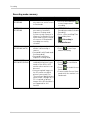
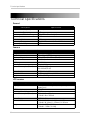
Recording mode summary
Mode
MANUAL
RECORDING
• Continuous recording from
one camera or entire screen
in Quad mode
SCHEDULE
RECORDING
• Continuous recording from
one camera, from Auto
Sequence Viewing mode
(system records cameras in
sequence), or Quad or Screen
Saver mode (system records
all cameras in Quad mode)
according to a weekly
schedule
• System only records when
motion is detected by a
camera
• Compatible with Quad mode
(recommended)
• Compatible with Auto
Sequence Viewing mode
• Enable Screen Saver to
enable digital picture frame
mode or turn off the LCD
monitor when motion is not
detected
• You must upload images to
the SD card to use digital
picture frame mode (see
“Screen Saver (digital picture
frame) mode” on page 28). A
PC is required to upload
images to the SD card; Mac is
not supported for this
function
MOTION
RECORDING (AUTO)
SCREEN SAVER +
MOTION RECORDING
16
Description
How to Operate
• Press the Record button (
)
to start/stop manual
recording
• ATTENTION: Turn off Motion
Recording to enable Schedule
Recording
• Enter a Start and Stop Time
for each day from
>Recording>
Schedule Record
• Press
to start/stop
Motion Recording
• Press
to start Motion
Recording
• Press
to enable Screen
Saver mode
• Cannot enable Screen Saver
mode while the monitor is in
Quad mode