1
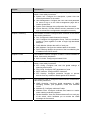
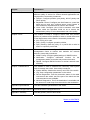
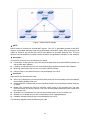
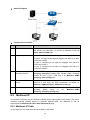
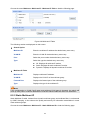
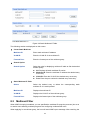
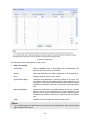
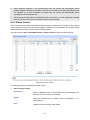
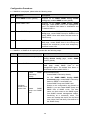
Configuration Procedure Configure Switch A: Step Operation Description 1 Configure ports On VLAN→802.1Q VLAN page, configure the link type of the related ports as Tagged, and add the ports to VLAN101-VLAN106. The detailed instructions can be found in the section 802.1Q VLAN. 2 Enable STP function On Spanning Tree→STP Config→STP Config page, enable STP function and select MSTP version. On Spanning Tree→STP Config→Port Config page, enable MSTP function for the port. 3 Configure the region name and the revision of MST region On Spanning Tree→MSTP Instance→Region Config page, configure the region as TP-LINK and keep the default revision setting. 4 Configure VLAN-to-Instance mapping table of the MST region On Spanning Tree→MSTP Instance→Instance Config page, configure VLAN-to-Instance mapping table. Map VLAN 101, 103 and 105 to Instance 1; map VLAN 102, 104 and 106 to Instance 2. Configure Switch B: Step Operation Description 1 Configure ports On VLAN→802.1Q VLAN page, configure the link type of the related ports as Tagged, and add the ports to VLAN101-VLAN106. The detailed instructions can be found in the section 802.1Q VLAN. 2 Enable STP function On Spanning Tree→STP Config→STP Config page, enable STP function and select MSTP version. On Spanning Tree→STP Config→Port Config page, enable MSTP function for the port. 3 Configure the region name and the revision of MST region On Spanning Tree→MSTP Instance→Region Config page, configure the region as TP-LINK and keep the default revision setting. 4 Configure VLAN-to-Instance mapping table of the MST region On Spanning Tree→MSTP Instance→Instance Config page, configure VLAN-to-Instance mapping table. Map VLAN 101, 103 and 105 to Instance 1; map VLAN 102, 104 and 106 to Instance 2. 5 Configure switch B as the root bridge of Instance 1 On Spanning Tree→MSTP Instance→Instance Config page, configure the priority of Instance 1 to be 0. 6 Configure switch B as the designated bridge of Instance 2 On Spanning Tree→MSTP Instance→Instance Config page, configure the priority of Instance 2 to be 4096. 78