1
3. Image Optimization
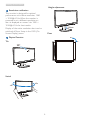
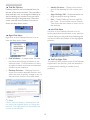
Title Bar Options
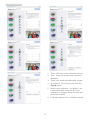
• Identify Partition – Displays the outline
grid on the desktop for the current partition.
Desktop partition can be accessed from the
title bar of the active window. This provides a
quick and easy way to manage the desktop as
well as sending any window to any partition
without having to drag and drop. Move the
cursor into the active window’s title bar to
access the drop down menu.
• Align On/Align Off – Enables/disables the
drag and drop auto align feature.
• Exit – Closes Desktop Partition and Display Tune. To re-initialize, launch Display
Tune from the start menu or short cut on
the desktop.
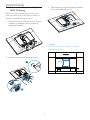
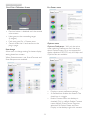
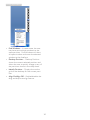
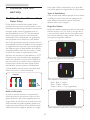
Left Click Menu
Right click on the Desktop Partition icon to
view the drop down menu.
Left click on the Desktop Partition icon to
quickly send the active window to any partition
without having to drag and drop. Releasing the
mouse will send the window to the highlighted
partition.
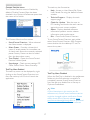
• Find Windows – In some cases, the user
may have sent multiple windows to the
same partition. Find Windows will show
all open windows and move the selected
window to the forefront.
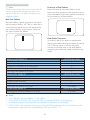
The task tray also contains most of the features
supported in the title bar (with the exception
of automatically sending a window to any
partition).
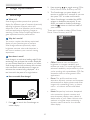
Right Click Menu
Task Tray Right Click
• Desktop Partition – Desktop Partition
shows the current selected partition and
allows the user to quickly change to any of
the partitions shown in the drop down.
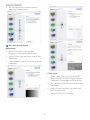
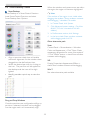
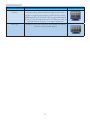
Note
If more than one display is attached, the user
can select the targeted display to change the
partition. The highlighted icon represents the
current active partition.
19