1
AXIS M7016 Video Encoder
Troubleshooting
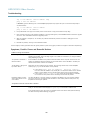
The IP address has been
changed by DHCP
IP addresses obtained from a DHCP server are dynamic and may change. If the IP address has
been changed, use AXIS IP Utility or AXIS Camera Management to locate the product on the
network. Identify the product using its model or serial number, or by the DNS name (if the name
has been configured).
If required, a static IP address can be assigned manually. For instructions, see the Installation and
Management Software CD or the document Assign an IP Address and Access the Video Stream on
Axis Support web at www.axis.com/techsup.
Certificate error when using
IEEE 802.1X
For authentication to work properly, the date and time settings in the Axis product should be
synchronized with an NTP server. See Date & Time, on page 36.
The product is accessible locally but not externally
Router configuration
To configure your router to allow incoming data traffic to the Axis product, enable the NAT-traversal
feature which will attempt to automatically configure the router to allow access to the Axis
product, see NAT traversal (port mapping) for IPv4, on page 39. The router must support UPnPTM.
Firewall protection
Check the Internet firewall with your network administrator.
Default routers required
Check if you need to configure the router settings from System Options > Network > TCP/IP >
Basic.
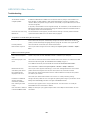
Problems with streaming H.264
Problems with AXIS Media
Control (Internet Explorer
only)
To enable the updating of video images in Internet Explorer, set the browser to allow ActiveX
controls. Also, make sure that AXIS Media Control is installed on your computer.
No H.264 displayed in the
client
Check that the relevant H.264 connection methods and correct interface are enabled in the AMC
Control Panel (streaming tab). See AXIS Media Control (AMC), on page 11.
In the AMC Control Panel, select the H.264 tab and click Set to default H.264 decoder.
Check that RTSP is enabled under System Options > Network > TCP/IP > Advanced.
Multicast H.264 only
accessible by local clients
Check if your router supports multicasting, or if the router settings between the client and the
product need to be configured. The TTL (Time To Live) value may need to be increased.
No multicast H.264
displayed in the client
Check with your network administrator that the multicast addresses used by the Axis product
are valid for your network.
Check with your network administrator to see if there is a firewall preventing viewing.
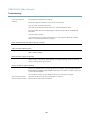
Installation of additional
ActiveX component
restricted or prohibited
Configure the Axis product to use a Java applet for updating video images in your browser. Go to
Setup > Live View Config and select Java applet under Default viewer.
Poor rendering of H.264
images
Ensure that your graphics card is using the latest driver. The latest drivers can usually be
downloaded from the manufacturer’s website.
Color saturation is different
in H.264 and Motion JPEG
Modify the settings for your graphics adapter. Refer to the adapter’s documentation for more
information.
48