1
OWC Mercury Elite Pro mini
Chapter 3 - Formatting
3.3 Formatting your OWC Mercury Elite Pro mini on Windows
2000 and later
Instructions for other operating systems can be found at http://www.macsales.com/format.
IMPORTANT NOTE: This procedure will erase all data on your hard
disk drives in the OWC Mercury Elite Pro mini. Back up any important data before proceeding!
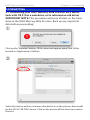
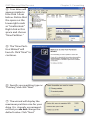
① With the drive connected to the computer and powered on, right click on the “My
Computer” icon and select “Manage” from the
menu. The “Initialize and Convert Disk Wizard”
window should appear.
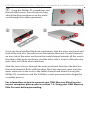
If the Wizard does not appear, expand the
Storage menu by clicking on the plus (+) sign.
Then, right click next to the
disk number of the drive
that you have just connected and click Initialize to
bring up the Wizard.
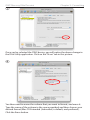
② In the next window,
there should be only one
drive listed. That will be the
drive that you connected
via eSATA, FireWire or USB.
Make sure the box next to
the drive name is checked and click “Next.”
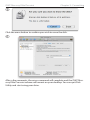
③ The Wizard will perform
its tasks, and you will get the
following screen. You may
click “Finish.”