1
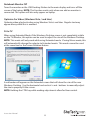
“Mirror” Display Mode
This mode allows the same content from the on-board display to be duplicated
(mirroring) to the output on the USB 3.0 Docking Station.
The screen resolution setting on the USB 3.0 Docking Station video output will match
the on-board display’s resolution. For example, if the on-board display’s resolution is
1024 x 768*32-bit, then the USB 3.0 Docking Station will use the same resolution.
“Set as Main Monitor” Display Mode
A unique feature to allow the USB 3.0 Docking Station to act as the main working
display. The USB 3.0 Docking Station will work as the main graphics adapter on the
system, while the on-board display will work as the extended display.
Please be advised that some display utilities and drivers that shipped with certain AGP
and built-in display adapters may prevent this option from working on some systems.
You may be able to disable the other utility program (usually found in the same tool
bar located on the bottom right hand corner) to make this function work properly.
“Off” Display Mode
This option disables the video output from the USB 3.0 Docking Station.
Screen Resolution
Select the desired video display resolution for the connected monitor in Extend Mode.
The default resolution setting is: 1024 x 768 * 32-bit.
Screen Rotation
4 options are available: 0°(Normal), 90° (Left), 180° (Upside-Down), 270° (Right) when
used with the Extended or Primary display modes. It is a useful function for some
rotatable display devices.
Normal
Upside-Down
Rotated Right
Rotated left
Instruction Manual
7