1
8. Set the recovery information (i.e. alternative email account and security question) and touch
.
9. Touch Join Google+ if you want to join the Google+ or Not now if you want to skip this step.
10. Read the agreement and touch
to complete the account setup.
11. Enter the authenticating code and touch
.
12. Enter your credit card information to enable purchases from Google Play Store, and then
touch Save. Or, touch Skip to skip this step.
Using Gmail
you open the Gmail application on your phone, your Inbox will contain the messages from
your Gmail account on the web.
Opening Gmail
Touch
> Gmail ( ). The Inbox mail list appears. Any emails you decide to keep on your
mobile phone will go to your Inbox folder.
Switching Between Accounts
To switch to another email account, touch the account selection box at the top left of the
screen, then touch the account that you want to view.
Creating and Sending an Email
1. On the Inbox screen, touch
.
2. Enter the message recipient’s email address in the To
If you are sending the email to several recipients, separate the email addresses with
commas.
If you want to send a copy (Cc) or a blind copy (Bcc) of the email to other recipients, touch
the Menu key, and then touch Add Cc/Bcc.
3. Enter the email subject and compose your message.
If you want to add a picture attachment, touch the Menu key, and then touch Attach file to
select the picture you want to attach.
4. After composing your email, touch
.
Replying To or Forwarding an Email
1. On the Inbox screen, touch the email that you want to reply to or forward.
2. Touch Reply(
), Reply all (
> Reply all), or Forward (
> Forward).
3. Do one of the following:
If you select Reply or Reply all, enter your message.
If you select Forward, specify the message recipients and add any additional text you want
to include with the forwarded message.
28
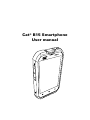
Cat® B15 Smartphone User Manual