1
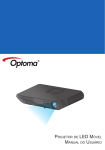
Mobile LED Projector User’s Manual Important Safety Instruction CLASS 1 LED PRODUCT Eye Safety Warnings Avoid staring/facing directly into the projector beam at all times. Keep your back to the beam as much as possible. A stick or laser pointer is recommended to avoid the need for the user to enter the beam. When projector is used in a classroom, adequately supervise students when they are asked to point out something on the screen. In order to minimize power, use room blinds to reduce ambient light levels. A.2.9.31 Gloss of housing of peripheral (15th / 22 meeting AG1 EK1): devices The requirements for the gloss of housing apply to peripheral devices used at the visual display workplace according to BildscharbV. Peripheral devices intended for use outside the visual display workplace can receive a GS-Mark if the scope is indicated in the User’s Manual as well as the certificate. That means the following wording is possible in situations where the use within the field of view is not intended and where sufficient hints are given in the User’s Manual for the avoidance of such situations to ensure that display work is not affected. Wording in the certificate: “This device is not intended for use in the direct field of view at visual display workplaces. To avoid incommoding reflexions at visual display workplaces this device must not be placed in the direct field of view.” Regulation & safety notices This appendix lists the general notices of your Projector. FCC notice This device has been tested and found to comply with the limits for a Class B digital device pursuant to Part 15 of the FCC rules. These limits are designed to provide reasonable protection against harmful interference in a residential installation. This device generates, uses, and can radiate radio frequency energy and, if not installed and used in accordance with the instructions, may cause harmful interference to radio communications. However, there is no guarantee that interference will not occur in a particular installation. If this device does cause harmful interference to radio or television reception, which can be determined by turning the device off and on, the user is encouraged to try to correct the interference by one or more of the following measures: • Reorient or relocate the receiving antenna. • Increase the separation between the device and receiver. • Connect the device into an outlet on a circuit different from that to which the receiver is connected. • Consult the dealer or an experienced radio/television technician for help. 2 Notice: Shielded cables All connections to other computing devices must be made using shielded cables to maintain compliance with FCC regulations. Caution Changes or modifications not expressly approved by the manufacturer could void the user’s authority, which is granted by the Federal Communications Commission, to operate this device. Operation conditions This device complies with Part 15 of the FCC Rules. Operation is subject to the following two conditions: 1. this device may not cause harmful interference, and 2. this device must accept any interference received, including interference that may cause undesired operation. 1.Do not block any ventilation openings. To ensure reliable operation of the projector and to protect from over heating, it is recommended to install the projector in a location that does not block ventilation. As an example, do not place the projector on a crowded coffee table, sofa, bed, etc. Do not put the projector in an enclosure such as a book case or a cabinet that restricts air flow. 2.Do not use the projector near water or moisture. To reduce the risk of fire and/ or electric shock, do not expose the projector to rain or moisture. 3.Do not install near heat sources such as radiators, heaters, stoves or any other apparatus such as amplifiers that emits heat. 4.Do not use the projector in direct sunlight. 5.Do not use near any appliance generating a strong magnetic field. 6.Do not use the projector in areas susceptible to excessive dust and dirt. 7.Turn off the product before cleaning. 8.Disconnect the power cord if the product is not being used for a long period of time. 9. Ensure that the ambient room temperature is within 5- 35°C. 10.Relative Humidity is 5 - 35°C, 80% (Max.), non-condensing. 11.Do not drop, throw or try to bend your product. 12.May explode if disposed of in fire. 13.Clean only with dry cloth. 14.Only use attachments/accessories specified by the manufacturer. 15.Do not use the unit if it has been physically damaged or abused. Physical damage/abuse would be (but not limited to): ▀■Unit has been dropped. ▀■Charger or plug has been damaged. ▀■Liquid has been spilled on to the projector. ▀■Projector has been exposed to rain or moisture. ▀■Something has fallen in the projector or something is loose inside. Do not attempt to service the unit yourself. Opening or removing covers may expose you to dangerous voltages or other hazards. Please contact your local reseller or service center before you send the unit for repair. 16.Do not let objects or liquids enter the projector. They may touch dangerous voltage points and short out parts that could result in fire or electric shock. 17.See projector enclosure for safety related markings. 18.The unit should only be repaired by appropriate service personnel. 19.Do not touch the projector for a long time while the projector is used. Disposal of old Electrical & Electronic Equipment (Applicable throughout the European Union and other European countries with separate collection programs) This symbol found on your product or on its packaging, indicates that this product should not be treated as household waste when you wish to dispose of it. Instead, it should be handed over to an applicable collection point for the recycling of electrical and electronic equipment. By ensuring this product is disposed of correctly, you will help prevent potential negative consequences to the environment and human health, which could otherwise be caused by inappropriate disposal of this product. The recycling of materials will help to conserve natural resources. This symbol is only valid in the European Union. If you wish to discard this product, please contact your local authorities or dealer and ask for the correct method of disposal. Notice: Canadian users This Class B digital apparatus complies with Canadian ICES-003. Remarque à l’intention des utilisateurs canadiens Cet appareil numerique de la classe B est conforme a la norme NMB-003 du Canada. Declaration of Conformity for EU countries • EMC Directive 2004/108/EC (including amendments) • Low Voltage Directive 2006/95/EC • R & TTE Directive 1999/5/EC (if product has RF function) Trademarks • WOW HD, SRS and the symbol are trademarks of SRS Labs, Inc. WOW HD technology is incorporated under license from SRS Labs, Inc. • WOW HD™ significantly improves the playback quality of audio, delivering a dynamic 3D entertainment experience with deep, rich bass and high frequency clarity for crisp detail. Product Overview 4 5 6 7 3 19 20 1 2 2 18 3 8 9 10 11 12 13 14 15 16 17 18 20 21 Remote Control 111 Focus Dial 222 Speaker 333 Ventilation (outlet) 444 Lens 555 IR Receiver 666 Touch Panel 777 Power Button ( ) 888 Kensington Lock 999 AC Input 1111 SD Card Slot 1111 USB Type A Port (Memory Stick/WiFi/HDD) 1111 Micro USB Port 1111 VGA Connector 1111 HDMI Connector 1111 Video In 1111 Audio / AV In 1111 Headphones Connector 1111 Ventilation (inlet) 1111 Ceiling Mount Holes 2222 Elevator Foot 2222 Screw Hole for Tripod Package Overview 1 111 Hide Button 222 Power Button 333 Up Button 444 OK Button 555 Left Button 666 Down Button 777 HDMI Button 888 Media Button 999 Video Button 1111 LED Mode Button 1111 Right Button 1111 Volume Up Button 1111 VGA Button 1111 Volume Down Button 2 7 8 Standard Accessory 111 Power cord 222 VGA cable 333 Remote control 10 4 5 6 7 8 9 11 12 13 14 1. Connect the power cord to the AC IN input jack on the rear of the projector. () 2. Insert the plug at the other end of the power cord into a power outlet. () The LED lights red in standby mode. 3. Press the Power button ( ) to turn the projector on or off. () The LED turns green when the projector is turned on. 3 5 2 3 Power On / Off 1 4 1 6 Optional Accessory 444 Micro USB to USB Type-A cable 555 Carrying case 666 Video cable 777 VGA to Component cable 888 HDMI cable 2 3 <Note> •• The standard accessories may vary in each region due to different applications. •• The inclusive power cord varies per region. 3 Adjust Projected Image Height Adjust the Projected Image Projection Distance (A) Meter Screen Size - Width (B) Screen Size - Height (C) Screen Diagonal (D) feet (mm) (inch) (mm) (inch) (mm) (inch) 0.50 1.64 360.0 14.2 220.0 8.7 422 16.6 0.90 2.95 640.0 25.2 400.0 15.7 757 29.8 1.50 4.92 1070.0 42.1 670.0 26.4 1262 49.7 1.80 5.91 1290.0 50.8 800.0 31.5 1516 59.7 2.40 7.87 1710.0 67.3 1070.0 42.1 2022 79.6 3.00 9.84 2140.0 84.3 1340.0 52.8 2527 99.5 3.60 11.81 2570.0 101.2 1610.0 63.4 3033 119.4 4.50 14.76 3210.0 126.4 2010.0 79.1 3790 149.2 The projector is equipped with an elevator foot for adjusting the projected image height. To adjust the height: Turn the elevator foot to adjust the projected image position to the desired height. 1 <Note> After a few seconds, if there is no changes, the projector will automatically adjust the image display via Auto Keystone function. Adjust the focus () until the image is clear. Connect input source - VGA / HDMI 1. Connect a VGA / HDMI device using the appropriate cable. (~) 2. After powering on the projector, press direct source button on the remote or swipe left or right on the touch panel. 1 MacBook 1 1 MacBook 2 VGA or HDMI or 2 or 2 Mini Displayport to VGA Mini Displayport to HDMI TM or iPad or iPad or iPad 4 iPad 4 iPhone 5 iPhone 4/4S VGA HDMI HDMI 4 VGA Apple Digital AV Adapter iPhone 5 iPhone 4/4S Apple Digital AV Adapter Apple Lightning Adapter Apple Lightning Adapter Connect input source - Composite AV in Insert SD Card Insert an SD card into the slot with the gold contacts facing down. 1. C onnect the AV input source. (~) 2. After powering on the projector, press direct source button on the remote or swipe left or right on the touch panel. 1 LOCK 2 or 1 For video and audio input 2 <Note> •• To remove the SD card, push the card to eject it from the slot. •• Do not remove the SD card while the projector is projecting image from the card. This can cause data loss or damage the card. •• Supports SD card size up to 32GB. •• The SD card is not included in the package. <Note> 1. All other brand and product names are trademarks or registered trademarks of their respective companies. 2. The cables connecting the video output devices are not supplied, please contact the device vendor or Optoma. 3. iPod nano/iPod touch/iPhone/iPod classic (version 5 and above) 4. Designed for iPod/iPhone/Mobile phone/ PMP with TV out functions. Using with devices with audio signal voltage > 0.3Vrms is not recommended. Insert USB Flash Drive or Plug a USB flash drive into the USB Type A port at the back of projector. 1 <Note> Support USB flash drive with FAT32 format. 2 TM Connect Computer for User Manual 1 Mount the Projector 1Connect a laptop or PC using the Micro USB to USB Type-A cable. 2. Turn on the projector. 3. CD-ROM icon will appear on the laptop/PC screen. 4. Click CD-ROM icon and open User Manual. Screw hole for tripod 2 Screw a standard tripod into the screw hole on the projector. *Standard Tripod *Ceiling Mount Screw holes (M3x10) for ceiling mount 1.Place the projector upside down on a flat surface. 2. Line up the three mounting holes and use the three ceiling mount screws to secure the mount to the projector. <Note> The tripod and ceiling mount are optional accessories. 5 How to Use the Menu Tap it Touch Panel (TP) Swipe Left Remote Control (RC) Swipe Right Up Button OK Button Swipe Up •• RC: Use / / / to highlight the desired option and press to confirm the selection. TP: Swipe Left/Right/Up/Down to highlight the desired option and Tap / One Click to confirm the selection. •• Buttons functionality varies depending on the current mode. Swipe Down Left Button Right Button Down Button Home menu Touch Pad Practice Guide These screens will appear the first time for using the projector or Reset projector. RIGHT LEFT LEFT RIGHT ENTER English Français Español Italiano Português Deutsch Nederlands Polski Русский Svenska Ελληνικά Türkçe 繁體中文 简体中文 한국어 日本語 WiFi Display HDMI SD Card VGA Auto Searching USB Video Setup RC: Press / / / to select the menu item that you want to access and press to enter the menu screen. TP: Swipe Up/Down/Left/Right to select the menu item that you want to access and Tap / One Click to enter the menu screen. Submenu Items Menu Information Sleep Timer Projection Keystone Language Direct Power On WiFi Channel Reset Home HDMI VGA Video Volume Advanced Setup menu SD Card/USB menu File name File name File name File name File name File name File name File name File name File name File name File name File name File name File name File name File name Video menu 6 Setup menu (HDMI, VGA, Video modes) Photo menu File name Office Viewer menu How to Adjust Volume - Source: SD Card / USB Flash Drive •• Press / on the remote control or swipe Up/Down on the touch pad to adjust volume. How to Adjust Volume - Source: VGA / Video / HDMI 7 How to Play Videos - Source: SD Card / USB Flash Drive Playing Videos from the SD Card, or USB Flash Drive 1. Select Data Source 2. Select Video Menu The screen, the source icon on the button guide, and the sequence in which screens appear vary depending on the available data source. WiFi Display HDMI SD Card VGA Auto Searching USB Video Setup <Note> The displayed screen may vary depending on the selected data source on the previous step. RC: Press / to select the menu item. TP: Swipe Left/Right to select the menu item. Back icon Change data source Show folder List 3. Select Video File Menu bar File name File name File name RC: Press / / / to select the file list. TP: Swipe Up/Down/Left/Right to select the file list. File name Back icon File name File name File name File name File name Change data source Start playback WiFi Display HDMI SD Card VGA Auto Searching USB Video Setup 4. Playback File Change data source Video Playback mode (see page 8) Back icon Menu Bar Control + + + 8 Back To parent directory Photo menu + + Video menu Document menu How to Play Videos - Video Playback Mode <Note> The button guide disappears when the keypad is not used for 5 seconds. To display the button guide, press Enter key. Media Playback Control + Rewind + Play 2x, 4x, 8x, 16x, and 32x + Fast forward 2x, 4x, 8x, 16x, and 32x + Setting Advanced setting + Repeat Play Repeat all Pause Repeat one Repeat disabled SRS SRS Off Treble + Bass Press / key to switch On / Off SRS. When switch off SRS, press / key to select Treble and Bass. Press to decrease the value and press to increase the value. Setting Menu + Display mode + Contrast and Brightness + Back Brigt mode PC mode Photo mode Cinema mode Brightness: Press / key to increase/decrease the brightness. Contrast: Press / to decrease/increase the contrast. Back to parent menu 9 How to View Photos - Source: SD Card / USB Flash Drive Viewing Photos from the SD Card, or USB Flash Drive 1. Select Data Source 2. Select Photo Menu The screen, the source icon on the button guide, and the sequence in which screens appear vary depending on the available data source. WiFi Display HDMI SD Card VGA Auto Searching USB Video Setup <Note> The displayed screen may vary depending on the selected data source on the previous step. RC: Press / to select the menu item. TP: Swipe Left/Right to select the menu item. Back icon Change data source Show folder List 3. Browse Thumbnails Menu bar RC: Press / / / to select the file list. TP: Swipe Left/Right/Up/Down to select the file list. Back icon Change data source Start playback WiFi Display HDMI SD Card VGA Auto Searching USB Video Setup 4. Preview File Change data source Photo Review mode (see page 10) Back icon Menu Bar Control + + + 10 Back To parent directory Photo menu + + Video menu Document menu How to View Photos - Mode: Photo Preview Mode <Note> The button guide disappears when the keypad is not used for 5 seconds. To display the button guide, press Enter key. Setting Menu Media Playback Control + Slideshow + Rotate Clockwise 90 degree + Setting Advanced setting + Display mode + Contrast and Brightness + Slideshow period + Back Slideshow on Slideshow off Brigt mode PC mode Photo mode Cinema mode Brightness: Press / key to increase/decrease the brightness. Contrast: Press / to decrease/increase the contrast. Time period of each photo by slideshow mode 2 sec. 5 sec. 10 sec. Back to parent menu 11 How to View Documents - Source: SD Card / USB Flash Drive Viewing Documents from the SD Card, or USB Flash Drive 1. Select Data Source 2. Select Document Menu The screen, the source icon on the button guide, and the sequence in which screens appear vary depending on the available data source. WiFi Display HDMI SD Card VGA Auto Searching USB Video Setup <Note> The displayed screen may vary depending on the selected data source on the previous step. RC: Press / to select the menu item. TP: Swipe Left/Right to select the menu item. Back icon Change data source Show folder List 3. Select Document File Menu bar File name File name File name RC: Press / / / to select the file list. TP: Swipe Left/Right/Up/Down to select the file list. File name Back icon File name File name File name File name File name Change data source Open document WiFi Display HDMI SD Card VGA Auto Searching USB Video Setup 4. View File Change data source View mode (see page 12) Back icon Menu Bar Control + + + 12 Back To parent directory Photo menu + + Video menu Document menu How to View Documents - View Mode <Note> The button guide disappears when the keypad is not used for 5 seconds. To display the button guide, press Enter key. Setting Menu Media Playback Control + Slideshow + Zoom in Zoom in the page + Zoom out Zoom out the page + Setting Advanced setting + Display mode + Contrast and Brightness + Slideshow period + Back Slideshow on Slideshow off Brigt mode PC mode Photo mode Cinema mode Brightness: Press / key to increase/decrease the brightness. Contrast: Press / to decrease/increase the contrast. Time period of each photo by slideshow mode 2 sec. 5 sec. 10 sec. Back to parent menu Advanced Menu Control (RC / TP) Page up Move to the left Page down Back Move to the right 13 How to Adjust the Settings 1. Select "Setup" menu 2. Enter "Setup" Menu Information WiFi Display HDMI SD Card VGA Auto Searching USB Video Setup Keystone WiFi Channel Sleep Timer Projection Language Direct Power On Reset Setting Menu Control Automatically turn off the projector at a preset time. Sleep Timer + Sleep Timer Sleep Timer Sleep Timer On Off Switch to front projection or rear projection. Projection + Projection Projection Front Rear Press “Enter” to switch Auto keystone / Manual keystone. Keystone + Keystone Auto keystone Setting system language. Press / / / select language. Language + Direct Power On + 14 Language Direct Power On English Français Español Português Deutsch Nederlands Polski Русский Svenska Ελληνικά Türkçe 繁體中文 简体中文 한국어 日本語 Manual mode, press / Manual keystone: In to adjust keystone. to move highlight bar, then press “Enter” to Italiano The projector will automatically power on when AC power is supplied, without pressing the “ ” key on the projector control panel or on the remote control. Direct Power On Direct Power On On Off How to Adjust the Setting Setting Menu Control WiFi Channel + WiFi Channel Press “Enter” to Switch Wifi channel (from 1 to 11) Press “Enter” to return the display parameters on all menus to the factory default settings. Reset + + Reset Back Back to parent menu. 15 WiFi Display Mode WiFi Display Mode <Note> When using WiFi Display function for the first time, install "MirrorOp Lite" software into your PC: 1. From the Windows desktop, double-click "setupMirrorOpSender.exe". Follow the on-screen instructions to complete the software installation. 2. See the WiFi Dongle User Manual for more details. 3. View WiFi Display 2. Select "WiFi" menu 1. Plug in the WiFi Dongle <Note> The projector is only compatible with "Optoma Wireless Dongle". Contact Optoma Service for details. Information. WiFi Display HDMI SD Card VGA Auto Searching USB Video Setup Home menu Connect to Laptop/PC according to Quick Guide on screen, and Sync screen with Laptop/PC. Media Playback Control SRS SRS Off Treble + Waiting for connection from PC/Laptop client isply the screen. 4. D Bass Press / key to switch On / Off SRS. When switch off SRS, press / key to select Treble and Bass. Press to decrease the value and press to increase the value. + Display mode + Contrast and Brightness + Back Brigt mode PC mode Photo mode Cinema mode Brightness: Press / key to increase/decrease the brightness. Contrast: Press / t to decrease/increase the contrast. Back to parent menu <Note> See the WiFi Dongle User Manual for more instructions. 16 RC: Press to open menu list and press / to select the menu item. TP: Tap / One Click to open menu list and swipe Left/Right to select the menu item. VGA Mode / Video Mode / HDMI Mode 1. Select "VGA" / "HDMI" / "Video" menu 2. Display the submenu 3. Select the item VGA Submenu Item Menu WiFi Display Home HDMI HDMI SD Card VGA VGA Auto Searching Video Volume USB Video Setup Advanced Home menu Exit Advanced SRS Brightness Contrast 3D Mode Off 3D Sync No Phase Clock Select External Source Exit HDMI Submenu Item Submenu Control + + + + + + On Bright LED Mode Home Go to Home menu. HDMI Change to HDMI source. SRS VGA Change to VGA source. Brightness Video Change to Video source. 3D Mode Off 3D Sync No Volume Press Advanced The option is different according to the source. / Advanced On Bright LED Mode Contrast to decrease/increase the volume. Exit Video Submenu Item Item Control (Only for Advaned submenu) SRS SRS Off Treble + LED Mode Bass + + + + + + + On Bright Brightness Press / key to switch On / Off SRS. When switch off SRS, press / key to select Treble and Bass. Press to decrease the value and press to increase the value. + Advanced SRS LED Mode Brigt mode / Photo mode / PC mode / Cinema mode Brightness Press / key to increase/decrease the brightness. Contrast Press / t to decrease/increase the contrast. 3D Mode On / Off 3D Sync On / Off Phase Press / key to decrease/increase the value. Clock Press / key to decrease/increase the value. Exit Exit this menu and back to previous menu. Contrast Exit 17 Upgrade Firmware Software updates can be obtained from the Computer. 1. On your computer, create a folder named "upgrade". 2. Download the latest firmware from www.optoma.com and save it in the "upgrade" folder. 3. Copy the "upgrade" folder to the root folder of the SD card. 4. Insert the SD card into the SD card slot of the projector and then press the Power button. 5. Follow the steps below. 1. Wait to Complete 18 2. Upgrade may take a while to complete Compatible VGA / Video Mode Compatibility: Document Timing Table The projector uses Picsel File Viewer to open and view Microsoft® office files and Adobe® PDF files. Mode Resolution V-Sync (Hz) Mac VGA 640 x 480 60 / 72 / 75 / 85 (*1) 60 / 72 / 85 SVGA 800 x 600 56 / 60 / 72 / 75 / 85 / 120 (*3) 60 / 72 / 85 XGA 1024 x 768 60 / 70 / 75 / 85 / 120 (*3) 60 / 70 / 75 / 85 HDTV (720p) 1280 x 720 50 / 60 60 WXGA 1280 x 768 60 / 75 / 85 60 (*1) / 75 / 85 (*1) WXGA 1280 x 800 60 WXGA 1366 x 768 60 60 SXGA+ 1400 x 1050 60 60 WSXGA+ 1680 x 1050 60 60 480i / 480P 60 Microsoft® Office Application 576i / 576P 50 Word 720P 50 / 60 1080i 50 / 60 YPbPr, HDMI 1080P Supported Versions Office Version Microsoft® Office 95 Microsoft® Office 97 Microsoft® Office 2000 Microsoft® Office 2003 Microsoft® Office 2007 Microsoft® Office 2010 Compatible Document Format Power Point 24 / 50 / 60 60 (*2) Excel Adobe PDF File Extension .doc .docx .ppt .pptx .xls .xlsx .pdf <Note> (*1) Not supported input signal for HDMI. (*2) Not supported input signal for Computer analog RGB. (*3) Support 3D timing. Media File Support List: Video Video File format Video Format Audio Format Decode max res. MPG,MPEG MPEG1 MPEG1 L1-3 1920x1080 30fps 19Mbps Profile Level AVI,MOV,MP4 H.263 MPEG1 L1-3 HE-ACC v1 1920x1080 30fps 19Mbps P3 70 AVI,MOV,MP4,MKV H.264 MPEG1 L1-3 HE-ACC v1 AC3 1920x1080 30fps 19Mbps BP/MP/HP L4.1 AVI,MOV,MP4,WMV MPEG4 HE-ACC v1 1920x1080 30fps 19Mbps SP/ASP L5 Xivd MPEG1 L1-3 HE-ACC v1 1920x1080 30fps 19Mbps HD MJPEG MPEG1 L1-3 HE-ACC v1 1920x1080 30fps 19Mbps Baseline YUV444 WMV VC-1 WMA8/9 (v1/v2) 1920x1080 30fps 19Mbps SP/MP/AP L3 FLV Sorenson Spark MPEG1 L1-3 1920x1080 30fps 19Mbps Spark AVI,MOV,MP4 AVI,MOV <Note> Video format does not support content with B-Frame function Media File Support List: Image Image File format File extension Max resolution BMP *.bmp 3000x3000=9,000,000 JPG, JPEG *.jpg, *jpeg Progressive:2048x2048=4,194,304 Baseline: 3254x2448=7,965,792 support YUV 420, YUV422 19 Troubleshooting Appendix If you experience a problem with your projector, please refer to the following information. If a problem persists, please contact your local retailer or service center. Clause for Office / Document Viewer The copyright is owned by Picsel to avoid rights violated by end customer and third parties. 1. All IPR, including but not limited to copyright, in the Picsel Products is owned by Piscel or its supplier. 2. The End User may not: Image Problems No image appears on-screen • Ensure the power cord is correctly and securely connected. • Ensure the pins of connectors are not crooked or broken. • Make sure the projector is switched on. Image is out of focus • Adjust the Focus Dial. • Make sure the projection screen is between the required distance 19.69 to 177.17 inches (0.5 to 4.5 meters) from the projector. See page 4. Image is too small or too large • Move the projector closer to or further from the screen. Audio Problems No sound • During music playback, press or . <Note> When the projector temperature reaches 85°C, the projector automatically shuts down due to the built-in temperature protection. This is not a malfunction. Let the projector cool down before switching it on again. Copyright / Trademark Copyright © Optoma Company Limited. All rights reserved. Optoma reserves the right to make technical changes. Optoma assumes no liability for damages incurred directly or indirectly from errors, omissions, or discrepancies between the device and this documentation. Other brands or logos are trademarks or registered trademarks of their respective companies. This device is not intended for use in the direct field of view at visual display workplaces. 20 •• make copies of the Picsel Products or make them available for use by third parties. •• reverse engineer, disassemble, reverse translate, or in any way decode the Picsel Products or any copy or part of it in order to derive any source code. Save only as is permitted by any applicable law. 3. Picsel makes no representations or warranties whether express or implied (by statute or otherwise) relating to the performance, quality, merchantability, or fitness for a particular purpose of the Picsel Products or otherwise and all such representations or warranties are specifically disclaimed and excluded. 4. Picsel agrees and acknowledges that Picsel and the Picsel Products will not be specifically mentioned in the end user license agreement. Optoma Global Offices For service or support please contact your local office. USA 3178 Laurelview Ct. Fremont, CA 94538, USA www.optomausa.com 888-289-6786 510-897-8601 [email protected] Deutschland Wiesenstrasse 21 W D40549 Düsseldorf, Germany +49 (0) 211 506 6670 +49 (0) 211 506 66799 [email protected] Canada 2420 Meadowpine Blvd., Suite #105 Mississauga, ON, L5N 6S2, Canada www.optoma.ca 888-289-6786 510-897-8601 [email protected] Scandinavia Lerpeveien 25 3040 Drammen Norway +47 32 98 89 90 +47 32 98 89 99 [email protected] Latin America 3178 Laurelview Ct. Fremont, CA 94538, USA www.optomausa.com 888-289-6786 510-897-8601 [email protected] Europe 42 Caxton Way, The Watford Business Park Watford, Hertfordshire, WD18 8QZ, UK www.optoma.eu +44 (0) 1923 691 800 +44 (0) 1923 691 888 [email protected] Service Tel: +44 (0)1923 691865 Benelux BV Randstad 22-123 1316 BW Almere The Netherlands www.optoma.nl France Bâtiment E 81-83 avenue Edouard Vaillant 92100 Boulogne Billancourt, France Spain C/ José Hierro,36 Of. 1C 28522 Rivas VaciaMadrid, Spain PO.BOX 9515 3038 Drammen Norway Korea WOOMI TECH.CO.,LTD. 4F, Minu Bldg. 33-14, Kangnam-Ku, Seoul,135-815, KOREA +82+2+34430004 +82+2+34430005 Japan 東京都足立区綾瀬3-25-18 株式会社オーエスエム ポートセンター: 0120-46-5040 [email protected] www.os-worldwide.com +31 (0) 36 820 0253 +31 (0) 36 548 9052 Taiwan 12F., No.215,Sec. 3, Beixin Rd., Xindian Dist., New Taipei City 231, Taiwan, R.O.C. www.optoma.com.tw +33 1 41 46 12 20 +33 1 41 46 94 35 [email protected] Hong Kong Unit A, 27/F Dragon Centre 79 Wing Hong Street, Cheung Sha Wan, Kowloon, Hong Kong +34 91 499 06 06 +34 91 670 08 32 China 5F, No. 1205, Kaixuan Rd., Changning District Shanghai, 200052, China +886-2-8911-8600 +886-2-8911-6550 [email protected] asia.optoma.com +852-2396-8968 +852-2370-1222 www.optoma.com.hk +86-21-62947376 +86-21-62947375 www.optoma.com.cn 21