1
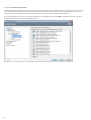
4.1.1.6.5 Limits
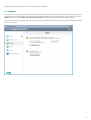
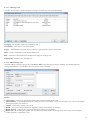
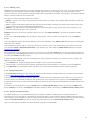
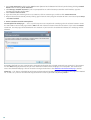
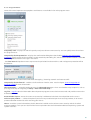
The Limits section allows you to specify the maximum size of objects and levels of nested archives to be scanned:
Maximum object size – Defines the maximum size of objects to be scanned. The given antivirus module will then scan
only objects smaller than the size specified. This option should only be changed by advanced users who may have
specific reasons for excluding larger objects from scanning. Default value: unlimited.
Maximum scan time for object (sec.) – Defines the maximum time value for scanning of an object. If a user-defined
value has been entered here, the antivirus module will stop scanning an object when that time has elapsed, regardless
of whether the scan has finished. Default value: unlimited.
Archive nesting level – Specifies the maximum depth of archive scanning. Default value: 10.
Maximum size of file in archive – This option allows you to specify the maximum file size for files contained in archives
(when they are extracted) that are to be scanned. Default value: unlimited.
If scanning of an archive is prematurely terminated for these reasons, the archive checkbox will remain unchecked.
Note: We do not recommend changing the default values; under normal circumstances, there should be no reason to
modify them.
4.1.1.6.6 Other
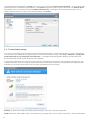
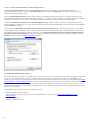
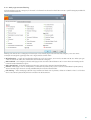
You can configure the following options in the Other section:
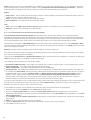
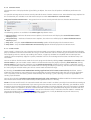
Log all objects – If this option is selected, the log file will show all the scanned files, even those not infected. For
example, if an infiltration is found within an archive, the log will list also clean files contained within the archive.
Enable Smart optimization – With Smart Optimization enabled, the most optimal settings are used to ensure the
most efficient scanning level, while simultaneously maintaining the highest scanning speeds. The various protection
modules scan intelligently, making use of different scanning methods and applying them to specific file types. If the
Smart Optimization is disabled, only the user-defined settings in the ThreatSense core of the particular modules are
applied when performing a scan.
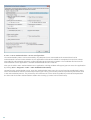
When configuring ThreatSense engine parameters setup for a Computer scan, the following options are also available:
Scan alternate data streams (ADS) – Alternate data streams used by the NTFS file system are file and folder
associations which are invisible by ordinary scanning techniques. Many infiltrations try to avoid detection by disguising
themselves as alternate data streams.
Run background scans with low priority – Each scanning sequence consumes a certain amount of system resources.
If you work with programs that place a high load on system resources, you can activate low priority background
scanning and save resources for your applications.
Preserve last access timestamp – Select this option to keep the original access time of scanned files instead of
updating them (e.g., for use with data backup systems).
Scroll scan log – This option allows you to enable/disable log scrolling. If selected, information scrolls upwards within
the display window.
4.1.1.7 An infiltration is detected
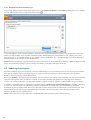
Infiltrations can reach the system from various entry points such as webpages, shared folders, via email or from
removable devices (USB, external disks, CDs, DVDs, diskettes, etc.).
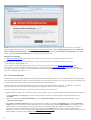
Standard behavior
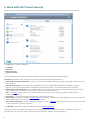
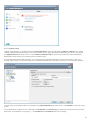
As a general example of how infiltrations are handled by ESET Smart Security, infiltrations can be detected using
Real-time file system protection,
Web access protection,
Email client protection, or
On-demand computer scan,
30