1
DVB-T
VERTO
HD TERRESTRIAL
DIGITAL TV STB & PLAYER
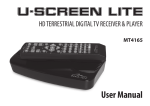
MT4162
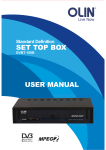
User Manual
EN Index
Index ................................................................................................2
Overview ........................................................................................2
Remote Control ............................................................................3
Battery installation in remote control ..................................4
Using remote control .................................................................4
Connections ..................................................................................4
First Time Installation .................................................................5
Menu ................................................................................................6
SETUP&MORE................................................................................6
Setup/Installation........................................................................6
BROADCASTING – TV, Radio and Recorder ........................7
MULTIMEDIA..................................................................................8
NAVI Bar ..........................................................................................8
TimeShift ......................................................................................10
Recording .....................................................................................10
Troubleshooting ........................................................................11
2
Overview
1
2
3
4
5
6
Back
Top
Front
7
8
1. USB 2.0 socket for USB pendrive/USB HDD/flash card
reader
2. Aerial loop
3. Aerial socket
4. HDMI output
5. SCART output
6. Power supply DC 5V socket
7. SPDIF socket
8. ON/OFF
Note! When device is connected via HDMI there is
no signal at SCART output.
Note! When USB HDD is connected we recommend
using external power supply (5V, 2A) for this drive
(not provided).
2
1
3
4
17
5
18
6
19
21
7
8
9
10
22
11
23
12
24
25
26
27
13
20
14
15
16
28
29
30
31
32
Remote Control
1. POWER – power on/switch into
Standby mode.
2. MUTE – enable/disable mute function.
3. TV – TV mode.
4. GOTO – jump into desired place in the
file.
5. PROG.
6. NAVI – show NAVI menu.
7. RECORD – start recording.
8. EXIT.
9. OK.
10. AUDIO – select desired soundtrack.
11. SUBTILE – select subtitles.
12. Channel up/down.
13. FAVOURITE.
14. REPEAT.
15. NEXT.
16. PREV.
17. Numeric keypad.
18. INFO.
19. MENU.
20. Navigation buttons LEFT/RIGHT/UP/
DOWN
21. EPG.
22. TTX .
23. VOLUME.
24. TV/RADIO – switch mode TV/RADIO.
25. RECALL – show last channel.
26. SLOW.
27. ZOOM.
28. RED/GREEN/YELLOW/BLUE – functions depend on menu, function
described with icons.
29. PLAY/PAUSE – enable TimeShift
function in TV mode, play/pause
when in multimedia mode.
30. STOP – stop playback in multimedia
mode, stop TimeShift or recording in
TV mode
31. REW – rewind.
32. FWD – fast forward.
EN
*NAVI – to show NAVI bar press NAVI
button or EXIT button when exiting from
EPG, TTX, AUDIO or SUBTITLE menu.
Press again EXIT to close NAVI bar.
3
EN
Battery installation in remote control
1. Open cover.
2. Install battery, note polarization marks.
3. Close cover.
Using remote control
Place IR receiver next to TV screen so it can receive signal from remote control without obstacles.
4
Connections
First Time Installation
EN
Choose “OSD Language” and “Country Setting”, “Region
Setting” according to your location, then press <OK> to
start auto scan when focus on any items.
Set OSD Language, Country setting and Region setting.
Focus on AutoScan and press OK to start auto scan.
Once the service scan is finished and all the services
are stored into the database, user can start to watch
the digital terrestrial TV channel or listen to the radio
broadcast.
5
EN Menu
Press MENU to enter main menu. Press UP/DOWN until
switching to SETUP & MORE, MULTIMEDIA or BROADCASTING.
SETUP&MORE
Press LEFT/RIGHT until switching to SETUP, MORE or
GAMES.
Setup/Installation
Antenna Setting: Set the antenna power on or off.
6
Country Setting: Change the country will apply the
default frequency table for later scanning and Time
Zone.
OSD Language: Set the On Screen Display Language.
Audio Language: Specify service audio output when
watching.
Subtitle Language: Choose subtitle display language
when watching.
LCN: Set the Logical Channel Number to on or off.
Auto Switch Off: Set Auto Switch on/off.
Setup/My Box
Power On at: Set power on at TV or Menu option.
OSD style: Set OSD style to Green or Blue option.
GMT Usage: Set GMT usage to AUTO or Manual.
Region setting: it will be used to match the appropriate time zone.
Time Zone: modify the time zone.
Setup/TV Setup
Sleep Time: Set the sleep time to OFF,15,30,45,60,90,120
minutes.
TV format: Set display format for watching program,
such as 4:3LB (LetterBox), 4:3PS (PanScan), 16:9 (PillarBox), 16:9FIT.
OSD Transparency: Set the OSD transparency.
Banner Display Time: Set OSD displays time.
Video Output: RCA (CVBS) or HDMI.
TV Resolution: Set HDMI video output resolution.
Digital Audio Output: LPCM or RAW.
Setup/SW Update
USB Upgrade: Upgrade the box application software
through devices.
USB Backup: Backup the data in the box to USB devices.
OTA: Set the OTA mode to Disable, AUTO, Manual.
Setup/Set Default
Restore box to factory default.
Setup/Device Remove
For safely remove the USB devices.
BROADCASTING – TV, Radio and Recorder
Set BROADCASTING/RECORDER.
Setup/Password
Set password for channel lock or censorship lock,
or change password. The default PIN Code is 6666. it
would be this default PIN code after “Set Default” operation.
Menu Lock: Lock the menus.
Channel Lock: Lock the channel.
Censorship Lock: Lock the program by password and
censorship threshold.
Change Password: Enter old password, new password
and confirm new password.
7
EN
EN
MULTIMEDIA
Press LEFT/RIGHT until switching to PHOTO, MUSIC, or
MOVIE.
8
NAVI Bar
Press EXIT button in EPG, TTX, AUDIO or SUBTITLE
menu.
Press LEFT/RIGHT to select item:
EN
TV Guide: EPG (Electronic Program Guide).
TV list: List the channels.
Subtitle: Choose subtitle display language when
watching.
Teletext: teletext on.
Audio Language: Specify service audio output when
watching.
Zoom+: enlarge screen size
Option: TV Setup, Password and PVR. Set PVR:
TimeShift: Set timeshift ON/OFF or AUTO. Press
<Exit> to exit and save current settings.
One Button Recording: If “One Button Recording”
is ON, pressing <REC> in service mode would start
recording immediately.
Default Recording Period: set default record duration by pressing <REC>.
TimeShift Size: TimeShift free space info
Advanced Timer: It may store simultaneously 10 channel bookings in maximum. Every booking can switch
to watch or record the specified channel in specified
duration.
You can also press YELLOW button inside EPG to add
selected item to Timers table.
9
EN
TimeShift
User may use timeshift function to watch the channel
content before current live play time, which is already
broadcasted before for several minutes or event several hours.
Timeshift data is recorded to several files in circle mode.
When data buffer is full, the oldest recording file would
be deleted to free space for new one. While, if the oldest recording file is in playback, its next file would be
deleted instead. In this case, playback may lost some
data.
Press <Pause> to enter pause state, press <Play> to
start playback.
Pressing <Stop> or switching channel would trigger a
message box to confirm whether to stop timeshift.
Recording
Press RECORD button to start recording. If “One Button
Recording” option is enabled recording will automatically stop after “Default Recording Period”. Press STOP
and select OK to stop recording manually.
Functions and technical specification of device are subject to
change without prior notice.
For technical support please visit www.media-tech.eu
10
Troubleshooting
EN
Problem
Potential Reasons
What to do
No picture
Power isn’t connected
Connect the power
Screen shows “No Signal”
No sound from speaker
Only sound, no image
on the screen
The power switch is not on
Switch on the power
Not connect DVB-T cable
Plug in the DVB-T cable
Incorrect setting
Set up correct parameter
No or incorrect connection with audio
cable
Connect the audio cable correctly
Mute the sound
Switch on the correct volume control
Incorrect sound track
Try another sound track
No or incorrect connection with AV
cable
Connect the audio cable correctly
The program is a radio program
Press <TV/RADIO> key to shift into
TV mode
Remote control unit is not
workable
The battery is exhausted
Change new battery
Remote control unit is not in the right
opposite of the front panel or too far
from it
Adjust the way of holding remote
control unit and near from the panel
The image stop suddenly
or mosaic
The signal is too weak
Strengthen the signal
11
EN
12