1
ppf-631-631-eco-manual-uk-253120765-b.book Seite 25 Mittwoch, 30. September 2009 12:26 12
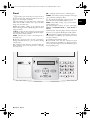
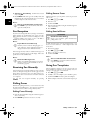
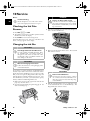
6 Carefully remove the rubber bands from the new ink
film. Make sure that the film is not damaged!
10 Turn the blue gear wheel forward to tension the ink
film. The ink film must not have any creases.
EN
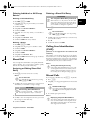
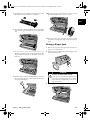
7 Place the larger roll with the ink film in the rear ink film
tray. The blue gear wheel must be on the right hand
side.
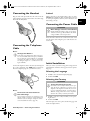
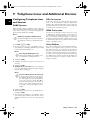
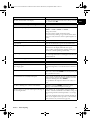
11 Close the device. Insert the paper tray in the opening
provided for it behin d the paper feeder. Insert paper
again.
Fixing a Paper Jam
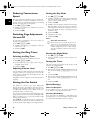
8 Place the smaller roll without ink film in the front tray.
The blue gear wheel must be on the right hand side and
the pin must be inserted in the depression on the left
hand side.
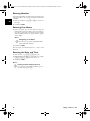
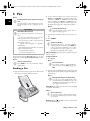
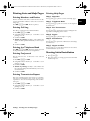
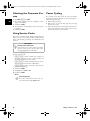
1 Remove the paper from the paper feeder and take the
paper tray out of the device.
2 Open the device by lifting the panel using grip in the
centre and folding it up.
DANGER!
9 Break the chip card from the Plug’n’Print card. Insert
the chip card in the plug socket on the left hand side
next to the ink film tray.
Device can Close with a Snap!
Lock the cover of the device completely into
place when opening the device. You could be
injured if the cover falls while you are working on the device.
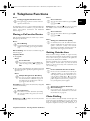
3 Carefully pull out the paper.
Service · Fixing a Paper Jam
25