1
Initial Setup with Windows Vista/Windows 7
Operating Systems
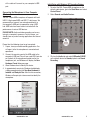
1. To select the Tempo USB microphone as the default
audio device, go to the Start Menu and select Control
Panel.
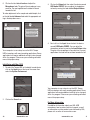
4. Click on the tab labeled Levels. The volume of the
headphones can be adjusted by moving the fader
labeled as Speakers.
To adjust the volume of the microphone signal directly to
the headphones, adjust the Microphone fader (this does
not affect the volume of the microphone signal being
recorded). Then click OK.
2. Double click the Sound icon.
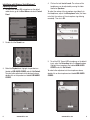
3. Select the Playback tab. Highlight the speaker icon
labeled as USB AUDIO CODEC and click Set Default.
To make further adjustments to the playback volume,
double-click on the speaker icon labeled USB AUDIO
CODEC.
8
www.mxlmics.com
5. To set the MXL Tempo USB microphone as the default
input, select the Recording tab in the Sound window.
Highlight the microphone icon labeled USB AUDIO
CODEC and click Set Default.
To make further adjustments to the microphone volume,
double-click on the microphone icon labeled USB AUDIO
CODEC.
www.mxlmics.com
9