1
Connecting the Microphone to Your Computer (Windows)
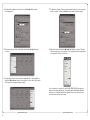
2. Select Sounds and Audio Devices.
The MXL PRO-1B USB microphone will operate with both USB 2.0 (high
speed USB) and USB 1.1 data buses. We recommend you connect your
microphone directly to the computer’s USB port as opposed to using a USB
hub. USB hubs have been known to interfere with the performance of various USB devices.
PLEASE NOTE: Audio and video recording can be very taxing to a computer’s resources. For this reason, you should close any and all running
applications that are non essential.
Please take the following steps to get connected:
1.
If open, close your audio recording application. You will open it after the
microphone is connected and operational.
2.
Connect the remaining end of the USB cable to the computer’s USB
port. You will see a red LED illuminate behind the microphone’s grill and
Windows will display the New Hardware Found dialog message.
3.
Allow Windows time to identify the device.
4.
In approximately one minute, Windows should display a dialog message
stating that Your New Hardware is Installed and Ready for Use. After
this first connection, Windows will require just a few moments to identify
the microphone.
Initial Setup with Windows XP
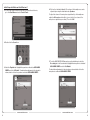
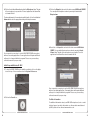
3. Click on the Audio tab and select USB audio CODEC as the default
device for Sound playback and Sound Recording.
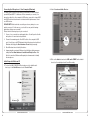
1. To select the MXL PRO-1B USB microphone as the default audio
device go to the Start Menu and select Control Panel.
www.mxlmics.com
4
www.mxlmics.com
5