1
Register your product and get support at
www.philips.com/welcome
HTS5540
HTS5550
1
Notice
Copyright
About Progressive Scan
Trademarks
2
Important
Safety
Product care
Disposal of your old product and batteries
3
Your home theater
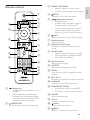
Main unit
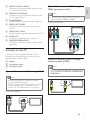
Remote control
4
Connect your home theater
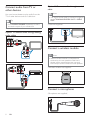
Connectors
Connect to the TV
Connect audio from TV or other devices
Connect a wireless module
Connect a microphone
5
Use your home theater
Before you start
Choose your sound
Play a disc
Play from a USB storage device
More play features
Play from radio
Play audio from TV or other devices
Play from an MP3 player
Use Philips EasyLink
Create MP3 audio les
6
Change settings
Access the setup menu
Change general settings
Change audio settings
Change video settings
Change preference settings
7
Update software
Check software version
Update software from a CD-R or USB
2
2
2
2
8
Product specications
16
9
Troubleshooting
18
10 Index
19
3
3
3
4
4
4
5
6
6
7
8
8
8
9
9
9
9
10
11
11
12
12
12
13
13
13
14
14
15
15
16
16
16
EN
1
Englis h
Contents
1
Notice
Copyright
This product incorporates copyright protection
technology that is protected by method claims of
certain U.S. patents and other intellectual property
rights owned by Macrovision Corporation
and other rights owners. Use of this copyright
protection technology must be authorized by
Macrovision Corporation, and is intended for
home and other limited viewing uses only unless
otherwise authorized by Macrovision Corporation.
Reverse engineering or disassembly is prohibited.
About Progressive Scan
Consumers should note that not all high denition
television sets are fully compatible with this
product and may cause artifacts to be displayed in
the picture. In case of 525 or 625 progressive scan
picture problems, it is recommended that the user
switch the connection to the ‘standard denition’
output. If there are questions regarding our TV set
compatibility with this model 525p and 625p DVD
player, please contact our customer service center.
Trademarks
Manufactured under license under U.S. Patent
#’s: 5,451,942; 5,956,674; 5,974,380; 5,978,762;
6,487,535 & other U.S. and worldwide patents
issued & pending. DTS and the Symbol are
registered trademarks & DTS Digital Surround and
the DTS logos are trademarks of DTS, Inc. Product
includes software. © DTS, Inc. All Rights Reserved.
Manufactured under license from Dolby
Laboratories. Dolby, Pro Logic, and the double-D
symbol are trademarks of Dolby Laboratories.
2
EN
DivX® and DivX Ultra® are registered trademarks
of DivX, Inc. and are used under license.
DivX Ultra® Certied to play DivX® video with
advanced features and premium content.
ABOUT DIVX VIDEO: DivX® is a digital video
format created by DivX, Inc. This is an ofcial DivX
Certied device that plays DivX video. Visit www.
divx.com for more information and software tools
to convert your les into DivX video.
ABOUT DIVX VIDEO-ON-DEMAND: This
DivX Certied ® device must be registered in
order to play DivX Video-on-Demand (VOD)
content. To generate the registration code,
locate the DivX VOD section in your device
setup menu. Go to vod.divx.com with this code
to complete the registration process and learn
more about DivX VOD.
Windows Media and the Windows logo are
trademarks, or registered trademarks of
Microsoft Corporation in the United States and/
or other countries.
HDMI, and HDMI logo and High-Denition
Multimedia Interface are trademarks or
registered trademarks of HDMI licensing LLC.
The USB-IF Logos are trademarks of Universal
Serial Bus Implementers Forum, inc.
LASER RADIATION
DO NOT VIEW DIRECTLY
WITH OPTICAL INSTRUMENTS
CLASS 1M LASER PRODUCT
Important
Read and understand all instructions before you
use your home theater. If damage is caused by
failure to follow instructions, the warranty does
not apply.
Safety
Risk of electric shock or re!
•
Never expose the product and accessories
to rain or water. Never place liquid
containers, such as vases, near the product.
If liquids are spilt on or into the product,
disconnect it from the power outlet
immediately. Contact Philips Consumer
Care to have the product checked before
use.
•
Never place the product and accessories
near naked ames or other heat sources,
including direct sunlight.
•
Never insert objects into the ventilation
slots or other openings on the product.
•
Where the mains plug or an appliance
coupler is used as the disconnect device,
the disconnect device shall remain readily
operable.
•
Disconnect the product from the power
outlet before lightning storms.
•
When you disconnect the power cord,
always pull the plug, never the cable.
Risk of short circuit or re!
•
Before you connect the product to the
power outlet, ensure that the power
voltage matches the value printed on the
back or bottom of the product. Never
connect the product to the power outlet if
the voltage is different.
Risk of injury or damage to the home theater!
•
For wall-mountable products, use only the
supplied wall mount bracket. Secure the
wall mount to a wall that can support the
combined weight of the product and the
wall mount. Koninklijke Philips Electronics
N.V. bears no responsibility for improper
wall mounting that results in accident, injury
or damage.
•
For speakers with stands, use only the
supplied stands. Secure the stands to the
speakers tightly. Place the assembled stands
on at, level surfaces that can support the
combined weight of the speaker and stand.
•
Never place the product or any objects
on power cords or on other electrical
equipment.
•
If the product is transported in
temperatures below 5°C, unpack the
product and wait until its temperature
matches room temperature before
connecting it to the power outlet.
•
Visible and invisible laser radiation when
open. Avoid exposure to beam.
•
Do not touch the disc optical lens inside the
disc compartment.
Risk of overheating!
•
Never install this product in a conned
space. Always leave a space of at least four
inches around the product for ventilation.
Ensure curtains or other objects never
cover the ventilation slots on the product.
Risk of contamination!
•
Do not mix batteries (old and new or
carbon and alkaline, etc.).
•
Remove batteries if they are exhausted or
if the remote control is not to be used for a
long time.
•
Batteries contain chemical substances, they
should be disposed of properly.
Product care
•
•
•
•
Do not insert any objects other than discs
into the disc compartment.
Do not insert warped or cracked discs into
the disc compartment.
Remove discs from the disc compartment
if you are not using the product for an
extended period of time.
Only use microber cloth to clean the
product.
EN
3
Englis h
2
Disposal of your old product
and batteries
Your product is designed and manufactured with
high quality materials and components, which can
be recycled and reused.
When this crossed-out wheeled bin symbol is
attached to a product it means that the product
is covered by the European Directive 2002/96/
EC. Please inform yourself about the local separate
collection system for electrical and electronic
products.
Please act according to your local rules and do not
dispose of your old products with your normal
household waste.
Correct disposal of your old product helps to
prevent potential negative consequences for the
environment and human health.
Your product contains batteries covered by the
European Directive 2006/66/EC, which cannot be
disposed with normal household waste.
Please inform yourself about the local rules on
separate collection of batteries because correct
disposal helps to prevent negative consequences
for the environmental and human health.
3
Your home theater
Congratulations on your purchase, and welcome
to Philips! To fully benet from the support that
Philips offers, register your home theater at www.
philips.com/welcome.
Main unit
a Disc compartment
b
(Open/Close)
Opens or closes the disc compartment.
c
(Play/Pause)
Starts, pauses or resumes play.
d
(Stop)
• Stops play.
• In radio mode, erases the current
preset radio station.
e
(Standby-On)
Switches the home theater on or to
standby.
f SOURCE
Selects an audio/video source for the home
theater.
g
/
•
•
Skips to the previous or next track,
chapter or le.
In radio mode, selects a preset radio
station.
h Display panel
i Volume control wheel
4
EN
u
a
d
b
e
SETUP
Accesses or exits the setup menu.
•
•
c
d
•
t
e
f
s
f
(Navigation buttons)
Navigate menus.
In video mode, press left or right to
fast backward or fast forward.
In radio mode, press left or right to
search a radio station; press up or
down to ne tune a radio frequency.
INFO
Displays information about what is playing.
g Playback buttons
Control playback.
r
q
p
g
h SURR (Surround Sound)
h
i AUDIO SYNC
• Selects an audio language or channel.
• Press and hold to synchronize audio
i
Switches to surround sound or stereo
sound.
with video. Use with +/-.
j
o
k
n
l
j Numeric buttons
Selects an item to play.
k SUBTITLE
Selects subtitle language for video.
l VOCAL
Turns off the vocal by changing the audio
channel.
m
m MIC VOL +/Increases or decreases microphone volume.
n KARAOKE
Accesses or exits the karaoke menu.
a
b
(Standby-On)
• Switches the home theater on or to
standby.
• When EasyLink is enabled, press
and hold for at least three seconds
to switch all connected HDMI CEC
compliant devices to standby.
OPEN/CLOSE
Opens or closes the disc compartment.
o CREATE MP3 / ZOOM
• Accesses the menu to create MP3.
• Zooms into a video scene or picture.
p SOUND
Selects a sound mode.
q VOL +/Increases or decreases volume.
r
(Mute)
Mutes or restores volume.
s
BACK
Returns to a previous menu screen.
EN
5
Englis h
c REPEAT / PROGRAM
• Selects a repeat or shufe mode.
• In radio mode, programs radio stations.
Remote control
t OK
Conrms an entry or selection.
4
u Source buttons
• AUDIO SOURCE : Selects an audio
•
•
•
input source.
RADIO: Switches to FM radio.
USB : Switches to USB storage device.
DISC: Switches to disc source.
Connect your home
theater
This section helps you connect your home theater to
a TV and other devices. The basic connections of the
home theater with its accessories are provided in the
Quick Start. For a comprehensive interactive guide, see
www.connectivityguide.philips.com.
Note
• Refer to the type plate at the back or bottom
of the product for identication and supply
ratings.
• Before you make or change any connections,
ensure that all devices are disconnected from
the power outlet.
Connectors
Front connectors
a MIC
Audio input from a microphone.
b MP3 LINK
Audio input from an MP3 player.
c
(USB)
Audio, video or picture input from a USB
storage device.
Back connectors
a AC MAINS~
Connects to the power supply.
b SPEAKERS
Connects to the supplied speakers and subwoofer.
6
EN
d DIGITAL IN-COAXIAL
Connects to the coaxial audio output on the
TV or a digital device.
e FM ANTENNA
Connects the FM antenna for radio reception.
f VIDEO OUT-VIDEO
Connects to the composite video input on
the TV.
Option 2: Connect to the TV through
YPbPr (component video)
Englis h
c AUDIO IN - AUX 1/AUX 2
Connects to the analog audio output on the
TV or an analog device.
Note
• The component video cable or connector
might be labeled Y Cb Cr or YUV.
(Cable not supplied)
g VIDEO OUT-Y Pb Pr
Connects to the component video input on the TV.
h HDMI OUT
Connects to the HDMI input on the TV.
i WIRELESS REAR AUDIO
Connects to a Philips wireless module. (Sold
separately)
Connect to the TV
Connect your home theater directly to a TV
through one of the following connectors (from
highest to basic quality video):
a HDMI
b Component video
c Composite video
Option 1: Connect to the TV through HDMI
Option 3: Connect to the TV through
composite video (CVBS)
Note
• The composite video cable or connector might
be labeled AV IN , VIDEO IN , COMPOSITE or
BASEBAND.
Note
• If the HDTV has a DVI connector, connect
using an HDMI/DVI adapter.
• If the TV supports EasyLink HDMI CEC, control
the home theater and TV with one remote
control (see ‘Use Philips EasyLink’ on page 12).
(Cable not supplied)
EN
7
Connect audio from TV or
other devices
Use your home theater to play audio from the
TV or other devices such as a cable box.
Option 2: Connect audio through coaxial
cable
Note
• The digital coaxial cable or connector might be
labeled COAXIAL/DIGITAL OUT or SPDIF
OUT.
Tip
• Press AUDIO SOURCE repeatedly to select
(Cable not supplied)
the audio output of your connection.
Option 1: Connect audio through analog
audio cables
1
2
Connect a wireless module
Note
• When a wireless module is connected and
switched on, the rear speakers of the home
theater will be muted and the rear surround
sound output to the wireless surround speakers.
(Wireless module not supplied)
2
1
Connect a microphone
(Microphone not supplied)
8
EN
Use your home
theater
Change surround sound mode
Experience an immersive audio experience with
surround sound modes.
This section helps you use the home theater to
play media from a wide range of sources.
Before you start
Check that you:
•
Make the necessary connections and
complete the setup as described in the
Quick Start.
•
Switch the TV to the correct source for the
home theater.
Choose your sound
This section helps you choose the ideal sound for
your video or music.
Change sound mode
Select predened sound modes to suit your
video or music.
Press SURR repeatedly to cycle through the
available surround modes.
Option
Description
5CH
STEREO
Enhances the stereo channel
output by duplicating the sound
output to the center and rear
speakers. Ideal for party music.
Immersive multi-channel
MULTICHANNEL/ sound for an enhanced movie
experience.
DPL II
STEREO
Two-channel stereo sound. Ideal
for listening to music.
Play a disc
The home theater can play a wide variety of
discs, including video, audio and mixed media (for
example, a CD-R that contains JPEG pictures and
MP3 music).
Insert a disc into the home theater.
Press DISC .
» The disc plays or the disc main menu appears.
1
2
Press SOUND repeatedly to cycle through the
available sound modes.
Sound mode
ACTION /
ROCK
Description
Enhanced low and high-range.
Ideal for action movies and rock
or pop music.
DRAMA /
Clear mid and high-range. Ideal
JAZZ
for drama movies and jazz music.
CONCERT/ Neutral sound. Ideal for live
CLASSIC
concerts and classical music.
SPORTS
Moderate mid-range and
surround effects for clear vocals
and the atmosphere of a live
sport venue.
NIGHT
Dynamically controlled sound
mode suitable for watching
movies at night or for nonintrusive background music.
3
Press the following buttons to control play:
Button
Action
Navigation
buttons
OK
Navigate menus.
/
/
ZOOM
Conrms an entry or selection.
Starts, pauses or resumes play.
Stops play.
Skips to the previous or next
track, chapter or le.
Fast backwards or fast forwards.
Press repeatedly to change the
search speed.
In pause mode, steps forward by
one frame.
Zooms into a video scene or
picture.
EN
9
Englis h
5
Use video options
Use karaoke options
Access several useful features while viewing
video.
Access several useful features while playing
karaoke disc.
Note
Note
• Available video options depend on the video
• Ensure that a microphone (not supplied) is
source.
Button
connected to the MIC connector on this home
theater before play.
Action
Searches slow-backward or
slow-forward. Press repeatedly to
change the search speed.
For VCD/SVCD, slow-backward
search is not available.
AUDIO
Selects an audio language or
SYNC
channel.
SUBTITLE Selects subtitle language for video.
Displays information about what
INFO
is playing.
REPEAT
Repeats a chapter or title.
/
Button
Action
KARAOKE Accesses or exits the karaoke
menu.
[Mic] : Enables or disables
microphone output.
[Echo Level] : Sets the echo level.
[Key] : Sets the pitch level to
match your voice.
[Score] : Selects a rating level.
MIC VOL
Increases or decreases
+/microphone volume.
VOCAL
Turns off the vocal by changing
the audio channel.
Use picture options
Access several useful features while viewing
pictures.
Button
/
/
REPEAT
INFO
Action
Rotates the picture counterclockwise or clockwise.
Skips to the previous or next
picture.
Repeats a single le in the folder or
repeats the entire folder.
Shufes les in a folder.
Displays photo albums in a
thumbnail overview.
Play from a USB storage device
The home theater is tted with a USB connector
that allows you to view pictures, listen to music or
watch movies stored on a USB storage device.
Connect the USB storage device to the
home theater.
Press USB .
» A content browser appears.
1
2
3
4
Select a le, then press OK .
Press the playback buttons to control play
(see ‘Play a disc’ on page 9).
Note
Use audio options
• If the USB storage device does not t into the
Access several useful features while audio is
played.
• The home theater does not support digital
Button
Action
REPEAT
Repeats a track, the entire disc
or shufe tracks.
10
EN
connector, use a USB extension cable.
cameras that need a computer program to
display photos.
• The USB storage device must be FAT or DOSformatted, and Mass Storage Class compliant.
Several advanced features are available for video
or picture playback from a disc or USB storage
device.
2
3
4
Select [Repeat] > [
AB] in the menu.
Press OK to mark the start point.
Press OK again to mark the end point.
» Repeat play starts.
• To cancel repeat A-B, press INFO,
select [Repeat] > [Off], then press
OK .
Play a musical slideshow
Play music and pictures simultaneously to create
a musical slideshow. The les must be stored on
the same disc or USB storage device.
Select a music track, then press OK .
Press
BACK and go to the picture
folder.
Select a picture, then press OK to start
slideshow.
Press
to stop slideshow.
Press
again to stop music.
1
2
3
4
5
Synchronize audio with video
If the audio and video are not synchronized, you
can delay the audio to match the video.
Press and hold AUDIO SYNC until the
audio sync message appears on the display
panel.
Press +/- within ve seconds to sync the
audio with your video.
1
2
Quick skip play to a specic time
Quick skip to a specic part of a video by
entering the time of a scene.
During video play, press INFO.
Press the Navigation buttons and OK to
select:
• [TT Time] : Title time.
• [Ch Time] : Chapter time.
• [Disc Time] : Disc time.
• [Track Time] : Track time.
1
2
3
Enter the time of the scene, then press OK .
Repeat play a specic section
Select sections of audio or video for repeat
playback.
During playback, press INFO.
Note
• Repeat play is only possible within a track/
chapter.
Play from radio
The home theater can store up to 40 radio
stations.
Check that the FM antenna is connected.
Press RADIO.
» “AUTO INSTALL...PRESS PLAY’ appears
on the display panel if you have not
installed any radio stations. Press
.
1
2
3
Press the following buttons to control play:
Button
Action
Selects a preset radio station.
Searches for a radio station.
/
Fine tunes a radio frequency.
Press and hold to erase the
preset radio station.
Press to stop the installation of
radio stations.
PROGRAM Manual: Press once to access
program mode, and press again
to store the radio station.
Automatic: Press and hold for ve
seconds to reinstall radio stations.
/
Note
• AM and digital radio are not supported.
• If no stereo signal is detected, or if fewer than
ve stations are found, you are prompted to
install the radio stations again.
• For the best reception, place the antenna away
from the TV or other sources of radiation.
1
EN
11
Englis h
More play features
Change tuning grid
In some countries, you can switch the FM tuning
grid between 50 kHz and 100 kHz. Changing
tuning grid erases all preset radio stations.
Press RADIO.
Press .
Press and hold
until ‘GRID 9’ (50 kHz)
or ‘GRID 10’ (100 kHz) is displayed.
1
2
3
Play audio from TV or other
devices
Use Philips EasyLink
The home theater supports Philips EasyLink,
which uses the HDMI CEC (Consumer Electronics
Control) protocol. EasyLink-compliant devices
that are connected through HDMI connectors can
be controlled by a single remote control.
Note
• Philips does not guarantee 100%
interoperability with all HDMI CEC devices.
1
Press AUDIO SOURCE repeatedly to select the
audio output of the connected device .
Play from an MP3 player
Connect and play audio les from an MP3 player
or other external audio devices.
Connect the MP3 player to the home
theater.
Press AUDIO SOURCE repeatedly until
‘ MP3 LINK’ appears on the display panel.
Press the buttons on the MP3 player to
select and play audio les.
2
3
4
5
1
2
3
6
Switch on the HDMI CEC operations on
the TV and other connected devices. See
the manual of the TV or other devices for
details.
Press SETUP.
Select [General Setup], then press OK .
Select [EasyLink Setup], then press OK .
Select and adjust the following settings:
• [EasyLink] : Enables or disables EasyLink.
• [One Touch Play] : Enables or disables
One Touch Play.
If enabled, you can use the remote
control to start disc play in the
home theater and the TV switches
automatically to the correct channel.
• [One Touch Standby] : Enables or
disables One Touch Standby.
If enabled, the home theater can
be switched off to standby by a
remote control from the TV or other
connected HDMI CEC devices.
• [System Audio Control] :Enables or
disables System audio control.
If enabled, follow the instructions on
the TV to map the connected devices
correctly to the audio connectors of
the home theater. The home theater
switches automatically to the audio
source of the connected device.
• [Audio Input Mapping] : Updates audio
input mapping if there are new devices
connected.
Press OK to conrm your choice.
Note
• The connected devices must be connected
through HDMI and switched on.
12
EN
Create MP3 audio les
6
Use the home theater to convert audio CDs into
MP3 audio les.
Insert an audio CD (CDDA/HDCD) into
the home theater.
Connect a USB storage device to the home
theater.
When audio is played, press CREATE MP3.
This section helps you to change the settings of
your home theater.
1
2
Englis h
Change settings
Caution
• Many of the settings are already congured
with the best value for the home theater.
Unless you have a specic reason to change a
setting, it is best to leave it at the default value.
3
CREATE MP3
TRACK
OPTIONS
Speed
Normal
Track01
04:14
Bitrate
128kbps
Track02
04:17
Track03
03:58
Track04
04:51
Track05
03:53
Track06
04:09
Track07
04:38
SUMMARY
Select Track
0
Time
00:00
Start
4
5
6
7
Exit
Select All
Access the setup menu
1
Press SETUP.
» The following menu appears.
Symbol
[General Setup]
[Audio Setup]
Deselect All
Select the conversion settings in the
[OPTIONS] panel, then press OK .
• [Speed] : Selects the write-to-le
speed.
• [Bitrate] : Selects the conversion
quality.
Press to access the [TRACK] panel.
Select an audio track, then press OK .
• [Select All] : Selects all tracks.
• [Deselect all] : De-selects all tracks.
Select [Start] in the menu to convert, then
press OK .
» A new folder is created in the USB
storage device to store all the new MP3
audio les.
• To exit the menu, select [Exit] and
press OK .
Description
[Video Setup]
[Preference Setup]
2
3
Select a setup menu, then press OK .
See the following sections for information
about how to change the settings of your
home theater.
Press
BACK to return to the previous
menu, or press SETUP to exit.
Note
• You cannot change a setting that is grayed out.
Note
• During the conversion process, do not press
any buttons.
• DTS CDs and copy-protected CDs cannot be
converted.
• Write-protected or password-protected USB
storage device cannot be used to store MP3
les.
EN
13
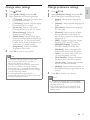
Change general settings
Change audio settings
1
2
3
1
2
3
Press SETUP.
Select [Audio Setup], then press OK .
Select and adjust the following settings:
• [Speakers Volume] : Sets the volume
of each speaker to obtain the ideal
audio balance.
• [Speakers Delay] : Sets the delay time
for center and rear speakers to obtain
an equal audio transmission from all
the speakers.
• [HDMI Audio] : Enables or disables
HDMI audio output for the TV.
• [CD Upsampling] : Converts the music
CD to a higher sampling rate using
sophisticated digital signal processing
for better sound quality.
• [Audio Sync] : Sets a delay for audio
output when you play a video disc.
4
Press OK to conrm your choice.
4
Press SETUP.
Select [General Setup], then press OK .
Select and adjust the following settings:
• [EasyLink Setup] : Sets up EasyLink to
enjoy easy controls of all the HDMI
CEC compliant devices using a single
remote control (see ‘Use Philips
EasyLink’ on page 12).
• [Disc Lock] : Restricts play to disc.
Password (PIN code) is required to
unlock the disc before play.
• [Display Dim] : Changes the brightness
of the display panel.
• [OSD Language] : Selects the onscreen display menu language.
• [Screen Saver] : Enables or disables
screen saver mode. If enabled, the
screen enters idle mode after 10
minutes of inactivity (for example, in
pause or stop mode).
• [Sleep Timer] : Sets a sleep timer to
switch the home theater to standby
after a specic time.
• [DivX® VOD Code] : Displays the
DivX VOD registration code for the
home theater.
Press OK to conrm your choice.
Note
• Before you purchase DivX videos and play
them on the home theater, register the home
theater on www.divx.com using the DivX
VOD code.
14
EN
Note
• For settings related to HDMI, the TV must be
connected through HDMI.
• CD upsampling is only available in stereo
mode.
Change preference settings
1
2
3
Press SETUP.
Select [Video Setup], then press OK .
Select and adjust the following settings:
• [TV System] : Selects a TV system that
is compatible with the TV.
• [TV Display] : Selects a picture display
format to t the TV screen.
• [Screen Fit] : Selects a full screen
format that best ts to the TV screen.
• [Picture Settings] : Selects a
predened color setting.
• [HDMI Setup] : Selects HDMI video
resolution and the wide screen display
format for the TV. The Wide Screen
Display option is only available for 16:9
wide screen TV display setting.
• [Progressive] : Enables or disables
progressive scan mode.
1
2
3
4
Press OK to conrm your choice.
Press SETUP.
Select [Preference Setup], then press OK .
Select and adjust the following settings:
• [Audio] : Selects audio language for
video.
• [Subtitle] : Selects subtitle language for
video.
• [Disc Menu] : Selects menu language
for video disc.
• [Parental] : Restricts access to discs
that are recorded with ratings. To
play all discs irrespective of the rating,
select level ‘8’.
• [PBC] : Displays or skips the content
menu for VCD and SVCD discs.
• [MP3/JPEG Display] : Displays the
MP3/JPEG folders or all the les.
• [Password] : Sets or changes a PIN
code to play a restricted disc. Enter
‘ 0000 ’ if you do not have a PIN or if
you have forgotten your PIN.
• [DivX Subtitle] : Selects a character
set that supports the DivX subtitle.
• [Version Info.] : Displays the software
version for the home theater.
• [Default] : Resets the home theater to
the default settings programmed at the
factory.
4
Press OK to conrm your choice.
Note
• Some video settings depend on the video
source, ensure that the disc and the TV
support the setting or feature.
• The best setting is automatically selected for
the TV. If you need to change the setting,
ensure that the TV supports the new setting.
• For settings related to HDMI, the TV must be
connected through HDMI.
• For settings related to progressive or
component video, the TV must be connected
through Component Video.
Note
• If you select a language that is not available
on a disc, the home theater uses the default
language of the disc.
• You cannot reset disc lock, password (PIN
code) and parental control settings to their
default values.
EN
15
Englis h
Change video settings
7
Update software
8
Product
specifications
To check for new updates, compare the current
software version of your home theater with the
latest software version (if available) on the Philips
web site.
Check software version
1
2
Press SETUP.
Select [Preference Setup] > [Version Info.],
then press OK .
» The software version is displayed.
Update software from a CD-R
or USB
1
2
3
4
5
• Specication and design are subject to change
without notice.
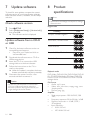
Region code
Country
DVD
Europe, United Kingdom
Asia Pacific, Taiwan, Korea
Latin America
Check for the latest software version on
www.phillips.com/support.
• Search for your model and click on
‘software&drivers’.
Download the software onto a CD-R or
USB storage device.
Insert the CD-R or connect the USB
storage device to the home theater.
Follow the instructions on the TV to
conrm the update.
» When the update is complete, the home
theater automatically switches to standby.
Disconnect the power cord for a few
seconds and then reconnect it.
Caution
• Do not turn off the power or remove the
CD-R or USB storage device when the
software update is in progress because you
might damage the home theater.
16
Note
EN
Australia, New Zealand
Russia, India
China
Playback media
DVD-Video, DVD+R/+RW, DVD-R/-RW, DVD+R
DL, CD-R/CD-RW, Audio CD, Video CD/SVCD,
Picture CD, MP3-CD, WMA-CD, DivX-CD, USB
storage device
File Format
•
Audio: .mp3, .wma
•
Video: .divx, .divx ultra, .mpeg, .mpg, .wmv
(simple prole)
•
Picture: .jpeg, .jpg
Amplier
•
Total output power: 1200 W RMS (30%
THD)
•
Frequency response: 20 Hz-20 kHz / ±3dB
•
Signal-to-noise ratio: > 65 dB (CCIR) /
(A-weighted)
•
Input sensitivity:
• AUX: 900 mV
• MP3 LINK: 500 mV
Speakers
•
System: full range satellite
•
Speaker impedance: 3 ohm (center), 4 ohm
(Front/Rear)
•
Speaker drivers: 2 x 3” full range
•
Frequency response: 150 Hz-20 kHz
•
Dimensions (WxHxD):
• Center: 280 x 95 x 92 (mm)
• Speaker : 100 x 280 x 115 (mm)
• Tall speaker: 260 x 1101 x 260 (mm)
•
Weight:
• Center: 1.40 kg
• Speaker: 1.05 kg/each
• Tall speaker: 3.73~3.81 kg/each
•
Cable length:
• Center: 2 m
• Front: 3 m
• Rear: 10 m
Laser specication
•
Type: Semiconductor laser GaAIAs (CD)
•
Wave length: 645 - 665 nm (DVD), 770 800 nm (CD)
•
Output power: 6 mW (DVD), 7 mW
(VCD/CD)
•
Beam divergence: 60 degrees.
EN
17
Englis h
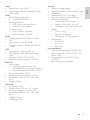
Video
•
Signal system: PAL / NTSC
•
HDMI output: 480i/576i, 480p/576p, 720p,
1080i, 1080p
Audio
•
S/PDIF Digital audio input:
• Coaxial: IEC 60958-3
•
Sampling frequency:
• MP3: 32 kHz, 44.1 kHz, 48 kHz
• WMA: 44.1 kHz, 48 kHz
•
Constant bit rate:
• MP3: 112 kbps - 320 kbps
• WMA: 48 kbps - 192 kbps
Radio
•
Tuning range: FM 87.5-108 MHz (50/100
kHz)
•
Signal-to-noise ratio: FM 50 dB
•
Frequency response: FM 180 Hz ~ 10 kHz
/ ±6dB
USB
•
Compatibility: Hi-Speed USB (2.0)
•
Class support: UMS (USB Mass Storage
Class)
•
File system: FAT12, FAT16, FAT32
•
Maximum memory support: < 160GB.
Main Unit
•
Power supply:
• Asia Pacic/Latin America: 110127V/220-240V; ~50-60Hz switchable
• Russia/China/India: 220-240V, ~50Hz
•
Power consumption: 150 W
•
Standby power consumption: < 0.9 W
•
Dimensions (WxHxD): 435 x 58 x 358
(mm)
•
Weight: 3.56 kg
Subwoofer
•
Impedance: 3 ohm
•
Speaker drivers: 165 mm (6.5”) woofer
•
Frequency response: 40 Hz-150 kHz
•
Dimensions (WxHxD): 196 x 395 x 342
(mm)
•
Weight: 5.25 kg
•
Cable length: 3 m
9
Troubleshooting
Warning
• Risk of electric shock. Never remove the
casing of the product.
To keep the warranty valid, never try to repair the
product yourself.
If you have problems using this product, check the
following points before you request service. If you
still have a problem, register your product and get
support at www.philips.com/welcome.
If you contact Philips, you will be asked for the
model and serial number of your product. The
model number and serial number are on the back
or bottom of your product. Write the numbers
here:
Model No. __________________________
Serial No. ___________________________
Main unit
The buttons on this home theater do not work.
•
Disconnect the home theater from the
power outlet for a few minutes, then
reconnect.
Sound
No sound.
•
Ensure that the audio cables are connected
and select the correct input source (for
example, AUDIO SOURCE ) for the device
you want to play.
No sound on HDMI connection.
•
You might not hear any sound if the
connected device is not HDCP (Highbandwidth Digital Content Protection)
compliant or only DVI compatible. Use an
analog or digital audio connection.
•
Ensure that the [HDMI Audio] is enabled.
No sound from TV program.
•
Connect an audio cable from the audio
input on the home theater to the audio
output on the TV, then press AUDIO
SOURCE repeatedly to select the correct
audio source.
Distorted sound or echo.
•
Ensure that the TV volume is muted or set
to minimum if you are playing audio through
the home theater.
Audio and video are not synchronized.
•
1) Press and hold AUDIO SYNC .
2) Press +/- within ve seconds.
Play
Picture
No picture.
•
Ensure that the TV is switched to the
correct source for this home theater.
•
If this happens when you change the TV
system, switch to its default mode: 1) Press
. 2) Press . 3) Press SUBTITLE .
•
If this happens when you switch on the
progressive scan mode, switch to its default
mode: 1) Press . 2) Press . 3) Press
AUDIO SYNC .
No picture on HDMI connection.
•
Check if the HDMI cable is faulty. Replace
with a new HDMI cable.
•
If this happens when you change the HDMI
video resolution, switch to its default mode:
1) Press . 2) Press . 3) Press ZOOM .
18
EN
Disc cannot be played.
•
Clean the disc.
•
Ensure that the home theater supports the
disc (see ‘Product specications’ on page
16).
•
Ensure that the home theater supports the
region code of the DVD.
•
For DVD±RW or DVD±R, ensure that the
disc is nalized.
DivX video les cannot be played.
•
Ensure that the DivX le is encoded
according to the ‘Home Theater Prole’
with the DivX encoder.
•
Ensure that the DivX video le is complete.
DivX subtitles do not display correctly.
•
Ensure that the subtitle le name is the
same as the movie le name.
•
Select the correct character set: 1) Press
SETUP. 2) Select [Preference Setup].
3) Select [DivX Subtitle]. 4) Select a
supported character set. 5) Press OK .
10 Index
Englis h
The contents of a USB storage device cannot be
read.
•
Ensure that the format of the USB storage
device is compatible with the home theater
(see ‘Product specications’ on page 16).
•
Ensure that the USB storage device
is formatted with a le system that is
supported by the home theater (note that
NTFS is not supported).
‘No entry’ or ‘x’ sign appears on the TV.
•
The operation is not possible.
EasyLink feature does not work.
•
Ensure that the home theater is connected
to a Philips brand EasyLink TV and that
EasyLink is on.
I do not want my home theater to be switched
on when I switch on my TV.
•
This is the correct behavior for Philips
EasyLink (HDMI-CEC). To make the home
theater work independently, switch off
EasyLink .
A
amplier
audio
cancel vocal
connection
language
settings
synchronize with video
audio input mapping
16
10
8
15, 10
14
11
12
C
care
change settings
connect
audio from TV
guide
microphone
other devices
TV
wireless module
connectors
contact us
3
13
8 , 12
6
8
8
7
8
6
18
D
disc
play
supported discs
disposal of your product
DivX
registration code
subtitle
9
16
4
14
15
E
EasyLink
settings
12
F
le formats
16
H
HDMI CEC (see Easylink)
12
EN
19
K
R
karaoke
microphone
play
8
10
L
language
audio
disc menu
on-screen display
subtitle
15
15
14
15
radio
play
program
tune
tuning grid
recycle
region code
remote control
repeat
rotate pictures
11
11
11
12
4
16
5
9, 11
10
S
M
MP3
create MP3 les
play
13
12
O
one-touch play
one-touch standby
overview
connectors
main unit
remote control
12
12
6
4
5
P
password
picture
options
slide show
thumbnail overview
troubleshooting
play
disc
karaoke
MP3 player
options
radio
troubleshooting
USB storage device
product care
product specications
progressive scan
15
10
11, 10
10
18
9
10
12
9
11
18
10
3
16
2
safety
settings
audio
general
parental control
preferences
restore factory settings
video
software
update
version
sound
mode
surround
troubleshooting
subtitle
language
system audio control
3
14
14
15
15
15
15
16
16
9
9
18
10
12
T
time search video
troubleshooting
TV
audio from TV
connect
11
18
8 , 12
7
U
USB
play
software update
10
16
V
video
options
settings
synchronize with audio
video on demand (VOD)
20
EN
10
15
11
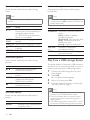
14