1
End subscription
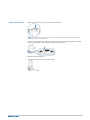
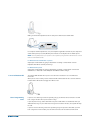
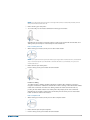
If the base is in subscription mode and you want to stop the base from searching for a headset,
press the subscription button again. The subscription light will be solid red for four seconds and
then go to its previous state.
Disabling over-the-air subscription
The Savi system is supplied with the over-the-air subscription enabled. In a multi-shift
environment, you may want to disable this mode of subscription. You can enable/disable overthe-air subscription with the base subscription button or with the Plantronics Control Panel.
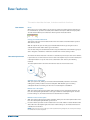
While your system is idle, hold the subscription button and the PC phone button down
simultaneously until the PC phone button LED flashes. It will flash red for 4 seconds when overthe-air subscription has been disabled or green for 4 seconds when enabled.
You can also enable/disable over-the-air subscription with the Plantronics Control Panel. Go to
Start > Programs > Plantronics > Plantronics Control Panel > Device Settings > Base > Over-theAir-Subscription.
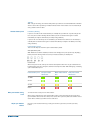
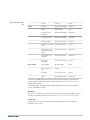
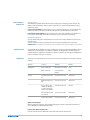
Base subscription button LED
Set the range
Base subscription LED
Base status
Flashes green and red
Primary headset subscription mode
Solid green
Primary headset subscribed to base
Solid yellow
Active conference call with guest headsets
Solid red
No headset subscribed
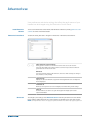
Changing the range can help with desk phone/PC audio quality, improve user density or
restrict the range of users.
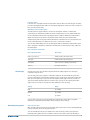
You can change the range using the subscription button on the base. With the system idle,
press the subscription and desk phone buttons for three seconds. The desk phone button will
flash green for high range. If you press the subscription button again for three seconds, the
desk phone button will flash yellow for medium range. If you press the subscription button
again for three seconds, the desk phone button will flash red for low range.
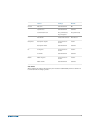
Setting
Range
High
up to 350 ft.
Medium
up to 150 ft.
Low
up to 50 ft.
You can also set the range using the Plantronics Control Panel. Go to Start > Programs >
Plantronics > Plantronics Control Panel > Device Settings > Base > Range.
Bluetooth pairing button
Auto connect feature
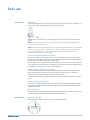
Once you have paired and connected your mobile phone to the base, the base will automatically
connect to it when you are in range of your base.
You can manually disconnect your mobile phone from the base by short pressing the base
Bluetooth pairing button when it is solid blue. However if you do this, you must manually re19