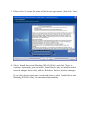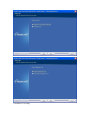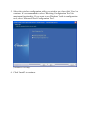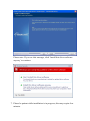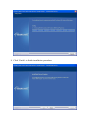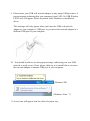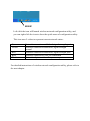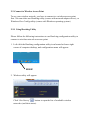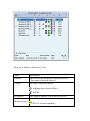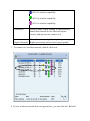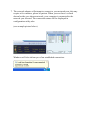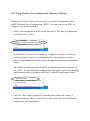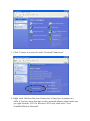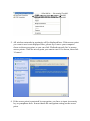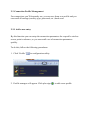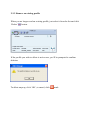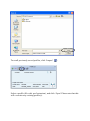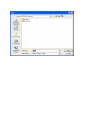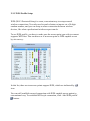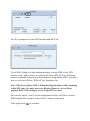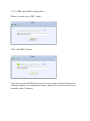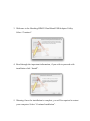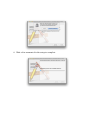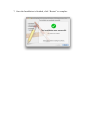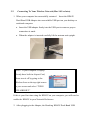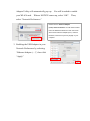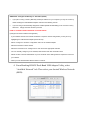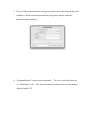
1
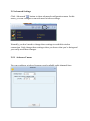
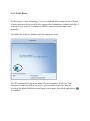
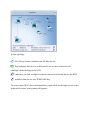
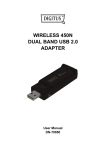
COPYRIGHT Copyright ©2012 by Hawking Technology. All rights reserved. No part of this publication may be reproduced, transmitted, transcribed, stored in a retrieval system, or translated into any language or computer language, in any form or by any means, electronic, mechanical, magnetic, optical, chemical, manual or otherwise, without the prior written permission of this company This company makes no representations or warranties, either expressed or implied, with respect to the contents hereof and specifically disclaims any warranties, merchantability or fitness for any particular purpose. Any software described in this manual is sold or licensed "as is". Should the programs prove defective following their purchase, the buyer (and not this company, its distributor, or its dealer) assumes the entire cost of all necessary servicing, repair, and any incidental or consequential damages resulting from any defect in the software. Further, this company reserves the right to revise this publication and to make changes from time to time in the contents thereof without obligation to notify any person of such revision or changes. CATALO G Chapter I: Product Information....................................................................... 5 1-1 Introduction and safety information ........................................................................ 5 1-2 Safety Information ..................................................................................................... 6 1-3 System Requirements ................................................................................................ 7 1-4 Package Contents ....................................................................................................... 8 1-5 Familiarize with your new wireless network adapter ............................................ 9 CHAPTER II: Driver Installation and Configuration for Windows....... 10 2-1 Network adapter Installation ................................................................................. 10 2-2 Connect to Wireless Access Point ........................................................................... 18 2-2-1 Using Hawking Utility ................................................................................... 18 2-2-2 Using Windows Zero Configuration (Windows XP Only) ............................ 23 2-3 Connection Profile Management ............................................................................ 27 2-3-1 Add a new entry.............................................................................................. 27 2-3-2 Remove an existing profile ............................................................................ 31 2-3-3 Edit an existing profile ................................................................................... 32 2-3-4 Import / Export profile ................................................................................... 33 2-3-5 WPS Profile Setup .......................................................................................... 36 2-4 2-3-5-2 PIN mode WPS configuration ............................................................ 39 View Link Status .............................................................................................. 41 2-5 Advanced Settings .................................................................................................... 44 2-5-1 ‘Advanced’ menu ........................................................................................... 44 2-5-2 Wi-Fi Direct.................................................................................................... 45 2-5-2-1 Establish connection with P2P device ................................................ 49 2-5-2-2 Accept Wi-Fi Direct Connection Request ........................................... 51 2-5-2-3 Wi-Fi Direct / Legacy client concurrent mode ................................... 52 2-5-2-4 Autonomous GO ................................................................................. 53 2-5-2-5 Media sharing...................................................................................... 55 CHAPTER III: Installation for Mac OSX 10.5 or Later ............................. 58 3-1 Software Installation ............................................................................................... 58 3-2 Connecting To Your Wireless Network (Mac 10.5 or later) ................................. 62 3-3 Software Options ..................................................................................................... 67 3-3-1 Site Survey ..................................................................................................... 67 3-3-2 Profiles ........................................................................................................... 69 3-3-2-1 Configure the Profile........................................................................... 70 3-3-3 Link Status Page ............................................................................................. 74 3-3-4 Statistics.......................................................................................................... 76 3-3-5 Advanced ........................................................................................................ 77 3-3-6 WPS ................................................................................................................ 78 3-3-7 About .............................................................................................................. 81 CHAPTER IV: Soft-AP Function .................................................................. 82 4-1 Switch to AP Mode and Station Mode ................................................................... 82 4-2 Configure AP ............................................................................................................ 84 4-3 Advanced Functionality .......................................................................................... 88 4-4 Access Control .......................................................................................................... 89 4-5 Associate List ............................................................................................................ 91 4-6 About ......................................................................................................................... 92 CHAPTER V: Appendix .............................................................................. 93 5-1 Hardware Specification ........................................................................................... 93 5-2 Troubleshooting ....................................................................................................... 94 5-3 Glossary .................................................................................................................... 97 5-4 FCC and Other Compliance Statements ............................................................. 100 Chapter I: Product Information 1-1 Introduction and safety information Thank you for purchasing the HD45U Dual-Band USB Wireless-N Adapter! This wireless network adapter is compatible with wireless 802.11b/g/n networks – with a maximum data transfer rate of 450Mbps, about 3 times faster than an average wireless network! Your USB adapter also provides wider wireless coverage, so you don’t have to worry if your computer is far from your wireless access point. Other features of this product including: Portable USB dongle design. Supports Infrastructure, Ad-Hoc, and Wi-Fi Direct connection methods. QoS functions: provides Wi-Fi Multimedia (WMM) quality of service to secure audio/video/voice data traffic as higher priority. 802.11b/g/n compatible. Supports major encryption methods like WEP, WPA, and WPA2 encryption. WPS configuration - You don’t need an experienced computer technician to help you to get connected. With WPS, you can get your computer connected by simply pushing a button on your USB network adapter or entering an 8-digit code. USB 2.0 interface - you can get it installed on your computer in just few seconds! Wireless access control - prevent unauthorized network access to your network and computer. 1-2 Safety Information In order to maintain the safety of you and your property, please read the following safety instructions: 1. This USB wireless network adapter is designed for indoor use only. DO NOT expose this network adapter to direct sun light, rain, or snow. 2. DO NOT put this network adapter near hot or humid places, like a kitchen or bathroom. Also, do not leave this wireless network adapter in your car in summer. 3. This network adapter is small enough to put in a child’s mouth, and it could cause serious injury and could be fatal. If the network adapter is thrown, the adapter will be damaged. PLEASE KEEP THIS NETWORK ADAPTER OUT THE REACH OF CHILDREN! 4. This network adapter will become hot when used for long periods of time (This is normal and is not a malfunction). DO NOT put the network adapter on a paper, cloth, or other flammable objects after the network adapter has been in use for extended amounts of time. 5. There are no user-serviceable parts inside the network adapter. If you find that the network adapter is not working properly, please contact your place of purchase and ask for help. DO NOT disassemble the network adapter by yourself, warranty will be void. 6. If the network adapter falls into water, DO NOT USE IT AGAIN. CONTACT THE PLACE OF PURCHASE AND SEND THE ADAPTER BACK FOR INSPECTION. 7. If you smell something strange or even see some smoke coming out from the network adapter, switch the computer off immediately, and call place of purchase for help. 1-3 System Requirements An empty USB 2.0 port Windows (XP, Vista, or 7) or Mac (OS 10.5 or later) operating system CD-ROM drive At least 100MB of available disk space 1-4 Package Contents Before you begin using this wireless network adapter, please check if there’s anything missing in the package, and contact your place of purchase to claim missing items: □ HD45U Dual-Band USB Wireless-N Adapter (1 pcs) ……….……… □ Quick Installation Guide (1 pcs) ………………….…………………. □ Driver/Utility/User Manual CD-ROM (1 pcs) …..…..…………….… □ USB extension cord (1 pcs) ……………….…..…..……………….… 1 2 3 4 1-5 Familiarize with your new wireless network adapter 1. 2. 3. 4. USB Connector External Wireless Antenna Link/Activity LED WPS Button (Press to activate WPS pairing mode) 2 3 1 LED Name Link/ Activity 4 Light Status Description Blinking Linked to a wireless access point / Transferring data Off Power off CHAPTER II: Driver Installation and Configuration for Windows 2-1 Network adapter Installation Please read through the following instructions before installing your new wireless network adapter: 1. Insert the Setup CD in an available CD-ROM drive. 2. On Windows Vista / Windows 7 computer, you may see UAC (User Account Control) window popup to warn you that this program is going to make changes to your computer. If you see this, click ‘Yes’ to continue. 3. Please select ‘I accept the terms of the license agreement’, then click ‘Next’. 4. Select ‘Install driver and Hawking WLAN Utility’ and click ‘Next’ to continue. Optionally, you can select ‘Install driver only’ to install wireless network adapter driver only, and use Windows’ built-in wireless manager. If you don’t know which one you should choose, select ‘Install driver and Hawking WLAN Utility’ for maximum functionality. (Windows XP Only) 5. Select the wireless configuration utility you wish to use, then click ‘Next’ to continue. It’s recommended to select ‘Hawking Configuration Tool’ for maximum functionality. If you want to use Windows’ built-in configuration tool, select ‘Microsoft Zero Configuration Tool’. (Windows XP Only) 6. Click ‘Install’ to continue. Please note: If you see this message, click ‘Install this driver software anyway’ to continue. 7. Please be patient while installation is in progress, this may require few minutes. 8. Click ‘Finish’ to finish installation procedure. 9. Please insert your USB wifi network adapter to any empty USB port now. A popup message indicating that your computer found ‘802.11n USB Wireless LAN Card’ will appear. Please be patient while Windows is installation driver. This message will only appear when you insert the USB wifi network adapter to your computer’s USB port, or you insert the network adapter to a different USB port of your computer. 10. You should be able to see this popup message, indicating your new USB network is ready to use; If not, please either try to re-install driver, or insert the network adapter to another USB port of your computer. (Windows XP) (Windows Vista / 7) 11.A new icon will appear near the clock of system tray: HERE! Left-click the icon will launch wireless network configuration utility, and you can right-click the icon to show the quick menu of configuration utility. This icon uses 5 colors to represent current network status: Green Yellow Red Blue Black Network connection established, signal strength good Network connection established, signal strength normal Network connection established, signal strength poor Network connection is not yet established Network adapter not found on your computer For detailed instructions of wireless network configuration utility, please refer to the next chapter. 2-2 Connect to Wireless Access Point To use your wireless network, you have to connect to a wireless access point first. You can either use Hawking utility (comes with network adapter driver), or Windows Zero Config utility (comes with Windows operating system) 2-2-1 Using Hawking Utility Please follow the following instructions to use Hawking configuration utility to connect to wireless network or access point. 1. Left-click the Hawking configuration utility icon located at lower-right corner of computer desktop, and configuration menu will appear: HERE! 2. Wireless utility will appear. Click ‘Site Survey’ button to open the list of available wireless networks (and their status). 1 2 3 4 5 6 There are 6 fields in ‘Site Survey’ list: Field# 1 (SSID) 2 (Type) Description The Service-Set IDentifier of network device (The name of network device) The type of network device Infrastructure (Access Point) Ad-Hoc 3 (Channel) 4 (Wireless mode) The channel number of this network device Available wireless mode. 802.11a wireless capability 802.11b wireless capability 802.11g wireless capability 802.11n wireless capability 5 (Security) Security mode. When nothing is displayed here, means this network device does not require security and anyone can connect to it. 6 Shows the wireless signal strength in percentage. (Signal Strength) Higher percentage means better signal quality. 3. To connect to a wireless network, double click on it: 4. If your wireless network does not appear here, you can click the ‘Refresh’ button to scan for wireless networks again; if the wireless network you’re looking for still does not appear, try to move the computer closer to the wireless source. 5. You’ll be prompted to enter your preferred wireless network’s encryption method (if any): Click right arrow to continue. Generally you don’t have to change encryption method, it will be detected automatically. If you selected a wrong encryption method, connection will not be established. 6. Please input the correct encryption key (this is the password you need to access your wireless network) here, then click right arrow. If you do not know your Wireless Network Password, contact your network administrator. If your preferred network is not password protected leave the field blank ad click the right arrow. 7. The network adapter will attempt to connect to your network now, this may require a few minutes, please be patient. When you see there’s a check shown beside your chosen network, your computer is connected to the network you selected. The connection status will be displayed in configuration utility also. (see example picture below). Windows will also inform you of an established connection: 2-2-2 Using Windows Zero Configuration (Windows XP Only) Windows XP and Vista has a built-in wireless network configuration utility, called ‘Windows Zero Configuration’ (WZC). You can also use the WZC to configure your wireless adapter: 1. Right-click configuration utility’s icon, and select ‘Use Zero Configuration as Configuration Utility’. In this mode, you can still use Hawking configuration utility to check the connection status, but you are prohibited from connecting to a wireless network, and changing network settings through the Hawking configuration utility. The following steps are to use the WZC to establish network connection. If you wish to use the Hawking configuration utility again, right-click Hawking configuration utility icon again, and select ‘Launch Configuration Utility’. 2. Click the ‘Start’ button (should be located at the bottom-left corner of windows desktop), click ‘Control Panel’, then click ‘Network and Internet Connections’ in Control Panel. 3. Click ‘Connect to a network’ under ‘Network Connections’ 4. Right-click ‘Wireless Network Connection’ (it may have a number as a suffix if you have more than one wireless network adapter, please make sure you right-click the ‘802.11n Wireless LAN Card), then select ‘View Available Wireless Networks’. 5. All wireless networks in proximity will be displayed here. If the access point you want to use is not displayed here, please try to move your computer closer to the access point, or you can click ‘Refresh network list’ to rescan access points. Click the access point you want to use if it’s shown, then click ‘Connect’. 6. If the access point is protected by encryption, you have to input its security key or passphrase here. It must match the encryption setting on the access point. If the access point you selected does not use encryption, you’ll not be prompted for security key or passphrase. 7. If you can see ‘Connected’ message, the connection between your computer and wireless access point is successfully established. 2-3 Connection Profile Management For connections you’ll frequently use, you can save them as a profile and you can recall all settings (security type, password, etc.) back soon. 2-3-1 Add a new entry By this function you can setup the connection parameters for a specific wireless access point in advance, so you can recall a set of connection parameters quickly. To do this, follow the following procedures: 1. Click ‘Profile’ in configuration utility: 2. Profile manager will appear. Click plus sign to add a new profile. 3. Please name the profile in ‘Profile Name’ field, and select the AP you wish to connect in ‘SSID’ dropdown list, then click right arrow . If you’re connecting to a network device using AD-HOC connection method, select ‘Ad Hoc - Connect to other computers’ first. 4. Select this AP’s authentication and encryption method from dropdown list, then click right arrow . 5. Input passphrase key here (or WEP key, if required), then click right arrow : 6. Check this box if you wish to enable pre-logon connection. When this feature is enabled, wireless network connection will be established before you logon Windows so you can authenticate yourself against network server. If you don’t need this, you can leave this box unchecked. Click right arrow to continue. 7. The profile will be saved in the list: You can repeat step 2 to 6 to setup more profiles of wireless connection. When you wish to connect to a certain wireless access point, click ‘Active’ button (as indicated above). A check mark will be displayed beside active profile. 2-3-2 Remove an existing profile When you no longer need an existing profile, just select it from the list and click ‘Delete’ button. If the profile you wish to delete is active now, you’ll be prompted to confirm deletion: To delete anyway, click ‘OK’; to cancel, click mark. 2-3-3 Edit an existing profile If you have added a profile before, and you wish to change the content of the profile, you can use this function. Please select a profile from the list first, then click ‘Edit’ button. You’ll be provided with the contents of selected profile; you can edit them and save changes. 2-3-4 Import / Export profile If you need to move your wireless settings to another computer, or you just want to make a backup, you can use import / export function to make a copy, or restore current profile. To backup a profile, click ‘Export’ : You’ll be prompted to select a place to save profile setting file. Select a folder in your computer and name the profile, then click ‘Save’. To recall previously-saved profiles, click ‘Import’ : Select a profile (file with .prof extension), and click ‘Open’ Please note that this will overwrite any existing profile(s). 2-3-5 WPS Profile Setup WPS (Wi-Fi Protected Setup) is a new, convenient way to setup secured wireless connections. You only need to push a button or input a set of 8-digit random number, and you can setup a secure connection between wireless devices, like what a professional wireless expert can do. To use WPS profile, you have to make sure the access point you wish to connect supports WPS first. You can discover if an access point is WPS-capable or not by site-survey: In this list, there are ten access points support WPS, which are indicated by icon. You can still establish secured connection with WPS-capable access points in conventional way. To establish WPS-style connection, click ‘Add WPS profile’ button: You’ll be prompted to select WPS method and WPS AP: To use PIN (8-digit or 4-digit random number) to setup WPS, select ‘PIN / numeric code’, and you have to select an AP from ‘WPS AP List’ dropdown menu; to establish connection by Push-Button Configuration (PBC), you don’t have to select an AP from ‘WPS AP List’ dropdown list. Note: This device follows WPS 2.0 Standard Specification to allow inputting 4-digit PIN code, pls. make sure your Wireless Router or Access Point supports WPS 2.0 accordingly, or use 8-digit PIN as usual. You can also check ‘Auto’ box and configuration utility will select a correct WPS-capable AP to connect when in PIN / numeric code mode. Click right arrow to continue. 2-3-5-1 PBC mode WPS configuration When you want to use ‘PBC’ mode: Click ‘Start PBC’ button: Now, please push the WPS button on the access point (a physical button or a software button in its configuration menu - please refer to access point’s user manual) within 2 minutes. 2-3-5-2 PIN mode WPS configuration There are two roles in PIN mode WPS configuration: registrar and enrollee. Registrar is the one who waits for incoming WPS request, and enrollee is the one who searches for WPS registrar and will attempt to connect it. The WPS role of two devices should not be same: When one device is registrar, the other one must be enrollee, and vice versa. To setup WPS connection by PIN, select ‘PIN / numeric code’, then click right arrow. There will be a menu displaying 8-digit WPS PIN code on the configuration menu, please get this number. Please remember the number will become invalid after a short period of time (2 minutes or so). Select ‘Enrollee’ in ‘Config mode’ dropdown list, and input PIN code in ‘Pin Code’, then click right arrow. Click ‘StartPIN’ to begin WPS connection, please be patient. You’ll be prompted when WPS connection is established successfully; if you received an error, you can try again, but please remember to make sure the PIN you obtained from access point is still valid. 2-4 View Link Status You can check the status of active wireless connection by clicking ‘Link Information’ button: A new window will appear: There are 3 kinds of link information: a. Link status Displays the status of active connection. b. Throughput Displays the throughput of active connection. c. Statistics Displays the statistics of active connection. Select ‘Transmit’ or ‘Receive’ to switch displaying statistics of transmitted and received data packets. To reset counters, click 2-5 Advanced Settings Click ‘Advanced’ button to show advanced configuration menu. In this menu, you can configure some advanced wireless settings. Normally you don’t need to change these settings to establish wireless connection. Only change these settings when you know what you’re doing and you really need these changes. 2-5-1 ‘Advanced’ menu You can configure wireless frequency and available radio channels here. 2-5-2 Wi-Fi Direct Wi-Fi direct is a new technology. You can establish direct connections with one or more network devices which also support this technology without the help of wireless access point. It’s similar to Ad-Hoc mode but more simple and powerful. To enable Wi-Fi direct, double-click the computer icon: You’ll be prompted to input the name of your computer. It will use your computer’s name by default, however, you can input a new one here by selecting the blank field below and input a new name, then click right arrow to continue. Your computer will enter Wi-Fi direct standby mode and scan for any Wi-Fi direct capable computer nearby. When one or more device(s) is found, you’ll see the topology of all nearby devices, like the example shown below: In this topology: GO (Group Owner) indicates an AP-like device. This indicates this device is the head of one or more client devices (multiple clients belong to this GO). indicates you can configure secured connection with this device by WPS indicates this device uses WPA2AES key. To access more Wi-Fi direct functionalities, right-click on the laptop icon on the bottom-left corner, and a menu will appear: Click ‘Scan’ to discover nearby Wi-Fi Direct devices. (see example below, 2 nearby devices are found) For descriptions of other functionalities, see chapters below. 2-5-2-1 Establish connection with P2P device To establish connection with a P2P (peer to peer) device, double-click on its icon, and you’ll be prompted to select its WPS connection type: (an example as below) Double click on icon Please select a WPS type here. Push-Button Configuration: Using PBC configuration method to establish connection. Display PIN: Using display PIN method to establish connection. When in this method, you’ll see a 8-digit number shown here. Input this number on another device to establish connection. Enter PIN: Input the 8-digit PIN number displayed on another device in ‘PIN Code’ field to establish connection. Then click right arrow to continue. 2-5-2-2 Accept Wi-Fi Direct Connection Request When your computer’s Wi-Fi direct function is enabled, and some other computer wishes to connect with your computer, you’ll be prompted by a pop-up message: Click the pop-up message to accept incoming connection request. Then, When Wi-Fi Direct is successfully connected, you will see a straight line between 2 devices. (See example as below) 2-5-2-3 Wi-Fi Direct / Legacy client concurrent mode This wireless network adapter can operate in both Wi-Fi direct and legacy wireless network client mode. So you can establish Wi-Fi direct connection and connect to access point at the same time. When Wi-Fi direct is enabled, you can right-click Hawking utility icon, and a menu will appear: There are 2 modes available: Switch to Client + AP Mode: enable network client and access point functionality at the same time. Switch to AP Mode: Enable access point mode only. 2-5-2-4 Autonomous GO Enable this function to allow other users to initiate a Wi-Fi Direct ‘GO’ directly. To use this function, select ‘Enable autonomous GO’ by right-clicking laptop icon at the bottom-left corner: You’ll be prompted to input a WPA2-PSK key for autonomous GO: You’ll also be prompted to select an operating channel for this autonomous GO connection: Select a preferred channel in ‘Preferred channel’ dropdown list, then click button to finish. 2-5-2-5 Media sharing You can share files on your computer with other Wi-Fi direct points. To enable this function, right-click on the laptop icon on the bottom-left corner, and a menu will appear: Click ‘Media Sharing’ to continue. You’ll be prompted to select a folder on your computer for file sharing. You can click folder icon to select a folder, then click right arrow to start sharing files on your computer. For security reasons, do not select a folder which contains sensitive or personal files, only select the folder which contains public files. Please note that a new folder named ‘Media Sharing’ will be created under ‘C:\Users\XXX\Documents’ folder, where ‘XXX’ is your user name in Windows. Other users may access the files on your computer now. To stop sharing file, click stop button. After you enabled media sharing function, other computers can see your sharing folder by clicking ‘Network’ item in Windows Explorer: Double-click ‘Hawking Media Server’ icon to open Windows media player, users can select the category of media files you shared. CHAPTER III: Installation for Mac OSX 10.5 or Later 3-1 Software Installation IMPORTANT: Please do not plug in the wireless adapter before installing the software program from the CD. The following installation was operated under Apple OSX 10.6. (Installation Procedures are similar in other OS. However, the installation images and screens may not look exactly the same as the ones in this manual) If you have previously installed other Wireless Adapter Drivers & Utilities, please uninstall the older version first. 3-1 Installing the HD45U driver for Mac 1. Power on your Computer and insert the Setup CD into your CD-ROM Drive. A folder should automatically open. If there is no folder opening up automatically, click on the CD icon on your desktop to manually open the folder. a. Double click the icon in the folder that is titled “CLICK HERE TO START” 2. Please select a Mac OS Setup according to the system you are operating: Note: If you are uncertain about which version of the Mac OS X your are using, click on the Apple icon located on the left corner of the menu bar and select “About This Mac.” The version number should appear in a pop up window. 3. Welcome to the Hawking HD45U Dual-Band USB Adapter Utility. Select “Continue”. 4. Read through the important information, if you wish to proceed with installation click “Install”. 5. Warning: Once the installation is complete, you will be required to restart your computer. Select “Continue Installation”. 6. Wait a few moments for the setup to complete. 7. Once the Installation is finished, click “Restart” to complete. 3-2 Connecting To Your Wireless Network (Mac 10.5 or later) 1. When your computer has successfully restarted. Insert the HD45U Dual-Band USB Adapter into an available USB port on your desktop or notebook computer. Insert the USB adapter firmly into the USB port to ensure a proper connection is made. When the adapter is inserted carefully lift the antenna unit upright. NOTE: If your computer or laptop already has a built-in Airport Card, please turn it off by going to the Wireless Icon on the top right corner or your screen and select “TURN OFF AIRPORT.” If this is your first time using the HD45U on your computer, you will need to enable the HD45U in your Network Preference. 2. After plugging in the Adapter, the Hawking HD45U Dual-Band USB Adapter Utility will automatically pop up. You will be asked to enable your WLAN card. When a NOTICE comes up, select “OK”. Then, select “Network Preferences.” Please note the “Ethernet Adapter (en15)”network interface. You will need to enable this in the Network Preferences. Note: the screen above shows “Ethernet Adapter (en15)” network interface, however it may be vary slightly on your computer. 3. Enabling the USB Adapter in your Network Preferences by selecting “Ethernet Adapter (....)”, then click “Apply.” SIDE NOTE: Configure IP Manually vs. Automatic (DHCP) If you plan on using a “Static” (Manually entered) IP address for your computer you may do so here by double clicking the “USB Wireless Adapter” selection and selecting TCP/IP. If you are using an automatically assigned IP address (MOST NETWORKS) you do not have to worry about this. Simply close the window to proceed. HOW TO CHANGE YOUR IP ADDRESS TO STATIC MODE (Change from DHCP to Manual Configuration) - If your wireless network uses a static IP address or requires manual configuration you may do so by highlighting the USB wireless adapter (Shown above). - Select “Configure” to enter the configuration menu for the wireless adapter. - Select the Tab that is named TCP/IP - Select the menu button for “Configure IPv4” and choose the appropriate selection - You can manually configure your IP Address, DNS Servers and other information here. - Please contact a network administrator if you are uncertain of the settings that are required to connect to your network. - When you have finished select APPLY NOW to continue. 4. From Hawking HD45U Dual-Band USB Adapter Utility, select “Available Network” tab. Then select your desired Wireless Network (SSID). 5. If your selected network has encryption, please enter the network key and confirm it. If the selected network has encryption, please enter the password and confirm it. 6. Congratulations! You are now connected. To view your link status go to “Link Status” tab. For more information, please refer to the manual located in the CD. 3-3 Software Options The Hawking HD45U Wireless Utility is an application that helps you configure the HD45U and monitor the link status and statistics of your wireless connection. Each time you insert the HD45U the Hawking Wireless Utility should automatically load. In the case that it doesn’t you may manually load the Utility by using “FINDER” to view your “APPLICATIONS” folder and selecting the Hawking Wireless Utility Icon displayed on the left. 3-3-1 Site Survey When you open the Wireless Utility, the system will scan all wireless channels to find all access points/stations within the accessible range of your adapter and automatically connect to the wireless device with the highest signal strength. When using the “Site Survey” option, all nearby networks will be listed. You can change your connection to another network or you may add one of the networks to your own profile list. Parameter Description Available Network This list shows all available wireless networks within range of your card. It also displays the information of the networks including the SSID, BSSID, Channel, Encryption, Authentication and Network Type. If you want to connect to any networks on the list, double-click the item on the list, and the adapter will automatically connect to the selected network. An asterisk sign (*) in the Associated column shows that you are connected to the corresponding network (SSID). Rescan Button Click “Refresh” button to view all the wireless networks nearby. Connect Button Click “Connect” to connect to the selected network. Add to Profile Button Add the selected network to Profiles list. 3-3-2 Profiles The “Profiles List” is for you to manage the networks you connect to frequently. You are able to Add/Delete/Edit/Activate a profile. Parameter Profiles List Description The profiles list display all the profiles and the relative information including Profile Name, SSID, Channel, etc. Add/ Edit/Remove/Duplicate Button Click these buttons to Add/ Edit/Remove/Duplicate the selected profiles. Apply Click “Apply” to connect to the selected profile. 3-3-2-1 Configure the Profile Parameter Profile Name Network Name (SSID) Network Type Description Define a recognizable profile name for you to identify the different networks The SSID (up to 32 printable ASCII characters) is the unique name identified in a WLAN. The ID prevents the unintentional merging of two co-located WLANs. You may specify a SSID for the adapter and then only the device with the same SSID can interconnect to the adapter. There are two kinds of network type described as follows. Infrastructure – This operation mode requires the Channel presence of an 802.11 Access Point. All communication is done via the Access Point or Router. Ad Hoc – Connect to another wireless adapter in the Wireless LAN network without through an Access Point or Router. If this item is selected, the adapter will work in Ad Hoc mode. This setting is only available for Ad Hoc mode. Select the number of the radio channel used for the networking. The channel setting should be the same with the network you are connecting to. This setting has to be consistent with the wireless networks that the adapter intends to connect. Open System – No authentication is needed among the wireless network. Shared Key – Only wireless stations using a shared key (WEP Key identified) are allowed to connecting each other. Authentication and Security WPA-PSK – It is a special mode designed for home and small business users who do not have access to network authentication servers. In this mode, known as Pre-Shared Key, the user manually enters the starting password in their access point or gateway, as well as in each wireless station in the network. WPA-PSK takes over automatically from that point, keeping unauthorized users that don’t have the matching password from joining the network, while encrypting the data traveling between authorized devices. WPA2-PSK – WPA2-PSK is also for home and small business. The difference between WPA-PSK and WPA2-PSK is that WPA2-PSK provides data encryption via the AES. In contrast, WPA-PSK uses Temporal Key Integrity Protocol (TKIP). WPA 802.1X – WPA provides a scheme of mutual authentication using either IEEE 802.1x/Extensible Authentication Protocol (EAP) authentication or pre-shared key (PSK) technology. It provides a high level of assurance to enterprises, small businesses and home users that data will remain protected and that only authorized users may access their networks. For enterprises that have already deployed IEEE 802.1x authentication, WPA offers the advantage of leveraging existing authentication databases and infrastructure. WPA2 802.1X – Like WPA, WPA2 supports IEEE 802.1 x/EAP authentications or PSK technology. It also includes a new advanced encryption mechanism using the Advanced Encryption Standard (AES). AES is required to the corporate user or government users. The difference between WPA and WPA2 is that WPA2 provides data encryption via the AES. In contrast, WPA uses Temporal Key Integrity Protocol (TKIP). WEP 802.1X – It’s a special mode for using IEEE 802.1x/EAP technology for authentication and WEP keys for data encryption. Disabled – Disable the WEP Data Encryption. WEP – Enable the WEP Data Encryption. When the item is selected, you have to continue setting the WEP Encryption keys. Data Encryption TKIP – TKIP (Temporal Key Integrity Protocol) changes the temporal key every 10,000 packets (a packet is a kind of message transmitted over a network.) This insures much greater security than the standard WEP security. (Note: This mode is not certified. Performance may vary under this setting.) AES – AES has been developed to ensure the highest degree of security and authenticity for digital information and it is the most advanced solution defined by IEEE 802.11i for the security in the wireless network. ASCII PASSPHRASE Note: All devices in the network should use the same encryption method to ensure the communication. WEP Key can be ASCII format. Alphanumeric values or signs are allowed to be the WEP key. It is more recognizable for user. It is a text string with a maximum of 32 alphanumeric characters, for example: “Test“. The WEP Key is based upon the Passphrase determined by you. This passphrase may not work with other vendors’ products due to possible incompatibility with other vendors’ passphrase generators. You must use the same passphrase or WEP key settings for all wireless computers within the Key Length network. When you select the “WEP and “PASSPHRASE" and this function will display in the current status of the utility. The keys are used to encrypt data transmitted in the wireless network. Fill the text box by following the rules below. 64-bit – Input 10-digit Hex values as the encryption keys. For example: “0123456aef“. 128-bit – Input 26-digit Hex values as the encryption keys. For example: “01234567890123456789abcdef“. Key Index (advanced) Select one of the four keys to be the data encryption key. Network Key Please enter network security key here to make sure the password is correct. Confirm Network Please enter network security key here again. Key GTC – GTC is an authentication protocol which allows the exchange of clear text authentication credentials across the network. TLS – TLS is the most secure of the EAP protocols but not easy to use. It requires that digital certificates be exchanged in the authentication phase. The server presents a certificate to the client. After validating the server’s certificate, the client presents a client certificate to the server for validation. EAP Type LEAP – LEAP is a pre-EAP, Cisco-proprietary protocol, with many of the features of EAP protocols. Cisco controls the ability of other vendors to implement this protocol, so it should be selected for use only when limited vendor choice for client, access-point, and server products is not a concern. When you have set up LEAP authentication, you have to enter the user name and password of your computer. PEAP & TTLS – PEAP and TTLS are similar and easier than TLS in that they specify a stand-alone authentication protocol be used within an encrypted tunnel. TTLS supports any protocol within its tunnel, including CHAP, MSCHAP, MSCHAPv2 and PAP. PEAP specifies that an EAP-compliant authentication protocol must be used; this adaptor supports MD5, TLS, GTC (Generic Token Card) and MSCHAPv2. The client certificate is optional required for the authentication. 3-3-3 Link Status Page The Link Status page gives you information regarding your current wireless channel, transmit rate (speed) and link/signal quality. You will use this utility to figure out which antenna position results in the best performance and connection. Parameter Status Current Channel Link Speed (Mbps) Throughput Description Display the SSID and MAC ID of the network the card is connecting to. Display the number of the radio channel and the frequency used for the networking. Display the transmission and receiving rate of your current network. It is the number of bits per second that can be transmitted. Throughput is the average rate of successful message delivery over a (Kbits/sec) Link Quality Signal Strength dBm format communication channel. This bar indicates the quality of the link. The higher the percentage, the better the quality. This bar shows the signal strength level. The higher percentage shown in the bar, the more radio signal been received by the card. This indicator helps to find the proper position of the wireless device for quality network operation. If you want to know the signal strength in the unit of dBm, select this check box. Obtaining the Strongest Connection First you must determine where the location of your Wireless Access Point is within your network. Position the directional antenna towards the location of the Access Point. While viewing your Link Status utility, rotate the antenna clockwise and counter-clockwise slowly to figure out which position gives you the highest Link Quality and Signal Strength. Once you have determined which position gives you the best signal, leave the antenna in that orientation 3-3-4 Statistics This page will show the transmit and receive statistics of the HD45U 3-3-5 Advanced The advanced settings for the HD45U. Parameter Wireless Mode TX Rate Enable PSP XLink Radio Off Apply Description Allows you to specify the frequency you wish the adapter to use. 2.4GHz, 5GHz or 2.4 +5GHz Determined by your Wireless Connection Enable if you wish to use PSP XLink for PSP support on your computer Use this to turn on/off the HD45U. It will be Green if it is on, Red if off Choose Apply to enable your changes 3-3-6 WPS Wi-Fi Protected Setup (WPS) is the latest wireless network technology which makes wireless network setup become very simple. This Wireless Card supports the configuration setup using PIN configuration method or PBC configuration method through an internal or external Registrar. To use WPS, your product must support WPS and be compatible with WPA security. WPS can automatically set up a random network name (SSID) and strong WPA wireless security for wireless routers, access points, computers, adapters, Wi-Fi phones, and other consumer electronics devices. Parameter WPS AP List Description Display the information of surrounding APs with WPS IE from last scan result. List information includes SSID, BSSID, Channel, ID (Device Password ID), Security-Enabled. Rescan Issue a rescan command to wireless NIC to update information on surrounding wireless network. Information Display the information about WPS IE on the selected network. List Information includes Authentication Type, Encryption Type, Config Methods, Device Password ID, Selected Registrar, State, Version, AP Setup Locked, UUID-E and RF Bands. Pin Code / Renew 8-digit numbers. It is required to enter PIN Code into Registrar using PIN method. Each NIC Wireless has only one PIN Code of Enrollee. Some Wireless Access Point may support PIN function. Remember it, and input the number to your wireless access point as the WPS PIN code (Please refer to the user manual of your wireless access point for instructions about how to do this). (NOTE: If you experienced problem with the pin code provided here, you can click ‘Renew’ to get a new pin code.) Config Mode Select as an Enrollee or an external Registrar. WPS Profile List Display all of credentials got from the Registrar. List information includes 40 SSID, MAC address, Authentication and Encryption Type. If STA Enrollee, credentials are created as soon as each WPS success. If STA Registrar, RaUI creates a new credential with WPA2-PSK/AES/64Hex-Key and doesn’t change until next switching to STA Registrar. Control items on WPS Profile List: Detail: Information about Security and Key in the credential Connect: Command to connect to the selected network inside credentials. The active selected credential is as like as the active selected Profile. Rotate: Command to rotate to connect to the next inside credentials Disconnect: Stop WPS action and disconnect this active link. And then select the last profile at the Profile Page of RaUI if exist. If there is an empty profile page, the driver will select any non-security AP. Delete: Delete an existing credential. And then select the next credential if exist. If there is an empty credential, the driver will select any non-security AP. PIN Start to add to Registrar using PIN configuration method. IF STA Registrar, remember that enter PIN Code read from you Enrollee before starting PIN. PBC (Push-Button Configuration) One of the ways to establish a secure connection using WPS. See instruction from your AP to establish connection using PBC. Note: When you click PIN or PBC, please don’t do any rescan within two-minute connection. If you want to abort this setup within the interval, restart PIN/PBC or press Disconnect to stop WPS connection. Rescan You can click ‘Rescan’ button to search for WPS-enabled access points near you again, to make sure the WPS function of your access point is activated. Profile Detail You can click ‘Detail’ button to see detailed information of connected access point. If you wish to save this connection as a profile, you can click ‘Export Profile’ button, and this connection will be saved. You can find this connection in ‘Profile’ tab in a later time. Export Profile If you wish to save this connection as a profile, you can click ‘Export Profile’ button, and this connection will be saved. You can find this connection in ‘Profile’ tab in a later time. WPS associate IE: Check this box to send the association request with WPS IE during WPS setup. This is optional for STA WPS probe IE Check this box to send the WPS probe request with WPS IE during WPS setup. This is optional for STA. When in PIN mode, wireless access point to be connected will be selected automatically if this box is checked. Automatically Select the AP 3-3-7 About Click this button to see the version information of software AP configuration utility. CHAPTER IV: Soft-AP Function Excepting become a wireless client of other wireless access points, this wireless adapter can act as a wireless service provider also! You can switch this wireless adapter’s operating mode to ‘AP’ mode to simulate the function of a real wireless access point by software, and all other computers and wireless devices can connect to your computer wirelessly, even share the internet connection you have! Please follow the instructions in following chapters to use the AP function of your wireless adapter. 4-1 Switch to AP Mode and Station Mode The operating mode of the wireless adapter is ‘Station Mode’ (becoming a client of other wireless access points) by default. If you want to switch to AP mode, please right-click configuration utility icon, and click ‘Switch to AP Mode’. (Windows XP Only) You’ll see the configuration utility’s icon switched to ‘AP’ icon. Notice: If you receive windows firewall (or other firewalling software) warns you about access point utility, please click ‘Unblock’ (or similar), or software AP will not function normally. To launch AP manager, right-click configuration utility’s icon, and select ‘Launch Config Utilities’. The soft-AP configuration utility will appear, along with the status of software AP: 4-2 Configure AP To use software AP, you need to configure it first to accept incoming wireless connections. Click ‘Config AP’ button to continue. You have to input the SSID of this software AP first: Input SSID in ‘SSID’ field. If you wish to hide SSID so only clients who know your actual SSID can get connected, check ‘Hide SSID’ box. You can also change wireless operating mode by ‘Wireless Mode’ dropdown menu. When you finish, click right arrow . In this page, you can select the country region of this software AP. Different country has different radio regulation and therefore it would be illegal to use certain channel (frequency) in some countries. Please select a correct country region to avoid legal problem. Note: You may not be able to change this option in some countries due to legal requirements. You can also select wireless channel of this software AP by ‘Channel’ dropdown list. If you wish to enable 40MHz Bandwidth capability, check ‘Enable 40 MHz Bandwidth’ box. When you finish, click right arrow . In this page, you have to select the authentication and encryption method of this software AP. Available ‘Authentication’ options are: Open: No security. Anyone who found this AP can get connected. Shared: Use shared key authentication (WEP). WPA-PSK: Use WPA-PSK authentication. WPA2-PSK: Use WPA2-PSK authentication. WPA-PSK / WPA2-PSK: Allows both WPA-PSK and WPA2-PSK authentication. Available ‘Encryption’ options are (This menu will vary when you select different authentication method): Not Encryption: No security WEP: Use WEP (Wired Equivalent Privacy) encryption. TKIP: Use TKIP encryption. AES: Use AES encryption. When you finish, click right arrow . In this page, you can configure WEP / WPA passphrase (password). For WEP: Select default Tx Key (normally you can just use Key 1), Key Format (Hex characters or ASCII characters), and input WEP key. If you select Hex key format, input 10 or 26 characters (number 0-9 and alphabets A-F); if you select ASCII, input 5 or 13 characters (number 0-9 and alphabets). For WPA-PSA / WPA2-PSK: Input WPA-PSK / WPA2-PSK key here. If you wish to change group rekey time interval, you can change it, but normally you don’t need to change it and software AP will still work fine. WPA-PSK / WPA2-PSK key must be 8 to 63 ASCII characters or 64 Hex characters. When you finish, click right arrow . After you finish this step, your software AP is ready and able to accept incoming connection requests. 4-3 Advanced Functionality To setup advanced software AP functionality, click ‘Advanced’ button. There are several setup items: No forwarding among wireless clients: Check this box and every wireless clients will not be able to communicate with each other. Beacon Interval (ms): Change wireless radio beacon time interval in milliseconds. Normally you don’t have to change this setting. TX Power: Change the wireless radio output power here. Please select a proper output power and you can avoid some unwanted wireless intruders. Idle time: The allowed time before proceeding with the authentication. Normally you don’t have to change this setting. Click ‘Apply’ button to save changes. 4-4 Access Control You can allow or disallow certain wireless clients to connect your software AP by this function. To setup access control, click ‘Access Control List’ button . Access control list will appear: First you have to select access control policy: Disable: No access controlling Allow All: Only allow clients in the list to establish connection (white list). Reject All: Rejects all clients in the list to establish connection (black list). Then you have to input the 12-character MAC address in ‘MAC Address’ field. You may find the MAC address of a certain network adapter on itself (something like a label). Please note that you don’t have to input : (colon) or (dash) character between every 2 MAC address characters. Click ‘Add’ to add this MAC address in the list. To delete a MAC address in the list, select it and click ‘Delete’ button; to delete all entries, click ‘Remove All’ button. Click ‘Apply’ button to save changes. 4-5 Associate List You can see the list of all wireless clients that connected to this software AP. Click ‘Connected Devices’ button to show the list. 4-6 About Click this button to see the version information of software AP configuration utility. CHAPTER V: Appendix 5-1 Hardware Specification Standards: IEEE 802.11b/g/n Interface: USB 2.0 (USB 1.1 Compatible) Frequency Band: 2.4000 ~ 2.4835GHz (Industrial Scientific Medical Band) 5.1500 ~ 5.8250GHz (subject to local regulations) Data Rate: 11b: 1/2/5.5/11Mbps 11g: 6/9/12/24/36/48/54Mbps 11n (20MHz): MCS0-23 (up to 216Mbps) 11n (40MHz): MCS0-23 (up to 450Mbps) Securities: WEP 64/128, WPA, WPA2 802.1x Support Antenna: Internal Antenna plus external antenna (3T3R, MIMO technology) Drivers: Windows 2000~7, MAC OS 10.4~10.7 LED: Link/Activity Dimension: 27.2(H) x 17.2(W) x 87.1(D) mm Temperature: 32~104°F (0 ~ 40°C) Humidity: 10-95% (NonCondensing) Certification: FCC, CE 5-2 Troubleshooting If you encounter any problem when you’re using this wireless network adapter, don’t panic! Before you call your place of purchase for help, please check this troubleshooting table, the solution of your problem could be very simple, and you can solve the problem by yourself! Scenario I can’t find any wireless access point / wireless device in ‘Site Survey’ function. Nothing happens when I click ‘Launch config utilities’ Solution 1. Click ‘Rescan’ for few more times and see if you can find any wireless access point or wireless device. 2. Please move closer to any known wireless access point. 3. ‘Ad hoc’ function must be enabled for the wireless device you wish to establish a direct wireless link. 4. Please adjust the position of network adapter (you may have to move your computer if you’re using a notebook computer) and click ‘Rescan’ button for few more times. If you can find the wireless access point or wireless device you want to connect by doing this, try to move closer to the place where the wireless access point or wireless device is located. 1. Please make sure the wireless network adapter is inserted into your computer’s USB port. If the Realtek configuration utility’s icon is black, the network adapter is not detected by your computer. 2. Reboot the computer and try again. 3. Remove the adapter and insert it into another USB port. 4. Remove the driver and re-install. I cannot establish connection with a certain wireless access point The network is slow / having problem when transferring large files 5. Contact the place of purchase for help. 1. Click ‘Connect’ for few more times. 2. If the SSID of access point you wish to connect is hidden (nothing displayed in ‘SSID’ field in ‘Site Survey’ function), you have to input correct SSID of the access point you wish to connect. Please contact the owner of access point to ask for correct SSID. 3. You have to input correct passphrase / security key to connect an access point with encryption. Please contact the owner of access point to ask for correct passphrase / security key. 4. The access point you wish to connect only allows network adapters with specific MAC address to establish connection. Please go to ‘About’ tab and write the value of ‘Phy_Addess’ down, then present this value to the owner of access point so he / she can add the MAC address of your network adapter to his / her access point’s list. 1. Move closer to the place where access point is located. 2. Enable ‘Wireless Protection’ in ‘Advanced’ tab. 3. Try a lower TX Rate in ‘Advanced’ tab. 4. Disable ‘Tx Burst’ in ‘Advanced’ tab. 5. Enable ‘WMM’ in ‘QoS’ tab if you need to use multimedia / telephony related applications. 6. Disable ‘WMM – Power Save Enable’ in ‘QoS’ tab. 7. There could be too much people using the same radio channel. Ask the owner of the access point to change the channel number. Please try one or more solutions listed above. 5-3 Glossary 1. What is the IEEE 802.11g standard? 802.11g is the new IEEE standard for high-speed wireless LAN communications that provides for up to 54 Mbps data rate in the 2.4 GHz band. 802.11g is quickly becoming the next mainstream wireless LAN technology for the home, office and public networks. 802.11g defines the use of the same OFDM modulation technique specified in IEEE 802.11a for the 5 GHz frequency band and applies it in the same 2.4 GHz frequency band as IEEE 802.11b. The 802.11g standard requires backward compatibility with 802.11b. The standard specifically calls for: A. A new physical layer for the 802.11 Medium Access Control (MAC) in the 2.4 GHz frequency band, known as the extended rate PHY (ERP). The ERP adds OFDM as a mandatory new coding scheme for 6, 12 and 24 Mbps (mandatory speeds), and 18, 36, 48 and 54 Mbps (optional speeds). The ERP includes the modulation schemes found in 802.11b including CCK for 11 and 5.5 Mbps and Barker code modulation for 2 and 1 Mbps. B. A protection mechanism called RTS/CTS that governs how 802.11g devices and 802.11b devices interoperate. 2. What is the IEEE 802.11b standard? The IEEE 802.11b Wireless LAN standard subcommittee, which formulates the standard for the industry. The objective is to enable wireless LAN hardware from different manufactures to communicate. 3. What does IEEE 802.11 feature support? The product supports the following IEEE 802.11 functions: CSMA/CA plus Acknowledge Protocol Multi-Channel Roaming Automatic Rate Selection RTS/CTS Feature Fragmentation Power Management 4. What is Ad-hoc? An Ad-hoc integrated wireless LAN is a group of computers, each has a Wireless LAN adapter, Connected as an independent wireless LAN. Ad hoc wireless LAN is applicable at a departmental scale for a branch or SOHO operation. 5. What is Infrastructure? An integrated wireless and wireless and wired LAN is called an Infrastructure configuration. Infrastructure is applicable to enterprise scale for wireless access to central database, or wireless application for mobile workers. 6. What is BSS ID? A specific Ad hoc LAN is called a Basic Service Set (BSS). Computers in a BSS must be configured with the same BSS ID. 7. What is WEP? WEP is Wired Equivalent Privacy, a data privacy mechanism based on a 40 bit shared key algorithm, as described in the IEEE 802 .11 standard. 8. What is TKIP? TKIP is a quick-fix method to quickly overcome the inherent weaknesses in WEP security, especially the reuse of encryption keys. TKIP is involved in the IEEE 802.11i WLAN security standard, and the specification might be officially released by early 2003. 9. What is AES? AES (Advanced Encryption Standard), a chip-based security, has been developed to ensure the highest degree of security and authenticity for digital information, wherever and however communicated or stored, while making more efficient use of hardware and/or software than previous encryption standards. It is also included in IEEE 802.11i standard. Compare with AES, TKIP is a temporary protocol for replacing WEP security until manufacturers implement AES at the hardware level. 10. Can Wireless products support printer sharing? Wireless products perform the same function as LAN products. Therefore, Wireless products can work with Netware, Windows 2000, or other LAN operating systems to support printer or file sharing. 11. Would the information be intercepted while transmitting on air? WLAN features two-fold protection in security. On the hardware side, as with Direct Sequence Spread Spectrum technology, it has the inherent security feature of scrambling. On the software side, WLAN series offer the encryption function (WEP) to enhance security and Access Control. Users can set it up depending upon their needs. 12. What is DSSS? What is FHSS? And what are their differences? Frequency-hopping spread-spectrum (FHSS) uses a narrowband carrier that changes frequency in a pattern that is known to both transmitter and receiver. Properly synchronized, the net effect is to maintain a single logical channel. To an unintended receiver, FHSS appears to be short-duration impulse noise. Direct-sequence spread-spectrum (DSSS) generates a redundant bit pattern for each bit to be transmitted. This bit pattern is called a chip (or chipping code). The longer the chip is, the greater the probability that the original data can be recovered. Even if one or more bits in the chip are damaged during transmission, statistical techniques embedded in the radio can recover the original data without-the need for retransmission. To an unintended receiver, DSSS appears as low power wideband noise and is rejected (ignored) by most narrowband receivers. 13. What is Spread Spectrum? Spread Spectrum technology is a wideband radio frequency technique developed by the military for use in reliable, secure, mission-critical communication systems. It is designed to trade off bandwidth efficiency for reliability, integrity, and security. In other words, more bandwidth is consumed than in the case of narrowband transmission, but the trade off produces a signal that is, in effect, louder and thus easier to detect, provided that the receiver knows the parameters of the spread-spectrum signal being broadcast. If a receiver is not tuned to the right frequency, a spread –spectrum signal looks like background noise. There are two main alternatives, Direct Sequence Spread Spectrum (DSSS) and Frequency Hopping Spread Spectrum (FHSS). 14. What is WPS? WPS stands for Wi-Fi Protected Setup. It provides a simple way to establish unencrypted or encrypted connections between wireless clients and access point automatically. User can press a software or hardware button to activate WPS function, and WPS-compatible wireless clients and access point will establish connection by themselves. There are two types of WPS: PBC (Push-Button Configuration) and PIN code. 5-4 FCC and Other Compliance Statements Federal Communication Commission Interference Statement This equipment has been tested and found to comply with the limits for a Class B digital device, pursuant to Part 15 of FCC Rules. These limits are designed to provide reasonable protection against harmful interference in a residential installation. This equipment generates, uses, and can radiate radio frequency energy and, if not installed and used in accordance with the instructions, may cause harmful interference to radio communications. However, there is no guarantee that interference will not occur in a particular installation. If this equipment does cause harmful interference to radio or television reception, which can be determined by turning the equipment off and on, the user is encouraged to try to correct the interference by one or more of the following measures: 1. Reorient or relocate the receiving antenna. 2. Increase the separation between the equipment and receiver. 3. Connect the equipment into an outlet on a circuit different from that to which the receiver is connected. 4. Consult the dealer or an experienced radio technician for help. FCC Caution This device and its antenna must not be co-located or operating in conjunction with any other antenna or transmitter. This device complies with Part 15 of the FCC Rules. Operation is subject to the following two conditions: (1) this device may not cause harmful interference, and (2) this device must accept any interference received, including interference that may cause undesired operation. Any changes or modifications not expressly approved by the party responsible for compliance could void the authority to operate equipment. Federal Communication Statement Commission (FCC) Radiation Exposure This equipment complies with FCC radiation exposure set forth for an uncontrolled environment. In order to avoid the possibility of exceeding the FCC radio frequency exposure limits, human proximity to the antenna shall not be less than 20cm (8 inches) during normal operation. The antenna(s) used for this transmitter must not be co-located or operating in conjunction with any other antenna or transmitter. R&TTE Compliance Statement This equipment complies with all the requirements of DIRECTIVE 1999/5/EC OF THE EUROPEAN PARLIAMENT AND THE COUNCIL of March 9, 1999 on radio equipment and telecommunication terminal Equipment and the mutual recognition of their conformity (R&TTE) The R&TTE Directive repeals and replaces in the directive 98/13/EEC (Telecommunications Terminal Equipment and Satellite Earth Station Equipment) As of April 8, 2000. Safety This equipment is designed with the utmost care for the safety of those who install and use it. However, special attention must be paid to the dangers of electric shock and static electricity when working with electrical equipment. All guidelines of this and of the computer manufacture must therefore be allowed at all times to ensure the safe use of the equipment. EU Countries Intended for Use The ETSI version of this device is intended for home and office use in Austria, Belgium, Denmark, Finland, France, Germany, Greece, Ireland, Italy, Luxembourg, the Netherlands, Portugal, Spain, Sweden, and the United Kingdom. The ETSI version of this device is also authorized for use in EFTA member states: Iceland, Liechtenstein, Norway, and Switzerland. EU Countries Not intended for use None.