1
Using audio features
Your computer is equipped with the following:
• Combo audio jack, 1/8 inch (3.5 mm) in diameter
• Built-in speakers
• Built-in microphone
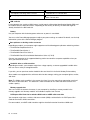
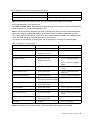
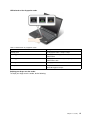
The following table shows which functions of the audio devices attached to the jacks on your computer or
docking station are supported.
Table 3. Audio feature list
Headset with a 3.5 mm
4-pole plug
Conventional headphone
Conventional microphone
Combo audio jack
Headphone and
microphone functions
supported
Headphone function
supported
Not supported
Headphone jack of the
dock
Only headphone function
supported
Headphone function
supported
Not supported
Not supported
Microphone function
supported
Microphone function not
supported
Microphone jack of the
dock
Not supported
Configuring for sound recording
To configure the microphone for optimized sound recording, use the Realtek HD Audio Manager program. To
start the program, Click Start ➙ Control Panel ➙ Hardware and Sound ➙ Realtek HD Audio Manager.
Using the integrated camera
If your computer has an integrated camera, when you press Fn+F6 to open the Communications settings
window, the camera will be launched and the green camera-in-use indicator will turn on automatically. In
the Communications settings window, you can preview your video image and take a snapshot of your
current image.
You also can use the integrated camera with other programs that provide features such as photographing,
video capturing, and video conferencing. To use the integrated camera with other programs, open one of the
programs and start the photographing, video capturing, or video conferencing function. Then, the camera
will start automatically and the green camera-in-use indicator will turn on. For more information about using
the camera with a program, refer to the documentation that came with the program.
If you do not want the camera to be launched automatically when you press Fn+F6 or when you use a
program, press Fn+F6 to open the Communications settings window and click the Hide my video image
button to disable the camera.
Configuring camera settings
You can configure the camera settings to meet your needs, such as adjusting the quality of the video output.
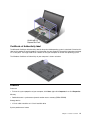
To configure the camera settings, do the following:
1. Press Fn+F6. The Communications settings window opens.
Chapter 2. Using your computer
41