1
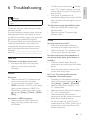
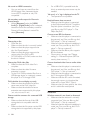
Warning Risk of electric shock. Never remove the casing of the player. To keep the warranty valid, never try to repair the player yourself. If you have problems using this player, check the following points before you request service. If you still have a problem, register your player and get support at www.philips.com/support. If you contact Philips, you will be asked for the model and serial number of this player. The model number and serial number are on the back of this player. Write the numbers here: Model No. _____________________________ Serial No. ______________________________ Main unit The buttons on this player do not work. Disconnect this player from the power supply for a few minutes, and then reconnect. Picture No picture. Make sure that the TV is switched to the correct source input for this player. For the composite connection (via the VIDEO connector) to the TV, on this player select a video resolution of 480i/576i or 480p/576p to enable video output (press , and select [Setup] > [Video] > [HDMI video]) . No picture on HDMI connection. Make sure that the HDMI cable is not faulty. If it is faulty, replace with a new HDMI cable. On the remote control, press and then ? J! picture display. Or wait for 10 seconds for auto recovery. If this player is connected to an unauthorized display device with an HDMI cable, the audio and video signals may not be output. Make sure that the disc contains high&!& Make sure that the TV supports high&!& Sound No audio output from the TV. Make sure that the audio cables are connected to the audio input of the TV. Make sure that the TV is switched to the correct source input for this player. No audio output from the loudspeakers of the external audio device (home theater or Make sure that the audio cables are connected to the audio input of the audio device. Switch the external audio device to the correct audio source input. No 7.1 (or 5.1) channel audio from the loudspeaker of the audio system. According to multi-channel connection, select correct sound output: press , and select [Setup] > [Audio] > [Channels]. Make sure that the disc contains 7.1 (or 5.1) channel audio. Make sure that the audio device supports 7.1 (or 5.1) channel audio. Make sure that the audio format is supported by the disc and the connected &&!! <!&` channel audio from USB or DLNA, only 2 channel audio can be heard from multichannel connection. EN 23 Engl i s h 6 Troubleshooting