1
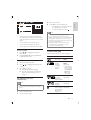
Before you update the software of this unit,
check the current software version:
• Press SYSTEM MENU , and then select
([Preference Setup]).
• Use navigation button to find [Version
Info.], and find out current version.
Update software via USB
1
Check the latest software version on
www.philips.com/support.
• Search for your model and click on
“Software and drivers”.
2
Download the software into a USB
storage device.
3
4
Unzip the download in the root directory.
5
Connect the USB storage device to the
(USB) connector on this unit.
» The unit will read the file automatically.
A box comes out on the TV screen.
Follow the instructions on the TV screen
to update the software.
» When the update is complete, this unit
automatically turns off and on again.
9 Other features
Play audio from an external
device
You can use this unit to play audio from an
external device.
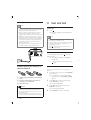
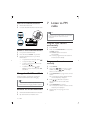
1
Connect the MP3 link cable to
• the MP3 LINK jack of this unit
• the audio output jack (usually
headphone jack) of the external device.
2
3
Press MP3-LINK.
storage device when the software update is in
progress because you might damage this unit.
• You may also burn a disc to update your
software.
Play the external device (see the user
manual of this device for details).
Listen through headphone
Plug a headphone into the
socket.
Timer and sleep
You can set a time for automatic back to one
source.
Note
Caution
• Do not turn off the power or remove the USB
English
Update software
• Make sure that you have set the clock before
this setup.
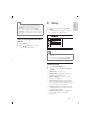
1
In standby mode, press and hold SLEEP/
TIMER.
2
Press VOL +/- to select S O U R C E (DISC
USB , DOCK, TUNER and PLAY LIST).
Then press SLEEP/TIMER to confirm.
» The hour digits blink.
3
4
Press VOL +/- to set the hour.
5
6
Press VOL +/- to set the minute.
Press SLEEP/TIMER again.
» The minute digits blink.
Press SLEEP/TIMER to confirm the time
for auto power on.
EN
21