1
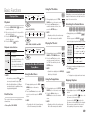
Changing the Camera Angle
Setting BONUSVIEW
h
hZ
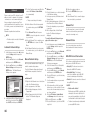
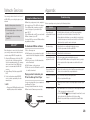
When a Blu-ray Disc/DVD contains multiple
angles of a particular scene, you can use the
ANGLE function.
111 During playback, press the TOOLS button.
222 Press the ▲▼ buttons to select Angle.
333 Press the ◄► buttons to select the
desired Angle.
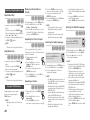
Selecting the Picture Settings
hzZy
This function enables you to adjust video
quality when the player is connected to a TV.
111 During playback, press the TOOLS button.
222 Press the ▲▼ buttons to select Picture
Setting, and then press the ENTER
button.
333 Press the ◄► buttons to select the
desired Picture Setting.
•• Dynamic : Choose this setting to
increase Sharpness.
•• Normal : Choose this setting for most
viewing applications.
•• Movie : This is the best setting for
watching movies.
•• User : Lets you adjust the sharpness
and noise reduction function
respectively.
✎NOTE
▪▪ When you use BD wise function, this menu will
not appear.
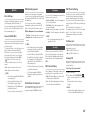
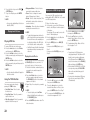
The BONUSVIEW feature allows you to view
additional content (such as commentaries)
in a small screen window while the movie is
playing.
This function is only available if the disc has
the Bonusview feature.
111 During playback, press the TOOLS button.
222 Press the ▲▼ buttons to
select BONUSVIEW Video or
BONUSVIEW Audio.
333 Press the ◄► buttons to select the
desired Bonusview.
✎NOTE
▪▪ If you switch from BONUSVIEW Video,
BONUSVIEW Audio will change automatically in
accordance with BONUSVIEW Video.
Listening to Music
ow
Playing an Audio CD (CD-DA)/MP3
111 Insert an Audio CD (CD-DA) or an MP3
Disc into the disc tray.
•• For an Audio CD (CD-DA), the first
track plays automatically.
•• For an MP3 disc, press the ◄►
buttons to select Music, then press
the ENTER button.
222 Press the ▲▼ buttons to select the track
you want to play, and then press the
ENTER button.
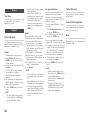
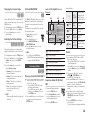
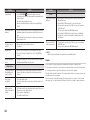
Audio CD (CD-DA)/MP3 Screen
Elements
1
2
TRACK 001
7
6
+
00:08 / 05:57
1/6
TRACK 001
05:57
TRACK 002
04:27
TRACK 003
04:07
TRACK 004
03:41
TRACK 005
03:17
" Pause
CD
5
03:35
Tools ' Return
4
1
Displays the music information.
2
Displays the playlist.
3
Display the current track/total tracks.
4
Displays buttons available.
5
Shows the current play time/total play time.
6
Displays the current playback status.
7
Displays the repeated playback status.
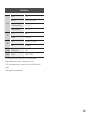
Repeat an Audio CD (CD-DA)/
MP3
111 During the Playlist playback, press the TOOLS button.
222 Select Repeat Mode, and then
press the ◄► buttons to select
the desired repeat mode.
333 Press the ENTER button.
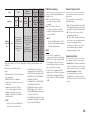
Off
Tracks on a disc are
Audio CD
played in the order
(CD-DA)/MP3 in which they were
recorded on the disc.
(
) Track
Audio CD
(CD-DA)
Current track is
repeated.
(
) One
MP3
Current track is
repeated.
(
) All
Audio CD
All tracks are
(CD-DA)/MP3 repeated.
(
)Shuffle
The random option
Audio CD
plays a disc’s tracks
(CD-DA)/MP3
in random order.
3
Playlist
TRACK 006
Repeat Modes :
Playlist
111 Insert an Audio CD (CD-DA) or an MP3
Disc into the disc tray.
••For an Audio CD (CD-DA), the first track
plays automatically.
••For an MP3 disc, press the ◄► buttons
to select Music, then press the ENTER
button.
222 To move to the Music List, press the
STOP ( ) or RETURN button.
The Music List screen appears.
333 Press the ▲▼◄► buttons to move to a
desired track, then press the YELLOW (C)
button to check the desired track.
Repeat this procedure to select additional
tracks.
444 If you want to remove a track from the
playlist, go to the track, and then press the
YELLOW (C) button again. The track is
removed.
555 Press the ENTER button to play the
selected tracks.
The selected tracks will play automatically.
21