1
Upgrading Firmware
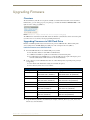
Upgrading Firmware Via NetLinx Studio
The MXT-700 and MXD-700 use an Ethernet connection for programming, firmware updates, and touch panel
file transfer via NetLinx Studio. If you have access to the panel’s network, you may transfer files directly to the
panel through NetLinx Studio
Firmware upgrades cannot be made through an Ethernet-connected PC to the touch
panel, unless that PC is connected to the panel’s network. Upgrades cannot be made
with NetLinx Studio through a USB connection to the panel from a PC. For more
information on firmware transfers, please refer to the online help in NetLinx Studio.
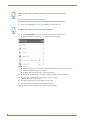
To upgrade firmware via NetLinx Studio:
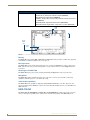
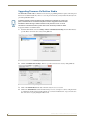
1. Launch NetLinx Studio and select Settings > Master Communication Settings from the Main menu to
open the Master Communication Settings dialog (FIG. 25)
FIG. 25 Master Communications Settings dialog box
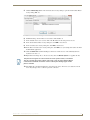
2. Click the Communications Settings... button to open the Communications Settings dialog (FIG. 26).
FIG. 26 Communications Settings dialog box
3. Click on the NetLinx Master radio button from the Platform Selection section.
4. Click on the Virtual Master radio box from the Transport Connection Option section to configure the PC
to communicate directly with a panel. Everything else, such as the Authentication, is greyed-out because
this connection is not going through the Master’s UI.
26
MXD/T-700 7" Modero® X Series Touch Panels