1
Start Power
External 3.5”& 2.5”HDD/SSD dock
Accessory Kit
3.5” HDD
Blue light
x1
x12
USB 2.0
USB 2.0
USB 3.0
adapt to 3.5” device
for ODD/FDD/card reader
x3
for cable management
USB 2.0
USB 3.0
SELECT FAN GROUP A
USB 2.0
USB 3.0
USB 3.0
SELECT FAN GROUP A
SELECT FAN GROUP B
2.5” HDD/SSD
SELECT FAN GROUP B
How to use the hot-swap feature of the external docking:
1.Make sure to install all related drivers that come with your motherboard.
2.Connect the SATA cable to SATA connector on the motherboard.
3.Connect the power cable to power supply.
If your hot-swap device has no function after installation, please refer
to the following settings.
1.Turn on the AHCI function in the BIOS to activate the hot-swap feature.
2.Reinstall your computer operating system.
x20
for HDD & main board
x2
x8
for cooling water hole
for fan
x2
for main board foothold
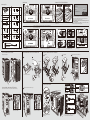
Push the“START POWER”
The blue LED lights when PC power on
There are two fan control buttons to control two group fans independently
(fan group A & fan group B)
Dual-way fan control system
x1
You can easily install 3.5”HDD or 2.5”HDD/SSD in the top access
external dock
LED will blink
Green light
USB 2.0
for main board position
USB 3.0
USB 2.0
x6
for PSU & main board
x12
USB 2.0
USB 3.0
for main board foothold
USB 2.0
USB 3.0
SELECT FAN GROUP A
USB 2.0
USB 3.0
USB 2.0
USB 3.0
Standby
8secs
USB 3.0
USB 2.0
USB 3.0
USB 3.0
SELECT FAN GROUP A
SELECT FAN GROUP B
USB 2.0
Clockwise: faster & brighter
when it reaches max.
fan speed, LED will blink
USB 2.0
USB 2.0
SELECT FAN GROUP B
USB 3.0
LED will blink
USB 3.0
optional
USB 2.0
USB 3.0
x2
USB 2.0
USB 2.0
USB 3.0
USB 3.0
Green light
adapt to 3 fans
Push fan switch button, it will switch to fan control mode,
the green LED lights
How to install the 5.25”devices.
USB 2.0
USB 3.0
Rotate the fan control button to adjust the fan speed
clockwise: faster / counterclockwise: slower
How to install the 5.25”to 3.5”conversion kit
Remove the front panel
If we stop using fan control it will return to
blue LED light
when it reaches min.
fan speed, LED will blink
Counterclockwise: slower
& dimmer
Blue light
How to install the 3.5”& 2.5”HDD/SSD
2 2.5”HDD/SSD
1 3.5”HDD
3 Insert the device into 3.5”HDD bay.
2
1
Card reader
C
C
B
5.25”to 3.5”conversion kit
B
A
Insert
Remove
A
Pull
Screw
Screw
How to install the Fan
How to install / remove the 5.25”devices.
Insert the device into 5.25”drive bay it will be locked automatically
FAN GROUP A
A
x2
FAN GROUP A
3 Insert the conversion kit into 5.25”cage
Remove top cover
FAN GROUP B
C
Conversion kit
5.25” ODD
B Air In
1
2
4
3
6
5
D E Air Out
x3
FAN GROUP B
SELECT FAN GROUP A
SELECT FAN GROUP B
D
Fan group A cable max
current loading is 1A
E
FAN GROUP A
C
FAN GROUP A
Fan group B cable max
current loading is 1A
FAN GROUP B
FAN GROUP B
B
Pull the screw-less grip
remove the 5.25”device
Pull the screw-less grip
remove the conversion kit
Push six hooks under the
top cover
The fan control cable can connect with
two group of fans(air in A,B & air out C,D,E)
controlled by the fan switch buttons
A