1
AXIS P3301 Fixed Dome Network Camera
Video and Audio
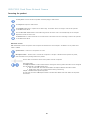
Input gain - Control the volume (dB Full Scale) of the audio input. If the sound is too low, choose a higher dB, to amplify the
sound. If the sound is too high, choose a lower dB. The Level bar gives a visual representation of the audio signal level in dB
relative to the full-scale input level.
•
Green — the signal is at a good level.
•
Yellow — the signal is becoming distorted.
•
Red — the signal is distorted.
Encoding - Select digital audio encoding format.
•
AAC requires a license for both encoding and decoding. AAC is the least complicated and most widely used codec.
If achieving the best possible audio quality is a priority, AAC is the recommended codec to use. An AAC license
is included in the Axis product.
•
G711
•
G726
Sample rate - The number of times per second the sound is sampled. A higher sample rate will provide better audio quality, but
also requires a greater bandwidth.
Bit rate - Set the required bit rate depending on the selected encoding. A higher bit rate will give better audio quality. A lower bit
rate may have latency or delay, but will require less bandwidth.
For more information about these settings, please see the online help
.
Audio Output
An external speaker can be connected to the product’s Audio-out connector. The output can be used with high impedance
headphones or connected to another amplifier with speakers.
Configure the audio output settings under Video & Audio > Audio Settings.
Output gain - Control the volume (dB Full Scale) of the line audio output. If the sound is too low, choose a higher dB. If the
sound is too high, choose a lower dB.
Audio Clips
An audio clip is a sound file that can be played either when an event occurs or manually from the Live View page. Audio clips can
be uploaded to the product or recorded by a microphone connected to the product.
You can add, play, download, modify and remove audio clips from Video & Audio > Audio Clips. For more information see the
online help
.
Note
Audio clips cannot be used if the product’s audio functionality is enabled. The audio functionality is enabled on the Audio
tab under Video & Audio > Video Stream.
19