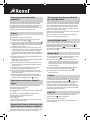
1
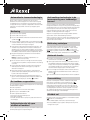
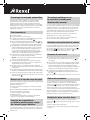
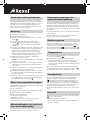
Auto-feed Technology
The Auto+ 250X has been designed to automatically shred up to 250
sheets from the auto-feed chamber and up to 8 sheets through the
manual feed slot. The auto-feed mechanism has been designed to
handle paper fastened with staples and paper clips and to only pull a
few sheets of paper into the cutting mechanism to minimise the risk of
paper jams.
Operation
1Unpack the product.
Jam Free Technology in manual
feed slot
Sensors in the paper feed area measure the thickness of paper about
to be shredded. The ability to shred or not is communicated through red
and green lighting. Green means that the stack of paper is within the
shredders sheet capacity and OK to shred. Red means that you have too
much paper, remove some sheets in order to shred.
Given that you are unable to shred more sheets of paper than the
shredder is capable of shredding, paper jams are prevented.
This prevents time wasted through reversing paper and unblocking jams
not to mention the mess it can create.
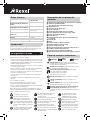
2Connect the shredder to mains supply.
3Ensure the ON/OFF button on the back of the machine is in the ON
).
position, which will illuminate the blue standby symbol (
), which sets
4To commence shredding, press the Auto button (
the shredder into auto mode. You are now ready to shred.
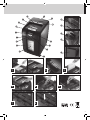
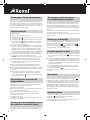
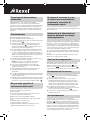
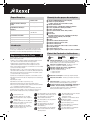
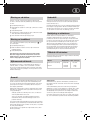
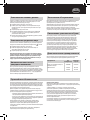
5To load the shredder, simply lift the loading door handle (see fig 1) to
open the loading door and insert documents. You can open the door
further to 90 degrees for easier access if required Load up to 250
sheets at a time into the feed chamber. Do not fill above the 250
MAX level, this could damage the shredder (see fig 2).
6The shredder will start the shredding cycle automatically ONLY after
closing the loading door (see fig 1).
Attention: If required you can now lock the loading door by entering
a 4 digit code (see below).
In the unlikely event of the shredder jamming, the Auto+ 250X will stop
shredding. Check that the bin is not full then try clearing the jam using
) and continuous jam boost (
) buttons then return
the reverse (
). If this is unsuccessful follow the reverse function
to Auto mode (
instructions.
Reverse Function
1Should you wish to reverse paper out whilst shredding, a reverse
) has been fitted for your convenience.
button (
8Insert paper to be shredded into the feed area. The shredder will
detect the paper and start automatically.
2Reverse the paper out then turn the machine off using the ON/
OFF switch at the rear of the shredder. Remove the paper from the
manual feed slot (if being used) or open the loading door, remove
the remaining stack of paper, then pull the jammed paper free of the
cutting mechanism.
9If the shredder is left in auto mode for more than 2 minutes without
being used, the shredder will automatically turn back to standby
mode in order to save power.
3To resume shredding return the slide switch to the auto position
) and turn on the shredder by using the ON/OFF switch at the
(
rear of the shredder.
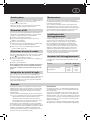
7If you only have up to 8 sheets to shred, you can use the manual
feed slot, provided the auto feed chamber is empty (see fig 3).
JThe shredder will automatically ‘wake up’ from sleep mode when
paper is inserted into the shred mouth or you open the loading door.
).
There is no need to press the Auto button (
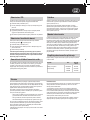
Locking the Paper Loading Door
For additional security the paper loading door can be locked during the
shredding of confidential material.
To lock shredder:
1Place documents in tray. Close paper loading door (see fig 1).
2Press any 4 digits. REMEMBER YOUR CODE!
Shredder unlocks automatically when:
• 4 digit code is re-entered.
• Shredding is complete.
• Shredder is inactive for 30 minutes (but documents remain in tray)
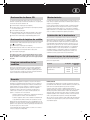
Bin or Loading Door Open Safety
Function
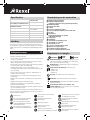
As a safety precaution, if the bin or loading door is opened during
shredding, the shredder will stop and icon will illuminate.
6
Rare Occasions of Jamming
Over Heating
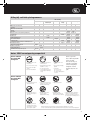
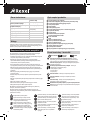
If the Auto+ 250X is used continuously for over 24 minutes the
shredder may overheat and the cool down indicator will illuminate red
( ). Please allow the shredder to cool down. When the shredder is
ready to be used the thermometer symbol will no longer illuminate. If the
shredder needs to cool down while shredding, no action is needed. The
shredder will automatically restart shredding paper once it has cooled
down after periods of continuous use. All you need to do is ensure paper
is loaded into the chamber and the bin is empty when the machine is
cooling down.
Bin Full
The shredder will not function when the bin is full and the bin full
) is illuminated. You should empty the bin.
symbol (
• Pull open the bin slowly to empty.
• Push the empty bin back into place and press the auto button to
resume shredding.