1
Register your product and get support at
www.philips.com/welcome
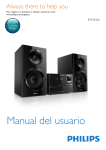
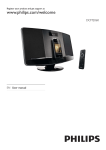
DC5070
EN User manual
3
DA Brugervejledning
19
DE Benutzerhandbuch
35
EL Εγχειρίδιο χρήσης
53
FI
Käyttöopas
73
FR Mode d’emploi
89
IT
Manuale utente
107
NL Gebruiksaanwijzing
125
8 Other features
1 Important
4
4
5
Safety
Notice
3 Get started
Connect FM antenna
Connect power
Prepare the remote control
Set clock
Turn on
4 Play
Play iPod/iPhone/iPad
Play from USB
5 Play options
Pause/resume play
Stop play
Skip to a track
Search within a track
Repeat play
Shuffle play
Program tracks
6 Listen to the radio
Tune to a radio station
Program radio stations
Select a preset radio station
7 Adjust sound
Adjust volume
Select a preset sound effect
Enhance bass
Mute sound
Set the sleep timer
Set the alarm timer
Listen to an external device
9 Product information
17
17
17
Specifications
USB playability information
2 Your Docking Entertainment System
Introduction
What’s in the box
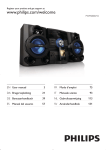
Overview of the main unit
Overview of the remote control
16
16
16
16
6
6
6
7
8
10 Troubleshooting
18
9
9
10
10
10
11
11
11
13
13
13
13
13
13
13
14
14
14
14
14
15
15
15
15
15
15
EN
3
E n gl i sh
Contents
1 Important
•
Safety
•
•
•
This ‘bolt of lightning’ indicates uninsulated
material within your unit may cause an
electrical shock. For the safety of everyone
in your household, please do not remove
product covering.
The ‘exclamation mark’ draws attention
to features for which you should read
the enclosed literature closely to prevent
operational and maintenance problems.
WARNING: To reduce the risk of fire or
electric shock, this device should not be
exposed to rain or humidity and objects filled
with liquids, such as vases, should not be
placed on this device.
CAUTION: To prevent electric shock, match
wide blade of plug to wide slot, fully insert.
•
•
•
Important Safety Instructions
•
•
•
•
•
•
•
4
Read these instructions.
Heed all warnings.
Follow all instructions.
Do not use this device near water.
Clean only with dry cloth.
Do not block any ventilation openings.
Install in accordance with the
manufacturer’s instructions.
Do not install near any heat sources such
as radiators, heat registers, stoves, or
other devices (including amplifiers) that
produce heat.
EN
•
Protect the power cord from being
walked on or pinched, particularly at
plugs, convenience receptacles, and the
point where they exit from the device.
Only use attachments/accessories
specified by the manufacturer.
Unplug this device during lightning storms
or when unused for long periods of time.
Refer all servicing to qualified service
personnel. Servicing is required when the
device has been damaged in any way, such
as power-supply cord or plug is damaged,
liquid has been spilled or objects have
fallen into the device, the device has been
exposed to rain or moisture, does not
operate normally, or has been dropped.
Battery usage CAUTION – To prevent
battery leakage which may result in bodily
injury, property damage, or damage to
the unit:
• Install all batteries correctly, + and as marked on the unit.
• Do not mix batteries (old and new
or carbon and alkaline, etc.).
• Remove batteries when the unit is
not used for a long time.
• Batteries (battery pack or batteries
installed) shall not be exposed to
excessive heat such as sunshine, fire
or the like.
Devices shall not be exposed to dripping
or splashing.
Do not place any sources of danger on
the device (e.g. liquid filled objects, lighted
candles).
Where the MAINS plug or an appliance
coupler is used as the disconnect device,
the disconnect device shall remain readily
operable.
• Never remove the casing of this device.
• Never lubricate any part of this device.
• Never place this device on other electrical
equipment.
• Keep this device away from direct sunlight,
naked flames or heat.
• Never look into the laser beam inside this device.
• Ensure that you always have easy access to the
power cord, plug or adapter to disconnect this
device from the power.
Mains fuse
This information applies only to products with
a UK mains plug.
This product is fitted with an approved
molded plug. If you replace the fuse, use one
with:
• the ratings shown on the plug,
• a BS 1362 approval, and
• the ASTA approval mark.
Contact your dealer if you are not sure about
what type of fuse to use.
Caution: To conform with the EMC directive
(2004/108/EC), do not detach the plug from
the power cord.
Notice
Any changes or modifications made to this
device that are not expressly approved by
Philips Consumer Lifestyle may void the user’s
authority to operate the equipment.
When this crossed-out wheeled bin symbol
is attached to a product it means that the
product is covered by the European Directive
2002/96/EC.
Please inform yourself about the local separate
collection system for electrical and electronic
products.
Please act according to your local rules and
do not dispose of your old products with your
normal household waste. Correct disposal of
your old product helps to prevent potential
negative consequences for the environment
and human health.
Your product contains batteries covered by
the European Directive 2006/66/EC, which
cannot be disposed with normal household
waste. Please inform yourself about the local
rules on separate collection of batteries
because correct disposal helps to prevent
negative consequences for environmental and
human health.
Environmental information
All unnecessary packaging has been omitted.
We have tried to make the packaging easy to
separate into three materials: cardboard (box),
polystyrene foam (buffer) and polyethylene
(bags, protective foam sheet.)
Your system consists of materials which can
be recycled and reused if disassembled by
a specialized company. Please observe the
local regulations regarding the disposal of
packaging materials, exhausted batteries and
old equipment.
This product complies with the radio
interference requirements of the European
Community.
Your product is designed and manufactured
with high quality materials and components,
which can be recycled and reused.
The making of unauthorized copies of copyprotected material, including computer
programs, files, broadcasts and sound
recordings, may be an infringement of copyrights
and constitute a criminal offence. This equipment
should not be used for such purposes.
EN
5
E n gl i sh
Warning
Windows Media and the Windows logo are
trademarks, or registered trademarks of
Microsoft Corporation in the United States
and/or other countries.
“Made for iPod,” “Made for iPhone,” and
“Made for iPad” mean that an electronic
accessory has been designed to connect
specifically to iPod, iPhone, or iPad,
respectively, and has been certified by the
developer to meet Apple performance
standards. Apple is not responsible for the
operation of this device or its compliance
with safety and regulatory standards. Please
note that the use of this accessory with
iPod, iPhone, or iPad may affect wireless
performance.
iPod and iPhone are trademarks of Apple Inc.,
registered in the U.S. and other countries. iPad
is a trademark of Apple Inc.
Note
2 Your Docking
Entertainment
System
Congratulations on your purchase, and
welcome to Philips! To fully benefit from the
support that Philips offers, register your product
at www.philips.com/welcome.
Introduction
With this unit, you can:
• enjoy audio from iPod/iPhone/iPad, USB
devices, and other external devices
• listen to radio stations
You can enrich sound output with these sound
effects:
• Dynamic Bass Boost (DBB)
• Digital Sound Control (DSC)
The unit supports the following media
formats:
• The type plate is located on the back of the
unit.
Norge
What’s in the box
Typeskilt finnes på apparatens underside.
Observer: Nettbryteren er sekundert
innkoplet. Den innebygde netdelen er derfor
ikke frakoplet nettet så lenge apparatet er
tilsluttet nettkontakten.
For å redusere faren for brann eller elektrisk
støt, skal apparatet ikke utsettes for regn eller
fuktighet.
Check and identify the contents of your
package:
• Main unit
• Remote control with two AAA batteries
• 2 x power cords (for EU and UK)
• MP3 link cable
• FM antenna
• User manual
• Quick start guide
6
EN
E n gl i s h
Overview of the main unit
DOCK for iPod/iPhone/iPad
j
a
i
b
PRESET
DBB
h
VOLUME
DSC
g
c
PROG
f
SRC
d
e
AUX
k
l
DOCKING SYSTEM DC5070
a
/
•
•
•
•
Skip to the previous/next track.
Search within a track.
Tune to a radio station.
Set clock and timer.
b -PRESET+
• Select a preset radio station.
• Skip to the previous/next album.
•
•
DBB
Turn the Dynamic Bass Boost (DBB)
on/off.
DSC
Select a preset sound setting.
c
•
•
Turn the unit on.
Switch to standby mode or Eco
power standby mode.
EN
7
d Display panel
• Show current status.
Overview of the remote control
e PROG
• Program tracks.
• Program radio stations.
• Set the clock.
a
f SRC
• Select a source: FM TUNER, iPod/
iPhone/iPad, USB, or AUX.
g
•
Start or pause play.
•
Stop play or erase a program.
b
DOCK
USB
c
j DOCK
• Dock for iPod/iPhone/iPad.
k AUX
• Connect an external audio device.
s
d
e
OK
h
i VOL +/• Adjust volume.
TUNER
PRESET/ALBUM
r
f
g
h
AUX
MENU
DSC
i
q
DBB
p
REPEAT
o
SHUFFLE
n
VOL
l
•
USB socket.
j
k
CLOCK
l
SLEEP/
TIMER
PROG
m
a
•
•
Turn the unit on.
Switch to standby mode or Eco
power standby mode.
b DOCK
• Select iPod/iPhone/iPad source.
c USB
• Select USB source.
d
•
•
8
EN
/OK
Start or pause play.
Confirm a selection.
/
•
•
•
•
Skip to the previous/next track.
Search within a track.
Tune to a radio station.
Set clock and timer.
•
Mute or restore sound.
f
g Menu/
• Access the iPod/iPhone/iPad menu.
• Stop play or erase a program.
3 Get started
E n gl i sh
e
Caution
• Use of controls, or adjustments or
performance of procedures other than herein
may result in hazardous radiation exposure or
other unsafe operation.
j Numeric keypad
• Select a track.
• Select a preset radio station.
Always follow the instructions in this chapter in
sequence.
If you contact Philips, you will be asked for the
model and serial number of this device. The
model number and serial number are on the
back of the device. Write the numbers here:
Model No. __________________________
Serial No. ___________________________
k CLOCK
• Set the clock.
Connect FM antenna
h DSC
• Select a preset sound setting.
i VOL +/• Adjust volume.
l SLEEP/TIMER
• Set the sleep timer.
• Set the alarm timer.
m PROG
• Program tracks.
• Program radio stations.
n SHUFFLE
• Select shuffle play mode.
Tip
• For optimal reception, fully extend and adjust
the position of the antenna.
Connect the supplied FM antenna to the FM
AERIAL jack on the back of the main unit.
o REPEAT
• Select repeat play mode.
p DBB
• Turn the Dynamic Bass Boost (DBB)
on/off.
q AUX
• Select AUX source.
r PRESET/ALBUM /
• Select a preset radio station.
• Skip to previous/next album.
• Navigate through the iPod/iPhone/
iPad menu.
s TUNER
• Select FM source.
EN
9
Connect power
Caution
• Risk of product damage! Ensure that the
power supply voltage corresponds to the
voltage printed on the back or the underside
of the unit.
• Risk of electric shock! When you unplug the
AC power cord, always pull the plug from the
socket. Never pull the cord.
• Before connecting the AC power cord, ensure
you have completed all other connections.
To insert the remote control battery:
1
2
Open the battery compartment.
3
Close the battery compartment.
Insert 2 AAA batteries with correct
polarity (+/-) as indicated.
a
b
Connect the power cord to:
• the AC~MAINS jack on the back of
the main unit.
• the wall outlet.
c
Note
• If you are not going to use the remote control
for a long time, remove the batteries.
• Do not use old and new or different types of
batteries in combination.
• Batteries contain chemical substances, so they
should be disposed of properly.
Prepare the remote control
Set clock
1
In standby mode, press and hold CLOCK
for more than two seconds to activate
the clock setting mode.
» The 12 hour or 24 hour format is
displayed.
2
Press
/
to select 12 hour or 24
hour format, and then press CLOCK.
» The hour digits are displayed and begin
to blink.
Caution
• Risk of explosion! Keep batteries away from
heat, sunshine or fire. Never discard batteries
in fire.
10
EN
Press
/
to set the hour, and then
press CLOCK.
» The minute digits are displayed and
begin to blink.
4
5
Press
/
to set the minute.
Press CLOCK to confirm.
Turn on
Press .
» The unit switches to the last selected
source.
Switch to standby
Press again to switch the unit to standby
mode.
» The backlight on the display panel is
reduced.
» The clock (if set) appears on the
display panel.
To switch to Eco power standby mode:
Press and hold for more than two seconds.
» The backlight on the display panel
turns off.
To switch between normal standby mode
and Eco power standby mode:
Press and hold for more than two seconds.
4 Play
E n gl i sh
3
Play iPod/iPhone/iPad
You can enjoy audio from iPod/iPhone/iPad
through this docking system.
Compatible iPod/iPhone/iPad
The unit supports the following iPod/iPhone/
iPad models.
Made for
• iPad 2
• iPad
• iPhone 4
• iPhone 3GS
• iPhone 3G
• iPhone
• iPod classic
• iPod with video
• iPod nano (1st, 2nd, 3rd, 4th, 5th, and 6th
generation)
• iPod touch (1st, 2nd, 3rd, and 4th
generation)
Load the iPod/iPhone/iPad
Place the iPod/iPhone/iPad in the dock.
Note
• If no button is pressed over 15 minutes in
standby mode, this device goes to Eco Power
Standby mode automatically.
EN
11
Listen to the iPod/iPhone/iPad
Note
• Make sure that your iPod/iPhone/iPad has
been loaded securely.
1
Press DOCK on the remote control or
press SRC repeatedly on the main to
select iPod/iPhone/iPad source.
2
Play audio on your iPod/iPhone/iPad.
» The audio in connected iPod/iPhone/
iPad streams from this docking system
automatically. If not, press
.
• To navigate the menu: press MENU,
and press / /
/
to select,
and then press OK to confirm.
Charge the iPod/iPhone/iPad
When the unit is connected to power, the
docked iPod/iPhone/iPad begins to charge
automatically.
Note
• iPod with color display, iPod classic, and iPod
with video are not compatible with dock
charging.
12
EN
Remove the iPod/iPhone/iPad
Pull the iPod/iPhone/iPad out of the dock.
Note
• Ensure that the USB device contains playable
audio content.
1
Press USB on the remote control or
press SRC repeatedly on the main to
select the USB source.
2
Insert the USB device into the
(USB)
socket on the back of the unit.
» The file starts playing automatically. If
not, press
.
5 Play options
E n gl i sh
Play from USB
Pause/resume play
During play, press
to pause/resume play.
Stop play
During play, press
to stop play.
Skip to a track
For USB:
1
2
Press
Press
/
to select an album or folder.
/
to select a track or file.
Search within a track
1
During play, press and hold
search within a track.
2
Release to resume normal play.
/
to
Repeat play
1
During play, press REPEAT repeatedly to
select:
• [r1] (repeat one): The current track
is played repeatedly.
• [rA] (repeat all): All tracks are played
repeatedly.
(repeat) is displayed.
»
2
To return to normal play, press REPEAT
repeatedly until repeat mode is no longer
displayed.
EN
13
Shuffle play
1
During play, press SHUFFLE.
»
(shuffle) is displayed. All tracks are
played in a random sequence.
2
To return to normal play, press SHUFFLE
again.
6 Listen to the
radio
Tune to a radio station
Tip
Note
• For optimal FM reception, fully extend and
• The repeat and shuffle play cannot be
activated at the same time.
• Shuffle play cannot be selected when you play
programmed tracks.
Program tracks
adjust the position of the FM antenna.
1
Press TUNER on the remote control
or press SRC repeatedly on the main to
select the tuner source.
2
Press and hold
/
for more than
two seconds.
» [SEARCH] (search) is displayed.
» The radio tunes to a station with
strong reception automatically.
3
Repeat step 2 to tune to more stations.
/
• To tune to a weak station, press
repeatedly until you find optimal
reception.
You can program a maximum of 20 tracks.
1
In USB mode, at the stop position, press
PROG to activate the program mode.
» [PROG] (program) blinks on the
display.
2
For MP3/WMA tracks, press
select an album.
3
Press
/
to select a track number,
and then press PROG to confirm.
4
Repeat steps 2 to 3 to program more
tracks.
5
/
to
Press
to play the programmed tracks.
» During play, [PROG] (program) is
displayed.
• To erase the program, in the stop
position, press .
Program radio stations
Tip
• You can program a maximum of 20 preset
radio stations.
Program radio stations automatically
In tuner mode, press and hold PROG for
more than two seconds to activate automatic
program mode.
» [AUTO SRCH](auto search) is
displayed.
» All available stations are programmed
in the order of waveband reception
strength.
» The first programmed radio station is
broadcast automatically.
14
EN
1
2
Tune to a radio station.
3
Press / to allocate a number (1 to
20) to this radio station, and then press
PROG to confirm.
» The preset number and the frequency
of the preset station are displayed.
4
Press PROG to activate program mode.
» [PROG] (program) blinks on the
display.
Repeat the above steps to program other
stations.
Note
• To overwrite a programmed station, store
another station in its place.
Select a preset radio station
In tuner mode, press / to select a preset
number.
• You can also press the numeric key
to select a preset number directly.
7 Adjust sound
E n gl i sh
Program radio stations manually
Adjust volume
During play, press VOL +/- to increase/decrease
the volume.
Select a preset sound effect
During play, press DSC repeatedly to select:
• [dSC1] (flat)
• [dSC2] (rock)
• [dSC3] (classic)
• [dSC4] (jazz)
• [dSC5] (pop)
Enhance bass
During play, press DBB to turn on or off
dynamic bass enhancement.
» If DBB is activated, DBB is displayed.
Mute sound
During play, press
to mute or restore sound.
EN
15
8 Other features
Set the sleep timer
This docking system can switch to standby
automatically after a set period of time.
1
When the unit is turned on, press SLEEP/
TIMER repeatedly to select a set period
of time (in minutes).
» When sleep timer is activated, is
displayed.
To deactivate sleep timer
1
Press SLEEP/TIMER repeatedly until
[SLEEP OFF] (sleep off) is displayed.
» When sleep timer is deactivated,
disappears.
Activate and deactivate the alarm
timer
In standby mode, press SLEEP/TIMER
repeatedly to activate or deactivate the alarm
timer.
» If the alarm timer is activated, is
displayed
» If the alarm timer is deactivated,
disappears.
Note
• If USB/iPod/iPhone/iPad source is selected, but
no USB/iPod/iPhone/iPad is connected, the FM
TUNER is selected automatically.
Listen to an external device
Set the alarm timer
You can also listen to an external audio device
through this docking system.
This docking system can be used as an alarm
clock. You can select iPod/iPhone/iPad, FM
TUNER, or USB as alarm source.
1
2
Press AUX to select AUX source.
3
Start to play the device. (See the device
user manual).
Note
• Ensure that you have set the clock correctly.
1
In standby mode, press and hold SLEEP/
TIMER until [SET TIMER] (set timer)
scrolls on the display.
2
Press USB, DOCK, or TUNER to select
a source.
3
Press SLEEP/TIMER to confirm.
» The hour digits are displayed and begin
to blink.
4
Press
/
to set the hour, and then
press SLEEP/TIMER again.
» The minute digits are displayed and
begin to blink.
5
6
Press
16
EN
/
to set the minute.
Press SLEEP/TIMER to confirm.
» The alarm timer is set and activated.
Connect the supplied MP3 link cable to:
• the AUX jack on the back of the unit
• the headphone jack on the device
Note
• Product information is subject to change
without prior notice.
Standby Power
Consumption
USB Direct
Load of USB
Dimensions
- Main Unit (W x H x D)
Weight
- With Packing
- Main Unit
<1W
E n gl i sh
9 Product
information
Version 2.0/1.1
≤500 mA
350 x 999 x
350 mm
13.5 kg
10.7 kg
Specifications
USB playability information
Amplifier
Rated Output
Power
Frequency
Response
Signal to Noise
Ratio
Aux Input
120 W
100 Hz - 16 kHz, ±3 dB
> 70 dB
<600 mV RMS
Tuner
Tuning Range
Tuning grid
Sensitivity
- Mono, 26dB S/N Ratio
- Stereo, 46dB S/N Ratio
Search Selectivity
Total Harmonic Distortion
Signal to Noise Ratio
FM: 87.5 - 108
MHz
50 KHz
<22 dBu
<45 dBu
<30 dBu
<3%
>45 dB
Speakers
Speaker
Impedance
Speaker Driver
Sensitivity
6 ohm + 2 x 4 ohm
5.25” woofer + 2 x 2.75”
full range
>82 dB/m/W
General information
AC power
220 - 240 V, 50/60
Hz
Compatible USB devices:
• USB flash memory (USB 2.0 or USB1.1)
• USB flash players (USB 2.0 or USB1.1)
• memory cards (requires an additional
card reader to work with this unit)
Supported formats:
• USB or memory file format FAT12,
FAT16, FAT32 (sector size: 512 bytes)
• MP3 bit rate (data rate): 32-320 Kbps
and variable bit rate
• WMA v9 or earlier
• Directory nesting up to a maximum
of 8 levels
• Number of albums/ folders:
maximum 99
• Number of tracks/titles: maximum 999
• ID3 tag v2.0 or later
• File name in Unicode UTF8
(maximum length: 128 bytes)
Unsupported formats:
• Empty albums: an empty album is an
album that does not contain MP3/
WMA files, and will not be shown in
the display.
• Unsupported file formats are skipped.
For example, Word documents (.doc)
or MP3 files with extension .dlf are
ignored and not played.
• AAC, WAV, PCM audio files
• DRM protected WMA files (.wav,
.m4a, .m4p, .mp4, .aac)
• WMA files in Lossless format
EN
17
10 Troubleshooting
Warning
• Never remove the casing of this device.
To keep the warranty valid, never try to repair
the system yourself.
If you encounter problems when using this
device, check the following points before
requesting service. If the problem remains
unsolved, go to the Philips web site (www.
philips.com/welcome). When you contact
Philips, ensure that the device is nearby and the
model number and serial number are available.
No power
•
Ensure that the AC power plug of the
unit is connected properly.
•
Ensure that there is power at the AC
outlet.
•
To save power, the system switches
off automatically 15 minutes after track
play reaches the end and no control is
operated.
No sound or poor sound
•
Adjust the volume.
No response from the unit
•
Disconnect and reconnect the AC power
plug, and then turn on the unit again.
Remote control does not work
•
Before pressing any function button, first
select the correct source with the remote
control instead of the main unit.
•
Reduce the distance between the remote
control and the unit.
•
Insert the battery with its polarities (+/–
signs) aligned as indicated.
•
Replace the battery.
•
Aim the remote control directly at the
sensor on the front of the unit.
18
EN
Cannot display some files in USB device
•
The number of folders or files in the USB
device has exceeded a certain limit. This
phenomenon is not a malfunction.
•
The formats of these files are not
supported.
USB device not supported
•
The USB device is incompatible with the
unit. Try another one.
Poor radio reception
•
Increase the distance between the unit
and your TV or VCR.
•
If the signal is too weak, adjust the
antenna or connect an external antenna
for better reception.
Timer does not work
•
Set the clock correctly.
•
Switch on the timer.
Clock/timer setting erased
•
Power has been interrupted or the power
cord has been disconnected.
•
Reset the clock/timer.
© 2011 Koninklijke Philips Electronics N.V.
All rights reserved.
DC5070_UM_10_Book 1_V1.0