1
Network configuration 33
The WLAN filter should be used only as
an additional option. By using it you
could limit access to your wireless network, but without encryption it would
be relatively easy for third parties to
eavesdrop on all of your data transmissions.
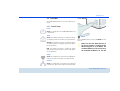
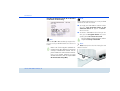
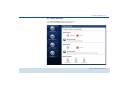
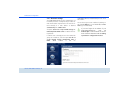
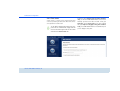
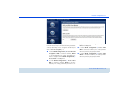
To use the WLAN filter, enable the option Enable filters. Now you can enter various network devices by
means of what is known as your MAC address for access to your dLAN 200 AV Wireless N. Confirm each
entry with Add. Network devices or stations connected
to your dLAN 200 AV Wireless N are automatically listed, that is, to enable an already connected station for
the dLAN 200 AV Wireless N, simply select the MAC
address of the respective device and confirm it with
Add. This then appears under Approved WLAN stations. To remove an enabled station, select its MAC
address and confirm it with Delete.
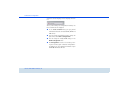
You can easily determine the MAC address of a Windows computer by opening the window with the command prompt under Start All Programs Accessories Command Prompt. Enter the command IPCONFIG /ALL here. The MAC address is displayed under the designation Physical address.
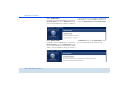
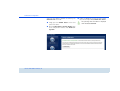
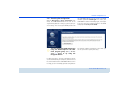
After entering the MAC addresses, do not forget to
click the Save button. If the entered values are incorrect (e.g. because the colons are missing), a corresponding error message is displayed.
Keep in mind that you also have to enter the MAC address of your own computer if you are connected to the
dLAN 200 AV Wireless N not via the
Ethernet port, but via WLAN. Otherwise you will block your own access to
the device via WLAN by activating the
WLAN filter!
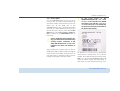
The MAC address designates the hardware
interface of each individual network device
uniquely (e.g. the WLAN adapter of a computer or the Ethernet port of a printer). It consists of six double-digit hexadecimal
numbers, each separated by a colon (e.g.
00:0B:3B:37:9D:C4). The MAC address is on
the housing of the device.
devolo dLAN 200 AV Wireless N