1
AXIS Q1602 Network Camera
Troubleshooting
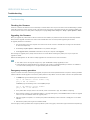
Multicast H.264 only
accessible by local clients
Check if your router supports multicasting, or if the router settings between the client and the
product need to be configured. The TTL (Time To Live) value may need to be increased.
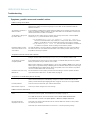
Poor rendering of H.264
images
Color depth set incorrectly on clients. Set to 16–bit or 32–bit color.
If text overlays are blurred, or if there are other rendering problems, you may need to enable
Advanced Video Rendering fromv the Video tab in the AMC Control Panel.
Ensure that your graphics card is using the latest driver. The latest drivers can usually be
downloaded from the manufacturer’s website.
Color saturation is different
in H.264 and Motion JPEG
Modify the settings for your graphics adapter. Refer to the adapter’s documentation for more
information.
Lower frame rate than
expected
Reduce the number of applications running on the client computer.
Limit the number of simultaneous viewers.
Check with the network administrator that there is enough bandwidth available.
Check in the AMC Control Panel (H.264 tag) that video processing is NOT set to Decode only
key frames.
Lower the image resolution.
Why do I not get maximum
frames per second?
See Performance considerations, on page 49.
Image degeneration
Decrease the GOV length. Go to Video & Audio > Video Stream and select the H.264 tab
to modify the GOV length.
The maximum frames per second is dependent on the utility frequency (60/50 Hz) of the Axis
product. See Technical Specifications, on page 47.
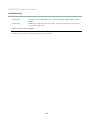
Status and Network indicator LEDs are flashing red rapidly
Hardware failure
Contact you Axis reseller.
Status indicator LED is flashing red and the product is inaccessible
A firmware upgrade has
been interrupted or the
firmware has otherwise been
damaged
See Emergency recovery procedure, on page 42.
No images displayed on web page
Problems with AXIS Media
Control (Internet Explorer
only)
To enable the updating of video images in Internet Explorer, set the browser to allow ActiveX
controls. Also, make sure that AXIS Media Control is installed on your computer.
Installation of additional
ActiveX component
restricted or prohibited
Configure the Axis product to use a Java applet for updating video images in Internet Explorer. Go
to Setup > Live View Config and select Java applet under Default viewer.
Video and image problems, general
Image too dark or too light
Check the video stream and camera settings under Setup > Video & Audio > Video Stream and
Setup > Video & Audio > Camera Settings.
Missing images in uploads
This can occur when trying to use a larger image buffer than is actually available. Try lowering
the frame rate or the upload period.
44