1
Use more of your TV
1. Press GUIDE on the remote control, the Now
and Next EPG menu will appear, which allows
you to get the knowledge about the current or
next program playing on each channel. Navigate
through the different programs using navigation
keys on the remote control.
2. Use the colour keys to view 8 Days EPG.
- Prev day(Red): List the previous day's EPG.
- Next day(Green): List the next day's EPG.
- View detail(Yellow): Display the description
about this programme.
- Type filter(Blue): Program guide filter for digital
TV programs.
Press the blue button to display the programs's
type and subtype list.
Navigate through the different types and
subtypes using navigation keys on the remote
control.
Select one or more types which you want to
highlight from the Type list, press OK to select
(or unselect). A checkmark will appear to the
left of the type when selected. When you select
a type, all its subtypes will be selected
accordingly.
Also, user can select some desired subtypes
without selecting any type first.
Press the blue button to exit the type and
subtype list.
After filtering, all your desired digital TV
programs will be highlighted.
3. Press GUIDE/EXIT to exit the EPG and switch to
the selected channel.
T-Link
To search for CEC devices connected to the HDMI
sockets in your TV and enable one-touch play and
one-touch standby between CEC devices.
1. Press Menu on the remote control to select
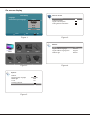
Options > Reset.(Refer to Figure 5).
2. Press OK/RIGHT to enter.
EN
3. Press LEFT/RIGHT to select OK, and press OK
to start the resetting.
Source labels
You can configure your TV according to the equipment you connect to it.
1. Press Menu on the remote control and select
Setup > Source labels.
2. Press OK/RIGHT to enter Source labels.
3. Press UP/DOWN to select a connector your
equipment is connected to.
4. Press LEFT/RIGHT to select the type of
apparatus attached to this connector.
5. Press Menu to return to the Setup menu.
After configuring, the selected source label will be
displayed after the name of the related connector in
the Source menu when pressing Source button on
the remote control.
SPDIF type
Connect to an audio device through the SPDIF out
output. Press Menu on the remote control and select
Options > SPDIF type. Select a proper sound type
from the list for digital programs.
- If the current program outputs sound in
format,
then either PCM or
can be selected.
- If the current program does not output sound in
format, only PCM can be selected. Otherwise
no sound will be output.
- Select Off to turn off the audio output from the
audio device connected to the SPDIF out output.
Note: The options you may choose depend on the
program you are watching.
Select decoding page language in Teletext
Enable or disable T-Link
1. Press Menu on the remote control, then select
Options > T-Link.
2. Press LEFT/RIGHT to select On or Off.
Press Menu on the remote control and select
Options > Decoding page language. Select a
proper type of language in which Teletext will display.
Use one-touch play
One-touch play enables you to press the play button
on, for example, your DVD remote control. This
starts playback on your DVD device and automatically switches your TV to the correct source,
displaying DVD content.
PAP function
Use System standby
System standby enables you to press and hold the
button on, for example, your TV remote control.
This switches your TV and all connected HDMI
devices on or to standby mode.
1. Press Menu to display the main menu.
2. Select PAP and press OK to enter.
3. Select PAP option, and press LEFT/RIGHT to turn
on/off PAP function.
4. Select TV position, press LEFT/RIGHT to
reposition the TV window.
5. Press LEFT/RIGHT to toggle the focus window.
6. When focus in TV window, digit keys and PR+/work in TV. When focus in the other window,
PR+/- can change available extension sources.
Factory reset
This feature enables you to reset the picture and
sound settings to their predefined factory values,
but maintains the channel installation settings.
6
To display the pictures from different source inputs
side by side. Note that one window is for both analog
and digital TV inputs, the other is for VGA, HDMI and
CMP inputs. (Note:AV input is invalid for both windows.)