1
Warning
•• Risk of electric shock. Never remove the
casing of the product.
To keep the warranty valid, never try to repair the
product yourself.
If you have problems using this product, check the
following points before you request service. If you
still have a problem, register your product and get
support at www.philips.com/welcome.
Main unit
The buttons on the home theater do not work.
• Disconnect the home theater from the
power supply for a few minutes, then
reconnect.
Picture
No picture.
• Make sure that the TV is switched to the
correct source for the home theater.
No picture on a TV connected through HDMI.
• Make sure that you use a High Speed HDMI
cable to connect the home theater and TV.
Some Standard HDMI cables do not display
properly for some images, 3D video, or
Deep Color.
• Make sure that the HDMI cable is not faulty.
If it is faulty, replace it with a new cable.
• Press (Home) and then 731 on the
remote control to restore the default
picture resolution.
• Change the HDMI video setting, or wait for
10 seconds for auto recovery (see ‘Picture
resolution’ on page 31).
Disc does not play high-definition video.
• Make sure that the disc contains highdefinition video.
• Make sure that the TV supports highdefinition video.
• Use an HDMI cable to connect to the TV.
Sound
No sound from home theater speakers.
• Connect the audio cable from your home
theater to your TV or other devices. You
do not need a separate audio connection
when:
• the home theater and TV are
connected through an HDMI ARC
connection, or
• a device is connected to the HDMI IN
connector on your home theater.
• Set up the audio for the connected device
(see ‘Set up audio for connected devices’ on
page 16).
• Reset your home theater to its factory
settings (see ‘Apply factory settings’ on page
33), and then switch it off and switch on
again.
• On your home theater, press SOURCE
repeatedly to select the correct audio input.
Distorted sound or echo.
• If you play audio from the TV through the
home theater, make sure that the TV is
muted.
Audio and video are not synchronized.
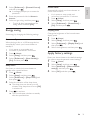
• 1) Press
. 2) Press the
/
(Previous/Next) to select AUD SYNC,
. 3) Press the Navigation
and then press
buttons (up/down) to synchronize the audio
with the video.
Play
Cannot play a disc.
• Clean the disc.
• Make sure that the home theater supports
the type of disc (see ‘Media formats’ on
page 35).
• Make sure that the home theater supports
the region code of the disc (see ‘Region
codes’ on page 35).
• If the disc is a DVD±RW or DVD±R disc,
make sure that it is finalized.
Cannot play a DivX file.
• Make sure that the DivX file is encoded
according to the ‘Home Theater Profile’
with the DivX encoder.
• Make sure that the DivX file is complete.
DivX or RMVB/RM subtitles do not display
correctly.
• Make sure that the subtitle file name is the
same as the movie file name (see ‘Subtitles’
on page 19).
EN
39
English
11Troubleshooting