1
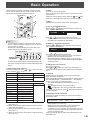
Remote Control Mode
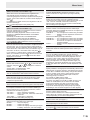
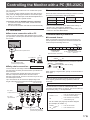
With the remote control unit it’s possible to perform operation
of...
• The primary monitor
• Monitors with a specified ID No.
• All primary/secondary monitors
It’s necessary to specify which type of operation will be
performed in advance.
MODE
1. If using the remote control unit, press
seconds.
If using the monitor buttons, hold both
the same time on the primary.
for approx 5
and
at
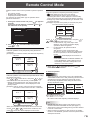
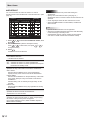
ALL MONITORS
Performs operation of all primary/secondary monitors.
* ALL will be displayed on the menu of the primary.
* When it receives signals from the remote control unit,
“Operating all monitors.” will be displayed on the secondary
screen. (Excluding power and input mode selection operation)
* Settings may not be reflected depending on the state of the
connected monitors.
[Example] If the power for the primary is turned ON, the power
for all the monitors will be turned ON.
REMOTE CONTROL MODE
▲
THIS MONITOR ONLY
Operate this monitor.
OK
or
2. Press
settings.
CANCEL
, select the mode, then perform
Secondary
ID No.: 2
Primary
ID No.: 1
VOLUME 10
Secondary
ID No.: 3
Secondary
ID No.: 4
to lower the volume
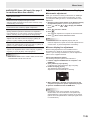
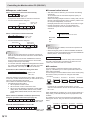
SPECIFIED MONITOR
Performs operation of a monitor with a specified ID No. using
the remote control unit.
or
to select ID No., then press
or
to
Press
select the ID No. of the monitor that you will operate.
* When it receives signals from the remote control unit,
“Operating specified monitor.” will be displayed on the
primary screen.
[Example.] If ID No. is set to 3 and the volume is lowered,
the volume of the monitor for ID No.: 3 will lower.
Secondary
ID No.: 2
Secondary
ID No.: 4
Power ON
Primary
ID No.: 1
Secondary
ID No.: 4
POWER
to turn the power ON
Press
or
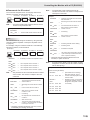
to select EXPAND ITEM, and press
or
to select to perform this action or not.
OFF�����������For all monitors, only power, input mode
selection, and product information display
operations will be recognized.
ON�������������For all monitors, all operations will be
recognized.
After returning to the normal screen with
procedure 3, when 5 minutes have passed from
the end of operation, it will automatically return
to OFF.
ALL [EXPAND ITEM]
will be displayed on the menu of
the primary.
* Even when REMOTE CONTROL MODE is set
to ALL MONITORS, certain settings such as
LAN settings and ID No. settings will not be
reflected on the other monitors.
3. Press
or
to select OK, then press
return to the normal screen.
MENU
and
4. Perform operation.
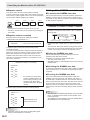
Caution
• When the remote control mode is set to ALL MONITORS
and EXPAND ITEM is set to ON, performing remote control
operations that change adjustment values will result in
the secondary adjustment values being the same as the
primary adjustment values.
Secondary
ID No.: 2
VOLUME 12
Primary
ID No.: 1
VOLUME 11
Secondary
ID No.: 2
VOLUME 10
Primary
ID No.: 1
VOLUME 10
Secondary
ID No.: 3
VOLUME 9
Secondary
ID No.: 4
VOLUME 10
Secondary
ID No.: 3
VOLUME 10
Secondary
ID No.: 4
VOLUME 10
Press
Secondary
ID No.: 3
Secondary
ID No.: 3
Power ON
Press
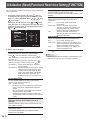
THIS MONITOR ONLY
Performs operation of only the primary using the remote
control unit.
[Example] If the volume is lowered, the volume of the primary
will lower.
Press
Primary
ID No.: 1
Power ON
▲
MODE
Secondary
ID No.: 2
Power ON
to lower the volume
Be careful of this when adjusting individual displays.
VOLUME 10
Press
to lower the volume
When you would like to confirm the ID No. that is set to the
monitor, press
or
to select ID No. DISPLAY, then
press
. The ID No. will be displayed on the screen.
TIPS
• You can copy the setting values of the primary to other
monitors with COPY SETTING VALUE. (See page 11.)
• The buttons on the monitor itself (primary) are also effective
in remote control mode.
• When monitors connected in a daisy chain are in standby
mode for LOW POWER, operation cannot be performed for
subsequent monitors.
7
E