1
AXIS 211W - Live View Config
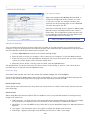
When using any browser other than Internet Explorer for Windows, select the appropriate method from the
drop-down list for viewing images. The available options are similar to Internet Explorer except for Server Push.
With this method, the camera maintains and controls an open HTTP connection to the browser and sends data
as and when required for as long as required. Please see the online help
for more information.
Viewer settings
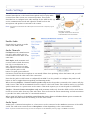
Show viewer toolbar - de-select this option to remove the viewer toolbar from the Live View page.
Enable MPEG-4 decoder installation - enables/disables the installation of the MPEG-4 decoder included with
AMC.
Enable recording button - enables recording directly from the Live View page. The recording is saved in the
folder specified in the Recording tab in the AMC Control Applet. Note that this button is only available when
viewing with AMC.
Action Buttons
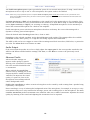
These buttons can be used to manually trigger and stop an event from the Live View page. For more
information, see Event servers, on page 28.
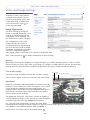
The snapshot button allows users to take a snapshot of the video stream and save it on a computer.
User Defined Links
Enter a descriptive name and enter the URL in the provided field. The link will appear on the Live View page.
User defined CGI links can be used to issue HTTP API requests, e.g. PTZ commands.
Example:
1. Check Show custom link 1.
2. Enter a descriptive name, e.g. CAM START.
3. Select the Use as cgi link radio button and enter the cgi link in the field:
http://192.168.0.125/axis-cgi/com/ptz.cgi?continuouspantiltmove=-30,-30
4. Check Show custom link 2.
5. Enter a descriptive name, e.g. CAM STOP.
6. Select the Use as cgi link radio button and enter the cgi link in the field:
http://192.168.0.125/axis-cgi/com/ptz.cgi?continuouspantiltmove=0,0
7. These links will appear in the web interface and can be used to control the PTZ camera.
For more information on the Axis HTTP API, see the Support / Developer pages on the Axis Website at
http://www.axis.com
Output Buttons
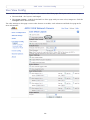
These buttons can be used to manually start and stop an event from the Live View page, for example, to switch
a light on/off:
• The Pulse button activates the port for a defined period
• Active/Inactive displays 2 buttons, one for each action (on/off)
21