1
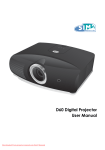
SP830/SP831 Digital Projector
User Manual
Welcome
Table of contents
Important safety instructions ................................... 5
Introduction .............................................................. 9
Projector features .................................................................9
Shipping contents ...............................................................10
Standard accessories ..................................................................................... 10
Optional accessories ..................................................................................... 10
Projector exterior view........................................................11
Controls and functions .......................................................12
Projector ....................................................................................................... 12
Remote control.............................................................................................. 13
Positioning your projector...................................... 17
Choosing a location ...........................................................17
Obtaining a preferred projected picture size .....................18
How to determine the position of the projector for a given screen size ... 18
How to determine the recommended screen size for a given distance ..... 19
Projection dimensions .................................................................................. 20
Connection .............................................................. 23
Connecting a computer .....................................................23
Connecting a monitor ........................................................24
Connecting Video source devices ......................................25
Connecting Audio device ...................................................29
Operation................................................................. 30
Starting up the projector ....................................................30
Using the menus..................................................................31
Securing the projector.........................................................32
Using a security cable lock ........................................................................... 32
Utilizing the password function .................................................................. 32
Switching input source .......................................................35
Adjusting the projected picture..........................................36
Adjusting the projection angle .................................................................... 36
Auto-adjusting the picture ........................................................................... 36
Fine-tuning the picture size and clarity ...................................................... 36
Correcting picture distortion ....................................................................... 37
Selecting the aspect ratio.....................................................39
2
Table of contents
Magnifying and Searching for details on the
projected picture................................................................ 41
Selecting a picture mode .................................................... 42
Fine-tuning the picture quality.......................................... 45
Advanced picture quality controls..................................... 46
Operating in a high altitude environment ........................ 50
Hiding the picture ............................................................. 50
Displaying more than one picture source
simultaneously................................................................... 51
Splitting the screen ....................................................................................... 51
PIP (Picture In Picture) operation .............................................................. 52
Creating your own startup screen ..................................... 54
Personalizing the projector menu display ........................ 54
Adjusting the sound ........................................................... 55
Remote paging operations ................................................ 56
Freezing the picture ........................................................... 56
Locking control keys ......................................................... 56
Shutting down the projector.............................................. 57
Menu operation.................................................................. 58
Menu system ................................................................................................ 58
Picture -- Basic menu ................................................................................... 61
Picture -- Advanced menu ........................................................................... 62
Display menu ................................................................................................ 63
System Setup menu ..................................................................................... 64
Advanced Setup menu.................................................................................. 65
Information menu ........................................................................................ 66
Maintenance ............................................................. 67
Care of the projector ......................................................... 67
Cleaning the lens .......................................................................................... 67
Cleaning the projector case ......................................................................... 67
Storing the projector .................................................................................... 67
Transporting the projector .......................................................................... 67
Lamp information .............................................................. 68
Getting to know the lamp hour .................................................................. 68
Extending lamp life ...................................................................................... 68
Timing of replacing the lamp....................................................................... 69
Replacing the lamp ....................................................................................... 70
Indicators ...................................................................................................... 73
Troubleshooting....................................................... 74
Table of contents
3
Specifications ........................................................... 76
Projector specifications ......................................................76
Timing chart........................................................................77
Dimensions .........................................................................78
Warranty and Copyright information ................... 79
Regulation statements ............................................. 80
4
Table of contents
1. Important safety instructions
Your BenQ projector is designed and tested to meet the latest standards for safety of
information technology equipment. However, to ensure safe use of this product, it is
important that you follow the instructions mentioned in this manual and marked on the
product.
Safety Instructions
1.
Please read this manual before you
operate your projector. Save it for
future reference.
2.
Do not look straight at the projector
lens during operation. The intense
light beam may damage your eyes.
3.
Refer servicing to qualified service
personnel.
4.
Always open the lens shutter or
remove the lens cap when the
projector lamp is on.
5.
In some countries, the line voltage is
NOT stable. This projector is designed
to operate safely within a mains
voltage between 100 to 240 volts AC,
but could fail if power cuts or surges
of ±10 volts occur. In areas where the
mains voltage may fluctuate or cut
out, it is recommended that you
connect your projector through a
power stabilizer, surge protector or
uninterruptible power supply (UPS).
6.
Do not block the projection lens with
any objects when the projector is
under operation as this could cause
the objects to become heated and
deformed or even cause a fire. To
temporarily turn off the lamp, press
BLANK on the projector or remote
control.
Important safety instructions
5
Safety Instructions (Continued)
7.
6
10.
The lamp becomes extremely hot
during operation. Allow the projector
to cool for approximately 45 minutes
prior to removing the lamp assembly
for replacement.
8.
Do not operate lamps beyond the
rated lamp life. Excessive operation of
lamps beyond the rated life could
cause them to break on rare occasions.
9.
Never replace the lamp assembly or
any electronic components unless the
projector is unplugged.
Important safety instructions
Do not place this product on an
unstable cart, stand, or table. The
product may fall, sustaining serious
damage.
11.
Do not attempt to disassemble this
projector. There are dangerous high
voltages inside which may cause death
if you should come into contact with
live parts. The only user serviceable
part is the lamp which has its own
removable cover.
Under no circumstances should you
ever undo or remove any other covers.
Refer servicing only to suitably
qualified professional service
personnel.
12.
When the projector is under
operation, you may sense some heated
air and odor from its ventilation grill.
It is a normal phenomenon and not a
product defect.
Safety Instructions (Continued)
13.
Do not place this projector in any of
the following environments.
14.
Do not block the ventilation holes.
- Do not place this projector on a blanket,
bedding or any other soft surface.
- Space that is poorly ventilated or
confined. Allow at least 50 cm clearance
from walls and free flow of air around the
projector.
- Do not cover this projector with a cloth
or any other item.
- Do not place inflammables near the
projector.
- Locations where temperatures may
become excessively high, such as the
inside of a car with all windows rolled up.
- Locations where excessive humidity, dust,
or cigarette smoke may contaminate
optical components, shortening the
projector's life span and darkening the
picture.
15.
If the ventilation holes are seriously
obstructed, overheating inside the
projector may result in a fire.
Always place the projector on a level,
horizontal surface during operation.
- Do not use if tilted at an angle of more
than 40 degrees left to right, nor at angle
of more than 35 degrees front to back.
Using the projector when it is not fully
horizontal may cause a malfunction of,
or damage to, the lamp.
- Locations near fire alarms
- Locations with an ambient temperature
above 35°C / 95°F
- Locations where the altitudes are higher
than 1500 m / 4920 feet.
1500
meter
/ 4920
feet
Important safety instructions
7
Safety Instructions (Continued)
16.
17.
19.
Do not stand the projector on end
vertically. Doing so may cause the
projector to fall over, causing injury or
resulting in damage to the projector.
Do not step on the projector or place
any objects upon it. Besides probable
physical damage to the projector,
doing so may result in accidents and
possible injury.
This product is capable of displaying
inverted pictures for ceiling mount
installation.
Use only BenQ's Ceiling Mount Kit for
mounting the projector and ensure it
is securely installed.
Ceiling mounting the projector
We want you to have a pleasant experience
using your BenQ projector, so we need to
bring this safety matter to your attention to
prevent damage to person and property.
If you intend to mount your projector on the
ceiling, we strongly recommend that you use
a proper fitting BenQ projector ceiling
mount kit and that you ensure it is securely
and safely installed.
18.
8
Do not place liquids near or on the
projector. Liquids spilled into the
projector may cause it to fail. If the
projector does become wet, disconnect
it from the power supply's wall socket
and call BenQ to have the projector
serviced.
Important safety instructions
If you use a non-BenQ brand projector
ceiling mount kit, there is a safety risk that
the projector may fall from the ceiling due to
an improper attachment through the use of
the wrong gauge or length screws.
You can purchase a BenQ projector ceiling
mount kit from the place you purchased
your BenQ projector. BenQ recommends
that you also purchase a separate Kensington
lock compatible security cable and attach it
securely to both the Kensington lock slot on
the projector and the base of the ceiling
mount bracket. This will perform the
secondary role of restraining the projector
should its attachment to the mounting
bracket become loose.
2. Introduction
Projector features
The projector integrates high-performance optical engine projection and a user-friendly
design to deliver high reliability and ease of use.
The projector offers the following features.
• Split Screen and PIP allowing two input sources to be displayed at the same time
• Selectable password protected function
• Off and Go function allowing presenters to unplug the projector right after the projector
is turned off
• Up to 9 sets of picture modes providing multiple choices for different projection
purposes
• Optional Signal Shuttle module allowing two PC sources to display at the same time
• Optional attachable lens providing more projection size options
• High quality manual zoom lens
• One-key auto-adjustment to display the best picture quality
• Two-way digital keystone correction to correct distorted pictures
• Pincushion and barrel corrections to correct distorted pictures
• A wide variety of inputs for connection to PC and AV equipment
• Panel key lock preventing accidental changes made to the projector settings
• Adjustable color balance control for data/video display
• Ultra-high brightness projection lamp
• Ability to display 1.07 billion colors
• Multi-language On-Screen Display (OSD) menus
• Switchable normal and Economic modes to reduce the power consumption
• Built-in speakers provide stereo sound when an audio input is connected
• Powerful AV function to provide high quality video picture
• Component HDTV compatibility
•
The apparent brightness of the projected picture will vary depending on the ambient
lighting conditions, selected input source contrast/brightness settings, and is directly
proportional to projection distance.
•
The lamp brightness will decline over time and may vary within the lamp manufacturers
specifications. This is normal and expected behavior.
Introduction
9
Shipping contents
The projector is shipped with the cables required for connection to a PC or video
equipment. Carefully unpack and verify that you have all of the items shown below. If any of
these items are missing, please contact your place of purchase or check the most updated
accessory list on line at www.BenQ.com.
Standard accessories
The supplied accessories will be suitable for your region, and may differ from those
illustrated.
Projector
Remote control and two
batteries (AAA type)
Multi-language user
manual CD
Safety manual
Quick start guide
User manual
(AU)
VGA cable
(EU)
(UK)
(US)
Power cord
Optional accessories
1.
2.
3.
4.
5.
6.
10
Macintosh adapter
Spare lamp kit
Ceiling mount kit
Attachable lens
Presentation Plus
RS232 connector
Introduction
7.
8.
9.
10.
11.
Signal shuttle
S-Video cable
DVI cable
USB cable
PC audio cable
D-Sub-DVI cable
or
DVI to VGA adapter
Projector exterior view
Front/upper side
4
5
6
1
7
2
8
1
3
Rear/lower side
14 15 16 17 18 19 20
1.
2.
3.
4.
5.
6.
7.
8.
9.
10.
11.
12.
13.
14.
15.
16.
17.
18.
21 22
23
24
19.
9
25
10
26
11
12
13
20.
21.
11
12
22.
23.
24.
25.
26.
Quick-release foot
Projection lens
Lens cap
External control panel
(See pages 12-13 for details.)
Focus ring and Zoom ring
Vent (cool air intake)
Front IR remote sensor
Quick-release button
AC power cord inlet
Main power switch
Speaker grill
Ceiling mounting holes
Lamp cover
RS232 control port
Rear IR remote sensor
Wired remote control port
Video/Audio (L/R) input
sockets
Component video (YPbPr/
YCbCr) signal/Audio (L/R)
input sockets
S-Video/Audio (L/R) input
sockets
USB socket
RJ-45/Audio input sockets
(only for using with the
optional Signal Shuttle
module)
DVI-I signal/PC Audio input
sockets
D-Sub (RGB) signal/PC Audio
input sockets
D-Sub (RGB) signal/Audio (L/
R) output sockets
Vent (heated air exhaust)
Kensington anti-theft lock slot
Introduction
11
Controls and functions
Projector
1
2
3
9
4
5
6
10
7
8
1.
2.
3.
4.
5.
12
11
12
13
14
Focus ring
Adjusts the focus of the projected
picture. See "Fine-tuning the picture
size and clarity" on page 36 for details.
Zoom ring
Adjusts the size of the picture. See
"Fine-tuning the picture size and
clarity" on page 36 for details.
Power indicator light
Lights up or flashes when the projector
is under operation. See "Indicators" on
page 73 for details.
MENU
Turns on the On-Screen Display (OSD)
menu. When the OSD menu is
activated, exits and saves the menu
settings. See "Using the menus" on page
31 for details.
I
I
Power
Toggles the projector between standby
mode and on.
See "Starting up the projector" on page
30 and "Shutting down the projector"
on page 57 for details.
Introduction
6.
7.
8.
9.
MODE
Depending upon which input source is
selected, selects an available picture
setup mode. See "Picture Mode" on
page 61 for details.
SOURCE
Displays the source selection bar and
makes selection. See "Switching input
source" on page 35 for details.
AUTO
Automatically determines the best
picture timings for the displayed
picture.
See "Auto-adjusting the picture" on
page 36 for details.
Temperature warning light
Lights up if the projector's temperature
becomes too high. See "Indicators" on
page 73 for details.
Remote control
10.
11.
12.
13.
14.
Lamp indicator light
Indicates the status of the lamp. Lights
up when the lamp has developed a
problem. See "Indicators" on page 73
for details.
EXIT
Goes back to previous OSD menus,
exits and saves menu settings. See
"Using the menus" on page 31 for
details.
Keystone/Arrow keys ( / ,
/ )
Split Screen/Arrow keys ( / , /
)
Manually corrects distorted pictures
resulting from an angled projection.
Turns the split screen function on or
off.
When the On-Screen Display (OSD)
menu is activated, the keys are used as
directional arrows to select the desired
menu items and to make adjustments.
See "Correcting picture distortion" on
page 37, "Displaying more than one
picture source simultaneously" on page
51, and "Using the menus" on page 31
for details.
BLANK
Used to hide the screen picture. See
"Hiding the picture" on page 50 for
details.
ENTER
Enacts the selected On-Screen Display
(OSD) menu item. See "Using the
menus" on page 31 for details.
14
1
15
2
16
3
17
4
5
18
4
4
6
19
4
7
20
21
8
22
9
10
11
23
12
13
1.
2.
I
I
Power
Toggles the projector between standby
mode and on.
See "Starting up the projector" on page
30 and "Shutting down the projector"
on page 57 for details.
ASPECT
Selects the display aspect ratio. See
"Selecting the aspect ratio" on page 39
for details.
Introduction
13
3.
4.
5.
6.
7.
8.
9.
14
SOURCE
Displays the source selection bar. See
"Switching input source" on page 35 for
details.
Keystone/Arrow keys ( / , / ,
/ , / )
Manually correct distorted pictures
resulting from an angled projection.
When the On-Screen Display (OSD)
menu is activated, the keys are used as
directional arrows to select the desired
menu items and to make adjustments.
See "Correcting picture distortion" on
page 37 and "Using the menus" on page
31 for details.
MENU
Turns on the On-Screen Display (OSD)
menu. When the OSD menu is
activated, exits and saves the menu
settings. See "Using the menus" on page
31 for details.
AUTO
Automatically determines the best
picture timings for the displayed
picture. See "Auto-adjusting the
picture" on page 36 for details.
ENTER
Enacts the selected On-Screen Display
(OSD) menu item. See "Using the
menus" on page 31 for details.
SPLIT SCREEN (ON/OFF)
Turns the split screen function on or
off. See "Splitting the screen" on page
51 for details.
CAPTURE
Captures the projected picture and save
it as your startup screen. See "Creating
your own startup screen" on page 54
for details.
Introduction
10.
11.
12.
13.
14.
15.
16.
17.
18.
19.
WIRELESS
(This function is not available with the
SP830/S831.)
MUTE
Toggles projector audio between on
and off.
PIP
Turns the Picture In Picture (PIP)
window on or off. See "PIP (Picture In
Picture) operation" on page 52 for
details.
AUDIO
Displays the Audio menu. See
"Adjusting the sound" on page 55 for
details.
Indicator light
Flashes or lights red when any key on
the remote control is pressed.
MODE
Depending upon which input source is
selected, selects an available picture
setup mode. See "Selecting a picture
mode" on page 42 for details.
FREEZE
The picture is frozen when FREEZE is
pressed. See "Freezing the picture" on
page 56 for details.
KEY LOCK
Locks the keys on the projector and
remote control except LASER and
EXIT. See "Locking control keys" on
page 56 for details.
EXIT
Goes back to previous OSD menus,
exits and saves menu settings. See
"Using the menus" on page 31 for
details.
BLANK
Used to hide the screen picture. See
"Hiding the picture" on page 50 for
details.
20.
21.
22.
23.
LASER
Emits visible laser pointer light for
presentation purposes. See "Operating the
LASER pointer" on the right for details.
PAGE (UP) and PAGE (DOWN)
Operate your display software program
(on a connected PC) which responds to
page up/down commands (like Microsoft
PowerPoint). See "Remote paging
operations" on page 56 for details.
DIGITAL ZOOM keys (+, -)
Magnifies or reduces the projected picture
size. See "Magnifying and Searching for
details on the projected picture" on page
41 for details.
Source selection keys (DVI, D-SUB,
VIDEO, COMP., S-VIDEO)
Select the corresponding input source for
display. See "Switching input source" on
page 35 for details.
DVI selects DVI-D signal only.
Operating the LASER pointer
The LASER Pointer is a
presentation aid for
professionals. It emits red
colored light when you press it
and the indicator lights up red.
The laser beam is visible. It is
necessary to press and hold
LASER for continuous output.
Do not look into the laser light window or
shine the laser light beam on yourself or
others. See the warning messages on the
back of the remote control and the
enclosed ''User Information'' prior to using
it.
The laser pointer is not a toy. Parents should be
mindful of the dangers of laser energy and keep
this remote control out of the reach of children.
Making the remote control a wired
control
The remote control is equipped with a jack on
the top allowing connection to the projector
with a 2.5mm mini jack cable available in the
market. This helps you easily locate the remote
control when needed as it is connected to the
projector and within the distance no greater
than the cable’s length.
Introduction
15
Remote control effective range
Installing remote control batteries
Infra-Red (IR) remote control sensors are
1.
located on the front and the back of the
projector. The remote control must be held at
an angle within 30 degrees perpendicular to
the projector's IR remote control sensors to
function correctly. The distance between the
2.
remote control and the sensors should not
exceed 6 meters (~ 20 feet).
Make sure that there are no obstacles between
the remote control and the IR sensors on the
projector that might obstruct the infra-red
3.
beam.
• Operating the projector from the front
To open the battery cover, turn the remote
control over to view its back, push on the
finger grip on the cover and slide it up in the
direction of the arrow as illustrated. The
cover will slide off.
Remove any existing batteries (if necessary)
and install two AAA batteries observing the
battery polarities as indicated in the base of
the battery compartment. Positive (+) goes to
positive and negative (-) goes to negative.
Refit the cover by aligning it with the base
and sliding it back down into position. Stop
when it clicks into place.
15°
rox.
App
•
Operating the projector from the rear
Avoid leaving the remote control and batteries
in an excessive heat or humid environment like
the kitchen, bathroom, sauna, sunroom or in a
closed car.
Replace only with the same or equivalent type
recommended by the battery manufacturer.
15°
rox.
App
Dispose of the used batteries according to the
manufacturer's instructions and local
environment regulations for your region.
Never throw the batteries into a fire. There may
be danger of an explosion.
If the batteries are dead or if you will not be
using the remote control for an extended
period of time, remove the batteries to avoid
damage to the remote control from possible
battery leakage.
16
Introduction
3. Positioning your projector
Choosing a location
Your room layout or personal preference will dictate which installation location you select.
Take into consideration the size and position of your screen, the location of a suitable power
outlet, as well as the location and distance between the projector and the rest of your
equipment.
The projector is designed to be installed in one of four possible installation locations.
1.
Floor Front
Select this location with the projector placed
near the floor in front of the screen. This is
the most common way to position the
projector for quick setup and portability.
2.
Ceiling Front
Select this location with the projector
suspended upside-down from the ceiling in
front of the screen.
Purchase the BenQ Projector Ceiling
Mounting Kit from your dealer to mount
your projector on the ceiling.
*Set Ceiling Front after you turn the
projector on.
3.
Ceiling Rear
Select this location with the projector
suspended upside-down from the ceiling
behind the screen.
Note that a special rear projection screen
and the BenQ Projector Ceiling Mounting
Kit are required for this installation
location.
*Set Ceiling Rear after you turn the
projector on.
4.
Floor Rear
Select this location with the projector placed
near the floor behind the screen.
Note that a special rear projection screen is
required.
*Set Floor Rear after you turn the projector
on.
*To set the projector position:
1. Press MENU on the projector or remote control and
then press /
until the System Setup menu is
highlighted.
2. Press / to highlight Projector Position and press
/
until the correct position is selected.
System Setup
Language
Splash Screen
My Screen
Projector Position
Blank Timer
Auto Off
Sleep Timer
Background Color
Menu Settings
Input Source
English
BenQ
Floor Front
Disable
Disable
Disable
Blue
Auto Source Search
Analog RGB
Positioning your projector
On
EXIT Back
17
Obtaining a preferred projected picture size
The distance from the projector lens to the screen, the zoom setting, and the video format,
each factors in the projected picture size.
The projector should always be placed horizontally level (like flat on a table), and positioned
directly perpendicular (90° right-angle square) to the horizontal center of the screen. This
prevents picture distortion caused by angled projections (or projecting onto angled
surfaces).
The modern digital projector does not project directly forward (like older style reel-to-reel
film projectors did). Instead, digital projectors are designed to project at a slightly upward
angle above the horizontal plane of the projector. This is so that they can be readily placed
on a table and will project forward and upwards onto a screen positioned so that the bottom
edge of the screen is above the level of the table (and everyone in the room can see the
screen).
If the projector is mounted on a ceiling, it must be mounted upside-down so that it projects
at a slightly downward angle.
You can see from the diagram on page 20, that this type of projection causes the bottom edge
of the projected picture to be vertically offset from the horizontal plane of the projector.
When ceiling mounted, this refers to the top edge of the projected picture.
If the projector is positioned further away from the screen, the projected picture size
increases, and the vertical offset also increases proportionately.
When determining the position of the screen and projector, you will need to account for
both the projected picture size and the vertical offset dimension, which are directly
proportional to the projection distance.
BenQ has provided tables of 16:9-aspect-ratio and 4:3-aspect-ratio screen sizes to assist you
in determining the ideal location for your projector. There are two dimensions to consider,
the perpendicular horizontal distance from the center of the screen (projection distance),
and the vertical offset height of the projector from the horizontal edge of the screen (offset).
How to determine the position of the projector for a given
screen size
1.
2.
3.
4.
18
Determine the aspect ratio of your screen, 16:9 or 4:3? If you have a 16:9 screen, refer
to Table A. If you have a 4:3 screen, refer to Table B1 or Table B2 depending on the
projected picture aspect ratio you’ve got.
Select a screen size you desire.
Refer to the table and find the closest match to your screen size in the left columns
labelled "Screen Dimensions". Using this value, look across this row to the right to find
the corresponding average distance from screen value in the column labelled
"Average". This is the projection distance.
On that same row, look across to the right column and make note of the "Vertical
Offset" value. This will determine the final vertical offset placement of the projector in
relation to the edge of the screen.
Positioning your projector
5.
The recommended position for the projector is aligned perpendicular to the
horizontal center of the screen, at the distance from the screen determined in step 3
above, and offset by the value determined in step 4 above.
For example, if you are using an 120-inch, 4:3-aspect-ratio screen and the projected picture
is 15:9, please refer to Table B2. The average projection distance is 4133.7 mm and with a
vertical offset of 146 mm.
How to determine the recommended screen size for a
given distance
This method can be used for situations where you have purchased this projector and would
like to know what screen size will fit in your room.
The maximum screen size is limited by the physical space available in your room.
1.
Determine the aspect ratio of the screen you need, 16:9 or 4:3? If you need a 16:9
screen, refer to Table A. If you need a 4:3 screen, refer to Table B1 or Table B2
depending on the projected picture aspect ratio you’ve got.
2.
Measure the distance between the projector and where you want to position the
screen. This is the projection distance.
3.
Refer to that table and find the closest match to your measurement in the average
distance from screen column labelled "Average". Check that your measured distance is
between the min and max distances listed on either side of the average distance value.
4.
Using this value, look across that row to the left to find the corresponding "Screen
Dimensions" listed in that row. That is the recommended screen size you can purchase
at that projection distance.
5.
On that same row, look across to the right column and make note of the "Vertical
Offset" value. This will determine the final placement of the screen in relation to the
horizontal plane of the projector.
For example, if you need a 16:9 screen to project a 16:9 picture and your measured
projection distance was 4.8 m (4800 mm), please refer to Table A. The closest match in the
"Average" column is 4508 mm. Looking across this row shows that a 120'' (3.0 m) screen is
required.
Positioning your projector
19
Projection dimensions
Refer to "Dimensions" on page 78 for the center of lens dimensions of this projector before
calculating the appropriate position.
When the screen aspect ratio is 16:9 and the projected picture is 16:9
Floor Installation
Maximum zoom
Minimum zoom
Screen
Center of lens
Offset
Projection distance
Ceiling Installation
Maximum zoom
Minimum zoom
Offset
Projection distance
Center of lens
Screen
Table A: The screen aspect ratio is 16:9 and the projected picture is 16:9
Screen Dimensions
Feet
2.5
4.2
6.7
8.3
10.0
12.5
15.0
16.7
18.3
20.0
20
Diagonal
Inches
mm
30
50
80
100
120
150
180
200
220
240
Distance from Screen in mm
Height Width Min length Average Max length
(min. zoom)
mm
mm (max. zoom)
762
1270
2032
2540
3048
3810
4572
5080
5588
6096
Positioning your projector
457
762
1219
1524
1829
2286
2743
3048
3353
3658
610
1016
1626
2032
2438
3048
3658
4064
4470
4877
1043
1739
2783
3478
4174
5217
6261
6957
7652
8348
1127
1878
3005
3757
4508
5635
6762
7513
8264
9016
1210
2017
3228
4035
4842
6052
7263
8070
8877
9683
Vertical
Offset
mm
46
76
122
152
183
229
274
305
335
366
When the screen aspect ratio is 4:3 and the projected picture is 16:9 or 15:9
Floor Installation
Maximum zoom
Minimum zoom
Screen
D
Center of lens
C A
D
Offset
B
Ceiling Installation
Maximum zoom
Minimum zoom
Offset
Projection distance
Projection distance
D
C A
Center of lens
Screen
D
B
Table B1: The screen aspect ratio is 4:3 and the projected picture is 16:9
Screen Dimensions
Projected
Black Distance from Screen in
picture size bar (D)
mm
Diagonal
Height Width Height Width
Min Average Max
C
B
A
B
(Max
(Min
zoom)
zoom)
Feet Inches mm
cm
cm
cm
cm
cm
2.5
4.2
6.7
8.3
10.0
12.5
15.0
16.7
18.3
20.0
30
50
80
100
120
150
180
200
220
240
762
1270
2032
2540
3048
3810
4572
5080
5588
6096
46
76
122
152
183
229
274
305
335
366
61
102
163
203
244
305
366
406
447
488
34
57
91
114
137
171
206
229
251
274
61
102
163
203
244
305
366
406
447
488
5.7
9.5
15.2
19.1
22.9
28.6
34.3
38.1
41.9
45.7
956.9
1594.8
2551.7
3189.6
3827.5
4784.4
5741.2
6379.2
7017.1
7655.0
1033.4
1722.4
2755.8
3444.7
4133.7
5167.1
6200.5
6889.5
7578.4
8267.4
Vertical
Offset
1110.0
1850.0
2959.9
3699.9
4439.9
5549.9
6659.8
7399.8
8139.8
8879.8
Positioning your projector
mm
48
80
128
160
192
240
288
320
352
384
21
Table B2: The screen aspect ratio is 4:3 and the projected picture is 15:9
Screen Dimensions
Projected
Black Distance from Screen in
picture size bar (D)
mm
Diagonal
Height Width Height Width
Min Average Max
C
B
A
B
(Max
(Min
zoom)
zoom)
Feet Inches mm
cm
cm
cm
cm
cm
2.5
4.2
6.7
8.3
10.0
12.5
15.0
16.7
18.3
20.0
30
50
80
100
120
150
180
200
220
240
762
1270
2032
2540
3048
3810
4572
5080
5588
6096
46
76
122
152
183
229
274
305
335
366
61
102
163
203
244
305
366
406
447
488
37
61
98
122
146
183
219
244
268
293
61
102
163
203
244
305
366
406
447
488
4.6
7.6
12.2
15.2
18.3
22.9
27.4
30.5
33.5
36.6
956.9
1594.8
2551.7
3189.6
3827.5
4784.4
5741.2
6379.2
7017.1
7655.0
1033.4
1722.4
2755.8
3444.7
4133.7
5167.1
6200.5
6889.5
7578.4
8267.4
1110.0
1850.0
2959.9
3699.9
4439.9
5549.9
6659.8
7399.8
8139.8
8879.8
Vertical
Offset
mm
37
61
98
122
146
183
219
244
268
293
There is 3% tolerance among these numbers in Table A, Table B1, and Table B2 due to optical
component variations.
BenQ recommends that if you intend to permanently install the projector, you should
physically test the projection size and distance using the actual projector in situ before you
permanently install it, so as to make allowance for this projector's optical characteristics. This
will help you determine the exact mounting position so that it best suits your installation
location.
If you place the projector in a different position (to that recommended), you will have to tilt
it down or up, or even turn it slightly left or right to center the picture on the screen. In these
situations, some picture distortion will occur. To correct the distortion, see "Correcting
picture distortion" on page 37 for details.
22
Positioning your projector
4. Connection
When connecting a signal source to the projector, be sure to:
1.
Turn all equipment off before making any connections.
2.
Use the correct signal cables for each source.
3.
Ensure the cables are firmly inserted.
In the connections shown below, some cables may not be included with the projector (see
"Shipping contents" on page 10). They are commercially available from electronics stores.
Connecting a computer
The projector provides VGA and DVI input sockets that allow you to connect it to both
IBM® compatibles and Macintosh® computers. A Mac adapter (an optional accessory) is
needed if you are connecting legacy version Macintosh computers.
To connect the projector to a notebook or desktop computer (either through a VGA
cable or VGA to DVI-A cable):
• With a VGA cable:
• With a VGA to DVI-A cable:
1.
Take a VGA to DVI-A cable and
1.
Take the supplied VGA cable and
connect the VGA end to the D-Sub
connect one end to the D-Sub output
output socket of the computer.
socket of the computer.
2.
Connect the DVI end of the VGA to
2.
Connect the other end of the VGA
DVI-A cable to the DVI-I signal input
cable to the D-SUB IN signal input
socket on the projector.
socket on the projector.
3.
If you wish to use the remote paging function (see "Remote paging operations" on
page 56), take a USB cable and connect the larger end to the USB port of the
computer, and the smaller end to the USB socket on the projector.
The final connection path should be like that shown in the following diagram:
Notebook or desktop computer
i. USB cable
ii. VGA to DVI-A cable
i
ii
iii
iii. VGA cable
Many notebooks do not turn on their external video ports when connected to a projector.
Usually a key combo like FN + F3 or CRT/LCD key turns the external display on/off. Locate a
function key labeled CRT/LCD or a function key with a monitor symbol on the notebook. Press
FN and the labeled function key simultaneously. Refer to your notebook's documentation to
find your notebook's key combination.
Connection
23
Connecting a monitor
If you want to view your presentation close-up on a monitor as well as on the screen, you
can connect the projector to an external monitor by following the instructions below.
To connect the projector to a monitor (either through a VGA cable or VGA to
DVI-A cable):
•
With a VGA cable:
•
With a VGA to DVI-A cable:
Note: Your monitor must be equipped with a
DVI input socket.
1.
2.
3.
Connect the projector to a computer as described in "Connecting a computer" on
page 23.
The D-SUB OUT output only works when an appropriate D-Sub input is made to the
projector. Be sure the projector is connecting with the computer using the D-SUB IN
socket, not the DVI-I socket.
2.
Take a VGA to DVI-A cable and
Take a suitable VGA cable (only one
connect the DVI end of the cable to the
supplied) and connect one end of the
DVI input socket of the video monitor.
cable to the D-Sub input socket of the
3.
Connect the VGA end of the cable to
video monitor.
the D-SUB OUT socket on the
Connect the other end of the cable to
projector.
the D-SUB OUT socket on the
projector.
The final connection path should be like that shown in the following diagram:
Notebook or
desktop
computer
(DVI)
i. VGA cable
ii. VGA to DVI-A cable
iii. VGA cable
24
Connection
i
ii
iii
(VGA)
Connecting Video source devices
This section describes how to connect the projector to Video source devices using video
cables. Video cable connections are recommended for Video presentations.
You can connect your projector to various Video source devices that provide any one of the
following output sockets:
• DVI
• Component Video
• S-Video
• Video (composite)
The method you choose will most likely depend upon the availability of matching terminals
on both the projector and the Video source device as described below:
Best video quality
The best available video connection method is DVI. If your source device is equipped with a
DVI socket, based on the type of DVI connector you have, you can enjoy digital or high-end
analog video quality.
See "Connecting a DVI source device" on page 26 for how to connect the projector to a DVI
source device and other details.
If no DVI source is available, the next best video signal is Component Video (not to be
confused with composite Video). Digital TV tuners and DVD players output Component
Video natively, so if available on your devices, they should be your connection method of
choice in preference to S-Video or (composite) Video.
See "Connecting a Component Video source device" on page 27 for how to connect the
projector to a component video device.
Better video quality
The S-Video method provides a better quality analog video than standard composite Video.
If you have both composite Video and S-Video output terminals on your Video source
device, you should select to use the S-Video option.
See "Connecting an S-Video or a composite Video source device" on page 28 for how to
connect the projector to an S-Video device.
Least video quality
Composite Video is an analog video and will result in a perfectly acceptable, but less than
optimal result from your projector, being the least video quality of the available methods
described here.
See "Connecting an S-Video or a composite Video source device" on page 28 for how to
connect the projector to a composite Video device.
Connection
25
Connecting a DVI source device
The projector provides a DVI-I input socket that allows you to connect it to a DVI source
device like a DVD player, or a VGA output device like a notebook or desktop computer.
There are three types of DVI connectors: DVI-A, DVI-D, and DVI-I. The DVI-I socket is an
integrated connector which supports both formats: DVI-A, and DVI-D.
DVI-A format is used to carry a DVI signal to an analog (VGA) display, or vice-versa.
Although some signal quality is lost from the signal conversion, it still transmits higher
picture quality than a standard VGA connection.
DVI-D format is used to directly carry a digital signal to a digital display without signal
conversion. The pure digital connection provides faster and higher picture quality than an
analog connection, due to the nature of the digital format.
DVI-A and DVI-D formats are non-interchangeable. You cannot connect a DVI-A format
connector to DVI-D equipment and visa-versa. Make sure you know which kind of format
your equipment is fitted with before you purchase any cables. Or you can purchase a DVI-I
cable which will be more useful in any type of DVI connection situation.
Examine your source device to determine if it has an unused DVI or VGA (D-Sub) output
socket available:
• If so, you can continue with this procedure.
• If not, you will need to reassess which method you can use to connect to the device.
To connect the projector to a DVI source device or a computer:
For information on connecting a DVI source device to a computer through a VGA to DVI-A
cable, see "Connecting a computer" on page 23.
1.
2.
Take the DVI (DVI-D or DVI-I) cable and connect one end to the DVI output socket
of the DVI source device.
Connect the other end of the cable to the DVI-I signal input socket on the projector.
The final connection path should be like that shown in the following diagram:
AV device
i. DVI-D or DVI-I
cable
26
Connection
i
Connecting a Component Video source device
Examine your Video source device to determine if it has a set of unused Component Video
output sockets available:
• If so, you can continue with this procedure.
• If not, you will need to reassess which method you can use to connect to the device.
To connect the projector to a Component Video source device through a
Component Video cable:
1.
Take a Component Video cable and connect one end to the Component Video output
sockets of the Video source device. Match the color of the plugs to the color of the
sockets; green to green, blue to blue; and red to red.
2.
Connect the other end of the Component Video cable to the COMPONENT sockets
(Y, Pb/Cb, Pr/Cr) on the projector. Match the color of the plugs to the color of the
sockets; green to green, blue to blue; and red to red.
The final connection path should be like that shown in the following diagram:
AV device
i
i. Component cable
•
Component Video is the only video input that delivers native 16:9 aspect ratio picture.
•
If the selected video picture is not displayed after the projector is turned on and the
correct video source has been selected, check that the Video source device is turned on
and operating correctly. Also check that the signal cables have been connected correctly.
Connection
27
Connecting an S-Video or a composite Video source device
Examine your Video source device to determine if it has an unused S-Video or Video output
socket available:
• If it has both sockets, use the S-Video output socket for connection as the S-Video
termial provides better picture quality than the Video terminal. See "Connecting Video
source devices" on page 25 for details.
• If it has either of the output socket, you can also continue with this procedure.
• If not, you will need to reassess which method you can use to connect to the device.
If you have already made a Component Video connection between the projector and the video
source device, you need not connect to this device again using an S-Video or composite
Video connection as this makes an unnecessary second connection of poorer picture quality.
You need only connect using a composite Video connection if both Component Video and SVideo are not supplied on the video source device (for example, with some analog video
cameras).
To connect the projector to an S-Video/Video source device:
1.
Take an S-Video cable/Video cable and connect one end to the S-Video/Video output
socket of the Video source device.
2.
Connect the other end of the S-Video cable/Video cable to the S-VIDEO/VIDEO
socket on the projector.
The final connection path should be like that shown in the following diagram:
AV device
i. Video cable
ii. S-Video cable
i
•
28
or
ii
If the selected video picture is not displayed after the projector is turned on and the
correct video source has been selected, check that the Video source device is turned on
and operating correctly. Also check that the signal cables have been connected correctly.
Connection
Connecting Audio device
The projector has built-in speakers which are designed to provide basic audio functionality
accompanying data presentations for business purposes only. It is not designed for, nor
intended for audio reproduction use as might be expected in home theater or home cinema
applications.
If you wish, you can make use of the projector speakers in your presentations, and also
connect separate amplified speakers to the AUDIO OUT (L/R) sockets of the projector.
If you have a separate sound system, you will most likely want to connect the audio output
of your Video source device to that sound system, instead of to the projector.
The audio connections illustrated in the following diagram is provided for informational
purposes only. You need not connect audio to the projector if there is an alternate sound
system available, or if audio is not required.
1.
If you wish to make use of the projector speakers in your presentations, take a suitable
audio cable and connect one end of the cable to the audio output socket on the
computer or video device, and the other end to the audio socket(s) corresponding to
the connected signal socket of the projector.
Which audio cable you use depends on what device you have.
If you have a computer or DVI device connected to the D-SUB IN, DVI-I or RJ-45
socket, use a stereo mini-jack cable.
If you have a video device connected to the COMPONENT, VIDEO, or S-VIDEO
socket(s), use a RCA-style cable.
2.
If you wish to connect separate amplified speakers, you can use another suitable audio
cable and connect the end with 2 RCA type connectors to the AUDIO OUT (L/R)
sockets of the projector, and the other end to your external speakers (not supplied).
Match the color of the plugs to the color of the sockets; white to white, and red to red.
The AUDIO OUT (L/R) outputs work when any of audio input is made to the
projector.
Once connected, the audio can be controlled by the remote control (MUTE, AUDIO)
or projector On-Screen Display (OSD) menus. See "Adjusting the sound" on page 55
for details.
Notebook or
AV device
desktop computer
Speakers
or
or
or
or
or
or
Connection
29
5. Operation
Starting up the projector
1.
2.
Plug the power cord into the projector and into a wall
socket. Turn on the wall socket switch (where fitted).
Press the main power switch to the I position.
Check that the Power indicator on the projector lights
orange after power has been applied.
3.
Remove the lens cap.
If it is left on, it could become deformed due to the
heat produced by the projection lamp.
4.
Press and hold (for 2 seconds) II on the projector or
remote control to start the projector.
The Power indicator light flashes green and stays green
when the projector is on.
The start up procedure takes about 30 seconds after
pressing II . In the later stage of start up, a default
BenQ logo is projected.
(If necessary) Rotate the focus ring to adjust the
picture clearness.
30
If the projector is still hot from
previous activity, it will run
the cooling fans for
approximately 90 seconds
before energizing the lamp.
5.
If you are prompted for a password, press the arrow
keys to enter a six digit password.
See "Utilizing the password
function" on page 32 for
details.
6.
Switch all of the connected equipment on.
The projector will start to search for input sources.
The current input source being scanned displays in the
lower right corner of the screen. If the projector
doesn't detect a valid signal, the searching message will
continue displaying until an input source signal is
found.
You can also press SOURCE on the projector or
remote control to display the signal selection bar and
switch between different signals. See "Switching input
source" on page 35 for details.
If the frequency/resolution of
the input source exceeds the
projector's operating range,
you will see the message 'Out
of Range' displayed on a
blank screen. Please change
to an input source which is
compatible with the
projector's resolution or set
the input source to a lower
setting. See "Timing chart" on
page 77 for details.
Operation
Using the menus
The projector is equipped with multilingual On-Screen Display (OSD) menus for making
various adjustments and settings.
Below is the overview of the OSD menu.
Main menu icon
Main menu
Picture -- Basic
Picture Mode
Highlight
Presentation
Load Settings From
Sub-menu
Brightness
+ 50
Contrast
+ 50
Color
+ 50
Status
0
Tint
Sharpness
+ 50
Reset Picture Settings
Rename User Mode
Current input source
Analog RGB
EXIT
Back
Press EXIT to
the previous
page or to
exit.
To use the OSD menus, please set the OSD menu to your familiar language first.
1.
Press MENU on the projector or remote
control to turn the OSD menu on.
3.
Picture -- Basic
Picture Mode
Load Settings From
Brightness
Contrast
Color
Tint
Sharpness
Reset Picture Settings
Rename User Mode
Analog RGB
2.
Use /
menu.
Presentation
Language
Splash Screen
My Screen
Projector Position
Blank Timer
Auto Off
Sleep Timer
Background Color
Menu Settings
Input Source
+ 50
EXIT Back
Auto Source Search
Splash Screen
My Screen
Projector Position
Blank Timer
Auto Off
Sleep Timer
Background Color
Menu Settings
Input Source
Auto Source Search
Analog RGB
4.
System Setup
Analog RGB
System Setup
+ 50
+ 50
+ 50
0
to highlight the System Setup
Language
Press
to highlight Language and
press / to select a preferred
language.
English
BenQ
Floor Front
Disable
Disable
Disable
Blue
English
BenQ
Floor Front
Disable
Disable
Disable
Blue
On
EXIT Back
Press MENU once or EXIT twice*
on the projector or remote control
to leave and save the settings.
*The first press leads you back to
the main menu and the second
press closes the OSD menu.
On
EXIT Back
Operation
31
Securing the projector
Using a security cable lock
The projector has to be installed in a safe place to prevent stealing. If not, purchase a lock,
like Kensington lock, to secure the projector. You can locate a Kensington lock slot on the
rear side of the projector. See item 26 on page 11 for details.
A Kensington security cable lock is usually the combination of key(s) and lock. Refer to the
lock’s documentation about how to use it.
Utilizing the password function
For security purposes and to help prevent unauthorized use, the projector includes an
option for setting up password security. The password can be set through the On-Screen
Display (OSD) menu. Once the password is set and this function is selected, the projector is
password-protected. Users who do not know the correct password can not use the projector.
You will be inconvenienced if you activate the password functionality and subsequently forget
the password. Print out this manual (if necessary) and write the password you used in this
manual, and keep the manual in a safe place for later recall.
Setting a password
Once a password has been set and activated, the projector cannot be used unless the correct
password is entered every time the projector is started.
1.
2.
3.
4.
Press MENU on the projector or remote control
and then press / until the Advanced Setup
menu is highlighted.
Press to highlight Password and press ENTER.
The Password page displays.
Highlight Password and press / to select On.
The Input Password page displays.
As the picture indicates, the four arrow keys ( ,
, , ) respectively represent 4 digits (1, 2,
3, 4). According to the password you desire to set,
press the arrow keys on the remote control or
projector to enter six digits for the password.
Once the password is set, the OSD menu returns
to the Password page.
IMPORTANT: The digits being input will display as
asterisks on-screen. Write your selected password
down here in this manual in advance or right after
the password is entered so that it is available to
you should you ever forget it.
Password: __ __ __ __ __ __
Keep this manual in a safe place.
5.
32
To leave the OSD menu, press MENU.
Operation
Advanced Setup
Lamp
Audio
Pattern
High Altitude Mode
Password
Key Lock
Reset All Settings
Off
ENTER
Analog RGB
EXIT Back
Password
Password
Off
Change Password
EXIT Back
Input Password
EXIT
Clear
If you forget the password
If the password function is activated, you will be asked
to enter the six-digit password every time you turn on
the projector. If you enter the wrong password, the
password error message as pictured to the right displays
lasting for three seconds, and the Input Password page
follows. You can retry by entering another six-digit
password, or if you did not record the password in this
manual, and you absolutely do not remember it, you
can use the password recall procedure. See "Entering
the password recall procedure" on page 33 for details.
If you enter an incorrect password 5 times in
succession, the projector will automatically shut down
in a short time.
Password Error
Please try again.
Entering the password recall procedure
1.
2.
3.
Press and hold AUTO on the projector or
remote control for 3 seconds. The projector will
display a coded number on the screen.
Write down the number and turn off your
projector.
Seek help from the local BenQ service center to
decode the number. You may be required to
provide proof of purchase documentation to
verify that you are an authorized user of the
projector.
Recall Password
Please write down the recall code, and contact
your local BenQ Customer Center.
Recall code:
0212
Back
EXIT
Changing the password
1.
2.
3.
4.
Press MENU on the projector or remote control and then press / until the
Advanced Setup menu is highlighted.
Press / to highlight Password and press ENTER. The Password page displays.
Highlight Change Password and press ENTER. The Input Current Password page
displays.
Enter the old password.
•
•
5.
If the password is correct, the message 'Input New Password' displays.
If the password is incorrect, the password error message displays lasting for three
seconds, and the message 'Input Current Password' displays for your retry. You can
either press MENU to cancel the change or try another password.
Enter a new password.
IMPORTANT: The digits being input will display as asterisks on-screen. Write your
selected password down here in this manual in advance or right after the password
is entered so that it is available to you should you ever forget it.
Password: __ __ __ __ __ __
Keep this manual in a safe place.
6.
Confirm the new password by re-entering the new password.
Operation
33
7.
8.
You have successfully assigned a new password to
the projector. Remember to enter the new
password next time the projector is started.
To leave the OSD menu, press MENU.
Password Changed
Disabling the password function
To disable password protection, go back to the
Advanced Setup > Password > Password menu.
Highlight Password and select Off by pressing
/ .
The message 'Input Password' displays. Enter the
current password.
• If the password is correct, the OSD menu
returns to the Password page with 'Off' shown
in the row of Password. You will not have to
enter the password next time when turning
on the projector.
• If the password is incorrect, the password
error message displays lasting for three
seconds, and the message 'Input Password'
displays for your retry. You can either press
MENU to cancel the change or try another
password.
Note that though the password function is disabled,
you need to keep the old password in hand should you
ever need to re-activate the password function by
entering the old password.
34
Operation
Password
Password
On
Change Password
EXIT Back
Switching input source
The projector can be connected to multiple devices at
the same time. When starting up, the projector
automatically search for the available signals.
Be sure the Auto Source Search function in the System
Setup menu is On (which is the default of this
projector) if you want the projector to automatically
search for the signals.
System Setup
Language
Splash Screen
My Screen
Projector Position
Blank Timer
Auto Off
Sleep Timer
Background Color
Menu Settings
Input Source
English
BenQ
Floor Front
Disable
Disable
Disable
Blue
ENTER
Auto Source Search
On
EXIT Back
Analog RGB
You can also manually cycle through the available input
sources.
1.
Press SOURCE on the projector or remote
control. The source selection bar displays.
(Pressing ENTER in the System Setup > Input
Source menu performs the same function.)
2.
Press / repeatedly until your desired signal is
selected and press ENTER.
Once detected, the selected source information
will display in the corner of the screen for 3
seconds. If there is multiple equipment connected
to the projector, you can press the key again to
search for other signals.
The projector feature Split Screen and PIP functions
which allow 2 different signals to be displayed at the
same time. See "Displaying more than one picture
source simultaneously" on page 51 for details.
The brightness level of the projected picture will change
accordingly when you switch between different input
sources. Data (graphic) "PC" presentations using
mostly static pictures are generally brighter than
"Video" using mostly moving pictures (movies).
Analog RGB
DVI-A
DVI-D
RJ-45
S-Video
Component
Video
Select RJ-45 only when
the optional Signal
Shuttle module is
connected to the
projector RJ-45 input
socket.
The input source type effects the options available for
the Picture Mode. See "Selecting a picture mode" on
page 42 for details.
Operation
35
Adjusting the projected picture
Adjusting the projection angle
The projector is equipped with 2 quick-release
adjuster feet. These adjusters change the picture
height and projection angle.
To adjust the projector, slightly lift the front of
the projector and press and hold the quickrelease buttons on the both sides near bottom
until the picture is positioned where you want it.
To retract the foot, hold up the front of the
projector while pressing the quick-release
buttons, then slowly lower the projector.
If the projector is not placed on a flat surface or
the screen and the projector are not
perpendicular to each other, the projected
picture becomes trapezoidal. To correct this
situation, see "Correcting picture distortion" on
page 37 for details.
ii
i
i. Be aware of the vent where hot
air comes from.
ii. Do not look into the lens while
the lamp is on. The strong light
from the lamp may cause
damage to your eyes.
Auto-adjusting the picture
In some cases, you may need to optimize the
picture quality. To do this, press AUTO on the
projector or remote control. Within 3 seconds,
the built-in Intelligent Auto Adjustment
function will re-adjust the values of Frequency
and Clock to provide the best picture quality.
Fine-tuning the picture size and clarity
36
1.
Adjust the projected picture to the size that
you need using the zoom ring.
2.
Then sharpen the picture by rotating the
focus ring.
Operation
Correcting picture distortion
Correcting two-dimensional keystone
Keystoning occurs when the projector is not perpendicular to the screen and is where the
projected picture displays visible as a trapezoid shape like either of the following:
• Two parallel sides (left and right, or top and bottom) but is noticeably wider on either
side.
• No parallel sides.
To correct the picture's shape, you can perform the following steps.
1.
Adjust the projection angle. Move the projector to be in front of the center of the
screen with the base of the lens level with the top or bottom edge of the screen.
2.
If the picture is stilled distorted, or the projector is unable to be positioned as
described above, you will need to manually correct the picture.
• Using the remote control or projector
i. Press one of the Keystone/Arrow keys
( / , / ,
/ , / on the
remote control, or
/ ,
/ on
the projector) to display the Keystone
page.
ii. See step iv below for further
operation.
• Using the OSD menu
i. Press MENU and then press /
until the Display menu is highlighted.
ii. Press to highlight Keystone and
press ENTER. The Keystone page
displays.
iii. Highlight 2D Keystone and press
ENTER. The keystone correction page
displays.
iv. Press the key whose keystone icon is
similar to the shape of the projected
picture. Continue pressing the same
key or press the other keys until you
are satisfied with the shape.
The values on the lower portion of the
page change while pressing. When the
values reach their maximum or
minimum with repeated key presses,
the picture's shape will stop changing.
You will not be able to change the
picture further in that direction.
Display
Aspect Ratio
Digital Screen Shift
Keystone
Fill
0
ENTER
Off
Attachable Lens
Position
0
Overscan Adjustment
100%
Digital Zoom
Pan
PIP
Split Screen
PC & Component YPbPr Tuning
Analog RGB
EXIT Back
Keystone
ENTER
2D Keystone
Pincushion Correction
0
EXIT
Back
Keystone
1
0
EXIT
Back
Operation
37
Correcting pincushion distortion and barrel distortion
Your projected picture may suffer from pincushion or barrel distortions due to the curved
projection surface.
•
Pincushion distortion
The horizontal and vertical lines that do not go through the center of the picture bend
inwards toward the center of the picture. The distortion is most noticeable at the edges
of the picture.
• Barrel distortion
The horizontal and vertical lines that do not go through the center of the picture bend
outwards toward the center of the picture. The distortion is most noticeable at the edges
of the picture.
To correct the image's shape, you can perform the following steps.
1.
2.
3.
Press MENU and then press / until the
Display menu is highlighted.
Press to highlight Keystone and press ENTER.
The Keystone page displays.
Press to highlight Pincushion Correction and
press / repeatedly to adjust the image until you
are satisfied with the shape.
/
.
Press
No parallel sides
1. Press
.
38
Operation
/
2. Press
/
.
2D Keystone
Pincushion Correction
0
EXIT Back
Pincushion/Barrel correction
Two parallel sides
Press
Keystone
/
.
Press
in the
Display >
Keystone >
Pincushion
Correction
menu.
Press
in the
Display >
Keystone >
Pincushion
Correction
menu.
Selecting the aspect ratio
The 'aspect ratio' is the ratio of the picture width to the
picture height. Most analog TV and computers are in
4:3 ratio, and digital TV and DVDs are usually in 16:9
ratio.
With the advent of digital signal processing, digital
display devices like this projector can dynamically
stretch and scale the picture output to a different aspect
than that of the picture input source.
To change the projected picture ratio (no matter what
aspect the source is):
• Using the remote control
1.
Press ASPECT to show the current setting.
2.
Press ASPECT repeatedly to select an aspect ratio
to suit the format of the video signal and your
display requirements.
• Using the OSD menu
1.
Press MENU and then press / until the
Display menu is highlighted.
2.
Press to highlight Aspect Ratio.
3.
Press / to select an aspect ratio to suit the
format of the video signal and your display
requirements.
Shifting the picture around the black areas
Display
Aspect Ratio
Digital Screen Shift
Keystone
Attachable Lens
Anamorphic
0
Off
Position
Overscan Adjustment
0
Digital Zoom
100%
Pan
PIP
Split Screen
PC & Component YPbPr Tuning
Analog RGB
EXIT Back
If there are unused resolutions along the top and
bottom sides, you can shift the pictures vertically until
it reaches the top or bottom of the unused areas.
To shift the picture:
1.
2.
In the Display menu, press or to highlight
Digital Screen Shift.
Press or
to adjust the vertical position of
the projected areas.
About the aspect ratio
1.
4:3: Scales a picture so that it is displayed in the
center of the screen with a 4:3 aspect ratio. This is
most suitable for 4:3 pictures like computer
monitors, standard definition TV and 4:3 aspect
DVD movies, as it displays them without aspect
alteration.
4:3 picture
Operation
39
2.
3.
4.
5.
6.
40
Anamorphic: Scales a picture so that it is displayed
in the center of the screen using 1280 x 720 pixels.
This may alter the projected aspect, depending
upon the original aspect of the source image.
Anamorphic is most suitable for images which are
already in a 16:9 aspect, like high definition TV, as it
displays them without aspect alteration.
Fill: Resizes the picture to the full projection area.
1280 x 768 pixel is used without maintaining the
original aspect ratio. This is most suitable for 15:9
pictures.
Letter Box: Scales a picture to fit the projector’s
native resolution in its horizontal width and resize
the picture’s height to the 3/4 of the projection
width. 1280 x 960 pixels are used in this projection.
This may produce a picture greater in height than
can be displayed, so part of the picture is lost (not
displayed) along the top and bottom edges of the
projection. This is suitable for the display of movies
which are presented in letter box format (with black
bars on the top and bottom).
Wide: Stretches the picture horizontally in a nonlinear manner, that is, the edges of the picture are
stretched more than the center of the picture to
prevent distortion of the central part of the picture.
This is suitable for occasions where you want to
stretch the width of a 4:3 aspect picture to the width
of a 16:9 aspect screen. It does not alter the height.
Some widescreen movies have been produced with
their width squashed down to the width of a 4:3
aspect, and are best viewed when restretched back
to their original width using this setting.
Real: For input sources with lower resolutions than
1280 x 768, the projected picture will display
smaller than if resized to full screen.
If the input source is with higher resolution than
1280 x 768, the picture will be resized
proportionally until it fits the width or height of the
projection.
Operation
16:9 picture
15:9 picture
16:9 picture
Letter Box
format picture
4:3 picture
4:3 picture
OSD menus can be
displayed on those unused
black areas.
Magnifying and Searching for details on the
projected picture
If you need to find the details on the projected picture, magnify the picture. The picture can
be enlarged up to 300% than the original picture size with 50% increments. Use the
direction arrow keys for navigating the picture.
• Using the remote control
1.
Press D. ZOOM + to display the Zoom bar. The
center of the picture will be magnified when the
key is pressed again. Press the key repeatedly
until the picture size is suitable for your need.
2.
Use the directional arrow keys ( , , , )
on the projector or remote control to navigate
the picture.
The picture can only be navigated after the
picture is magnified. You can further magnified
the picture while searching for details.
3.
To reduce size of the picture, press D. ZOOM -.
When the key is pressed again, the picture is
further reduced until it is restored to the
original size.
• Using the OSD menu
1.
Press MENU and then press / until the
Display menu is highlighted.
2.
Press
to highlight Digital Zoom.
3.
Press
to magnify the picture to a desired size.
4.
Press to highlight Pan and press ENTER to
display the Pan page.
The Pan sub-menu is only available when
the picture is magnified.
5.
6.
Use the directional arrow keys ( , , , )
on the projector or remote control to navigate
the picture.
To reduce size of the picture, press EXIT or press
MENU to go back to the Display menu,
highlight Digital Zoom, and press repeatedly
until it is restored to the original size.
Display
Fill
Aspect Ratio
Digital Screen Shift
Keystone
Attachable Lens
Position
3
4
0
Off
Overscan Adjustment
0
Digital Zoom
250%
Pan
PIP
Split Screen
PC & Component YPbPr Tuning
Analog RGB
ENTER
EXIT Back
Pan
EXIT
Back
Operation
41
Selecting a picture mode
The projector is preset with several pre-defined picture modes so that you can choose one to
suit your operating environment and input source picture type.
The picture modes available for different types of signals are listed below.
1.
2.
3.
4.
5.
6.
7.
Dynamic mode: Maximizes the brightness of the projected picture. This mode is
suitable for environments where extra-high brightness is required, such as using the
projector in well lit rooms.
Cinema mode: Is suitable for enjoying DVD movies best viewed in a blackened (little
light) home cinema or lounge room environment.
Blackboard mode: Is designed for educational use. Images are allowed to be projected
on a dark background, such as a blackboard instead of a normal screen. It is most
suitable for a well lit environment with a dark background for projection.
User 1/User 2/User 3 mode: Recalls the settings customized based on the current
available picture modes. See "Setting the User 1/User 2/User 3 mode" on page 43 for
details.
Presentation mode (only for graphic input sources*): Is designed for presentations.
The brightness is emphasized in this mode to match PC and notebook coloring.
sRGB mode (only for graphic input sources*): Maximizes the purity of RGB colors to
provide true-to-life pictures regardless of brightness setting. It is most suitable for
viewing photos taken with an sRGB compatible and properly calibrated camera, and
for viewing PC graphic and drawing applications such as AutoCAD.
Standard mode (only for Video input sources**): Is appropriate for viewing colorful
movies, video clips from digital cameras or DVs.
*Graphic input sources: Analog RGB, DVI-A, DVI-D, RJ-45
**Video input source: Component, S-Video, Video
To select a picture mode that suits your need:
• Using the remote control
1.
Press MODE on the remote control or
projector repeatedly until your desired
mode is selected.
• Using the OSD menu
1.
Press MENU and then press / until
the Picture -- Basic menu is highlighted.
2.
Press to highlight Picture Mode.
3.
Press / until your desired mode is
selected.
Picture -- Basic
Picture Mode
Load Settings From
Brightness
Contrast
Color
Tint
Sharpness
Reset Picture Settings
Rename User Mode
Analog RGB
42
Operation
Presentation
+50
+50
+50
0
+50
EXIT Back
Fine-tuning the selected picture mode
The pre-defined picture mode settings can be altered via the available items shown in the
Picture -- Basic and Picture -- Advanced menus.
To fine-tune the picture mode:
1.
Press MENU and then press / until the Picture -- Basic or Picture -- Advanced
menu is highlighted.
2.
Press to highlight the item you want to adjust (from among Brightness, Contrast,
Color, Tint, Sharpness, Color Temperature, Clarity Control, Gamma Selection, Color
Management) and press / to set your desired value. Your selection is
automatically stored in the projector and associated with that input source.
See "Fine-tuning the picture quality" on page 45 and "Advanced picture quality
controls" on page 46 for details.
Each time you change the picture mode, the projector also changes the setting to the one
which was last set for that particular picture mode on that particular input. If you change the
input source, the most recently used picture mode and settings for that input and resolution
will be restored.
Setting the User 1/User 2/User 3 mode
There are three user-definable modes if the current available picture modes are not suitable
for your need. You can use one of the picture modes (except the selected User mode) as a
starting point and customize the settings.
1.
In the Picture -- Basic menu, highlight Picture
Mode and press / to select User 1, User 2, or Picture -- Basic
Picture Mode
User 1
User 3 mode.
Load Settings From
ENTER
Brightness
+50
Contrast
+50
2.
Press
to highlight Load Settings From.
Color
This function is only available when User 1,
User 2, or User 3 mode is selected up in the
Picture Mode sub-menu item.
Tint
Sharpness
Reset Picture Settings
Rename User Mode
+50
0
+50
Analog RGB
3.
4.
5.
6.
Press ENTER to display the Load Settings From
page.
Press to highlight a picture mode that is closest
to your need and press ENTER and EXIT.
Press to select a sub-menu item to be changed
and adjust the value with / . See "Finetuning the picture quality" on page 45 for details.
When all settings have been done, press MENU to
save and leave the settings.
EXIT Back
Load Settings From
Presentation Mode
ENTER
Blackboard Mode
Cinema Mode
Dynamic Mode
sRGB Mode
User 1
User 2
User 3
EXIT
Operation
Back
43
Renaming user modes
You can change User 1, User 2, and User 3 to the names easy to be identified or understood
by the users of this projector. The new name can be up to 12 characters including English
letters (A-Z, a-z), digits (0-9), and space (_).
To rename user modes:
1.
In the Picture -- Basic menu, highlight Rename User Mode and press ENTER to
display the Rename User Mode page.
2.
Press / to highlight the item you want to rename and press ENTER. The first letter
will be highlighted by a white box.
3.
Press / to select the first character.
4.
Press
to move along until the new name is set and press ENTER to confirm.
5.
Repeat steps 2-4 if you want to change the other names.
Resetting the picture mode
All of the adjustments you’ve done in the Picture -- Basic and Picture -- Advanced menus
can be returned to the factory preset values with a key press on the highlight of Reset.
To reset the picture mode to the preset factory values:
1.
2.
3.
4.
In the Picture -- Basic menu, highlight Picture Mode and press / to select the
picture mode (including User 1, User 2, or User 3) you want to reset.
Press to highlight Reset Picture Settings and press ENTER. The confirmation
message displays.
Press / to highlight Reset and press ENTER. The picture mode will return to the
factory preset settings.
Repeat steps 1-3 if you want to reset other picture modes.
Do not to be confused with the Reset Picture Settings function here with the Reset All Settings
in the Advanced Setup menu. The Reset All Settings function returns most of the settings to
the factory preset values system wide. See "Reset All Settings" on page 65 for details.
44
Operation
Fine-tuning the picture quality
No matter what picture mode you have selected, you are able to fine-tune those settings to fit
every presentation purpose. Those adjustments will be saved to the preset mode you are at
when you exit the OSD menu.
Adjusting Brightness
Highlight Brightness in the Picture -- Basic menu and
adjust the values by pressing / on the projector or
remote control.
The higher the value, the brighter the picture. And
lower the setting, darker the picture. Adjust this control
so the black areas of the picture appear just as black and
that detail in the dark areas is visible.
+30
+50
+30
+50
+70
Adjusting Contrast
Highlight Contrast in the Picture -- Basic menu and
adjust the values by pressing /
on the projector or
remote control.
The higher the value, the greater the contrast. Use this
to set the peak white level after you have previously
adjusted the Brightness setting to suit your selected
input and viewing environment.
+70
Adjusting Color
Highlight Color in the Picture -- Basic menu and adjust the values by pressing
the projector or remote control.
/
on
Lower setting produces less saturated colors; setting to the minimum value makes the image
black and white. If the setting is too high, colors on the image will be overpowering, which
makes the image unrealistic.
Adjusting Tint
Highlight Tint and adjust the values by pressing / on the projector or remote control.
The higher the value, the more reddish the picture becomes. The lower the value, the more
greenish the picture becomes.
Adjusting Sharpness
Highlight Sharpness and adjust the values by pressing
/
on the projector or remote control.
The higher the value, the sharper the picture becomes.
The lower the value, the softer the picture becomes.
+30
+50
Operation
+70
45
Advanced picture quality controls
There are more advanced functions in the Picture -Advanced menu to be adjusted to your preference. To
save the settings, just press MENU to leave the OSD
menu.
Setting Black Level
Highlight Black Level and press / on the
projector or remote control to select 0 IRE or 7.5 IRE.
The grayscale video signal is measured in IRE units. In
some areas which use NTSC TV standard, the grayscale
is measured from 7.5 IRE (black) to 100 IRE (white);
however, in other areas which use PAL equipment or
Japanese NTSC standard, the grayscale is measured
from 0 IRE (black) to 100 IRE (white). We suggest that
you check the input source if it is with 0 IRE or 7.5 IRE,
then select accordingly.
Picture -- Advanced
Black Level
0 IRE
Clarity Control
Normal
Color Temperature
Color Temp User_ Fine Tuning
Gamma Selection
Gamma 2
Color Management
Color Space Transfer
Signal Shuttle
RGB
Analog RGB
EXIT Back
Controlling image clarity
You may have static or noisy projected pictures.
To achieve better picture clarity:
1.
Highlight Clarity Control and press ENTER on
the projector or remote control to display the
Clarity Control page.
2.
Press / to select the item you want to adjust
and press / to set the desired value.
•
•
•
•
46
Noise Reduction: Reduces electrical image
noise caused by different media players. The
higher the setting, the less the noise.
Detail Enhancement: Sharpens the image.
The higher the setting, the more details the
image reveals.
LTI (Luminance Transmission
Improvement): Enhances picture brightness.
The higher the setting, the more distinct the
effect.
CTI (Chroma Transmission Improvement):
Reduces color smear. The higher the setting,
the more distinct the effect.
Operation
Picture -- Advanced
Black Level
0 IRE
ENTER
Normal
Clarity Control
Color Temperature
Color Temp User_ Fine Tuning
Gamma Selection
Color Management
Color Space Transfer
Signal Shuttle
Gamma 2
Default
Analog RGB
EXIT Back
Clarity Control
Noise Reduction
Detail Enhancement
LTI
CTI
0
5
0
0
EXIT Back
Selecting a color temperature*
Highlight Color Temperature and select a preferred
setting by pressing /
on the projector or remote
control.
There are several color temperature settings available.
1.
Lamp Native: With the lamp’s original color
temperature and higher brightness. This setting is
suitable for environments where high brightness
is required, such as projecting pictures in well lit
rooms.
2.
Warm: Makes pictures appear reddish white.
3.
Normal: Maintains normal colorings for white.
4.
Cool: Makes pictures appear bluish white.
5.
User 1/User 2/User 3: Recalls the settings
customized in the Color Temp User_ Fine Tuning
menu. See "Setting a preferred color temperature"
on page 47 for details.
Picture -- Advanced
Black Level
0 IRE
Clarity Control
Color Temperature
Color Temp User_ Fine Tuning
Gamma Selection
Normal
Gamma 2
Color Management
Color Space Transfer
Signal Shuttle
Default
Analog RGB
EXIT Back
*About color temperatures:
There are many different shades
that are considered to be "white"
for various purposes. One of the
common methods of representing
white color is known as the “color
temperature”. A white color with a
low color temperature appears to
be reddish white. A white color
with a high color temperature
appears to have more blue in it.
Setting a preferred color temperature
To set a preferred color temperature:
1.
Highlight Color Temperature and select User 1,
User 2, or User 3 by pressing / on the
projector or remote control.
2.
Press to highlight Color Temp User_ Fine
Tuning and press ENTER. The Color Temp User_
Fine Tuning page displays.
Color Temp User 1 Fine Tuning
Red Gain
Green Gain
Blue Gain
Red Offset
Green Offset
Blue Offset
+50
+50
+50
+50
+50
+50
EXIT Back
The menu name ‘User_’ corresponds with
the setting selected in Color Temperature.
3.
Press / to highlight the item you want to
change and adjust the values by pressing /
.
•
4.
Red Gain/Green Gain/Blue Gain: Adjusts the
contrast levels of Red, Green, and Blue.
• Red Offset/Green Offset/Blue Offset: Adjusts
the brightness levels of Red, Green, and Blue.
To save and leave the settings, press MENU once
or EXIT twice.
Operation
47
Color Management
The Color Management provides six sets (RGBCMY) of colors to be adjusted to favorite
colors. When you select each color, you can independently adjust its color range and
saturation according to your preference.
To adjust and store the settings:
1.
In the Picture -- Advanced menu, highlight Color
Management and press ENTER. The Color
Management page displays.
2.
Highlight Primary Color and press / to
select a color from among Red, Yellow, Green,
Cyan, Blue, and Magenta.
3.
Press to highlight Range and press / to
select the color range you wish to make
adjustment. The bigger the range, the more
proportions of its two adjacent colors the color
contains.
4.
Please refer to the illustration to the right for how
the colors relate to each other. For example, if you
select Red and set its range at 0, only pure red is
selected. Increasing its range will include both the
red color close to yellow and red color close to
magenta.
Press to highlight Saturation and adjusts the
color saturation level by pressing / .
If you select Red and set its range at 0, only the
saturation of the pure red will be affected.
Saturation is the amount of that color in a
video picture. Lower settings produce less
saturated colors; a setting of “0” removes that
color from the image entirely. If the saturation is
too high, that color will be overpowering and
unrealistic.
5.
48
To leave and save the settings, press MENU once
or EXIT twice.
Operation
Picture -- Advanced
Black Level
0 IRE
Clarity Control
Normal
Color Temperature
Color Temp User_ Fine Tuning
Gamma Selection
Gamma 2
ENTER
Default
Color Management
Color Space Transfer
Signal Shuttle
Analog RGB
EXIT Back
Color Management
Primary Color
Magenta
Range
Saturation
+15
+15
EXIT Back
Red
Yellow
Green
Cyan
Magenta
Blue
Selecting a Gamma setting
Highlight Gamma Selection and select a preferred
setting by pressing / on the projector or remote
control.
Gamma refers to the relationship between input source
and picture brightness. The lower the figure, the more
black detail is visible.
•
Gamma 1, and 6
Increases the average brightness of the picture.
Best for a lit environment, meeting room or
family room
•
Gamma 2
Simulates the PC display standard.
•
Gamma 3
Best for leveraging blackboards (or chalkboards)
as projection screens.
•
Gamma 4: Gamma Curve 2.2 sRGB standard
Best for viewing sRGB photos.
•
Gamma 5, and 7
Best for viewing movies in a darkened
environment
•
Gamma 8
Emphasizes black detail.
Best setting to view movies with a lot of dark
detail, shadows etc.
Picture -- Advanced
Black Level
0 IRE
Clarity Control
Color Temperature
Color Temp User_ Fine Tuning
Gamma Selection
Color Management
Color Space Transfer
Signal Shuttle
Normal
Gamma 2
Default
Analog RGB
EXIT Back
Color Space Transfer
In the unlikely event that you connect the projector to a
TV set-top box via the projector’s computer (data)
based input (like Analog RGB, DVI-A, or RJ-45) and
the projected picture displays wrong colors, please
change the color space to YUV.
Picture -- Advanced
Black Level
0 IRE
Clarity Control
Color Temperature
Color Temp User_ Fine Tuning
Gamma Selection
Normal
Gamma 2
Color Management
Color Space Transfer
Signal Shuttle
Analog RGB
YUV
EXIT Back
Operation
49
Operating in a high altitude environment
We recommend you activate High Altitude Mode when your environment is higher than
1500 meters (around 4920 feet) above sea level, or whenever the projector will be used for
extended periods of time (>10 hours) without shutdown.
To activate High Altitude Mode:
1.
Press MENU and then press / until the
Advanced Setup menu is highlighted.
2.
Press to highlight High Altitude Mode.
3.
Press / to select On. A confirmation
message displays.
4.
Highlight Yes and press ENTER.
Operation under High Altitude Mode may cause a
higher decibel operating noise level because of
increased fan speed necessary to improve overall
system cooling and performance.
Advanced Setup
Lamp
Audio
Pattern
High Altitude Mode
On
Password
Key Lock
Reset All Settings
Analog RGB
EXIT Back
WARNING
High Altitude Mode is used when the
environment is higher than 1500m.
Do you want to turn the High Altitude
Mode on?
If you use this projector under other extreme
conditions excluding the above, it may display
auto shut-down symptoms, which is designed to
protect your projector from over-heating. In cases
like this, you should switch to High Altitude
Mode to solve these symptoms. However, this is
not to state that this projector can operate under
any and all harsh or extreme conditions.
Yes
No
Hiding the picture
In order to draw the audience's full attention to
the presenter, you can use BLANK to hide the
screen picture. The word 'BLANK' appears in the
lower right corner of the screen while the picture
is hidden. When this function is activated with an
audio input connected, the audio can still be
heard.
You can set a time length in the System Setup >
Blank Timer menu to restore the picture after a
period of time when there is no action taken on
the projector or remote control. The length of
time can be set from 5 to 30 minutes in 5-minute
increments.
If the preset time spans are not suitable for your
personation, select Disable.
No matter Blank Timer is activated or disabled,
you can press any key (except LASER) anytime
you want to restore the picture.
50
Operation
System Setup
Language
Splash Screen
My Screen
Projector Position
Blank Timer
Auto Off
Sleep Timer
Background Color
Menu Settings
Input Source
Auto Source Search
Analog RGB
English
BenQ
Floor Front
Disable
Disable
Disable
Blue
On
EXIT Back
Do not block the projection lens
from projecting as this could cause
the blocking object to become
heated and deformed or even cause
a fire.
Displaying more than one picture source
simultaneously
Your projector is capable of displaying pictures simultaneously from two input sources,
which can be used to enhance your presentation in an interesting way.
Ensure the signals you want to display are correctly connected to the projector.
Splitting the screen
The projector is able to display two input sources by dividing the projection equally into two
screens on the left and right sides. That is each source uses 640 x 768 pixels at most of the
projection. To display the split screen:
• Using the projector or remote control
Press on the projector or SPLIT SCREEN/
ON on the remote control to split the projection
screen and press further until a desired way of
display is selected.
To restore the projection to one big screen, press
or SPLIT SCREEN/OFF.
• Using the OSD menu
1.
Press MENU and then press / until
the Display menu is highlighted.
2.
Press to highlight Split Screen and
press ENTER. The Split Screen page
displays.
3.
Highlight Split Screen and press / to
select On.
The projector will select two currently active
signals to display and the last viewed picture will
be displayed on the right side as a main source.
See "Split Screen and PIP source conflict list" on
page 53 for the conflict source combinations.
Display
Aspect Ratio
Digital Screen Shift
Keystone
Attachable Lens
Position
Overscan Adjustment
0
Digital Zoom
100%
Pan
PIP
Split Screen
PC & Component YPbPr Tuning
Analog RGB
5.
6.
Off
ENTER
EXIT Back
Split Screen
Split Screen
Split Screen Relationship
Left
Right
Active Window
4.
Fill
0
On
Equally Split
Right
To change the Left Source or Right
EXIT Back
Source, press to highlight Left Source
or Right Source, and press ENTER. The
source selection page displays.
Use / to highlight the source you want to display for the left or right window, and
press ENTER to save the setting and go back to the Split Screen page.
To make OSD settings to one of the two sources (Left or Right), highlight Active
Window, and press / to select the source you want to make adjustments.
The settings made on the OSD menus will only take effect on the active window.
See "Disabled functions for the active windows" on page 53 for exceptions.
7.
To change the way the pictures are displayed, highlight Split Screen Relationship and
press / to select a desired way. See "The Split Screen display way" on page 53 for
details.
Operation
51
PIP (Picture In Picture) operation
To display the PIP window:
• Using the remote control
Press PIP to display the PIP page and make adjustments
by following the steps starting from step 3 in the section
‘User the OSD menu’ below.
• Using the OSD menu
1.
Press MENU and then press / until the
Display menu is highlighted.
2.
Press to highlight PIP and press ENTER. The
PIP page displays.
3.
Highlight PIP and press / to select On.
The projector will select two currently active signals to
display and the last viewed picture will be displayed on
the big screen as a main source.
See "Split Screen and PIP source conflict list" on page
53 for the conflict source combinations.
Display
Fill
Aspect Ratio
Digital Screen Shift
Keystone
0
Off
Attachable Lens
4.
5.
6.
To change the Main Source or Second Source, press to highlight Main Source or Second
Source and press ENTER. The source selection
bar displays.
Use / to highlight the source you want to
display for the main (bigger) or second (smaller)
window, and press ENTER to save the setting and
go back to the PIP page.
To make OSD settings to one of the two sources
(main or second), highlight Active Window and
press / to select the source you want to
make adjustments.
The settings made on the OSD menus will
only take effect on the active window. See
"Disabled functions for the active windows" on
page 53 for exceptions.
7.
8.
9.
52
To change the position of the smaller picture,
highlight Position and press / repeatedly
until a suitable position is selected.
To resize the small picture, highlight Size and
press / to set the PIP size among Small or
Large.
To save the settings and leave the OSD menu,
press MENU once or EXIT repeatedly until the
menu disappears.
Operation
Position
Overscan Adjustment
Digital Zoom
0
100%
Pan
PIP
Split Screen
PC & Component YPbPr Tuning
Analog RGB
ENTER
EXIT Back
PIP
PIP
Main Source
Second Source
Active Window
Position
Size
On
Main
Top-Right
Large
EXIT Back
Split Screen and PIP source conflict list
The following source combinations cannot display at the same time for the Split Screen and
PIP functions: DVI-A+DVI-D, Component+Video, Component+S-Video, RJ-45+Video,
RJ-45+S-Video, and Video+S-Video.
Disabled functions for the active windows
The following OSD menu functions cannot work on the active windows for the Split Screen:
Digital Screen Shift, Digital Zoom, Pan, PIP, My Screen, Auto Source Search, Aspect Ratio.
The following OSD menu functions cannot work on the active windows for the PIP: Digital
Screen Shift, Digital Zoom, Pan, Split Screen, My Screen, Auto Source Search.
The Split Screen display way
•
Equally Split
•
Proportional
•
Left Large
•
Right Large
Operation
53
Creating your own startup screen
In addition to selecting the projector preset startup screen from among BenQ logo or Blue
screen, you can make your own startup screen that is a picture projected from your
computer or video source.
To create your own startup screen, project the picture you want to use as your startup screen
from either a computer or video source. The rest steps are as follows.
• Using the remote control
1.
Press CAPTURE on the remote control.
2.
A confirmation message displays. Press
CAPTURE or ENTER again.
3.
The message 'Screen Capturing...' displays while
the projector is processing the picture. Please
wait.
4.
If the action is successful, you see the message
'Captured Succeeded' on the screen. The
captured picture is saved as My Screen.
5.
To view the captured picture displayed as the
startup screen, set My Screen in the System Setup
> Splash Screen menu and restart the projector.
• Using the OSD menu
1.
Press MENU and then press / until the
System Setup menu is highlighted.
2.
Press to highlight My Screen and press
ENTER.
3.
Repeat steps 2-5 in the “Using the remote
control” section to capture and view the captured
picture.
In the unlikely event that the capturing action fails,
change your target picture.
System Setup
Language
Splash Screen
My Screen
Projector Position
Blank Timer
Auto Off
Sleep Timer
Background Color
Menu Settings
Input Source
Auto Source Search
Analog RGB
English
My Screen
ENTER
Floor Front
Disable
Disable
Disable
Blue
On
EXIT Back
Personalizing the projector menu display
The On-Screen Display (OSD) menus can be set according to your preferences. The
following settings do not affect the projection settings, operation, or performance.
• Rename User Mode: See "Renaming user modes" on page 44 for details.
• Menu Display Time in the System Setup > Menu Settings menu sets the length of time
the OSD will remain active after your last key press. The time length ranges from 5 to 30
seconds in 5-second increments. Use / to select a suitable time.
• Menu Position in the System Setup > Menu Settings menu sets the OSD position in five
locations. Use / to select a preferred position.
• Language in the System Setup menu sets your familiar language for the On-Screen
(OSD) Menus. See "Using the menus" on page 31 for details.
• Splash Screen in the System Setup menu sets a preferred logo screen to be displayed
during projector start-up. See "Creating your own startup screen" on page 54 for details.
54
Operation
Adjusting the sound
The sound adjustments made as below will have an effect on the projector speaker and, if
using external speakers, on the audio output signal.
Be sure you have made a correct connection to the projector audio input(s) and, if using
external speakers, to the projector audio outputs. See "Connecting Audio device" on page 29
for details.
Muting the sound
Press MUTE on the remote control to
temporarily turn off the sound. While the
sound is off, the screen will display in the
upper right corner of the screen.
To restore the sound, press MUTE again.
You can also toggle the audio between on and
off in the Advanced Setup > Audio menu. See
the OSD picture on this page for details.
Other sound adjustments
1.
2.
3.
4.
Press AUDIO on the remote control to
display the Audio page.
(The secondary option to access the
Audio menu is to press MENU to open
the OSD menu, highlight Audio in the
Advanced Setup menu, and press
ENTER.)
To adjust the sound volume, press to
highlight Volume and press / to
adjust the level.
To adjust the sound treble, press to
highlight Treble and press / to
adjust the level.
To adjust the sound bass, press to
highlight Bass and press / to
adjust the level.
Advanced Setup
Lamp
Audio
Pattern
High Altitude Mode
ENTER
Off
Password
Key Lock
Reset All Settings
Analog RGB
EXIT Back
Audio
Mute
Volume
Treble
Bass
Off
+5
+5
+5
EXIT
Selection
Volume
Treble
Bass
Back
Pressing
smaller
weaker
weaker
louder
stronger
stronger
Operation
55
Remote paging operations
Connect the projector to your PC or notebook with a
USB cable prior to using the paging function. See
"Connecting a computer" on page 23 for details.
You can operate your display software program (on a
connected PC) which responds to page up/down
commands (like Microsoft PowerPoint) by pressing
PAGE / on the remote control.
If remote paging function doesn't work, check if the USB
connection is correctly made and the mouse driver on
your computer is updated to the latest version.
The remote paging function cannot work with Microsoft®
Windows®98 operating system. Windows®XP or higher
operating systems are recommended.
Freezing the picture
Press FREEZE on the remote control to freeze the picture.
'FREEZE' will display in the upper right corner of the
screen. To release the function, press any key (except
LASER) on the projector or remote control.
Even if a picture is frozen on the screen, the pictures are
running on the video or other device. If the connected
devices have active audio output, you will still hear the
audio even though the picture is frozen on screen.
Locking control keys
With the control keys on the remote control and projector locked, you can prevent your
projector settings from being changed accidentally (by children, for example). When the Key
Lock is on, no control keys on the remote control and projector will operate except LASER
and EXIT.
To lock the keys:
• Using the remote control
Press KEY LOCK on the remote control. The control keys lock.
• Using the OSD menu
1.
Press MENU and then press / until the
Advanced Setup menu is highlighted.
2.
Press to highlight Key Lock, and press ENTER.
The control keys lock.
To unlock the keys, press and hold EXIT on the
projector for 5 seconds or press EXIT on the remote
control.
56
Operation
Advanced Setup
Lamp
Audio
Pattern
High Altitude Mode
Password
Key Lock
Reset All Settings
Analog RGB
Off
ENTER
EXIT Back
Shutting down the projector
1.
Press II Power on the remote control or
projector and a confirmation message will
display prompting you.
If you don't respond in a few seconds, the
message will disappear.
2.
Press II Power a second time. The Power
indicator light flashes orange, the
projection lamp shuts down, and the fans
will continue to run for approximately 90
seconds to cool down the projector.
To protect the lamp, the projector will not
respond to any commands during the cooling
process.
3.
4.
The Power indicator light is a steady
orange once the cooling process has
finished and fans stop.
Disconnect the power cord from the wall
socket.
Power Off
Press
again to power off.
Press any other button to cancel.
To save your time, you can unplug the projector
as soon as it is turned off without waiting for the
cooling time. The projector will continue cooling
down even if it is unplugged so that you can pack
up the projector and go. During the projector's
off-line cooling, you cannot restart it.
Operation
57
Menu operation
On-Screen Display menu structure
Please note that the on-screen display (OSD) menus vary according to the signal type
selected.
Main menu
Sub-menu
Options
Picture Mode
(PC) Dynamic/Presentation/sRGB/
Cinema/Blackboard/User 1/User 2/
User 3
(Video) Dynamic/Standard/Cinema/
User 1/User 2/User 3
Load Settings From
Picture -Basic
Brightness
0–100
Contrast
0–100
Color
0–100
Tint
-20–+20
Sharpness
0–8
Reset Picture Settings
Rename User Mode
Black Level
0 IRE/7.5 IRE
Noise Reduction
Clarity Control
LTI
CTI
0–100
Green Gain
0–100
Operation
0–100
0–100
Blue Offset
0–100
Primary Color
Red/Yellow/Green/Cyan/Blue/
Magenta
Gamma 1-8
Range
0–100
Saturation
0–100
Color Space Transfer
58
0–100
Green Offset
Gamma Selection
Signal Shuttle
0/1/2
Red Gain
Color Temp User_ Blue Gain
Fine Tuning
Red Offset
Color
Management
0/1/2
Lamp Native/Warm/Normal/Cool/
User 1/User 2/User 3
Color Temperature
Picture -Advanced
0/1/2/3
Detail Enhancement 0–10
Default/RGB/YUV
(Refer to the Signal Shuttle user manual for details.)
4:3/Anamorphic/Fill/Letter Box/
Wide/Real
Aspect Ratio
Digital Screen Shift
-24–+24
2D Keystone
Keystone
Pincushion
Correction
Attachable Lens
-20–+20
On/Off
Position
Overscan Adjustment
0/1/2/3
Digital Zoom
100%–300%
Pan
Display
PIP
Split Screen
PC & Component
YPbPr Tuning
PIP
On/Off
Main Source
Second Source
Analog RGB/DVI-A/DVI-D/RJ-45/SVideo/Component/Video
Active Window
Main/Second
Position
Top-Right/Top-Left/Bottom-Right/
Bottom-Left
Size
Large/Small
Split Screen
On/Off
Split Screen
Relationship
Equally Split/Proportional/Left
Large/Right Large
Left Source
Right Source
Analog RGB/DVI-A/DVI-D/RJ-45/SVideo/Component/Video
Active Window
Left/Right
H.Size
-15–+15
Phase
-15–+15
Auto
Operation
59
Language
Splash Screen
BenQ/Blue/My Screen
My Screen
System
Setup
Projector Position
Floor Front/Ceiling Front/Floor
Rear/Ceiling Rear
Blank Timer
Disable/5 min/10 min/15 min/20
min/25 min/30 min
Auto Off
Disable/5 min/10 min/15 min/20
min/25 min/30 min
Sleep Timer
Disable/30 min/60 min/90 min/120
min/150 min/180 min/240 min/300
min/360 min
Background Color
Purple/Black/Blue
Menu Display Time
5 sec/10 sec/15 sec/20 sec/25 sec/
30 sec
Menu Position
Center/Top-Left/Top-Right/BottomRight/Bottom-Left
Menu Settings
Analog RGB/DVI-A/DVI-D/RJ-45/SVideo/Component/Video
Input Source
Auto Source Search
Lamp
On/Off
Lamp Power
Normal/Eco.
Lamp Hours
(shows lamp hours information)
Reset Lamp Timer
Audio
Advanced
Setup
Pattern
Mute
On/Off
Volume
0–10
Treble
0–10
Bass
0–10
Grid
Color Bar
High Altitude Mode
Password
On/Off
Password
On/Off
Change Password
(inputs current password)
Key Lock
Reset All Settings
Source
Picture Mode
Information
Resolution
System
Lamp Hours
Normal
Eco.
Note that the menu items are available when the projector detects at least one valid signal. If
there is no equipment connected to the projector or no signal detected, limited menu items
are accessible.
60
Operation
Picture -- Basic menu
FUNCTION
(default setting/
value)
DESCRIPTION (default setting/value)
Picture Mode Pre-defined picture modes are provided so you can optimize your
(Analog RGB/
DVI-A/DVI-D/RJ45:
projector picture set-up to suit your program type. See "Selecting a
picture mode" on page 42 for details.
Presentation;
S-Video/
Component/
Video: Standard)
Load Settings Selects a picture mode that most suits your need for the picture quality
and further fine-tune the picture based on the selections listed below.
From
See "Setting the User 1/User 2/User 3 mode" on page 43 for details.
Brightness
(depends on the
selected input
source)
Contrast
(depends on the
selected input
source)
Color
(depends on the
selected input
source)
Tint
(depends on the
selected input
source)
Sharpness
(2)
Adjusts the brightness of the picture. See "Adjusting Brightness" on page
45 for details.
Adjusts the degree of difference between dark and light in the picture.
See "Adjusting Contrast" on page 45 for details.
Adjusts the color saturation level -- the amount of each color in a video
picture. See "Adjusting Color" on page 45 for details.
Adjusts the red and green color tones of the picture. See "Adjusting Tint"
on page 45 for details.
Adjusts the picture to make it look sharper or softer. See "Adjusting
Sharpness" on page 45 for details.
Reset Picture Returns all settings in the Picture -- Basic and Picture -- Advanced
menus to the factory preset values. See "Resetting the picture mode" on
Settings
page 44 for details.
Rename User Renames User 1, User 2, or User 3. See "Renaming user modes" on page
44 for details.
Mode
Operation
61
Picture -- Advanced menu
FUNCTION
(default setting / DESCRIPTION
value)
Black Level
(0 IRE)
Clarity
Control
Sets the picture grayscale as 0 IRE or 7.5 IRE. See "Setting Black Level" on
page 46 for details.
Adjusts the picture clarity. See "Controlling image clarity" on page 46 for
details.
There are several color temperature settings available. See "Selecting a
Color
color temperature*" on page 47 for details.
Temperature
(depends on the
selected Picture
Mode)
Color Temp
User_ Fine
Tuning
See "Setting a preferred color temperature" on page 47 for details.
Gamma
Selection
See "Selecting a Gamma setting" on page 49 for details.
(depends on the
selected Picture
Mode)
See "Color Management" on page 48 for details.
Color
Management
Color Space
Transfer
See "Color Space Transfer" on page 49 for details.
(Default)
Signal
Shuttle
62
Operation
Adjusts the picture quality projected via the RJ-45 signal.
This menu is available when the optional accessory–Signal Shuttle is
connected and the RJ-45 signal is detected. You can purchase Signal
Shuttle through BenQ retailers.
Display menu
FUNCTION
(default setting /
value)
DESCRIPTION
Aspect Ratio There are several options to set the picture's aspect ratio depending on
(Fill)
your input source. See "Selecting the aspect ratio" on page 39 for details.
Digital
Screen Shift
Adjusts the vertical position of the projected picture. See "Shifting the
picture around the black areas" on page 39 for details.
(0)
Keystone
(0)
Position
(0)
Overscan
Adjustment
(S-Video/Video:
1; the rest: 0)
Digital Zoom
(100%)
Pan
(Central)
PIP
Split Screen
PC &
Component
YPbPr
Tuning
Corrects any keystoning of the picture. See "Correcting picture distortion"
on page 37 for details.
Displays the position adjustment page. To move the projected picture, use
the directional arrow keys. The values shown on the lower position of the
page change with every key press you made until they reach their
maximum or minimum.
Conceals the poor picture quality in the four edges. You can also manually
press / to decide how much to be concealed. Setting 0 means the
picture is 100% displayed. The greater the value, the more portion of the
picture is concealed while the screen remains filled and geometrically
accurate.
Magnifies the projected picture. See "Magnifying and Searching for details
on the projected picture" on page 41 for details.
Displays the Pan page for searching the details of the projected picture
after the picture is magnified. See "Magnifying and Searching for details
on the projected picture" on page 41 for details.
Turns the PIP window on or off and makes related adjustments. See "PIP
(Picture In Picture) operation" on page 52 for details.
Divides the projection screen into two equal parts and makes related
adjustments. See "Splitting the screen" on page 51 for details.
H.Size (0)
Adjusts the horizontal width of the picture.
Phase (0)
Adjusts the clock phase to reduce picture
distortion.
Auto
Adjusts the phase, and frequency automatically
Operation
63
System Setup menu
FUNCTION
(default setting /
value)
DESCRIPTION
Language
(English)
Sets the language for the On-Screen Display (OSD) menus. See "Using the
menus" on page 31 for details.
Splash
Screen
Allows you to select which logo screen will display during projector startup. Three options are available: BenQ logo screen, Blue screen, or My
Screen.
(BenQ logo)
My Screen
Projector
Position
Captures and stores the projected picture as My Screen. See "Creating your
own startup screen" on page 54 for details.
The projector can be installed on a ceiling or behind a screen, or with one
or more mirrors. See "Choosing a location" on page 17 for details.
(Floor Front)
Blank Timer
(Disable)
Auto Off
(Disable)
Sleep Timer
(Disable)
Background
Color
Sets the picture blank time when the Blank feature is activated, once
elapsed the projector will restore the picture. See "Hiding the picture" on
page 50 for details.
Prevents unnecessary projection when no signal is detected for a long
time. See "Setting Auto Off " on page 68 for details.
Sets the auto-shutdown timer. The timer can be set to a value between 30
minutes and 3 hours.
Allows you to choose the color of the background screen that will be
displayed when there is no input signal detected.
(Blue)
Menu
Settings
Input Source
Auto Source
Search
(On)
64
Operation
Menu Display Time (15 sec)
Sets the length of time the OSD will remain active after your last key press.
The range is from 5 to 30 seconds in 5-second increments.
Menu Position (Center)
Sets the On-Screen Display (OSD) menu position.
Selects an input source to be projected. See "Switching input source" on
page 35 for details.
Sets whether the projector searches automatically for input sources. If the
source scan is On, the projector will scan for input sources until it acquires
a signal. If the function is not activated, the projector selects the last used
input source. The default value is 'Analog RGB'.
Advanced Setup menu
FUNCTION
(default setting /
value)
DESCRIPTION
Lamp Power (Normal)
Lamp
Selects the projector lamp between Normal and Eco. (Economic) modes.
Lamp Hours
Shows the lamp hours information.
See "Getting to know the lamp hour" on page 68 for details.
Reset Lamp Timer
Audio
Once the lamp is renewed, select Reset to return the lamp timer to '0'.
See "Resetting the lamp timer" on page 72 for details.
Mute (Off)
Toggles the projector audio between on and off.
Volume (5)
Adjusts audio volume level.
Treble (5)
Adjusts the treble level.
Bass (5)
Adjusts the bass level.
See "Adjusting the sound" on page 55 for details.
Grid
Pattern
High Altitude
Mode
Press ENTER to display the grid test pattern. It helps you adjust the image
size and focus and check that the projected image is free of distortion.
Color Bar
Press ENTER to display the color bar test pattern. You can display this test
pattern to check that the colors are to your liking.
A mode for operation in areas like high altitude or high temperature. See
"Operating in a high altitude environment" on page 50 for details.
(Off)
Password
Key Lock
Reset All
Settings
Password (Off)
Limits use of the projector to only those who know the correct password.
See "Utilizing the password function" on page 32 for details.
Change Password
You will be asked to enter the current password before changing to a new
one. See "Utilizing the password function" on page 32 for details.
Locks the keys on the projector and remote control except LASER and
EXIT. See "Locking control keys" on page 56 for details.
Returns all settings in the Picture -- Basic menu to the factory preset
values.
The following settings will still remain: Names of user modes,
Keystone, Position, H.Size, Phase, Language, Projector Position,
High Altitude Mode, Lamp, and Password.
Operation
65
Information menu
This menu shows you the current operating status of the projector.
Some picture adjustments are available only when certain input sources are in use.
Unavailable adjustments are not shown on the screen.
FUNCTION
DESCRIPTION
Source
Shows the current signal source.
Picture Mode Shows the selected mode in the Picture -- Basic > Picture Mode menu.
66
Resolution
Shows the native resolution of the input source.
System
Shows the current system: NTSC, PAL, or SECAM.
Lamp Hours
Shows the lamp time used under Normal and Eco. modes.
Operation
6. Maintenance
Care of the projector
Your projector needs little maintenance. The only thing you need to do on a regular basis is
to keep the lens clean. See "Cleaning the lens" below for details.
Never remove any parts of the projector except the lamp. Contact your dealer if other parts
need replacing.
Cleaning the lens
Clean the lens whenever you notice dirt or dust on the surface.
• Use a canister of compressed air to remove dust.
• If there is dirt or smears, use lens-cleaning paper or moisten a soft cloth with lens cleaner
and gently wipe the lens surface.
Never rub the lens with abrasive materials.
Cleaning the projector case
Before you clean the case, turn the projector off using the proper shutdown procedure as
described in "Shutting down the projector" on page 57 and unplug the power cord.
• To remove dirt or dust, wipe the case with a soft, dry, lint-free cloth.
• To remove stubborn dirt or stains, moisten a soft cloth with water and a neutral pH
detergent. Then wipe the case.
Never use wax, alcohol, benzene, thinner or other chemical detergents. These can damage the
case.
Storing the projector
If you need to store the projector for an extended time, please follow the instructions below:
• Make sure the temperature and humidity of the storage area are within the
recommended range for the projector. Please refer to "Specifications" on page 76 or
consult your dealer about the range.
• Retract the adjuster feet.
• Remove the batteries from the remote control.
• Pack the projector in its original packing or equivalent.
Transporting the projector
It is recommended that you ship the projector with its original packing or equivalent.
Maintenance
67
Lamp information
Getting to know the lamp hour
When the projector is in operation, the duration (in
hours) of lamp usage is automatically calculated by the
built-in timer. The method of calculating the
equivalent lamp hour is as follows:
Equivalent lamp hour
= 1 (hours used in Economic mode) +4/3 (hours used
in normal mode)
See "Setting Lamp Power as Eco." below for more
information on Eco. mode.
Advanced Setup
Lamp
Audio
Pattern
High Altitude Mode
ENTER
Off
Password
Key Lock
Reset All Settings
To obtain the lamp hour information:
1.
2.
3.
4.
Press MENU and then press / until the
Advanced Setup menu is highlighted.
Press to highlight Lamp and press ENTER. The
Lamp page displays.
Highlight Lamp Hours and press ENTER to
display the Lamp Hours information page.
To leave the menu, press MENU.
Analog RGB
EXIT Back
Lamp
Lamp Power
Lamp Hours
Reset Lamp Timer
Eco.
ENTER
EXIT Back
Lamp Hours
About Lamp Rest Rate:
Lamp Hours Nor.
Lamp Rest Rate shows the percentage of the lamp rest
life. The method of calculating the rate is as follows:
Rest Rate = [1 - (Total Lamp Hours /4000)] x 100%
Lamp Rest Rate
Lamp Hours Eco.
100hr
150hr
90%
EXIT Back
Extending lamp life
The projection lamp is a consumable item that normally
can last up to 3000-4000 hours with proper usage. To
keep the lamp life as long as possible, you can do the
following settings via the OSD menu.
System Setup
Language
Splash Screen
My Screen
Projector Position
Blank Timer
Auto Off
Sleep Timer
Background Color
Menu Settings
Input Source
English
BenQ
Floor Front
Disable
Disable
• Setting Lamp Power as Eco.
Disable
Blue
Using Eco. mode reduces system noise and power
consumption by 20%. If the Eco. mode is selected, the
Auto Source Search
On
light output will be reduced and result in darker
Analog RGB
EXIT Back
projected pictures.
Setting the projector in Eco. mode also extends the lamp timer automatic shutdown feature.
To set Eco. mode, go into the Advanced Setup > Lamp > Lamp Power menu and press /
.
• Setting Auto Off
This function allows the projector to turn off automatically if no input source is detected
after a set period of time.
To set Auto Off, go into the System Setup > Auto Off menu and press / . The time
period can be set from 5 to 30 minutes in 5-minute increments. If the preset time lengths are
not suitable for your presentation, select Disable. The projector will not automatically shut
down in a certain time period.
68
Maintenance
Timing of replacing the lamp
When the Lamp indicator lights up red or a message appears suggesting it is time to replace
the lamp, please install a new lamp or consult your dealer. An old lamp may cause a
malfunction in the projector and in some instances the lamp may explode.
The Lamp indicator light and Temperature warning light will light up if the lamp becomes
too hot. Turn the power off and let the projector cool for 45 minutes. If the Lamp or Temp
indicator still lights up after turning the power back on, please contact your dealer. See
"Indicators" on page 73 for details.
The following Lamp warning displays will remind you to change the lamp.
Status
The lamp has been in operation for 3000 hours.
Install a new lamp for optimal performance. If the
projector is normally run with Eco. selected (See
"Getting to know the lamp hour" on page 68), you
may continue to operate the projector until the
3950 hour lamp warning appears.
Message
WARNING
NOTICE: Order replacement lamp
Lamp > 3000hrs
Projector will stop at 4000hrs
Press ENTER to dismiss the message.
The lamp has been in operation for 3950 hours. It
is strongly recommended that you replace the lamp
at this age. The lamp is a consumable item. The
lamp brightness diminishes with use. This is
normal lamp behavior. You can replace the lamp
whenever you notice that the brightness level has
significantly diminished. If the lamp is not
replaced beforehand, it should be replaced after
3950 hours usage.
Press ENTER to dismiss the message.
The lamp has been in operation for 4000 hours.
The lamp MUST be replaced before the projector
will operate normally.
Press ENTER to dismiss the message.
OK
WARNING
NOTICE: Order replacement lamp
Lamp > 3950hrs
Projector will stop at 4000hrs
OK
WARNING
NOTICE: Replace lamp now
Lamp > 4000hrs
Lamp-usage time exceeded
Replace lamp (refer to User Manual)
OK
Maintenance
69
Replacing the lamp
•
To reduce the risk of electrical shock, always turn the projector off and disconnect the
power cord before changing the lamp.
•
To reduce the risk of severe burns, allow the projector to cool for at least 45 minutes
before replacing the lamp.
•
To reduce the risk of injuries to fingers and damage to internal components, use caution
when removing lamp glass that has shattered into sharp pieces.
•
To reduce the risk of injuries to fingers and/or compromising picture quality by touching
the lens, do not touch the empty lamp compartment when the lamp is removed.
•
This lamp contains mercury. Consult your local hazardous waste regulations to dispose of
this lamp in a proper manner.
1.
Turn the power off and disconnect the projector from the wall socket. If the lamp is
hot, avoid burns by waiting for approximately 45 minutes until the lamp has cooled.
2.
Turn the projector over. Then loosen the screw
on the lamp cover.
3.
Remove the lamp cover from the projector.
Do not turn the power on with the lamp cover removed.
4.
70
Loosen the screw that secures the lamp.
Maintenance
5.
Lift the handle so that it stands up. Use the
handle to slowly pull the lamp out of the
projector.
•
Pulling it too quickly may cause the lamp to break
and scatter broken glass in the projector.
•
Do not place the lamp in locations where water
might splash on it, children can reach it, or near
flammable materials.
•
Do not insert your hands into the projector after the
lamp is removed. If you touch the optical
components inside, it could cause color
unevenness and distortion of the projected
pictures.
6.
7.
As shown in the figure, hold the new lamp and
align the two locators on the lamp with the
holes on the projector, and then insert the lamp
all the way into the projector.
Tighten the screw that secures the lamp.
•
Loose screw may cause a bad connection, which
could result in malfunction.
•
Do not over tighten the screw.
8.
Ensure the handle is fully laid flat and locked in
place.
9.
Replace the lamp cover on the projector.
10.
Tighten the screw that secures the lamp cover.
•
Loose screw may cause a bad connection, which
could result in malfunction.
•
Do not over tighten the screw.
11.
Restart the projector.
Do not turn the power on with the lamp cover removed.
Maintenance
71
Resetting the lamp timer
12.
13.
14.
After the startup logo, press MENU and then
press / until the Advanced Setup menu is
highlighted.
Press to highlight Lamp and press ENTER.
The Lamp page displays.
Highlight Reset Lamp Timer and press ENTER. A
warning message displays asking if you want to
reset the lamp timer. Highlight Reset and press
ENTER. The lamp time will be reset to '0'.
Do not reset if the lamp is not new or replaced as this
could cause damage.
Advanced Setup
ENTER
Lamp
Audio
Pattern
High Altitude Mode
Off
Password
Key Lock
Reset All Settings
Analog RGB
EXIT Back
Lamp
Normal
Lamp Power
Lamp Hours
Reset Lamp Timer
ENTER
EXIT Back
WARNING
Reset Lamp Timer?
Reset
72
Maintenance
Cancel
Indicators
Light
Power
Status & Description
Temp
Lamp
Orange
Orange
Orange
Orange
Orange
Green
Flashing
Green
Red
Off
Red
Off
The projector has just been connected to a power
outlet.
Main power switch on
Stand-by mode
Off
Off
Powering up
Off
Off
Orange
Flashing
Off
Off
Off
Off
Red
Orange
Off
Red
Normal operation
• The projector needs 90 seconds to cool down as it
was abnormally shut down without the normal
cooling down process.
• The projector needs to cool for 90 seconds after
the power is turned off.
• The lamp has been damaged. Please contact your
local BenQ customer center for purchasing a new
lamp.
• The lamp is not properly attached.
• The lamp has been damaged. Please contact your
local BenQ customer center for purchasing a new
lamp.
Off
Off
Off
Off
Red
Red
Red
Green
Green
Green
Orange
Orange
Orange
Off
Off
Off
Red
Red
Red
Red
Red
Red
Red
Red
Red
Red
Red
Red
Red
Green
Green
Orange
Off
Red
Green
Orange
Red
Green
Orange
Red
Green
Orange
Red
Green
Orange
Red
Orange
Red
The projector has shutdown automatically. If you try
to re-start the projector, it will shutdown again. Please
contact your dealer for assistance.
Maintenance
73
7. Troubleshooting
The projector does not turn on.
Cause
There is no power from the power
cable.
Attempting to turn the projector on
again during the cooling process.
Remedy
Plug the power cord into the AC inlet on the
projector, and plug the power cord into the
power outlet. If the power outlet has a switch,
make sure that it is switched on.
Wait until the cooling down process has
completed.
No picture
Cause
Remedy
The video source is not turned on or
connected correctly.
The projector is not correctly
connected to the input source device.
Turn the video source on and check that the
signal cable is connected correctly.
Check the connection.
The input source has not been
correctly selected.
Select the correct input source with the
SOURCE key on the projector or remote
control.
The lens cap is still attached to the
lens.
Remove the lens cap.
Blurred picture
Cause
Remedy
The projection lens is not correctly
focused.
The projector and the screen are not
aligned properly.
The lens cap is still attached to the
lens.
Adjust the focus of the lens using the focus
ring.
Adjust the projection angle and direction as
well as the height of the unit if necessary.
Remove the lens cap.
Remote control does not work
Cause
Remedy
The batteries are out of power.
There is an obstacle between the
remote control and the projector.
You are too far away from the
projector.
Replace the batteries with new ones.
Remove the obstacle.
Stand within 6 meters (19.5 feet) of the
projector.
The Temperature warning light is flashing red.
Cause
Remedy
Turn the projector off and contact qualified
The internal temperature is too high or
service personnel for further help. See
the fans are not working.
"Indicators" on page 73 for details.
74
Troubleshooting
The computer projected picture is too big for the screen or appeared to be cutoff
Cause
Remedy
The computer's resolution does not
match the projector's resolution.
1.
2.
The computer's external monitor
setting is locked in 640 x 480.
3.
Make sure the H Position and V Position
settings are correct in the Display >
Position menu.
Configure the computer's external
display resolution to the projector's
native resolution (1280 x 768 for SP830/
SP831). If this option is not available,
select one of the compatible listed in
"Supported timing for PC (including DVII) input" on page 77.
Check if your presentation files are
created for a different resolution.
My Window Media Player program works great on my computer, but the
movie window is dark on my projector, while the Media Player tools display
OK.
Cause
Remedy
The computer external display is set
as a secondary display.
Change the Display settings. Click Start >
Control Panel > Display > Settings >
Advanced > Display. See you computer
documentation for details, if you cannot find
the Display settings by following the
instructions above. Set the Monitor to Primary,
and the Panel to Secondary. You will see the
movie window on the projection screen, while
the Panel movie window will be dark.
The remote mouse function does not work.
Cause
Remedy
The USB cable is not correctly
connected to the projector or
computer.
Check the connection. See "Connecting a
computer" on page 23 for details.
If it still doesn't work, check the mouse driver.
See the mouse documentation for details.
The picture contains static or noise.
Cause
Remedy
You are using a computer cable longer
Change you signal cable to a regular length
than 6 feet (2 meters), or an extension
and avoid using extension cables.
cable.
Keep your computer and video cables away
Your computer and video cables
from the power cord as much as possible to
interfere with each other.
prevent interference.
Troubleshooting
75
8. Specifications
Projector specifications
All specifications are subject to change without notice.
Optical
Input terminals
Resolution
1280 x 768 WXGA
Display system
1-CHIP DMD
Lens F/Number
F=2.4 to 2.58, f= 22.32 to 26.06 mm
Lamp
300 W lamp
Weight
10 lbs (4.5 Kg)
Computer input
RGB input
D-Sub 15-pin (female) x 1
DVI-I input
RJ-45 x 1
Video signal input
S-VIDEO
Mini DIN 4-pin port x 1
VIDEO
RCA jack x 1
SD/HDTV signal input
Analog - Component RCA jack x 3
Digital - DVI (HDCP support)
Audio signal input
Audio in
PC audio jack
for D-Sub, DVI (HDCP) signals
RCA audio jack (L/R)
for Video, S-Video, Component
signals
Output terminals
Environmental Requirements
RGB output
D-Sub 15-pin (female) x 1
Audio output
RCA audio jack (L/R)
Speaker
(Stereo) 2 watt x 2
Operating temperature
0°C–40°C at sea level
Operating relative humidity
10%–90% (without condensation)
Operating altitude
0–1499 m at 0°C–35°C
1500–3000 m at 0°C–30°C (with
High Altitude Mode on)
Electrical
Power supply
AC100–240V, 4.5A, 50-60 Hz (Automatic)
Power consumption
450 W (Max); 1.5 W (Standby)
Mechanical
Control
USB serial control
Type mini B
RS-232 serial control
Mini Din 8 pin x 1
76
Specifications
Timing chart
Supported timing for PC (including DVI-I) input
Resolution
720 x 400
640 x 480
800 x 600
1024 x 768
1280 x 768
1280 x 1024
1280 x 960
1440 x 900
1400 x 1050
1680 x 1050
**1600 x 1200
VIDEO
(HDCP)
(Only for DVI-D
input)
Horizontal
Frequency
(kHz)
Vertical
Frequency
(Hz)
31.469
31.469
37.861
37.500
43.269
37.879
48.077
46.875
53.674
48.363
56.476
60.023
68.667
47.776
63.981
79.976
*91.146
60.000
85.938
55.935
70.635
*80.430
65.317
*82.278
65.290
75.000
15.75
31.47
15.63
31.25
45.00
37.50
33.75
67.5
33.75
28.13
67.5
70.087
59.940
72.809
75.000
85.008
60.317
72.188
75.000
85.061
60.004
70.069
75.029
84.997
59.87
60.020
75.025
*85.024
60.000
85.002
59.887
74.984
*84.842
59.978
*74.867
59.954
60.000
60
60
50
50
60
50
60
60
60
50
60
Pixel
Frequency
(MHz)
Mode
28.3221
25.175
31.500
31.500
36.000
40.000
50.000
49.500
56.250
65.000
75.000
78.750
94.500
79.5
108.000
135.000
*157.500
108
148.500
106.500
136.750
*157.000
121.750
*156.000
146.250
162.000
13.51
27
13.5000
27.000
74.25
74.25
74.25
148.5
74.25
74.25
148.5
720 x 400_70
VGA_60
VGA_72
VGA_75
VGA_85
SVGA_60
SVGA_72
SVGA_75
SVGA_85
XGA_60
XGA_70
XGA_75
XGA_85
WXGA_60
SXGA_60
SXGA_75
*SXGA_85
1280 x 960_60
1280 x 960_85
WXGA+_60
WXGA+_75
*WXGA+_85
SXGA+_60
*SXGA+_75
Vista
UXGA
480i
480p
576i
576p
720p_60
720p_50
1035i
1035p
1080i_60
1080i_50
1080p
* denotes the timing may not support on using with the DVI-A or DVI-D input signal selected.
** denotes the timing may not support on using with the DVI-D input signal selected, or using
the splitting screen.
Specifications
77
Supported timing for Component Video input
Signal Format
Horizontal Frequency (kHz) Vertical Frequency (Hz)
480i(525i)@60Hz
480p(525p)@60Hz
576i(625i)@50Hz
576p(625p)@50Hz
720p(750p)@60Hz
720p(750p)@50Hz
1080i(1125i)@60Hz
1080i(1125i)@50Hz
1080p@60Hz
15.73
31.47
15.63
31.25
45.00
37.50
33.75
28.13
67.5
59.94
59.94
50.00
50.00
60.00
50.00
60.00
50.00
60.00
Supported timing for Video and S-Video inputs
Video mode
NTSC
PAL
SECAM
PAL-M
PAL-N
PAL-60
NTSC4.43
Horizontal
Frequency (kHz)
Vertical Frequency
(Hz)
15.73
15.63
15.63
15.73
15.63
15.73
15.73
60
50
50
60
50
60
60
Color sub-carrier
Frequency (MHz)
3.58
4.43
4.25 or 4.41
3.58
3.58
4.43
4.43
Dimensions
277 mm (W) x 115 mm (H) x 375 mm (D)
375
277
115
96.5
Unit: mm
78
Specifications
72.1
9. Warranty and Copyright information
Limited warranty
BenQ warrants this product against any defects in material and workmanship, under normal
usage and storage.
Proof of purchase date will be required with any warranty claim. In the event this product is
found to be defective within the warranty period, BenQ's only obligation and your exclusive
remedy shall be replacement of any defective parts (labor included). To obtain warranty
service, immediately notify the dealer from which you purchased the product of any defects.
Important: The above warranty shall be void if the customer fails to operate the product in
accordance with BenQ's written instructions, especially the ambient humidity must be inbetween 10% and 90%, temperature in-between 0°C and 40°C, altitude lower than 10000
feet, and avoiding to operate the projector in a dusty environment. This warranty gives you
specific legal rights, and you may have other rights which vary from country to country.
For other information, please visit www.BenQ.com.
Copyright
Copyright © 2007 by BenQ Corporation. All rights reserved. No part of this publication may
be reproduced, transmitted, transcribed, stored in a retrieval system or translated into any
language or computer language, in any form or by any means, electronic, mechanical,
magnetic, optical, chemical, manual or otherwise, without the prior written permission of
BenQ Corporation.
*DLP, Digital Micromirror Device and DMD are trademarks of Texas Instruments. Others
are copyrights of their respective companies or organizations.
Disclaimer
BenQ Corporation makes no representations or warranties, either expressed or implied,
with respect to the contents hereof and specifically disclaims any warranties, merchantability
or fitness for any particular purpose. Further, BenQ Corporation reserves the right to revise
this publication and to make changes from time to time in the contents hereof without
obligation of BenQ Corporation to notify any person of such revision or changes.
Warranty and Copyright information
79
10. Regulation statements
FCC statement
CLASS B: This equipment generates, uses and can radiate radio frequency energy and, if not
installed and used in accordance with the instructions, may cause harmful interference to
radio communications. However, there is no guarantee that interference will not occur in a
particular installation. If this equipment does cause harmful interference to radio or
television reception, which can be determined by turning the equipment off and on, the user
is encouraged to try to correct the interference by one or more of the following measures:
— Reorient or relocate the receiving antenna.
— Increase the distance between the equipment and receiver.
— Connect the equipment into an outlet on a circuit different from that to which the
receiver is connected.
— Consult the dealer or an experienced radio/TV technician for help.
EEC statement
This machine was tested against the 89/336/EEC (European Economic Community) for
EMC (Electronic Magnetic Compatibility) and fulfills these requirements.
MIC statement
B class equipment (Household purpose info/telecommunications equipment)
This equipment has undergone EMC registration for household purpose, and can be used in
any area including residential area.
WEEE directive
Disposal of Waste Electrical and Electronic Equipment by users in private households
in the European Union.
This symbol on the product or on the packaging indicates that this can not
be disposed of as household waste. You must dispose of your waste
equipment by handling it over to the applicable take-back scheme for the
recycling of electrical and electronic equipment. For more information
about recycling of this equipment, please contact your city office, the shop
where you purchased the equipment or your household waste disposal
service. The recycling of materials will help to conserve natural resources
and ensure that it is recycled in a manner that protects human health and
environment.
80
Regulation statements