1
R41A0K180
User’s Guide
Transferring from USB Devices
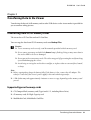
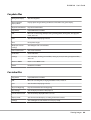
You can copy data from USB devices directly using the USB Standard-A connector of the viewer.
Only a USB device supporting the USB Mass Storage specification can be used. You can use the
following USB storage devices capable of copying: digital cameras, external HDD drives, USB
memories, and card reader/writers. You can also use the following Epson Multimedia Storage
Viewers: P-2000, P-4000, P-2500, P-4500, P-3000, P-5000, P-6000, and P-7000.
Connecting a USB device
1. Connect the AC adapter to the viewer if possible.
Note:
Some USB devices require the viewer to be powered via the AC adapter.
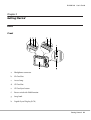
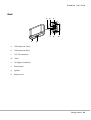
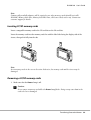
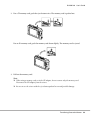
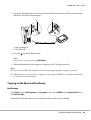
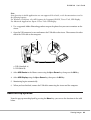
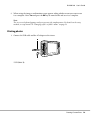
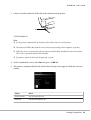
2. Connect the viewer and the USB device. Open the side upper cover and connect a USB cable to
the Host (Standard-A) connector and the other end to the USB device, or connect a USB memory
to the viewer.
3. Turn on the viewer and the USB device.
Note:
❏ If the USB device has a supplied AC power cord, plug it in also, to prevent data loss while transferring.
❏ Using a USB hub is not supported.
❏ A USB device without power may not be activated.
❏ A USB device with the certification or encryption function cannot be used.
❏ When you connect a USB device to this viewer, use the USB cable supplied with the device.
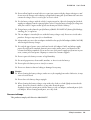
❏ Do not connect USB interfaces (Host-standard A and Slave-Mini B) at the same time. It may cause
a malfunction.
❏ Do not touch the Slave-Mini B connector during the USB data transfer.
❏ Some USB devices may not be compatible.
Transferring Data to the Viewer
36