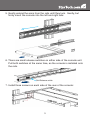
1
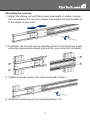
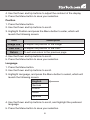
8.Installation is now complete.
How to Use
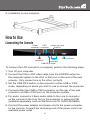
Connecting the Console
3.5mm mini-jack
Power
PS/2
Audio In
connector connector
VGA
connector
USB
connector
USB-PS/2 switch
DVI connector
To connect the LCD console to a computer, perform the following steps:
1.Turn off your computer.
2.Connect the VGA or DVI video cable from the VGA/DVI output on
the computer system to the VGA or DVI port on the rear of the rack
console. Only connect one or the other, not both.
3.Set the USB-PS/2 switch on the console to either USB or PS/2
mode, depending on which you wish to use to connect the computer.
4.Connect either the USB or PS/2 connector on the rear of the rack
console to a USB or PS/2 port on the computer system.
5.For audio, connect a 3.5mm audio cable to the Line In connector
on the console to the Line Out on the computer or external KVM
(available separately, such as StarTech.com ID: SV831DUSBAU).
6.Connect the power adapter and power cord to the power connector
on the console. Connect the remaining end of the power cord to an
available power outlet.
4