1
Printing Operation
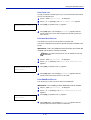
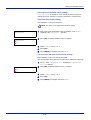
Status Monitor Settings
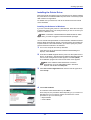
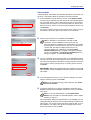
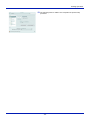
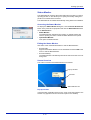
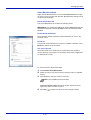
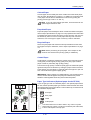
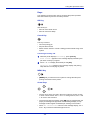
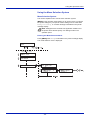
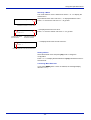
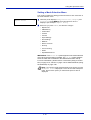
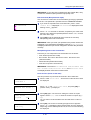
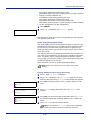
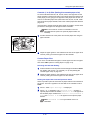
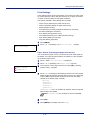
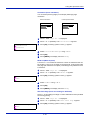
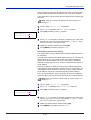
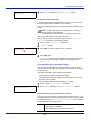
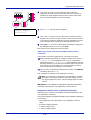
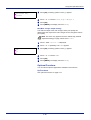
Right-click the Status Monitor icon and select Preference from the popup menu to open a window with two tabs. Status Monitor settings can be
configured on these tabs.
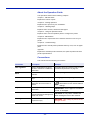
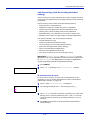
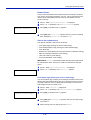
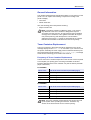
Sound Notification Tab
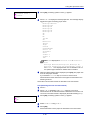
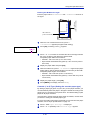
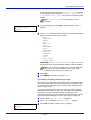
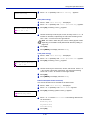
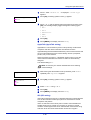
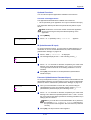
The Sound Notification tab contains the following items.
IMPORTANT To confirm the settings on Sound Notification tab, the
computer requires the sound capabilities such as sound card and
speaker.
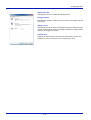
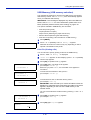
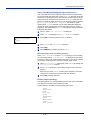
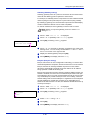
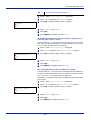
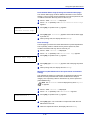
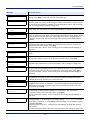
Enable Event Notification
Select whether audible notification is performed when an error in the
event list occurs.
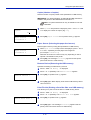
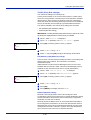
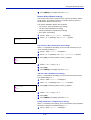
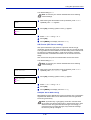
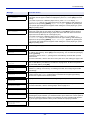
Sound file
A sound file can be selected if you require an audible notification. Click
Browse to search for the sound file.
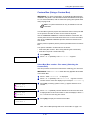
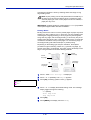
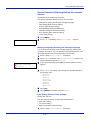
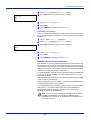
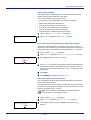
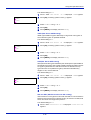
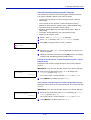
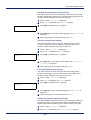
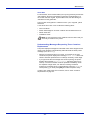
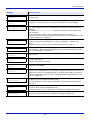
Use Text to speech
Select this check box to enter text you would like to hear played for
events. Although a sound file is unnecessary, this function is applicable
for Windows XP or later.
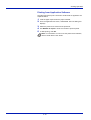
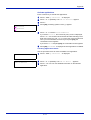
To use this function, follow these steps.
1
2
3
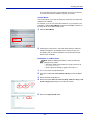
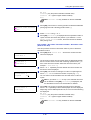
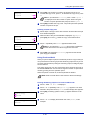
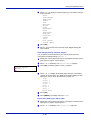
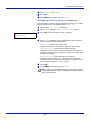
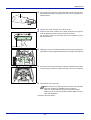
Select Enable Event Notification.
Select an event to use with the text to speech function in Available
events.
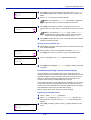
Click Browse to notify the event by sound file.
Note The available file format is WAV.
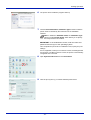
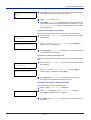
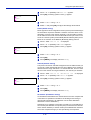
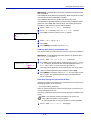
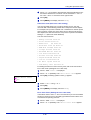
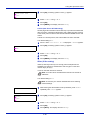
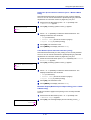
Select Use Text to speech to speech the text entered in Text to
speech box when an event occurred.
4
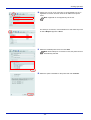
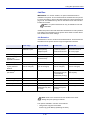
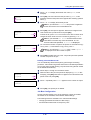
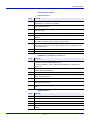
Click Play
2-13
to confirm the sound or text is played correctly.